Purchase
All modules
Linking a vendor bill to the order
Purchase · 10 of 13 · 5 min read
A confirmed purchase order is closed by the supplier's invoice. From the order's page you create the bill with the number and date of the supplier's document. Alternatively, you link an invoice you have already received to the order, for example the electronic invoice that arrived through SdI. The order's billing status shows whether there are still goods to be billed.
How order billing works
The order's billing command depends on how the supplier invoices.
- If the supplier does not invoice through SdI, the order offers Create Vendor Bill. The bill is created from the order, with the number and date shown on the supplier's document.
- If the supplier invoices through SdI, the supplier's electronic invoice is what counts: you choose it among those received and link it to the order.
- If the bill is already recorded and you want to indicate which orders and receipts it covers, link it from the bill's page, as described in Linking the bill from the bill's page.
Note: the To bill status follows the goods that have arrived and have not yet been billed. An order that is confirmed but not yet received has nothing to bill. Receiving is described in Recording the receipt of goods.
The order's billing status
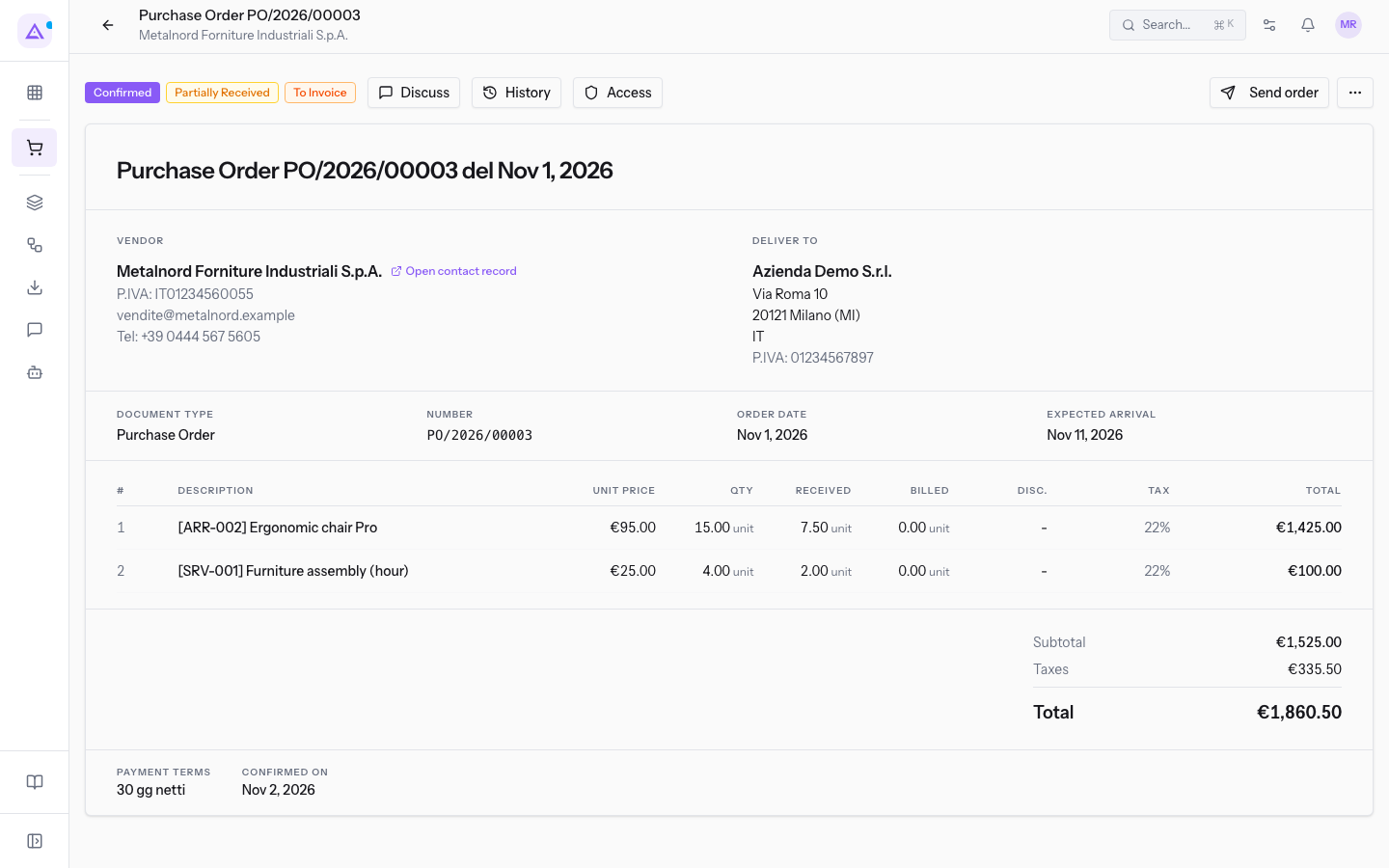
The order's page shows the billing status at the top, next to the order status and the receipt status.
- To Invoice: there are received goods that the supplier has not yet billed. For example,
PO/2026/00003to Metalnord Forniture Industriali S.p.A. is Confirmed, Partially Received and To Invoice. - Billed: the received goods have been billed.
- Nothing to bill: the order has nothing to bill.
Creating the bill from the order
Use this procedure for a supplier that does not invoice through SdI.
- Go to Purchase › Orders and open the order, for example
PO/2026/00003. - Click More actions. The menu shows Create Vendor Bill, Create Receipt, Lock, Download PDF and Cancel.
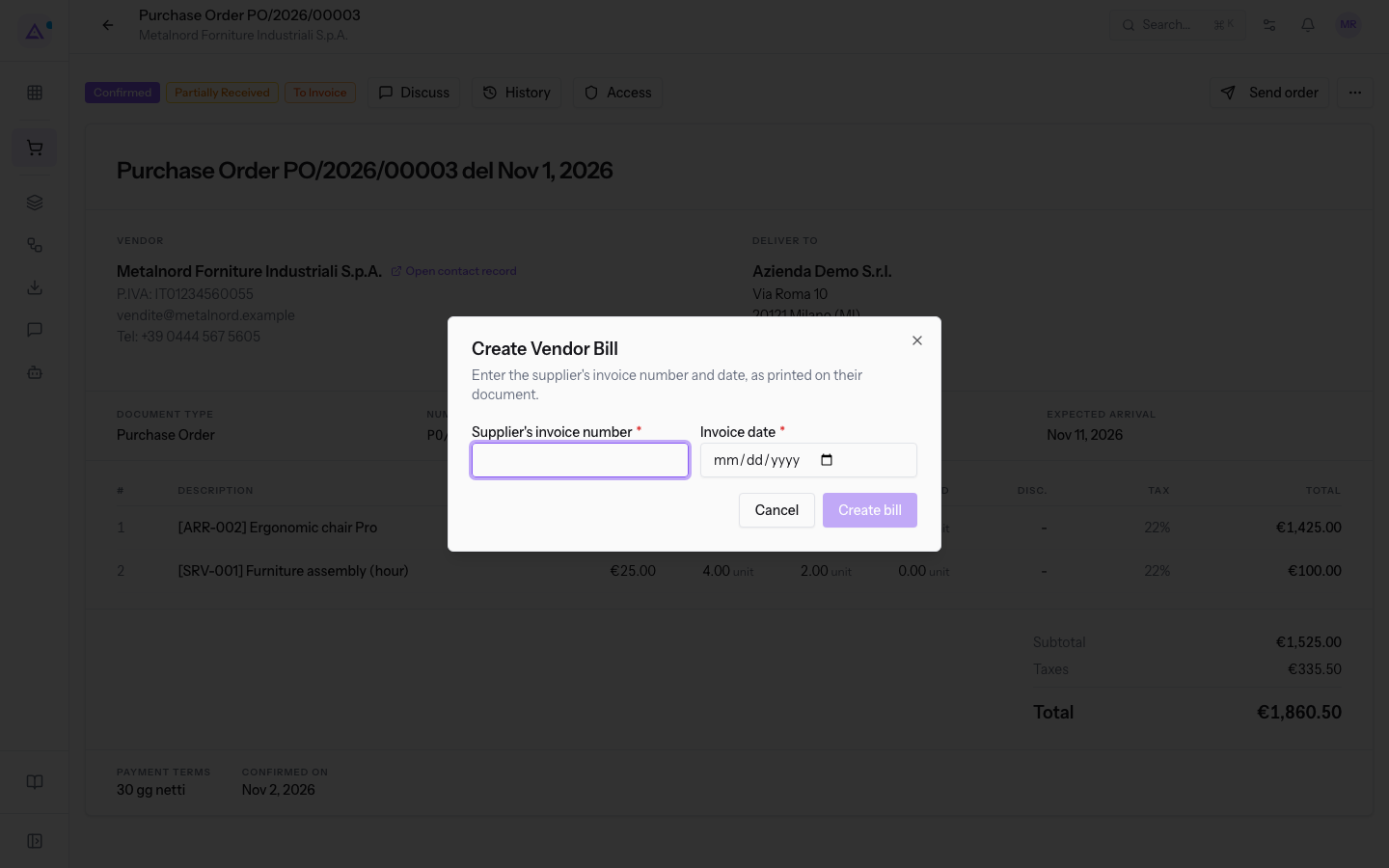
- Choose Create Vendor Bill. The Create Vendor Bill window opens with the text «Inserisci il numero e la data della fattura del fornitore, come riportati sul suo documento.»
- Fill in the fields and click Create bill.
The fields in the window:
- Supplier's invoice number: the number written on the supplier's invoice. The field is required and accepts at most 64 characters.
- Invoice date: the date written on the supplier's invoice. The field is required.
The Create bill button stays disabled until both fields are filled in. After creation the message Vendor bill created appears and the new bill's page opens. Cancel closes the window without creating anything.
Linking the invoice received through SdI
For a supplier that invoices through SdI, the bill is not created from the order: you choose it among those already received.
- Open the order from Purchase › Orders.
- Click More actions and choose the invoice entry. The Link the received invoice window opens, which explains: «Questo fornitore fattura tramite SdI: la sua fattura elettronica è il documento che conta. Sceglila per collegarla a questo ordine.»
- Each of the supplier's invoices is a row with the number, the date and the total. Click the button on the row of the invoice to link.
After linking, the message Bill linked appears and the window closes. If the supplier has not sent any invoices yet, the window shows «Non c’è ancora nessuna fattura di questo fornitore da collegare.»
Linking the bill from the bill's page
A vendor bill's page shows the panel of purchase orders and receipts that the bill covers. From here you link an already recorded bill to one or more orders.
Before you start: the panel appears only if the Warehouse module is also active. It appears on supplier bills and credit notes, when the bill is already linked or when the supplier has orders to link. On a cancelled bill the panel allows neither linking nor unlinking.
- Go to Invoices › Bills Received and open the vendor bill.
- In the links panel, click Link to orders. For a credit note the button is Link to returns.
- The Link the bill to orders and receipts window opens, with the text «Quanto indicato nel documento del fornitore è già selezionato; aggiungi gli altri ordini che copre.» For a credit note the window is Link the credit note to returns and orders.
- Select the orders and receipts that the bill covers.
- Click Link. The message Bill linked appears.
The window has two lists:
- Orders: the supplier's confirmed orders, each with number, supplier reference, date and total. A label indicates why the order is proposed.
- Named on the invoice: the supplier's document shows the order number. The order is already selected.
- Delivery note on the invoice: the supplier's document shows the delivery note. The order is already selected.
- On the corrected bill: the order is linked to the bill that the document corrects. The order is already selected.
- Receipts (for a credit note, the returns): each with the number and the date. The receipt indicated in the supplier's document is already selected.
The Link button stays disabled if no order and no receipt is selected. If the supplier has no orders to link, the window shows «Questo fornitore non ha ordini confermati da collegare.»
The bill-order links panel
After linking, the bill's panel lists what the bill covers.
- Linked orders: the order number, which opens its page, and the order's billing status, for example Billed.
- Linked receipts: the receipt number, which opens the document in Warehouse.
As long as the bill does not cover any order, the panel shows «Non ancora collegata a nessun ordine d’acquisto.»
Unlinking an order from the bill
Unlink an order when the bill was linked to the wrong order.
- In the bill's panel, on the order's row, click the command to unlink it.
- In the Unlink this order? window, read the warning: the bill will no longer count as billed on that order.
- Click Unlink. The message Order unlinked appears.
Important: after unlinking, the order's goods count as to be billed again.
See it on your company, not on a slide deck.
In 30 minutes we map the software you use today.We show you how much work and how much margin Archimedes gives back.
Show me on my business →What industry are you in?
One tap — it lets us prepare the demo around your world.
What tools do you use today?
Pick the ones you recognise — or just type them. It helps us show you how they migrate.
Last step: your details.
We reply within one working day — and right after, if you like, you pick the demo slot yourself.
We couldn't send your request. Try again, or write to us at [email protected].
By sending, you agree to your data being processed so we can get back to you about the demo. Privacy notice.
Preview form — nothing is sent from this page.
Want to schedule the demo now?
Your call: book the slot you prefer yourself, or we'll call you to arrange it.
Live availability, 30 minutes, instant confirmation. The calendar opens in a new tab.
Lock in your slot ↗We'll get back to you within one working day — and we'll join the call already knowing your world.
The calendar is open in another tab: pick a slot and the demo is booked. Can't see it? Reopen it ↗
Preview page: nothing was sent.
Our calendar is live: take the slot that suits you and the demo is booked. 30 minutes, instant confirmation, no waiting.
Lock in your slot ↗