Purchase
All modules
Reading price alerts
Purchase · 12 of 13 · 4 min read
The Purchase Alerts page collects the alerts written by the price check. The check flags a price increase, an anomalous price, a possible saving, a contract about to expire or a vendor at risk. For example, a 3% increase in the price of the Ergonomic chair Pro from Metalnord Forniture Industriali S.p.A.
Opening the alerts
Before you start: reading the alerts requires the Purchase User group. Changing the status of an alert requires the Purchase Manager group.
The page shows the organisation's alerts in a list.
- Open Purchase › Alerts.
- Read the line below the title: it shows the total number of alerts, how many are still unread and how many are critical. For example
5 avvisi · 2 non letti · 1 critici.
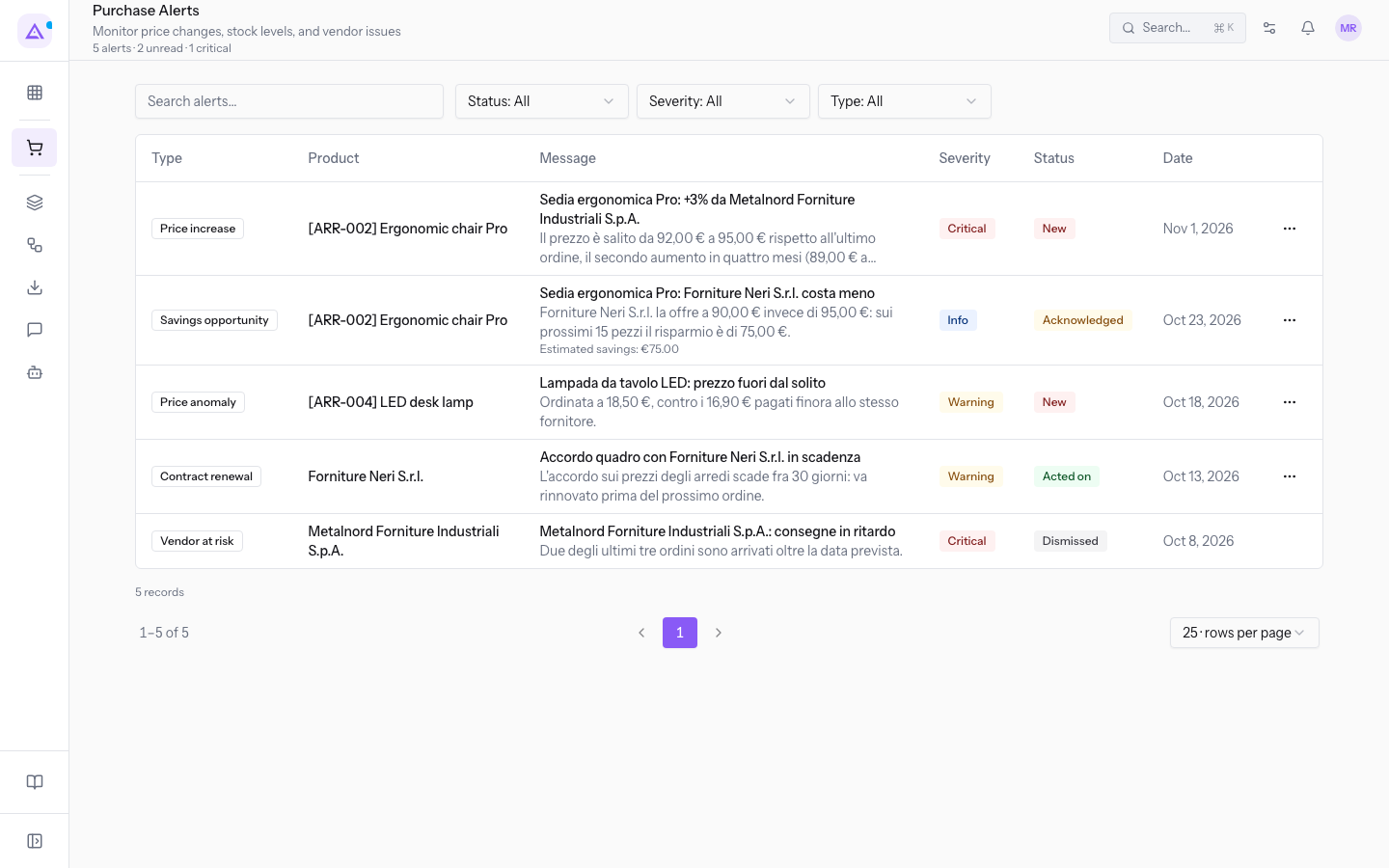
Each row in the list has these columns:
- Type: the type of alert.
- Product: the product the alert refers to. If the alert concerns a vendor, the column shows the vendor.
- Message: the title of the alert and, below it, its description. For a possible saving, the line «Risparmio stimato» with the amount also appears.
- Severity: how urgent the alert is.
- Status: how far along the handling of the alert is.
- Date: the day the alert was created.
Alert types
The type indicates what the price check found. Each type calls for a different verification.
- Price increase: a vendor has raised the price of a product, for example the Ergonomic chair Pro from Metalnord Forniture Industriali S.p.A. Compare the price with the Adding products to lines and reading the price history.
- Price anomaly: a price deviates from the product's usual values.
- Savings opportunity: there is a way to spend less on the product. The Message column reports the estimated saving.
- Contract renewal: a contract with a vendor is about to expire.
- Vendor at risk: a vendor shows problems.
Severity
The severity helps you decide which alerts to open first.
- Info: the alert reports a fact worth knowing.
- Warning: the alert needs to be checked.
- Critical: the alert must be handled first. The number of critical alerts also appears below the page title.
Alert statuses
The status shows how far along the handling of the alert is. The status changes with the row's actions.
- New: the alert has not been read yet.
- Acknowledged: you have read the alert, but you have not handled it yet.
- Acted on: you have made a decision about the alert.
- Dismissed: the alert has been set aside.
Choose the action based on what you have done:
- If you have read the alert and still need to act, choose Acknowledge.
- If you have already acted, for example you changed vendor or renewed the contract, choose Mark as acted on.
- If the alert requires no action, choose Dismiss.
Searching and filtering alerts
Use the filters above the list to see only the alerts you are interested in.
- Type the text to search for in the Search alerts… field.
- Open Status and choose New, Acknowledged, Acted on or Dismissed.
- Open Severity and choose Info, Warning or Critical.
- Open Type and choose Price increase, Price anomaly, Savings opportunity, Contract renewal or Vendor at risk.
- To change how many rows appear on each page, use Rows per page.
Tip: to see only the alerts to handle first, set Status to New and Severity to Critical.
Marking an alert as handled
An alert stays in the list until you change its status. The row's Actions menu shows only the actions possible in the alert's current status.
- Open Purchase › Alerts.
- In the alert's row, click Actions.
- Choose one of these actions:
- Acknowledge: appears only for alerts in the New status.
- Mark as acted on: appears for alerts in the New or Acknowledged status.
- Dismiss: appears for all alerts that are not yet dismissed.
- The message Alert updated appears and the Status column shows the new status.
Note: an alert in the Acted on status can still be dismissed, but it cannot be brought back to New or Acknowledged.
See it on your company, not on a slide deck.
In 30 minutes we map the software you use today.We show you how much work and how much margin Archimedes gives back.
Show me on my business →What industry are you in?
One tap — it lets us prepare the demo around your world.
What tools do you use today?
Pick the ones you recognise — or just type them. It helps us show you how they migrate.
Last step: your details.
We reply within one working day — and right after, if you like, you pick the demo slot yourself.
We couldn't send your request. Try again, or write to us at [email protected].
By sending, you agree to your data being processed so we can get back to you about the demo. Privacy notice.
Preview form — nothing is sent from this page.
Want to schedule the demo now?
Your call: book the slot you prefer yourself, or we'll call you to arrange it.
Live availability, 30 minutes, instant confirmation. The calendar opens in a new tab.
Lock in your slot ↗We'll get back to you within one working day — and we'll join the call already knowing your world.
The calendar is open in another tab: pick a slot and the demo is booked. Can't see it? Reopen it ↗
Preview page: nothing was sent.
Our calendar is live: take the slot that suits you and the demo is booked. 30 minutes, instant confirmation, no waiting.
Lock in your slot ↗