Purchase
All modules
Recording the receipt of goods
Purchase · 9 of 13 · 5 min read
After confirmation, a purchase order waits for the supplier's goods. From the order page you can follow the receipt: you see the receiving status, the quantities already arrived for each line and the receipt document in Warehouse. From there you can also create a new receipt or return the goods to the supplier.
How receiving works
When you confirm an order, the application creates the warehouse receipt on its own, with the operation type WH: Ricevimenti. If it does not create it, the confirmation says so with a warning. Confirmation is described in Confirm, cancel or reset an order.
The goods come in when the warehouse validates the receipt. For stocked products the received quantity is not typed by hand on the order: it updates on its own at validation. This way you never invoice goods that no transfer has brought in.
- If the goods arrive all at once, validate the receipt created at confirmation.
- If the order has no open receipt, for example because the confirmation showed the warning, use Create Receipt.
- If part of the goods goes back, use Return to supplier from the validated receipt.
When the last quantity arrives, the order records the receipt date. The supplier automatically gets a delivery rating, on time or late compared with Expected Arrival.
Receiving status
The page of a confirmed order shows at the top the order status, the receiving status and the invoicing status. For example, PO/2026/00003 from Metalnord Forniture Industriali S.p.A. shows Confirmed, Partially Received and To Invoice.
- Open Purchase › Orders.
- Click the order number, for example
PO/2026/00003.
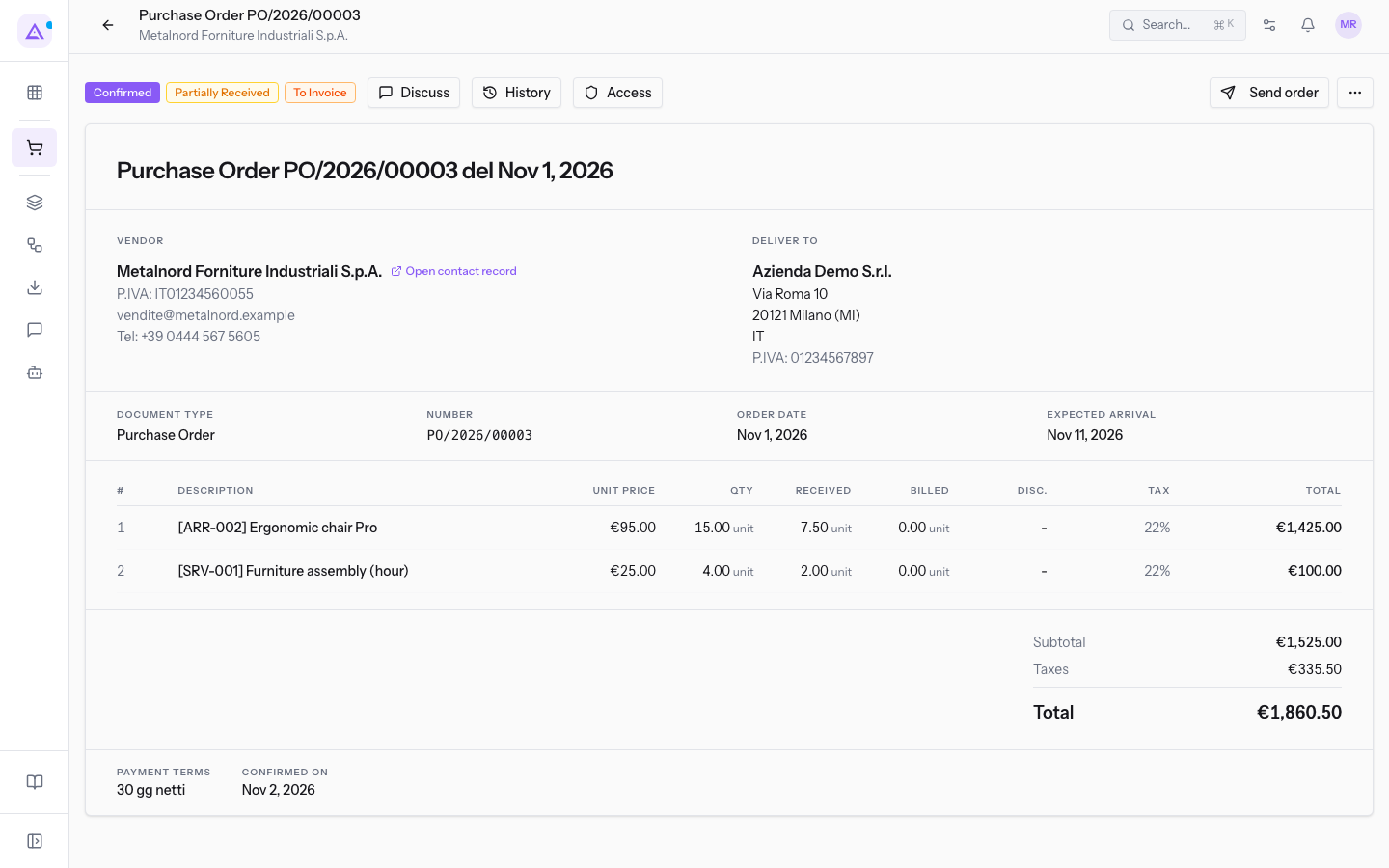
The receiving statuses are these:
- To Receive: no goods have arrived yet.
- Partially Received: part of the ordered quantities has arrived.
- Received: all the ordered quantities have arrived.
Note: the receiving status appears only on orders in the Confirmed status. It does not appear on drafts, on cancelled orders or on locked ones.
The invoicing status follows the goods that have arrived. An order that is confirmed but not yet received has nothing to invoice. Invoicing is described in Linking a vendor bill to the order. To find orders by receiving status see Searching and filtering purchase orders.
Received quantities per line
The lines table of a confirmed order shows for each product the ordered quantity, the received quantity and the invoiced quantity, with the unit of measure. For example, on PO/2026/00003 the Ergonomic chair Pro line has 15 units ordered, 7.5 received and 0 invoiced.
A confirmed order can still be edited. A line, however, cannot go below the quantity already received. If goods have arrived for a line, that line cannot be removed.
Creating a receipt from the order
Create Receipt creates a new receipt document in Warehouse for the order. The action is available only on orders in the Confirmed status.
- Open the page of the confirmed order.
- Click More actions. The menu shows Create Vendor Bill, Create Receipt, Lock, Download PDF and Cancel.
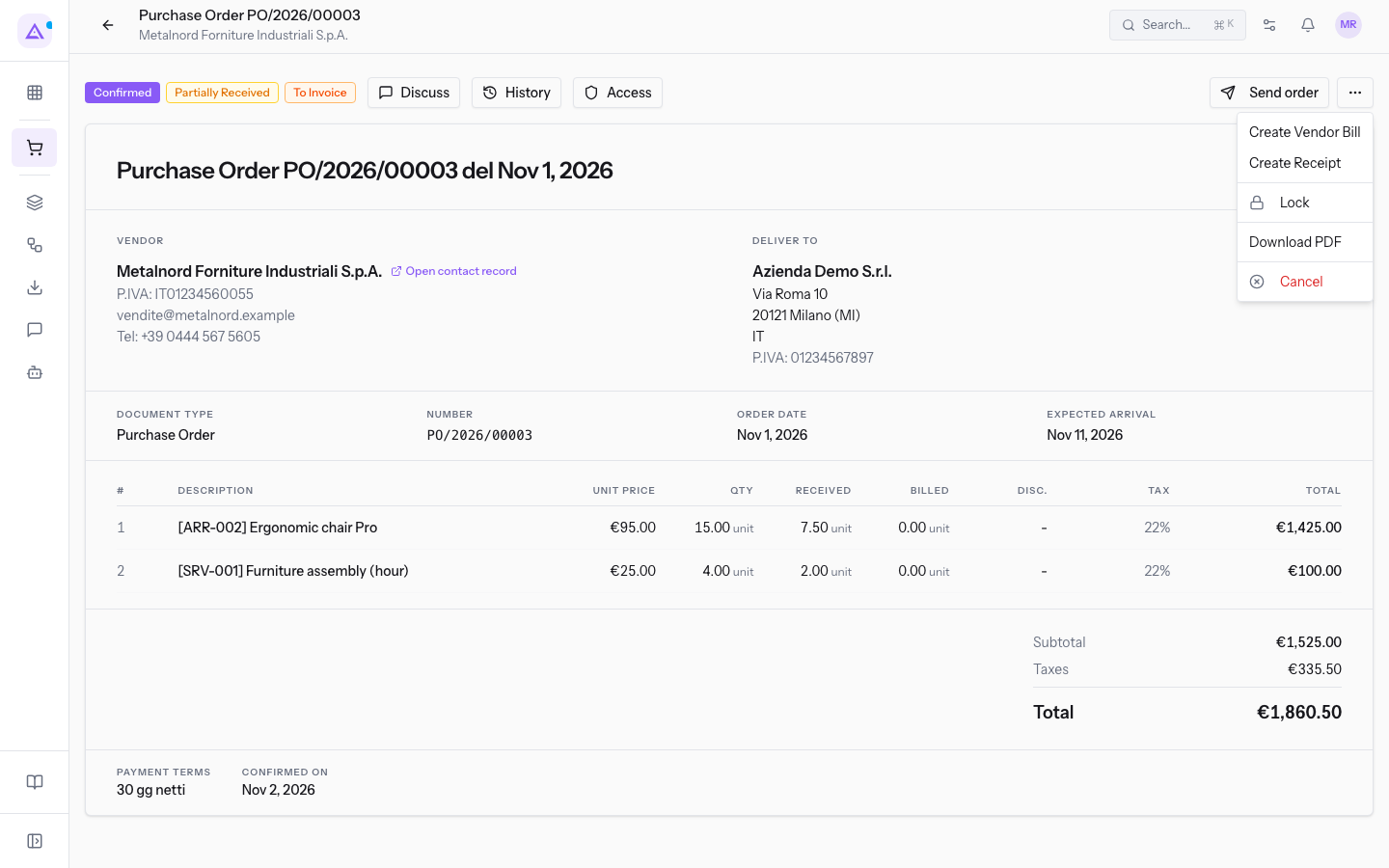
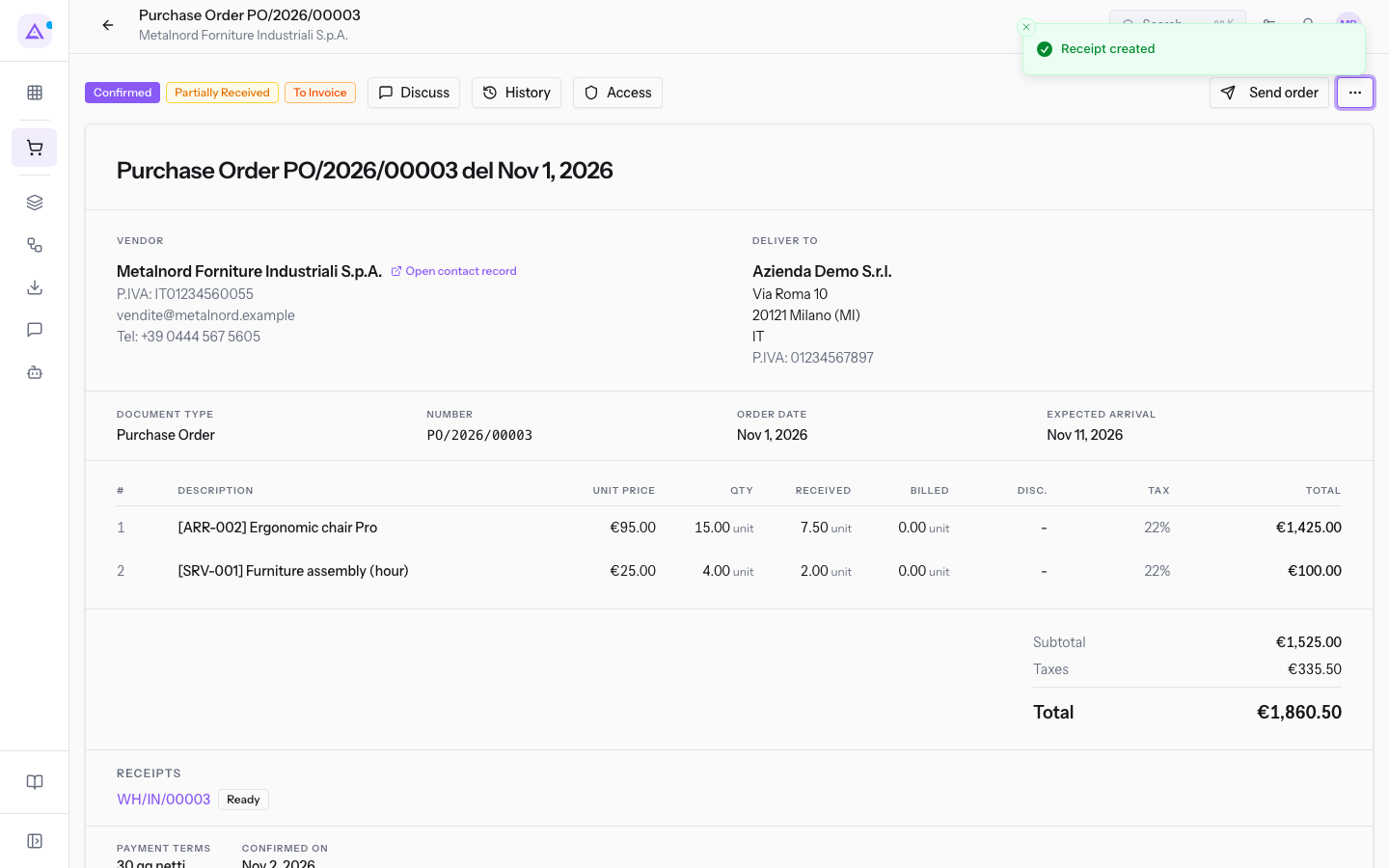
- Choose Create Receipt. The message Receipt created appears and the number of the new receipt appears on the page, for example
WH/IN/00003.
Opening the receipt document
Every receipt of the order appears on the page with its number. The number opens the document in Warehouse.
- On the order page, click the receipt number, for example
WH/IN/00003. - The receipt document opens. At the top it shows the status, for example Ready, and the reference From purchase order with the order number.
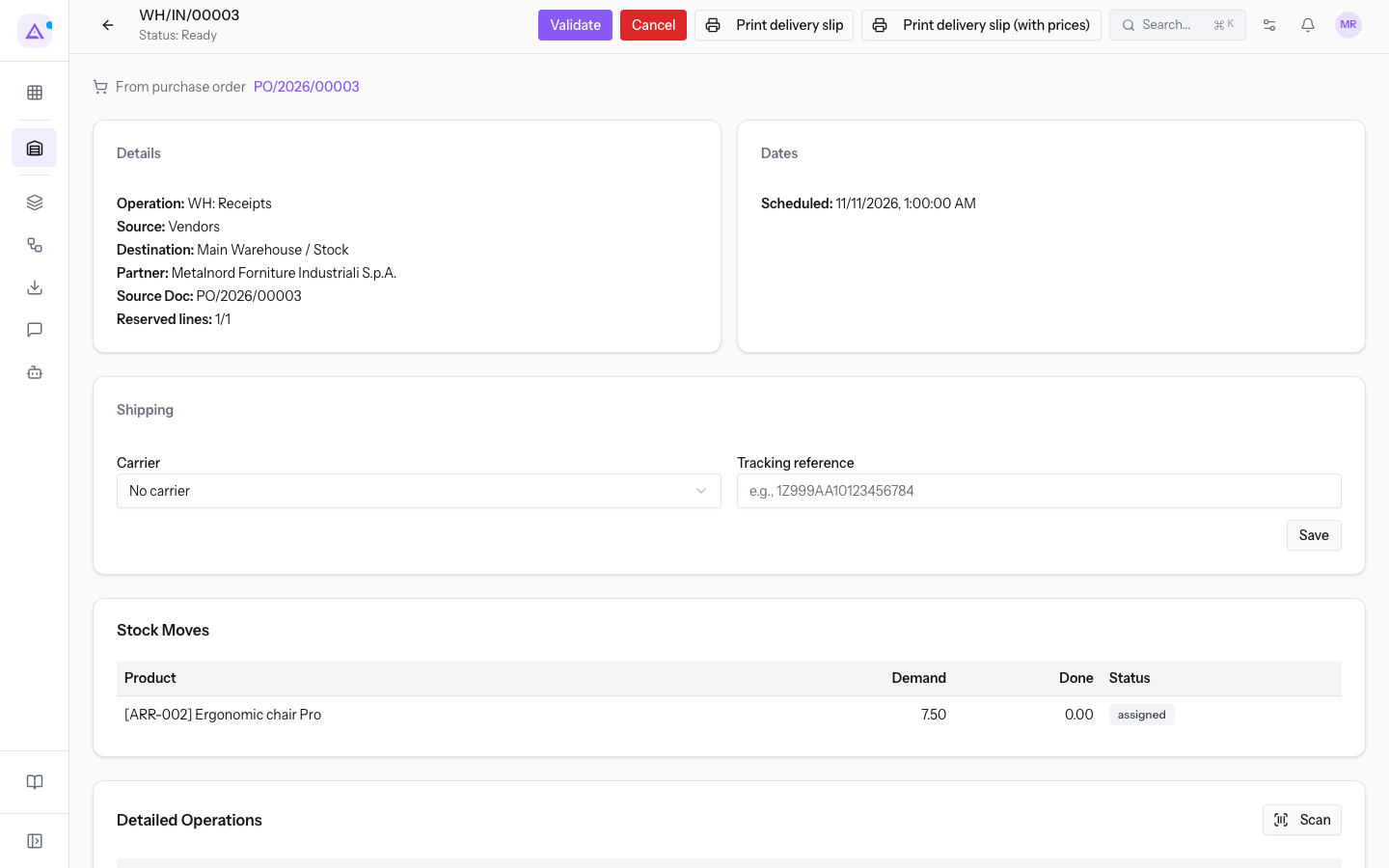
In the document you find:
- The operation
WH: Ricevimenti, with origin Vendors and the destination in the warehouse. - For each product, the fulfilled quantity to record, for example 7.5 for the Ergonomic chair Pro.
- The buttons Valid, Cancel, Print delivery slip, Print delivery slip (with prices) and Save.
- The order number, for example
PO/2026/00003, which takes you back to the order page.
To record the arrival of the goods, check the quantities and click Valid. The received quantities and the order's receiving status update on their own.
Returning goods to the supplier
If received goods go back to the supplier, for example because they are damaged, record the return from the receipt that has already been validated. The goods leave at the price paid and the order no longer counts them as received.
Before you start: Return to supplier appears only on a validated receipt that still has quantities to return. It does not appear on a receipt that is yet to be validated.
- Open the validated receipt from the order page.
- Click Return to supplier. A window opens with a box for each product, its name and how much you can still return.
- Fill in the fields of each product to return:
- Quantity to return: how many units go back to the supplier. It accepts decimals with a comma or a point. Leave the field empty for the products you are not returning.
- Lot: appears only for products tracked by lot, for example the Ergonomic chair Pro. Each lot shows the quantity you can return. If the product has a single lot, it is already selected.
- Confirm. The confirm button stays disabled until you enter at least one quantity.
The return is validated immediately and its document opens in Warehouse. The received quantity of the order line goes down by the returned quantity, and the return appears on the order page together with the receipts.
See it on your company, not on a slide deck.
In 30 minutes we map the software you use today.We show you how much work and how much margin Archimedes gives back.
Show me on my business →What industry are you in?
One tap — it lets us prepare the demo around your world.
What tools do you use today?
Pick the ones you recognise — or just type them. It helps us show you how they migrate.
Last step: your details.
We reply within one working day — and right after, if you like, you pick the demo slot yourself.
We couldn't send your request. Try again, or write to us at [email protected].
By sending, you agree to your data being processed so we can get back to you about the demo. Privacy notice.
Preview form — nothing is sent from this page.
Want to schedule the demo now?
Your call: book the slot you prefer yourself, or we'll call you to arrange it.
Live availability, 30 minutes, instant confirmation. The calendar opens in a new tab.
Lock in your slot ↗We'll get back to you within one working day — and we'll join the call already knowing your world.
The calendar is open in another tab: pick a slot and the demo is booked. Can't see it? Reopen it ↗
Preview page: nothing was sent.
Our calendar is live: take the slot that suits you and the demo is booked. 30 minutes, instant confirmation, no waiting.
Lock in your slot ↗