Purchase
All modules
Purchase overview: the dashboard
Purchase · 2 of 13 · 3 min read
The Purchase dashboard sums up on a single screen the orders placed with vendors, grouped by status, with the total of confirmed orders. From here you open the list of orders in a given status, for example the requests for quotation still in draft or the orders to invoice, and you create a new order.
Opening the dashboard
The dashboard is the module's first screen.
- Open Purchase from the sidebar.
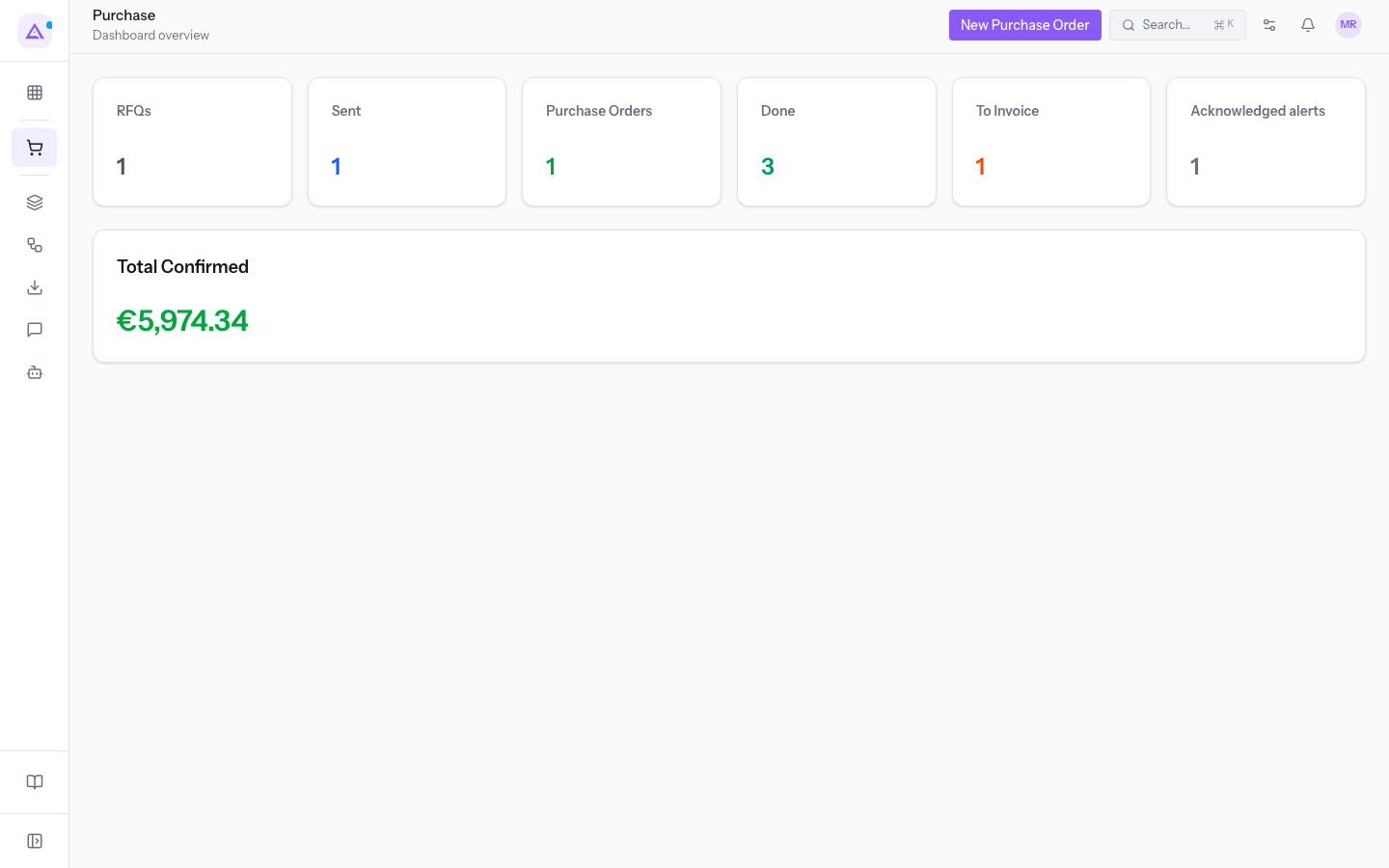
- The Purchase screen shows the Dashboard overview row, the New Purchase Order button and the summary tiles.
Note: every user in the organization sees all of the organization's orders, so the dashboard figures are the same for Mario Rossi and for Giulia Verdi.
The summary tiles
Each tile shows how many orders are in that situation. Click a tile to open the Purchase Orders list limited to those orders. The values given below are those of the demo organization.
- RFQs: the requests for quotation in draft, not yet sent to the vendor. In the demo the value is 1, the draft PO/2026/00001. Clicking opens the list of draft orders.
- Sent: the requests for quotation sent to the vendor and not yet confirmed. In the demo the value is 1. Clicking opens the list of sent orders.
- Purchase Orders: the confirmed orders, not yet closed. In the demo the value is 1. Clicking opens the list of confirmed orders.
- Done: the closed orders. In the demo the value is 3. Clicking opens the list of closed orders.
- To Invoice: the orders whose goods have arrived and have not yet been invoiced. In the demo the value is 1, order PO/2026/00003, confirmed and partially received. Clicking opens the list of orders to invoice.
- Alerts: clicking opens the Purchase Alerts screen, with the price control warnings. See Reading the price alerts.
- Total Confirmed: the overall amount of the confirmed orders. In the demo it is €5,974.34. This tile only shows the value and does not open a list.
Note: an order counts in the Total Confirmed from the moment you confirm it with Confirm Order. A draft or sent request does not enter the total.
The dashboard has no tile for cancelled orders. To see them, open the order list and choose the Cancelled filter, among All, RFQs, RFQ Sent, Purchase Order and Locked. Search and filters are described in Searching and filtering purchase orders.
Tip: the tiles update with the status of the orders. When you confirm a request, it moves from RFQs or Sent to Purchase Orders; when the warehouse validates the receipt, the order appears in To Invoice until you link the vendor's invoice.
Creating an order from the dashboard
The button at the top opens the form for a new order directly.
- In the dashboard click New Purchase Order.
- The New Purchase Order screen opens, with the General section.
- Fill in the fields and click Create. To leave without saving click Cancel.
Fields in the General section:
- Vendor: the vendor the order is intended for, for example
Forniture Neri S.r.l.. The field is required. - Order Date: the date of the order.
- Vendor Reference: the reference the vendor gives to the order.
- Notes: free text about the order.
For the lines, prices and the other order fields see Creating a new request for quotation (RFQ) and Adding products to the lines and reading the price history. To prepare an order by writing or dictating the list see Creating an order with the Quick Order.
See it on your company, not on a slide deck.
In 30 minutes we map the software you use today.We show you how much work and how much margin Archimedes gives back.
Show me on my business →What industry are you in?
One tap — it lets us prepare the demo around your world.
What tools do you use today?
Pick the ones you recognise — or just type them. It helps us show you how they migrate.
Last step: your details.
We reply within one working day — and right after, if you like, you pick the demo slot yourself.
We couldn't send your request. Try again, or write to us at [email protected].
By sending, you agree to your data being processed so we can get back to you about the demo. Privacy notice.
Preview form — nothing is sent from this page.
Want to schedule the demo now?
Your call: book the slot you prefer yourself, or we'll call you to arrange it.
Live availability, 30 minutes, instant confirmation. The calendar opens in a new tab.
Lock in your slot ↗We'll get back to you within one working day — and we'll join the call already knowing your world.
The calendar is open in another tab: pick a slot and the demo is booked. Can't see it? Reopen it ↗
Preview page: nothing was sent.
Our calendar is live: take the slot that suits you and the demo is booked. 30 minutes, instant confirmation, no waiting.
Lock in your slot ↗