Purchase
All modules
Adding products to lines and reading the price history
Purchase · 5 of 13 · 4 min read
The lines of a purchase order say what you buy from the vendor, in what quantity and at what price. For example, you can order chairs, desks or an assembly service. The price history on the product page shows how much you have already paid for a product from each vendor.
Where a line's price comes from
When you choose a product, the line's unit price fills in by itself. The application takes it from two sources, in this order:
- Vendor price list: the price the order's vendor applies for that quantity, with its discount. You set it on the product page, as described in Managing product images, packaging, and vendor prices.
- Product cost: if the vendor has no price for that product, the line uses the product cost. In this case the line shows the message Not the vendor's price: product cost.
If the vendor price cannot be read, the message Could not fetch the vendor price appears.
The line's tax is the product's purchase tax, not its sales tax. If the product has no purchase tax, purchase order lines are created without VAT.
- If you often buy from the same vendor, record its price on the product page: every new line proposes it by itself.
- If the vendor has no price list yet, check the proposed price: it is the product cost.
Adding a product to a line
Add lines to a draft order, after choosing the vendor. To create the order, follow Create a new purchase request (RFQ).
- Open Purchase › Orders and open the order, or create a new one.
- In a new order, click Select vendor, choose the vendor, for example Metalnord Forniture Industriali S.p.A., and click Create. The order opens as an RFQ in Draft status.
- Click Choose product on the line and choose the product, for example
Ergonomic chair Pro. - Check the proposed Unit Price and the Quantity. For the
Ergonomic chair Profrom Metalnord the proposed price is95.
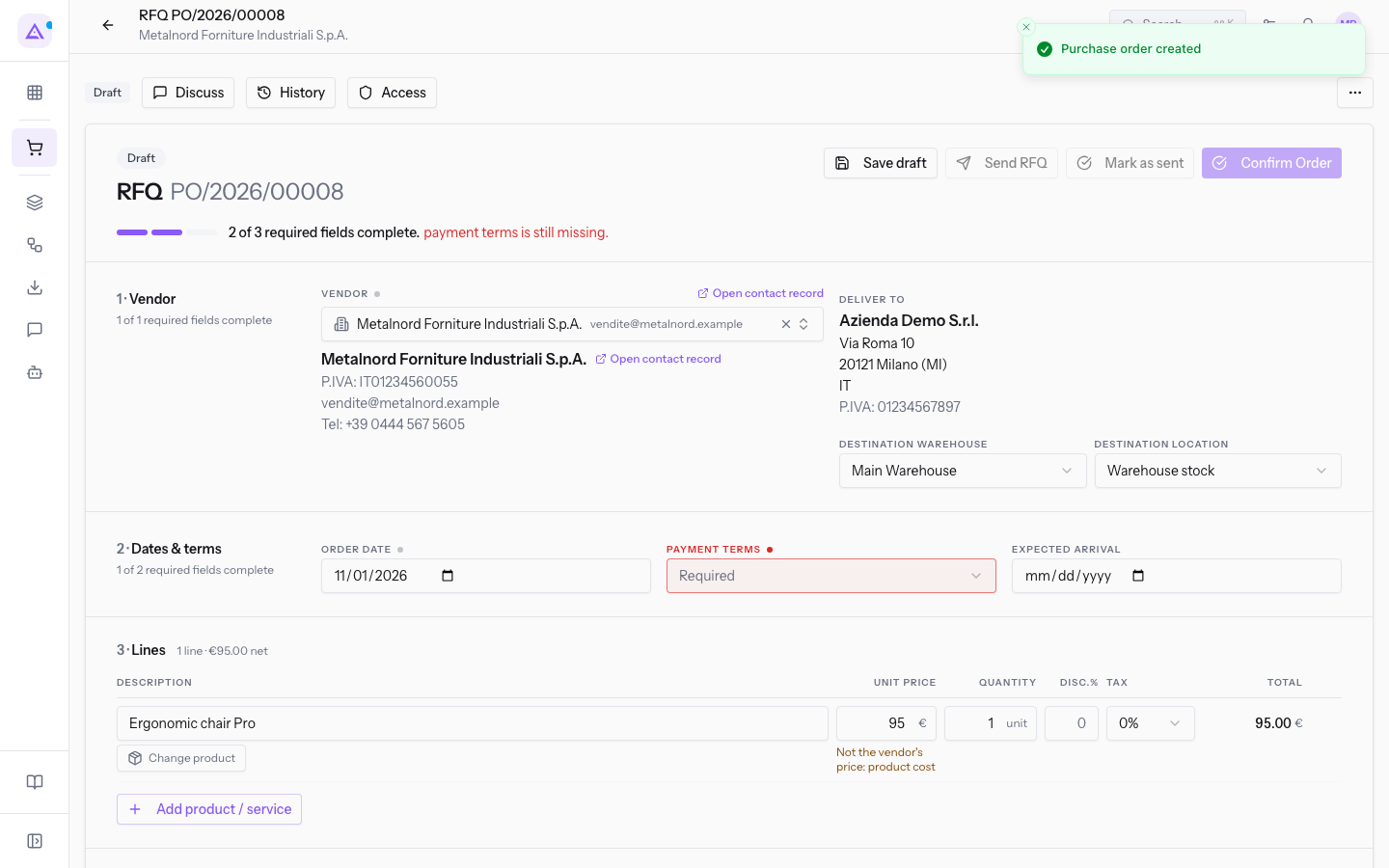
- For an additional line, click Add product / service.
- Click Save draft.
To replace a line's product, click Change product.
Line fields:
- Product or service name: the product or service purchased. It fills in when you choose the product.
- Description: the line's text.
- Quantity: how many units you order. The initial value is 1.
- Unit Price: the price per unit. It fills in from the vendor price list or from the product cost. The initial value, before choosing the product, is 0.
- Disc.%: the line's discount as a percentage.
- Tax: the line's purchase tax. The initial value shown is 0%.
- Subtotal: the line's amount.
Below the lines, the order shows the Subtotal, Taxes and Total totals.
Important: in a confirmed order, a line cannot go below the quantity already received, nor be removed if goods have arrived.
Reading the product's price history
The price history shows how much a product was purchased for, by vendor, from confirmed purchase orders. It is on the product page, in the Products module.
Before you start: the history is visible only to those with permission to read purchase prices. A product that has never been purchased shows no history.
- Open Products and open the product, for example
Ergonomic chair Pro. For the product page, see Managing the product form: Overview, prices and taxes. - Read the Purchase prices box.
For each vendor, the box shows:
- the vendor's name;
- how many times you have purchased the product from them and the date of the last purchase;
- the last price paid;
- the percentage change from the previous price, with the previous price;
- the lowest and the highest price, if there is more than one purchase.
In the demo organization, the Ergonomic chair Pro from Metalnord Forniture Industriali S.p.A. went from €89.00 to €92.00 to €95.00.
Note: draft or merely sent orders do not enter the history. Only a confirmed order counts.
When the price check finds an increase or an unusual price, it writes a warning: see Reading price warnings.
See it on your company, not on a slide deck.
In 30 minutes we map the software you use today.We show you how much work and how much margin Archimedes gives back.
Show me on my business →What industry are you in?
One tap — it lets us prepare the demo around your world.
What tools do you use today?
Pick the ones you recognise — or just type them. It helps us show you how they migrate.
Last step: your details.
We reply within one working day — and right after, if you like, you pick the demo slot yourself.
We couldn't send your request. Try again, or write to us at [email protected].
By sending, you agree to your data being processed so we can get back to you about the demo. Privacy notice.
Preview form — nothing is sent from this page.
Want to schedule the demo now?
Your call: book the slot you prefer yourself, or we'll call you to arrange it.
Live availability, 30 minutes, instant confirmation. The calendar opens in a new tab.
Lock in your slot ↗We'll get back to you within one working day — and we'll join the call already knowing your world.
The calendar is open in another tab: pick a slot and the demo is booked. Can't see it? Reopen it ↗
Preview page: nothing was sent.
Our calendar is live: take the slot that suits you and the demo is booked. 30 minutes, instant confirmation, no waiting.
Lock in your slot ↗