Purchase
All modules
Analysing purchases and configuring the Settings
Purchase · 13 of 13 · 4 min read
The Purchase Reports show the spend towards vendors and the timings of the purchasing cycle, for example how much you spent in a month, which vendor weighs the most or which product you buy the most. The Purchase settings screen sets how purchase orders are numbered.
Opening the Purchase Reports
The page gathers the analysis of spend and vendor performance in four tabs.
- Open Purchase › Reports.
- The Purchase Reports page opens, with the Spend, Vendors, Products and Cycle time tabs.
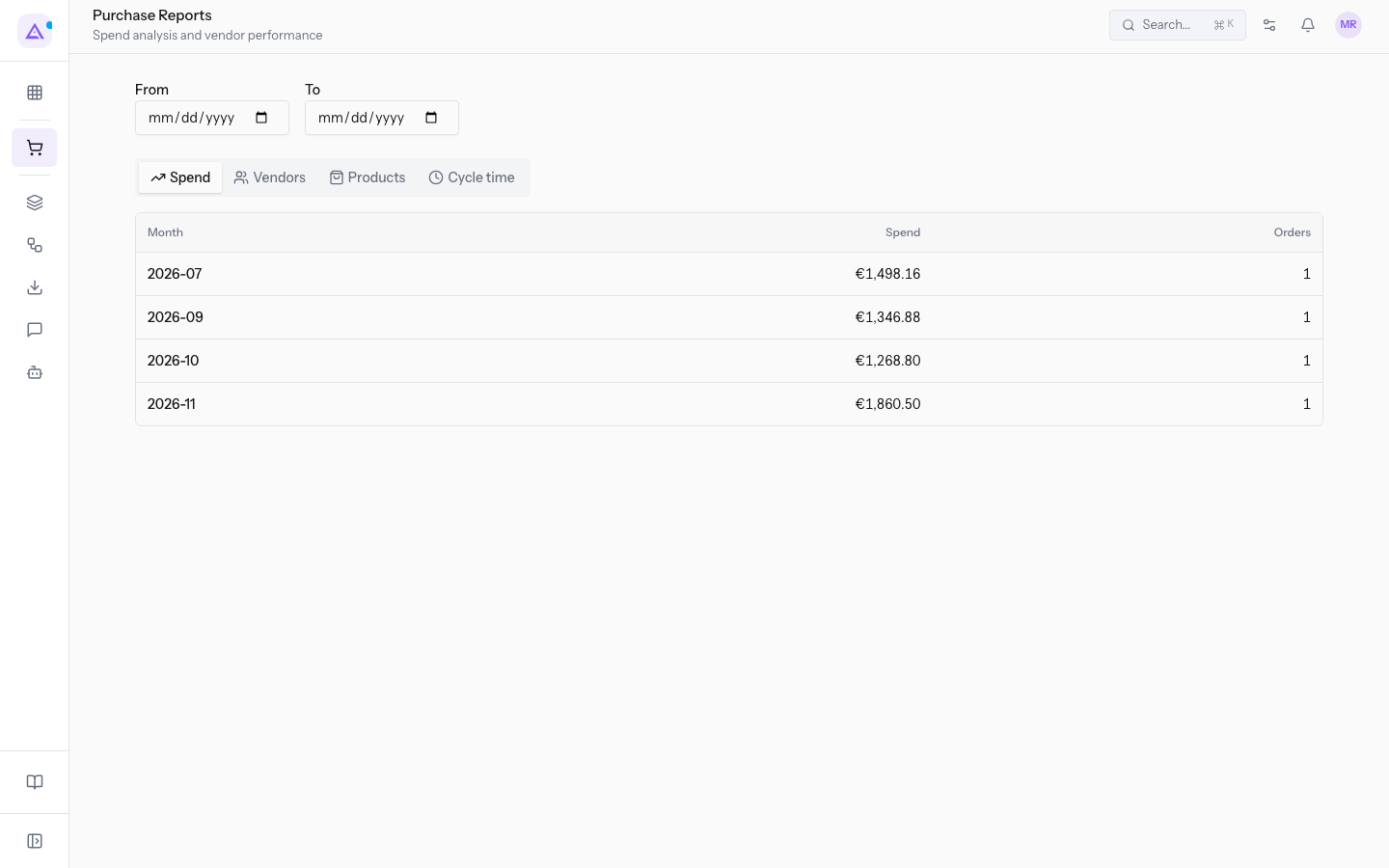
At the top there are two fields for the period:
- From: the start date of the period. The field is not required.
- To: the end date of the period. The field is not required.
Note: the reports include confirmed orders. A request for quotation still in draft or sent does not count towards the spend until you confirm it, as described in Confirm, cancel or reset an order. If there are no confirmed orders in the period, the page shows No confirmed purchase orders in this period.
Reading the spend by month
The Spend tab shows the trend of spend over time, one month per row.
- In Purchase › Reports open the Spend tab.
The table columns:
- Month: the month, in year-month format, for example
2026-09. - Spend: the amount of the month's orders, for example
1346,88 €. - Orders: the number of orders in the month.
Comparing vendors
The Vendors tab shows how much you purchased from each vendor. Use it to see which vendor the spend is concentrated on.
- In Purchase › Reports open the Vendors tab.
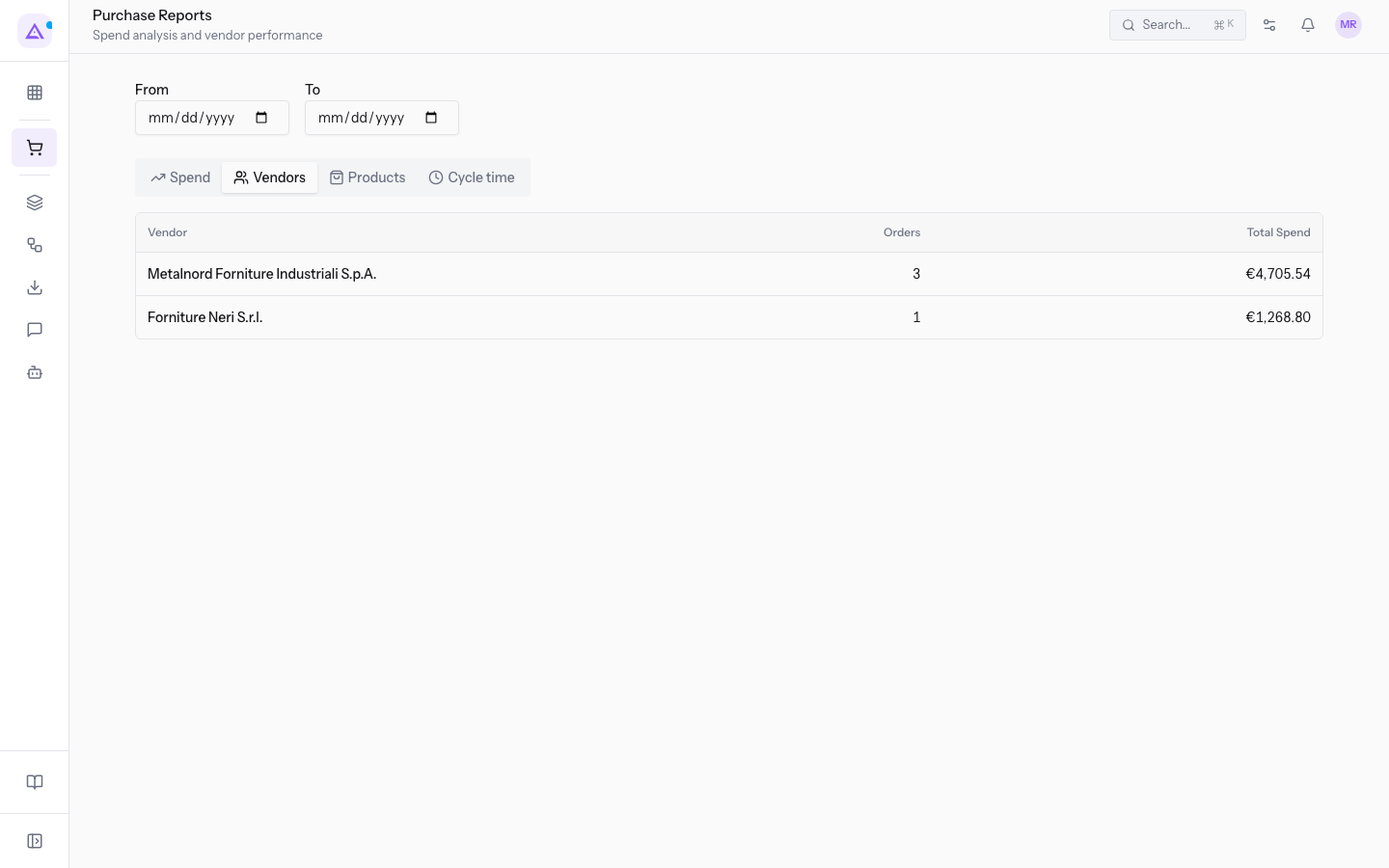
The table columns:
- Vendor: the vendor of the orders, for example Metalnord Forniture Industriali S.p.A.
- Orders: the number of orders to the vendor, for example 3 for Metalnord Forniture Industriali S.p.A.
- Total Spend: the overall amount of the orders to the vendor, for example
4705,54 €.
Tip: to judge a vendor also on delivery, quality and service, read this tab alongside the Rating vendors.
Seeing the most purchased products
The Products tab shows how much of each product you bought and how much you spent.
- In Purchase › Reports open the Products tab.
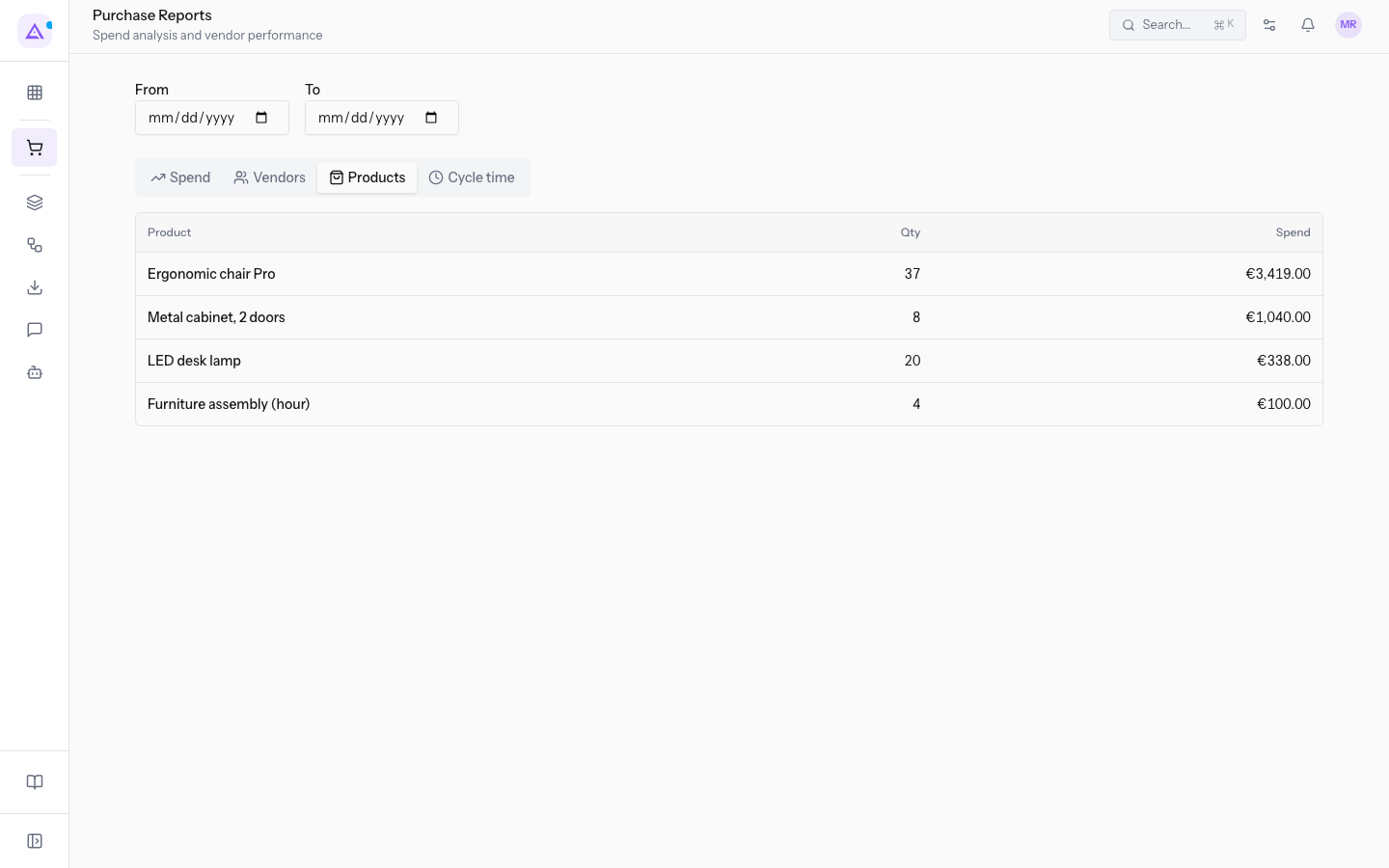
The table columns:
- Product: the purchased product, for example Ergonomic chair Pro.
- Qty: the purchased quantity, for example 37.
- Spend: the amount spent on the product, for example
3419,00 €.
For the price trend of a single product with each vendor, read the price history described in Adding products to lines and reading the price history.
Measuring cycle times
The Cycle time tab shows in days how much time passes between the stages of an order.
- In Purchase › Reports open the Cycle time tab.
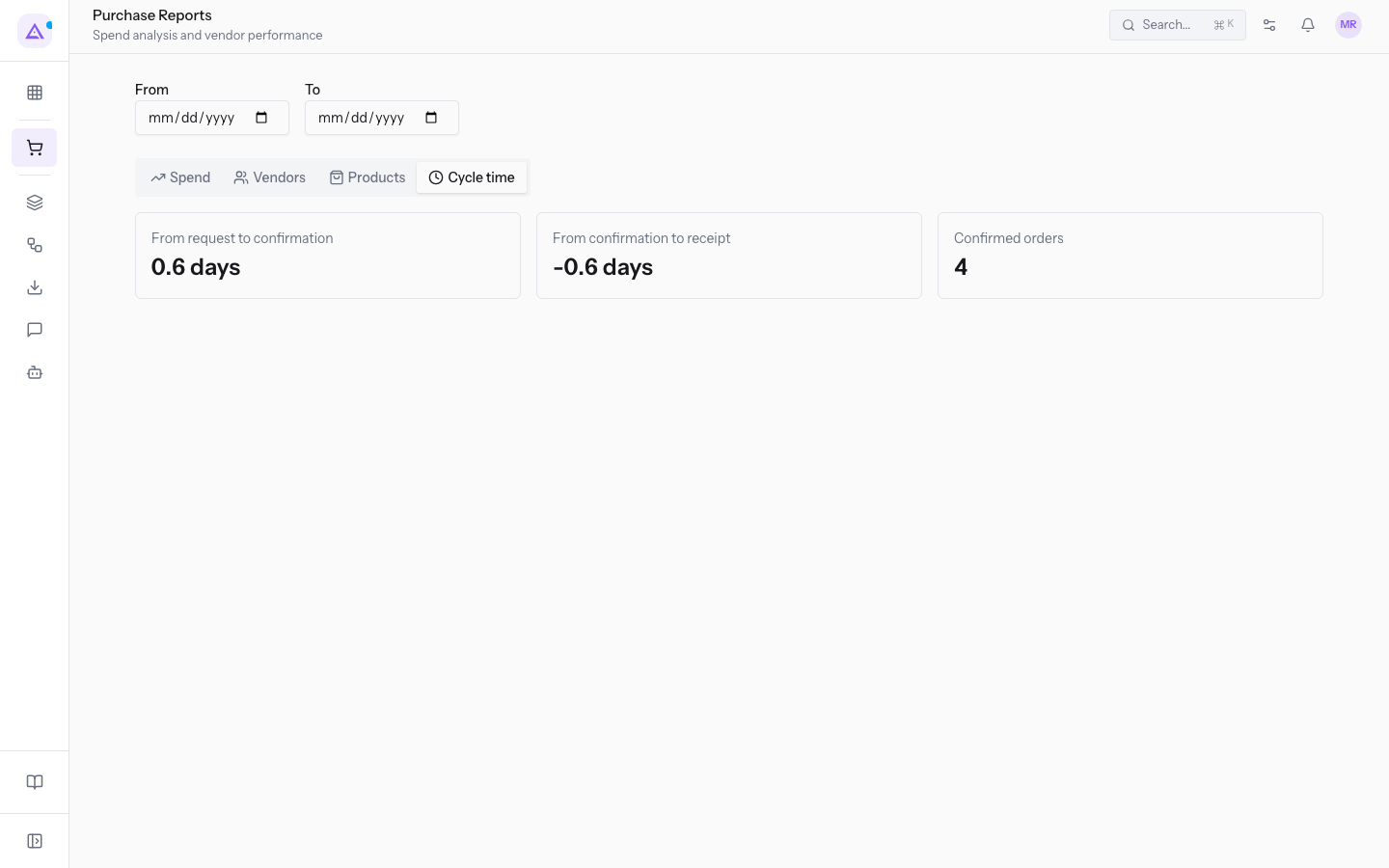
The indicators:
- From request to confirmation: the days between the request for quotation and the confirmation of the order.
- From confirmation to receipt: the days between the confirmation of the order and the receipt of the goods.
Note: the receipt is recorded when the warehouse validates the incoming transfer. An order that is confirmed and not yet received has no time from confirmation to receipt.
Configuring order numbering
Every purchase order receives an automatic number in the format PO/2026/00001: the prefix, the year and a sequential number. In the Purchase settings you choose the prefix.
Before you start: changing the numbering requires the purchase manager role.
- Open the Purchase settings screen (
/purchase/settings). - In the numbering section, type the new prefix in the purchase order prefix field. The initial value is
PO. - Check the preview of the next number below the field, for example
PO/2026/00010. - Save.
Rules of the prefix field:
- It cannot be empty.
- It accepts at most 20 characters.
- The prefix is written in upper case.
Important: the Purchase settings screen contains only the numbering. The destination warehouse of a new order is the organisation's default one, if the order does not specify another.
See it on your company, not on a slide deck.
In 30 minutes we map the software you use today.We show you how much work and how much margin Archimedes gives back.
Show me on my business →What industry are you in?
One tap — it lets us prepare the demo around your world.
What tools do you use today?
Pick the ones you recognise — or just type them. It helps us show you how they migrate.
Last step: your details.
We reply within one working day — and right after, if you like, you pick the demo slot yourself.
We couldn't send your request. Try again, or write to us at [email protected].
By sending, you agree to your data being processed so we can get back to you about the demo. Privacy notice.
Preview form — nothing is sent from this page.
Want to schedule the demo now?
Your call: book the slot you prefer yourself, or we'll call you to arrange it.
Live availability, 30 minutes, instant confirmation. The calendar opens in a new tab.
Lock in your slot ↗We'll get back to you within one working day — and we'll join the call already knowing your world.
The calendar is open in another tab: pick a slot and the demo is booked. Can't see it? Reopen it ↗
Preview page: nothing was sent.
Our calendar is live: take the slot that suits you and the demo is booked. 30 minutes, instant confirmation, no waiting.
Lock in your slot ↗