Appointments
All modules
Understanding why a type cannot be booked
Appointments · 9 of 16 · 6 min read
Every appointment type shows a status that says whether it is offered online. Use the status to understand why a type cannot be booked — for example, a type with no schedule or no host — and what to change to make it bookable.
When a type is offered online
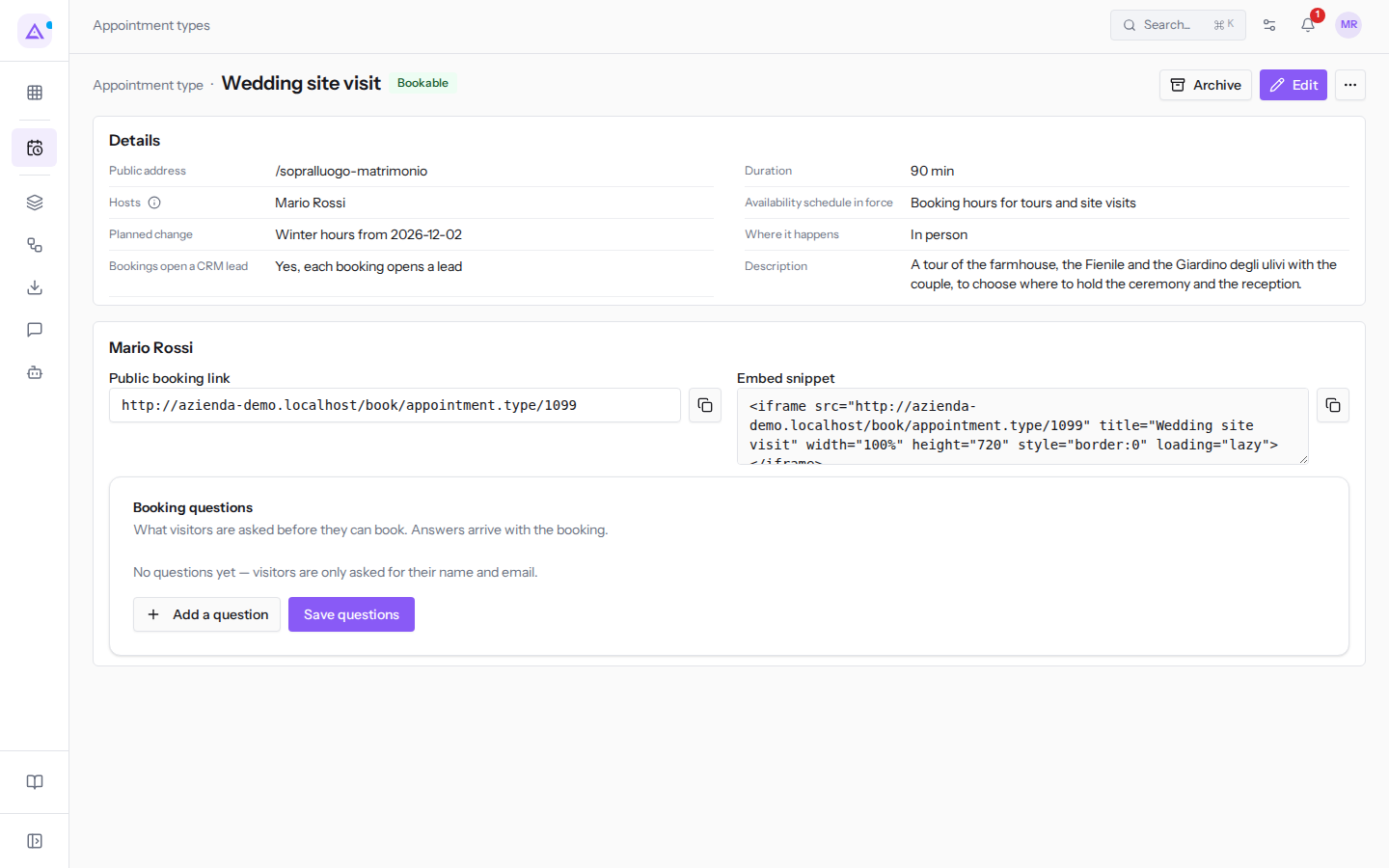
In each type's detail view, the information icon next to Hosts states the rule: «A type is offered online when it is active, has a schedule with real hours, has a host, and that host still has free time.»
The status is checked in this order. The first status that applies is the one shown, even if the type also has other issues:
- Archived: the type is not active. For example, Wine cellar tour (summer 2025).
- No schedule: the type is active but has no availability schedule. For example, Company events consultation.
- No hosts: the type has a schedule but no host. For example, Guided farm tour.
- No slots: the type has a schedule and a host but currently offers no slots. For example, Cooking class, whose schedule
Cooking class hourshas no time bands. - Bookable: the type offers slots. For example, Wedding site visit.
Note: after resolving an issue, check the status again. The next status in the list may appear — for example No slots after adding the schedule.
Checking a type's status
The status appears in the type list and in each type's detail view.
- Open Appointments › Settings › Booking setup. The Bookables tab opens with the list of types.
- Read the State column for each row. The other columns are Name, Public address, Duration and Hosts.
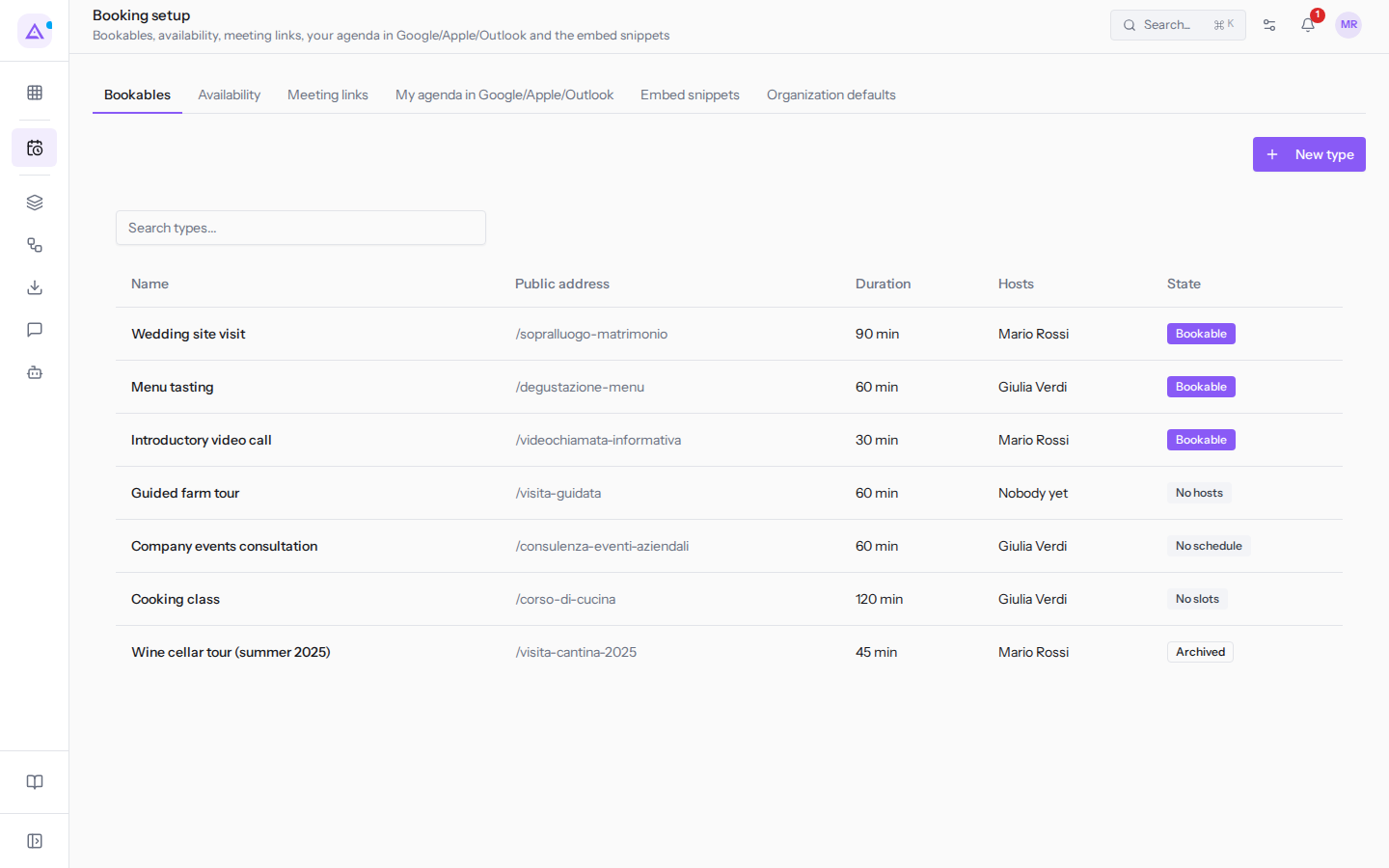
- Click the type's row to open its detail view. The status appears next to the name, above the Details section.
Reading the reason in the Embed snippets tab
The Embed snippets tab shows a card for each type-and-host pair, with the Public booking link and the Embed snippet. Pairs that are not offered also appear, marked Not set up yet or No slots right now with the reason written below the title. The same reason also appears in the type's detail view, below the host's name.
- Open Appointments › Settings › Booking setup.
- Click Embed snippets.
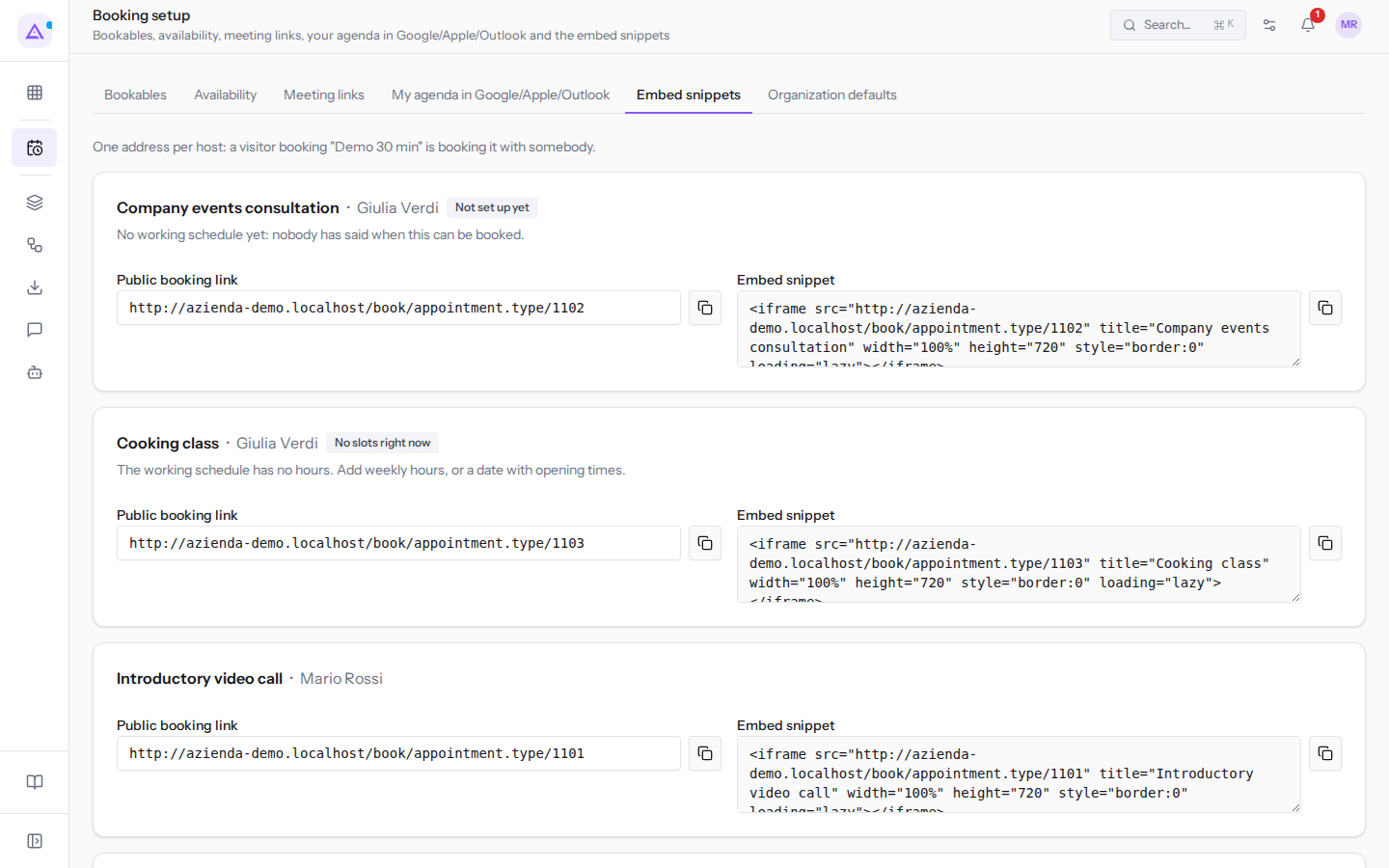
- Read the reason below the type and host name.
Note: a type with no host does not appear on this tab, because each card belongs to a host. For example, Guided farm tour is not there.
The reasons the tab can show are:
- «This type is archived, so it is not offered.»
- «No working schedule yet: nobody has said when this can be booked.»
- «The working schedule this type uses is archived, or no longer exists.»
- «The working schedule has no hours. Add weekly hours, or a date with opening times.»
- «This host has no calendar resource, so their time cannot be booked.»
- «This host's calendar resource is deactivated.»
- «The calendar module is switched off for this organization, so no slot can be worked out.»
- «Set up correctly, but nothing is free in the days ahead: every time is already booked or closed.»
- «This bookable is not on offer right now.»
Archived
An archived type is not offered but retains bookings already made. For example, Wine cellar tour (summer 2025), 45 minutes, with Mario Rossi.
If you want to offer it again:
- Open the type's detail view.
- Click Restore.
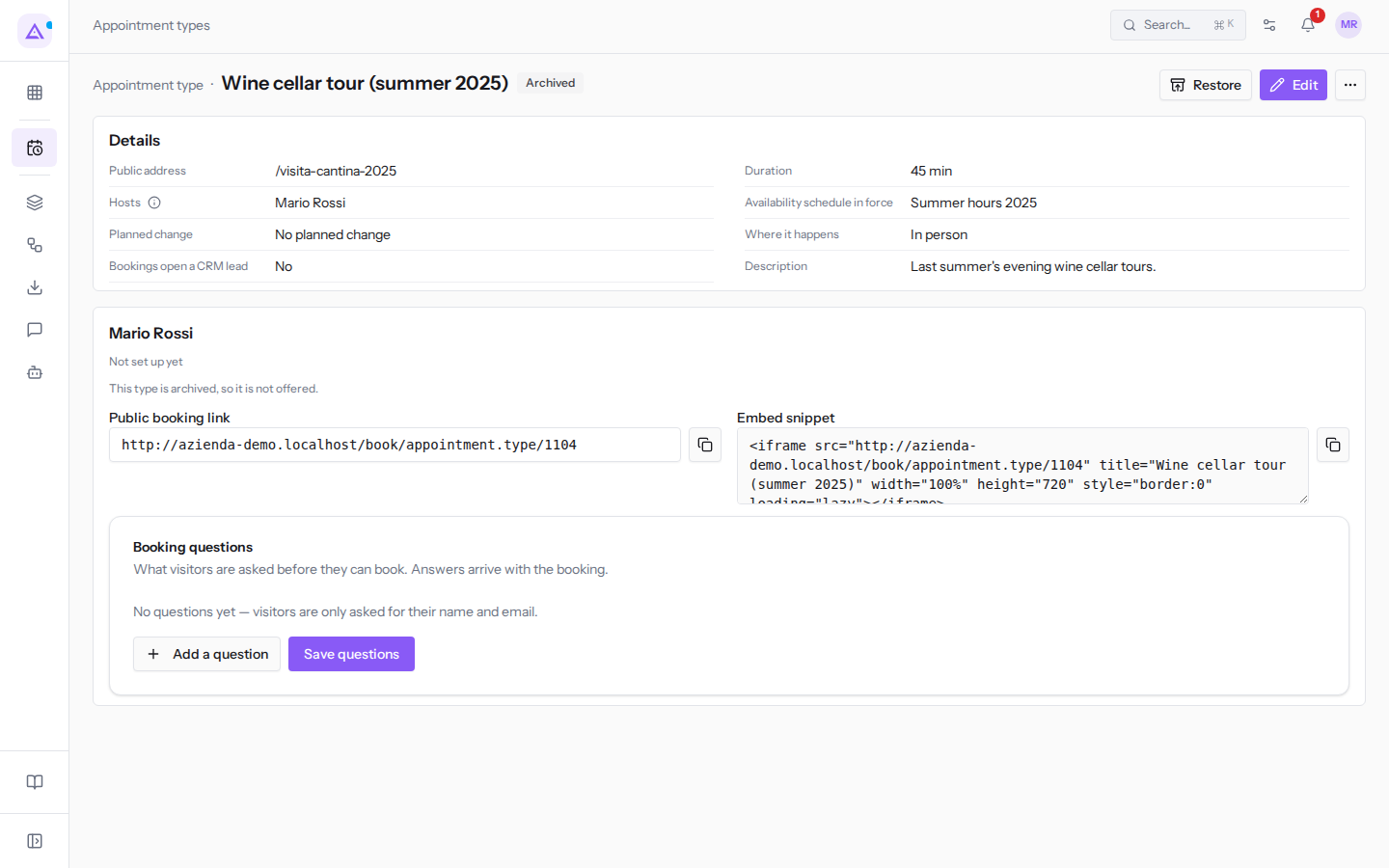
- Check the new status. If the type's schedule is also archived, the Embed snippets tab shows «The working schedule this type uses is archived, or no longer exists.»: assign the type a different schedule using Edit.
If the type should no longer be offered, leave it archived.
No schedule
A type with no schedule offers no time bands. For example, Company events consultation, 60 minutes, with Giulia Verdi, via Phone.
- Open the type's detail view and click Edit.
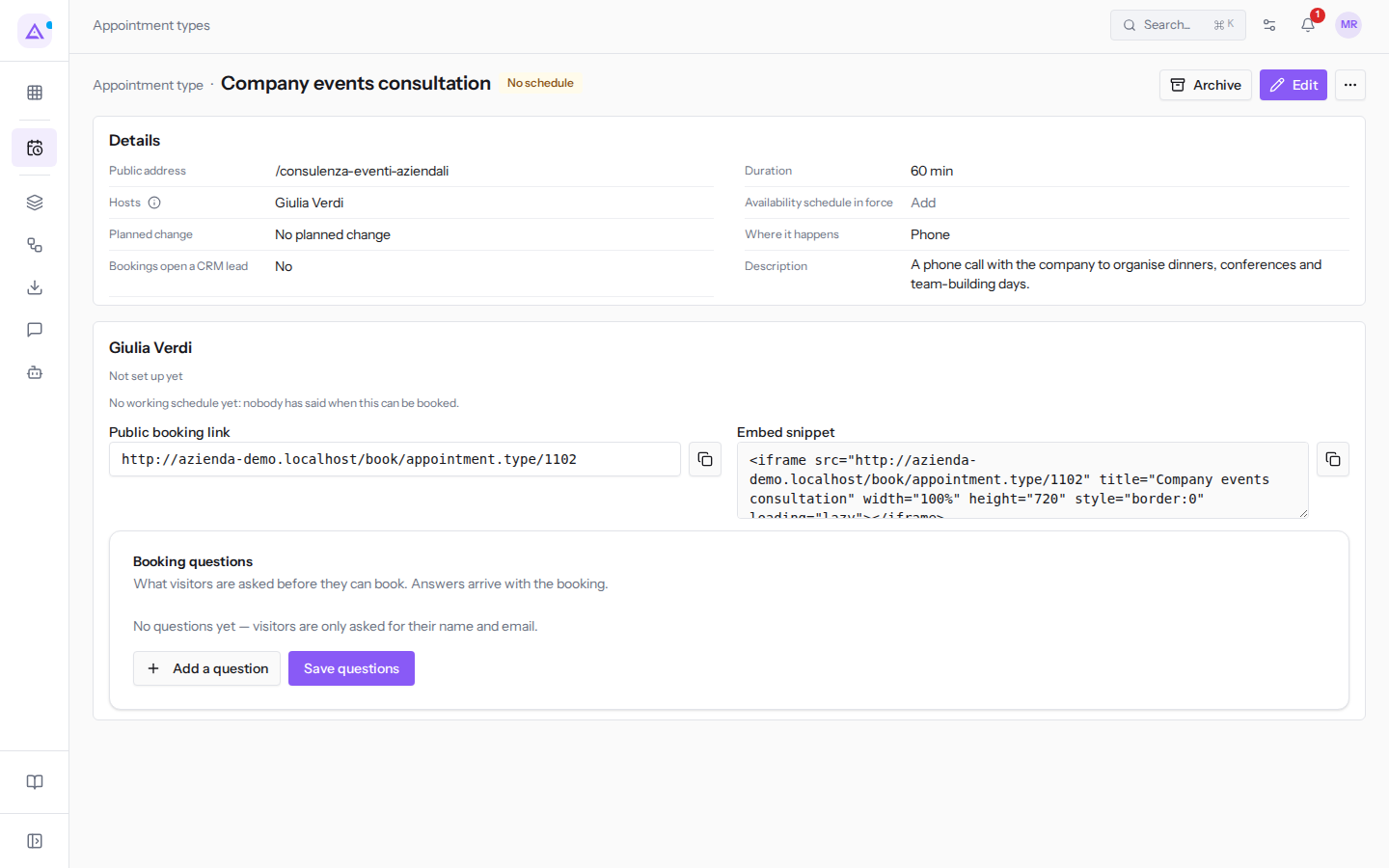
- Choose a schedule in Availability schedule, for example
Booking hours for tours and site visits, and click Save.
Alternatively, in the Details section of the type click Add next to Availability schedule in force and choose the schedule.
If the right schedule does not exist yet, create it first on the Availability tab, as described in Setting the hours when bookings are possible. The type's fields are described in Creating and editing appointment types.
No host
A type with no host is not bookable and has no public link: in the detail view Hosts shows «Not set» and «Assign a host to get a public booking link.» appears instead of the link. This way a new type is not offered until someone takes it on. For example, Guided farm tour, which has the schedule Booking hours for tours and site visits but no host.
- Open the type's detail view and click Edit.
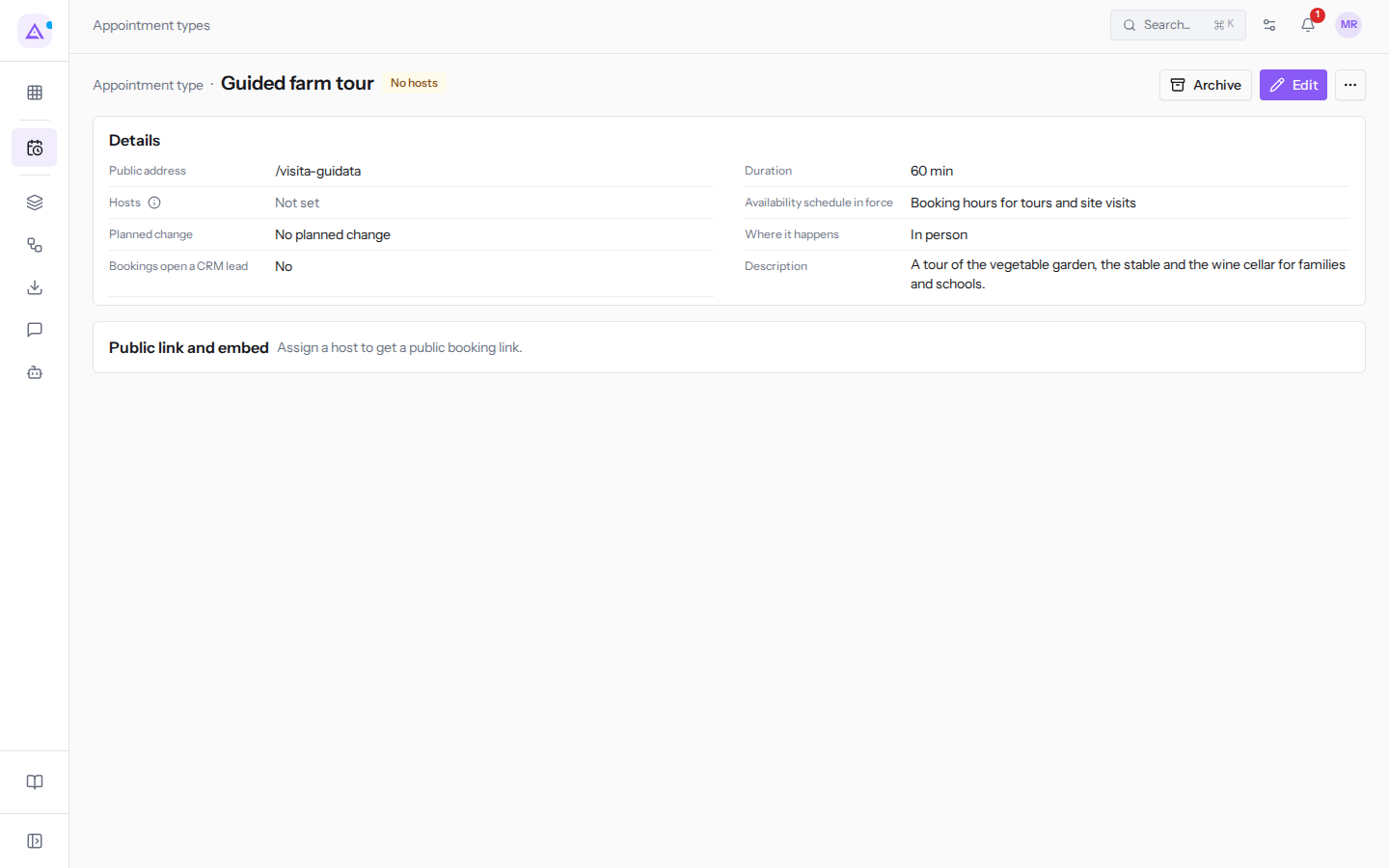
- In the Host field choose the person, for example Mario Rossi, and click Save.
After saving, the type appears on the Embed snippets tab with its Public booking link.
Note: if the tab shows «This host has no calendar resource, so their time cannot be booked.» or «This host's calendar resource is deactivated.», choose a different host.
No slots
A type with a schedule and a host can still offer no slots. Slots are generated only from the schedule's time bands, minus the host's commitments, public holidays, and company closures.
- If the schedule has no time bands, the Embed snippets tab shows «The working schedule has no hours. Add weekly hours, or a date with opening times.». This is the case for Cooking class, with the schedule
Cooking class hours. - If the schedule has time bands but all are occupied or closed, the tab shows «Set up correctly, but nothing is free in the days ahead: every time is already booked or closed.».
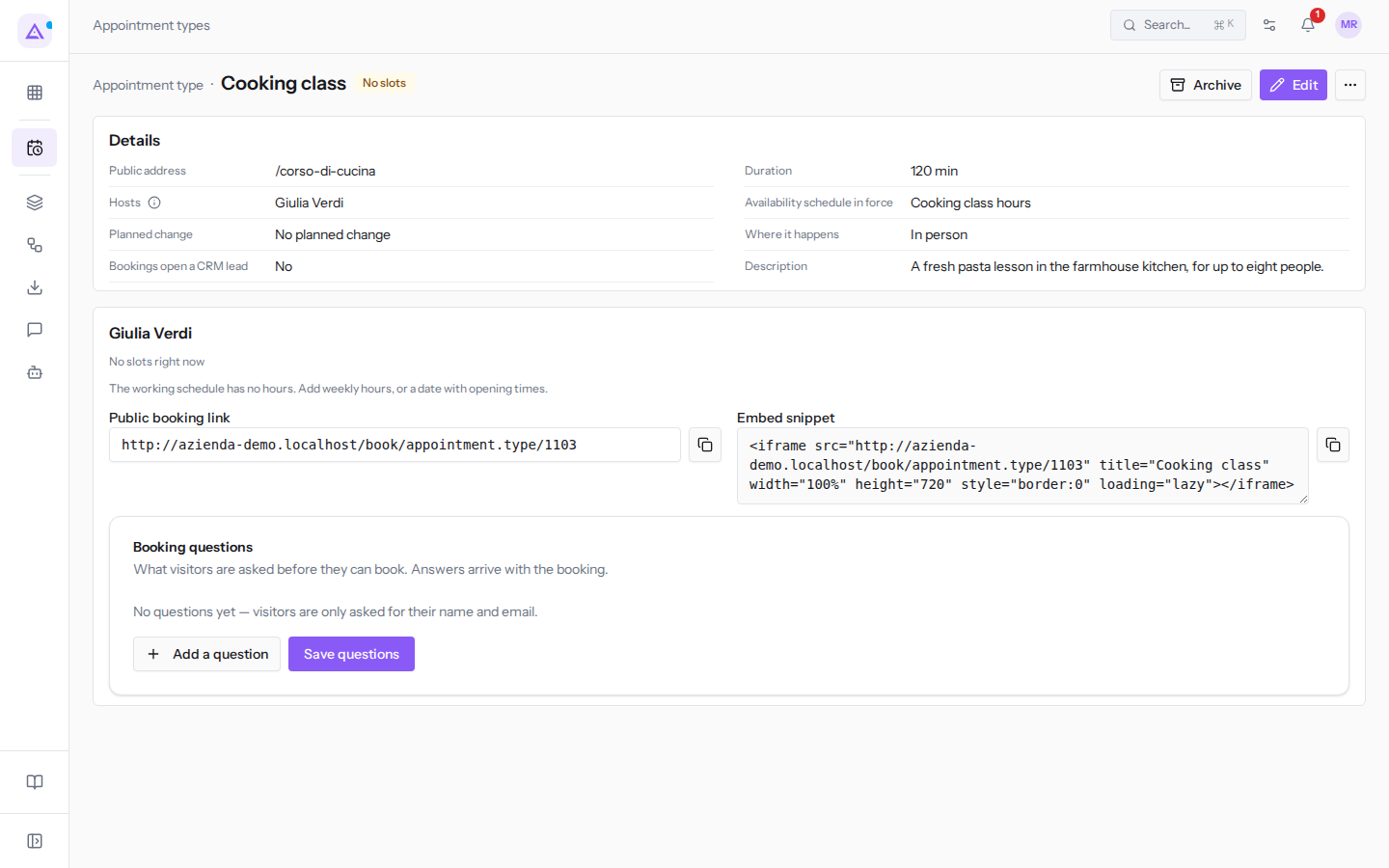
To add time bands to the schedule:
- Open Appointments › Settings › Booking setup and click Availability.
- Choose the schedule used by the type, for example
Cooking class hours. - Add time bands in the weekly hours, or a single date with opening hours, and save.
The full procedure is in Setting the hours when bookings are possible.
If the time bands are there but everything is occupied, consider expanding the schedule's time bands or assigning the type a different schedule.
Bookable
A Bookable type offers slots on its public link. The status is based on the same free slots that the visitor sees.
The link and the code to place on the website are on the Embed snippets tab and in the type's detail view, with the Copy icon next to each field. To publish them follow Publishing the booking link and questions for bookers.
See it on your company, not on a slide deck.
In 30 minutes we map the software you use today.We show you how much work and how much margin Archimedes gives back.
Show me on my business →What industry are you in?
One tap — it lets us prepare the demo around your world.
What tools do you use today?
Pick the ones you recognise — or just type them. It helps us show you how they migrate.
Last step: your details.
We reply within one working day — and right after, if you like, you pick the demo slot yourself.
We couldn't send your request. Try again, or write to us at [email protected].
By sending, you agree to your data being processed so we can get back to you about the demo. Privacy notice.
Preview form — nothing is sent from this page.
Want to schedule the demo now?
Your call: book the slot you prefer yourself, or we'll call you to arrange it.
Live availability, 30 minutes, instant confirmation. The calendar opens in a new tab.
Lock in your slot ↗We'll get back to you within one working day — and we'll join the call already knowing your world.
The calendar is open in another tab: pick a slot and the demo is booked. Can't see it? Reopen it ↗
Preview page: nothing was sent.
Our calendar is live: take the slot that suits you and the demo is booked. 30 minutes, instant confirmation, no waiting.
Lock in your slot ↗