Appointments
All modules
Viewing appointments in Google, Apple or Outlook
Appointments · 13 of 16 · 4 min read
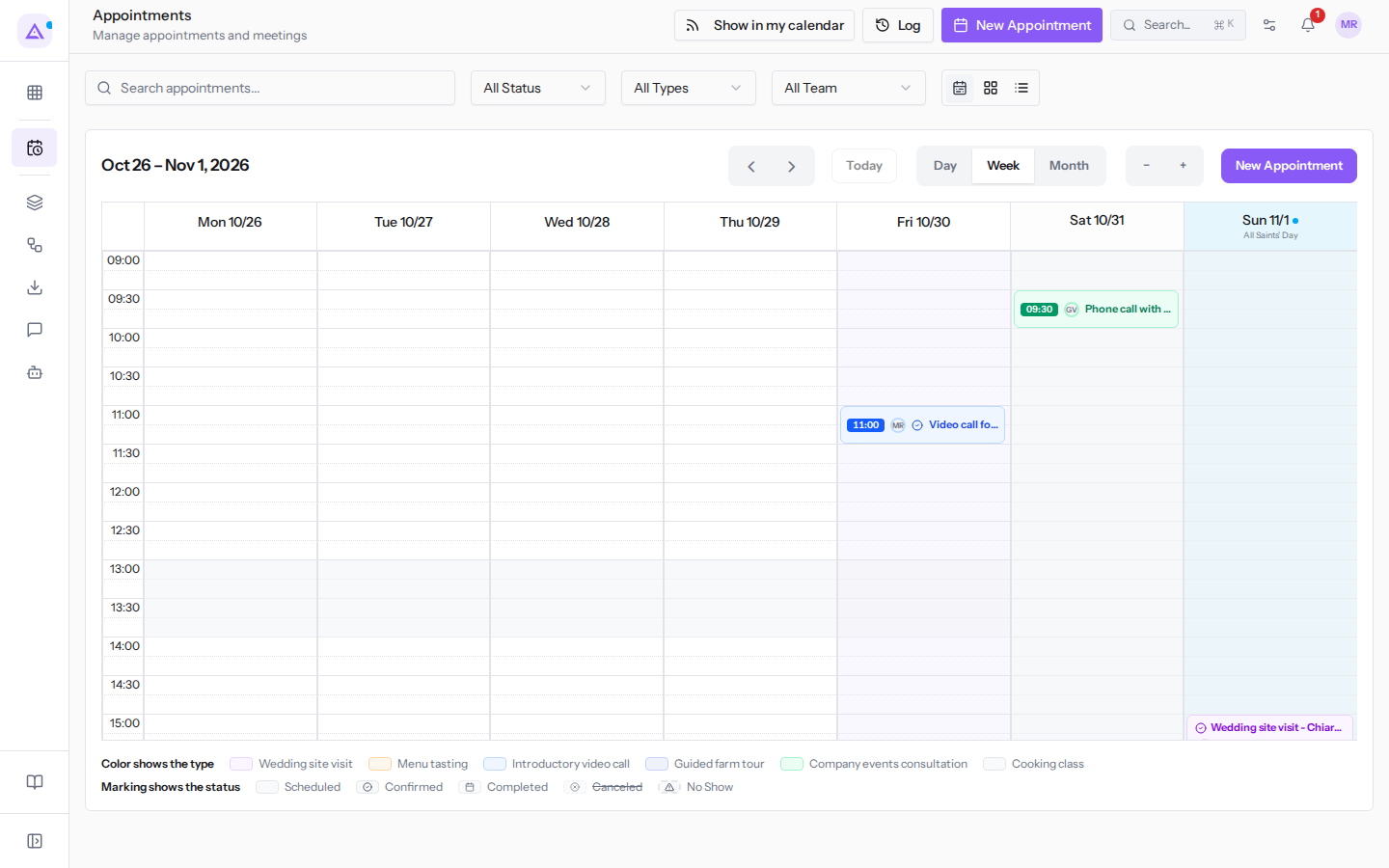
The calendar link brings your appointments into Google Calendar, Apple Calendar or Outlook. You can also include events and deadlines. The external calendar displays them in read-only mode, so you can view them on your phone, for example, alongside your personal commitments.
Choosing between a subscription link and a single copy
There are two ways to bring appointments into another calendar.
- The subscription link, which you create with Show in my calendar: the external calendar re-reads it and receives changes made here.
- Add to my calendar, in the detail view of an appointment: downloads a .ics file with just that appointment. The file is a fixed copy and changes made here do not update it.
If you want to follow your agenda continuously, create a link. If you only need a single appointment, for example to forward it, download the copy.
In both cases, information flows in one direction only. Changes you make in Google, Apple or Outlook do not come back into Appointments.
Opening the calendar link window
The window opens from two places.
- Open Appointments and click Show in my calendar in the page header.
- Alternatively, open Appointments › Settings › Booking setup, choose the My agenda in Google/Apple/Outlook tab and click Show in my calendar.
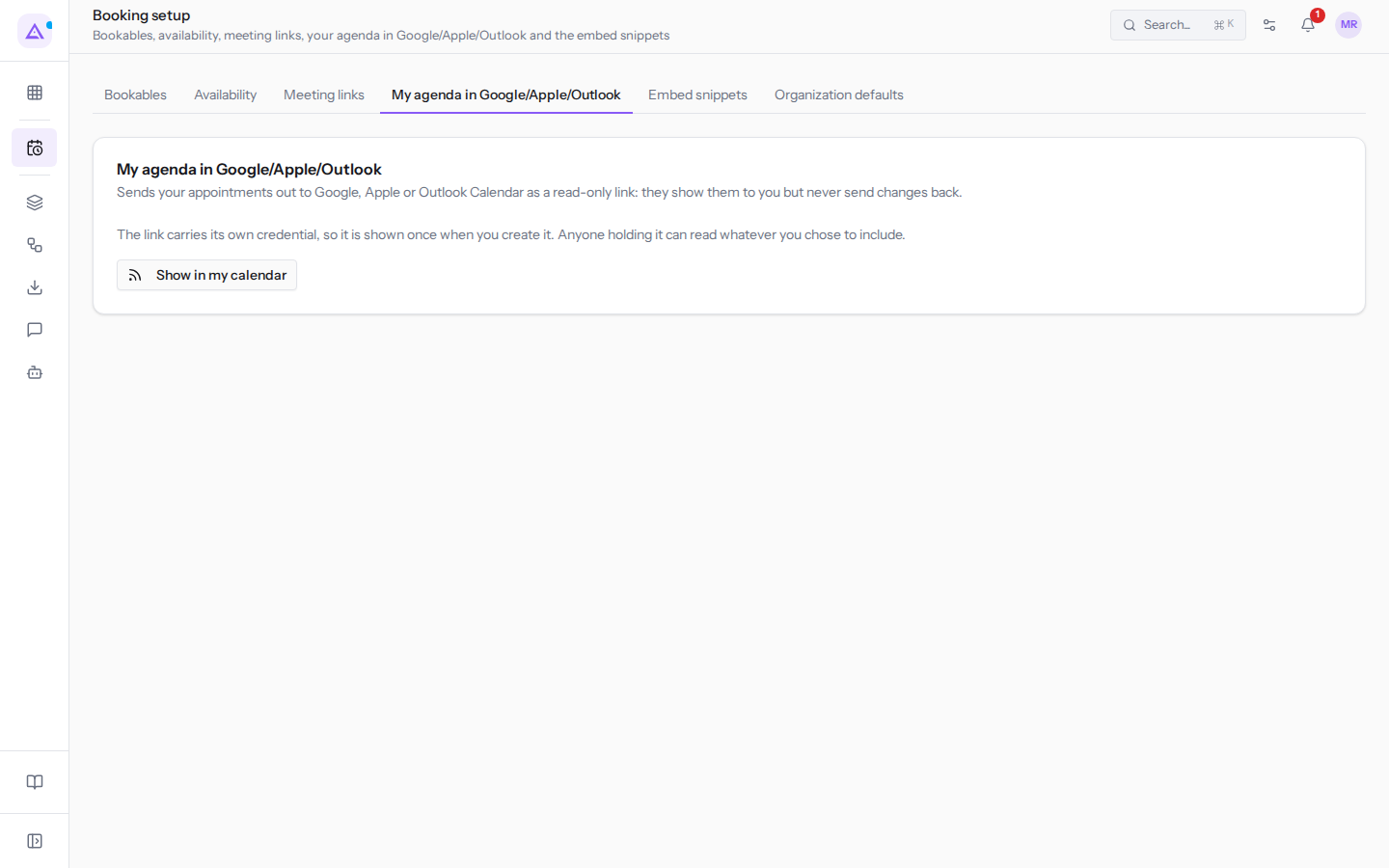
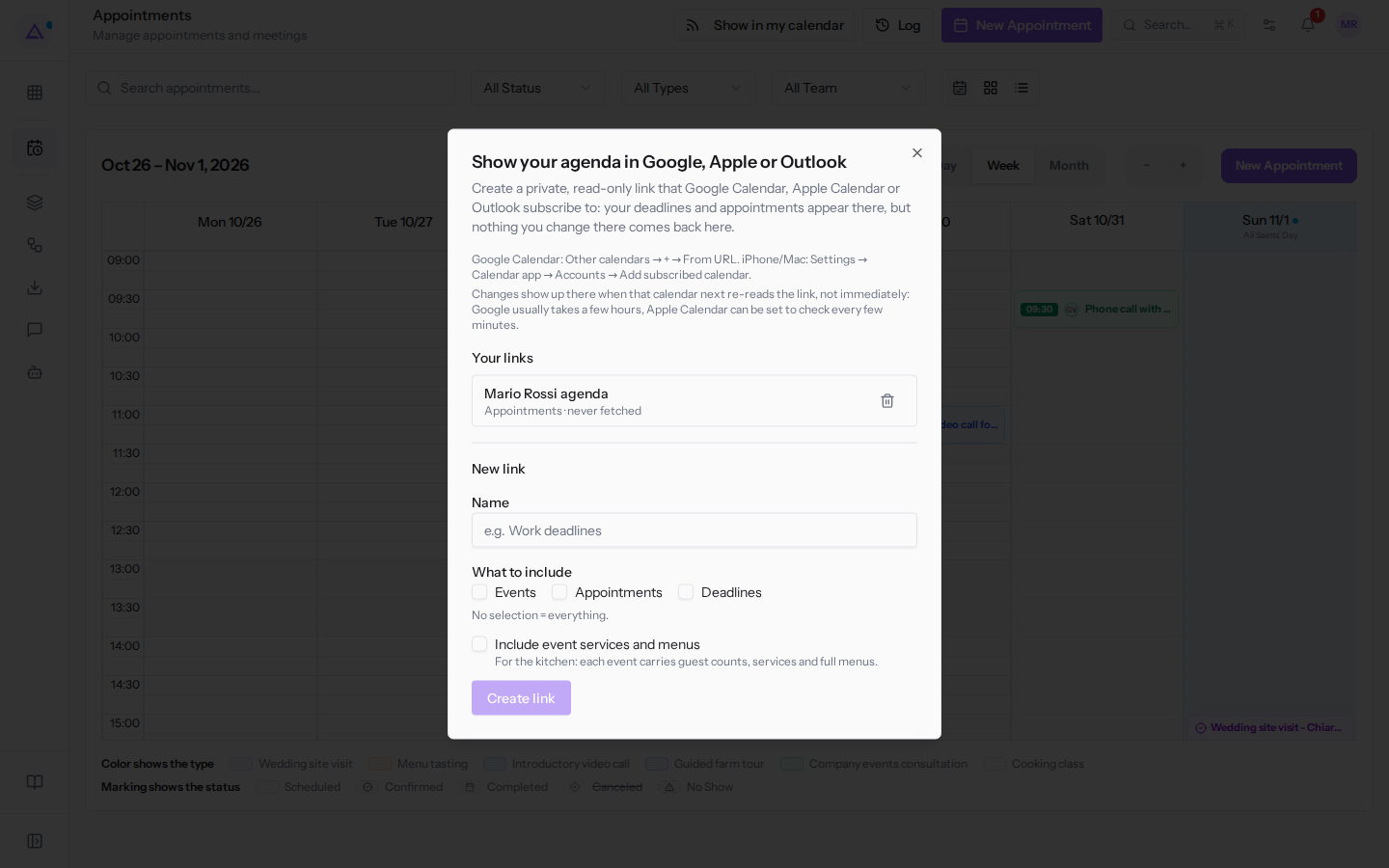
The Show your agenda in Google, Apple or Outlook window opens.
Note: the Booking setup entry appears only for those who manage appointments.
Calendar links are provided by the Deadlines module. If the module is not active in your organization, the My agenda in Google/Apple/Outlook tab shows «Calendar feeds are not available for this organization.» instead of the button. In that case, ask a platform administrator to re-enable it.
Creating the link
The link is private and read-only. Google Calendar, Apple Calendar or Outlook subscribe to this link.
- In the Show your agenda in Google, Apple or Outlook window, enter the Name for the link, for example
Mario Rossi agenda. - Under What to include, select what the external calendar should display: Events, Appointments, Deadlines. If you select nothing, the link includes everything.
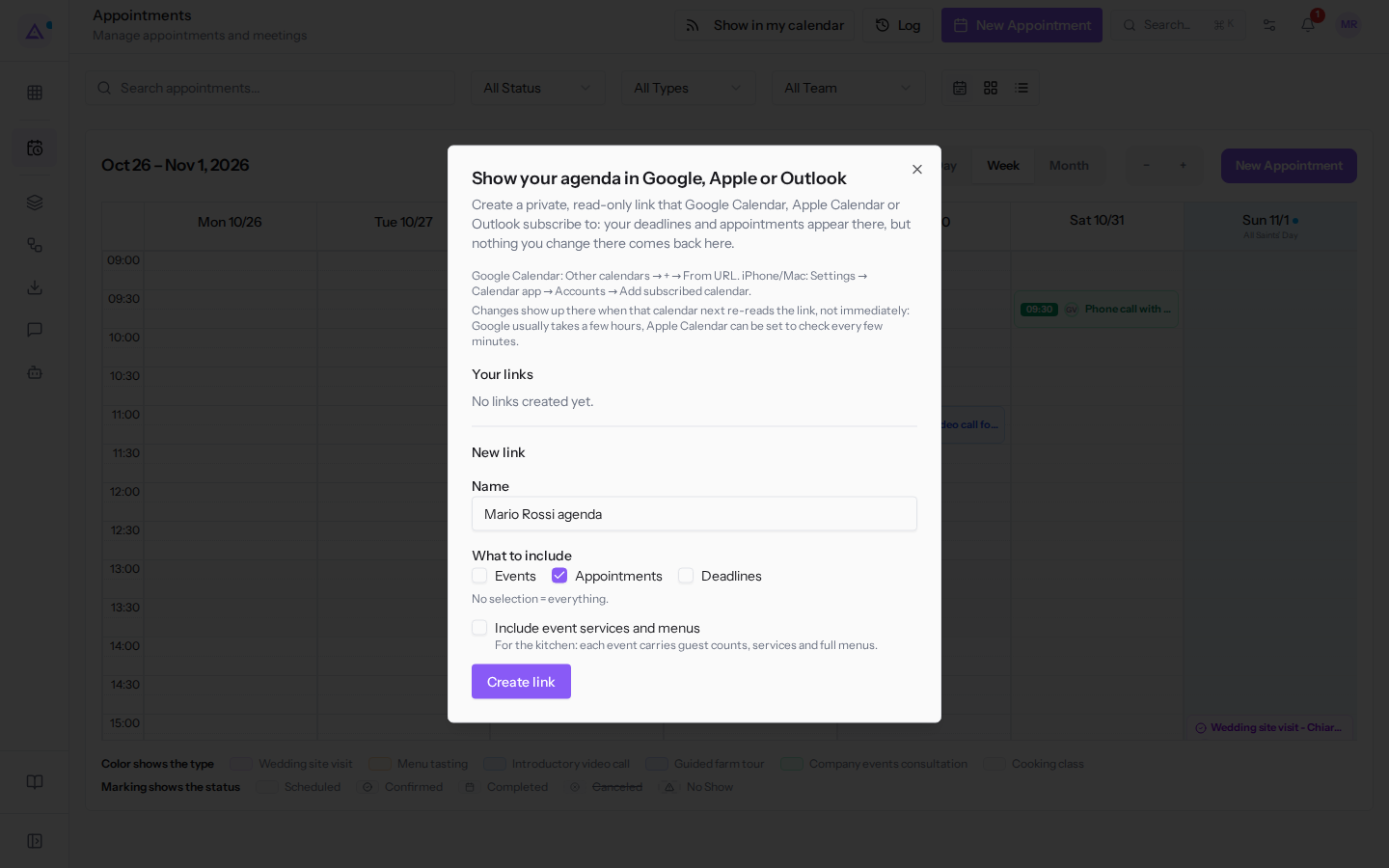
- Click Create link.
- The message «Link created. Copy it now: for security it won't be shown again.» appears with the link. Copy it immediately using the copy icon next to the link. The new link also appears in Your links, with its name, the chosen sources, and when it was last downloaded (for example «never fetched»).
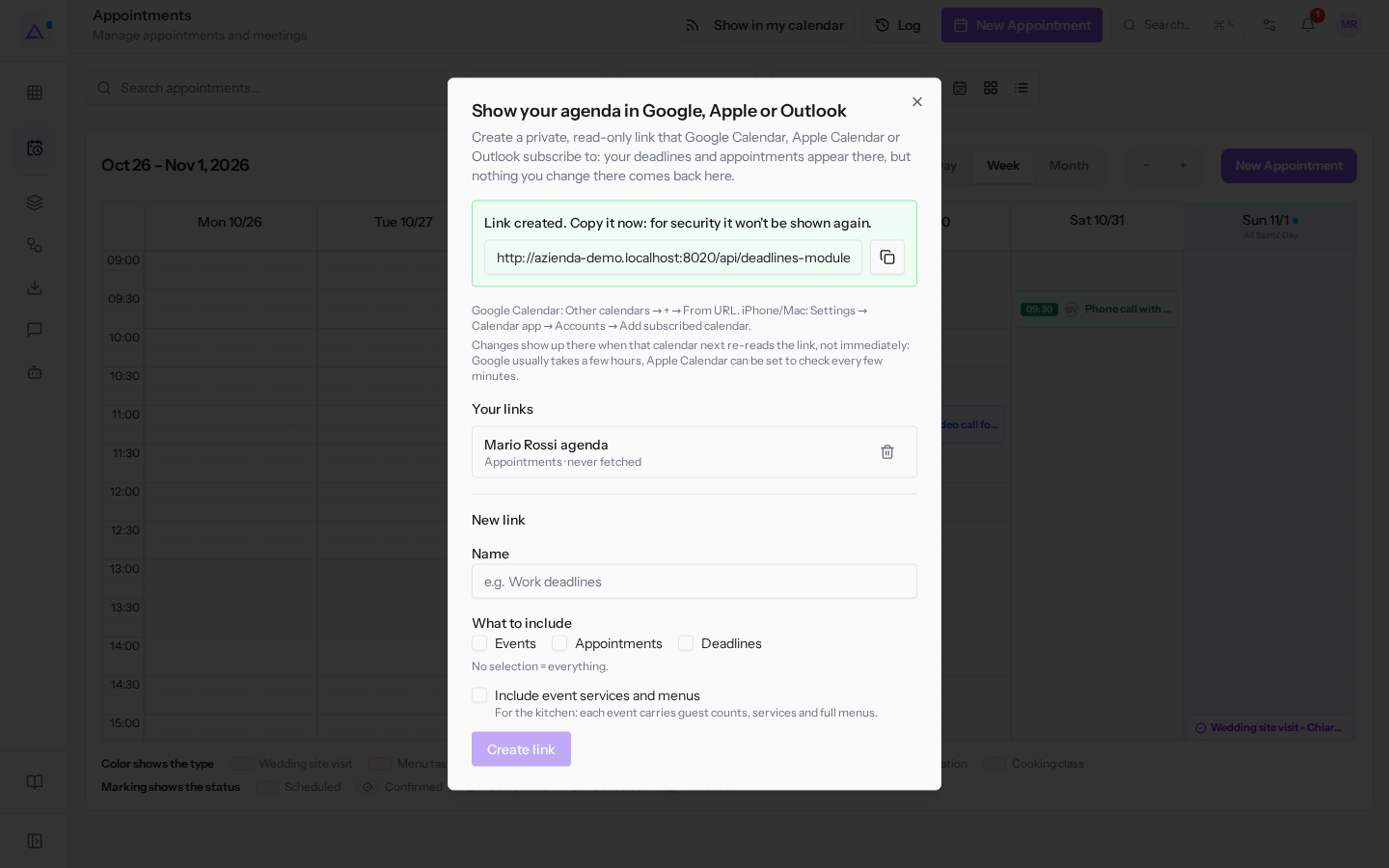
The window fields:
- Name: the name you give the link to identify it.
- Events: adds events to the external calendar.
- Appointments: adds your appointments to the external calendar.
- Deadlines: adds deadlines to the external calendar.
- If you select neither Events nor Appointments nor Deadlines, the link includes everything («No selection = everything.»).
- Include event services and menus: each event carries guest counts, services and full menus. Useful, for example, in the kitchen.
Important: the link contains its own credential, so it is shown only once, at the moment of creation. Anyone who has the link can read what you chose to include. Do not share it or publish it.
Adding the link to the external calendar
Paste the link into the external calendar as a subscribed calendar.
- Google Calendar: open «Other calendars», then «+» and «From URL».
- iPhone and Mac: open «Settings», then «Calendar app», «Accounts» and «Add subscribed calendar».
Changes do not appear immediately: they arrive when the external calendar re-reads the link. Google usually takes a few hours. Apple Calendar can be set to check every few minutes.
Revoking a link
Revoke the link if you think other people have it or if you no longer use it.
- Open the Show your agenda in Google, Apple or Outlook window.
- In Your links, click the bin icon (Revoke link) next to the link you want to revoke.
- The browser asks for confirmation: «Revoke this link? Calendars using it will stop updating.». Confirm to revoke it.
To view your agenda in an external calendar again, create a new link and add it to the external calendar.
Seeing external calendar events in the agenda
The opposite direction is a different feature. A Google, Apple or Outlook calendar connected in read-only mode blocks your bookable time slots. These calendars are connected in the External calendars section of the Availability tab, in Appointments › Settings › Booking setup. With Show on the agenda enabled, its events also appear in your agenda. Nothing is ever written to the connected calendar.
In the agenda, these events are shown as gray striped boxes, with the label «Busy · …» followed by the name of the connected calendar. You cannot open or move them from Appointments. To change them, edit them in the source calendar.
Note: connected calendars update automatically approximately every 15 minutes. Use the Refresh now icon next to the connected calendar only if you want to see a change sooner.
See it on your company, not on a slide deck.
In 30 minutes we map the software you use today.We show you how much work and how much margin Archimedes gives back.
Show me on my business →What industry are you in?
One tap — it lets us prepare the demo around your world.
What tools do you use today?
Pick the ones you recognise — or just type them. It helps us show you how they migrate.
Last step: your details.
We reply within one working day — and right after, if you like, you pick the demo slot yourself.
We couldn't send your request. Try again, or write to us at [email protected].
By sending, you agree to your data being processed so we can get back to you about the demo. Privacy notice.
Preview form — nothing is sent from this page.
Want to schedule the demo now?
Your call: book the slot you prefer yourself, or we'll call you to arrange it.
Live availability, 30 minutes, instant confirmation. The calendar opens in a new tab.
Lock in your slot ↗We'll get back to you within one working day — and we'll join the call already knowing your world.
The calendar is open in another tab: pick a slot and the demo is booked. Can't see it? Reopen it ↗
Preview page: nothing was sent.
Our calendar is live: take the slot that suits you and the demo is booked. 30 minutes, instant confirmation, no waiting.
Lock in your slot ↗