Documents
All modules
Approve or reject files uploaded by customers
Documents · 14 of 15 · 4 min read
The Pending Uploads screen collects the files that customers have sent in response to a document request and that are waiting for review. From here you approve a file, which then enters the archive, or reject it and give the reason, for example a company register extract that is too old or an unreadable document.
When a file goes through review
Review does not depend on the destination folder: the document request decides it. If the request accepts files directly, the file enters the archive right away. If the request requires review, the file appears in Pending Uploads and becomes a document only after approval.
- If the file matches what was requested, approve it: it becomes a document in the request's folder.
- If the file is not right, reject it and write the reason: the customer receives a notice and can send another file.
You can only approve or reject files with the status pending. The choice of whether a request goes through review is made when the request is created, described in the article Request a document from a customer.
The Pending uploads screen
Before you start: the screen is visible only to staff with the management permission for the Documents module.
- Go to Documents › Pending Uploads. The screen opens with the title Pending uploads.
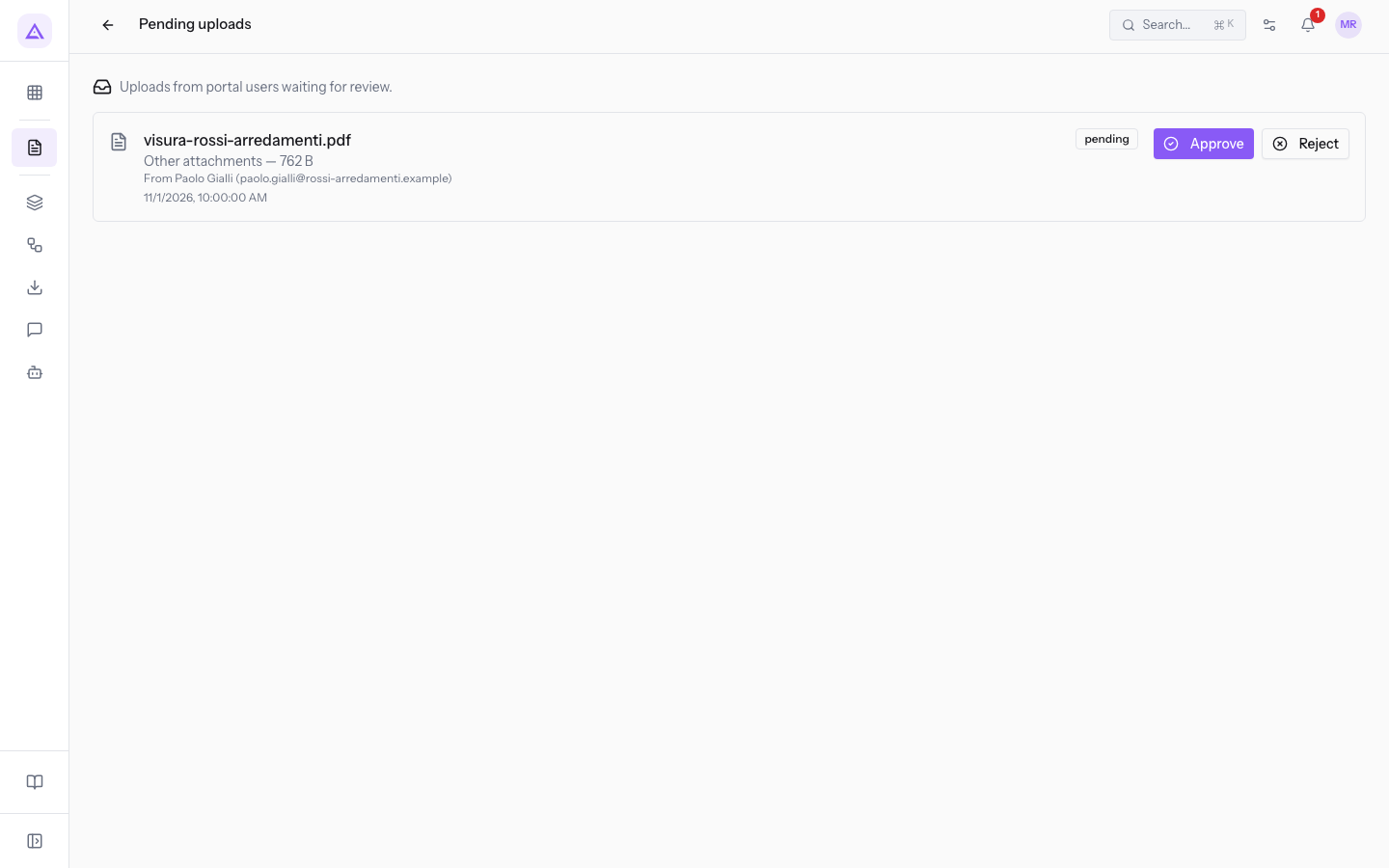
Each pending file occupies one row, with this information:
- File name, for example
visura-rossi-arredamenti.pdf. - Folder: the destination folder of the request, such as
Other attachments. - Size, such as
762 B. - Sender, preceded by From: the name and email address of whoever uploaded the file, such as
Paolo Gialli ([email protected]). - Date: the date of the upload.
- Approve and Reject: the buttons to decide on the file.
When there are no files to review, the screen says that nothing is pending.
Approving a file
Approve a file when it matches what was asked of the customer.
- Go to Documents › Pending Uploads.
- In the row of the file, for example
visura-rossi-arredamenti.pdf, press Approve.
The file leaves the list and the message Approved — now visible to the portal user. appears.
On approval, the following happens:
- The file becomes a document, at version 1.
- The document is saved in the request's destination folder.
- The document stays linked to the contact who sent it.
- The document receives the tags indicated in the request.
Note: the approved document is visible to the customer who uploaded it, as the confirmation message indicates.
Rejecting a file
Reject a file when it is not the one requested or it is not valid. The reason you write is shown to whoever uploaded the file.
- Go to Documents › Pending Uploads.
- In the row of the file, press Reject. The window opens with the file name, for example Reject visura-rossi-arredamenti.pdf.
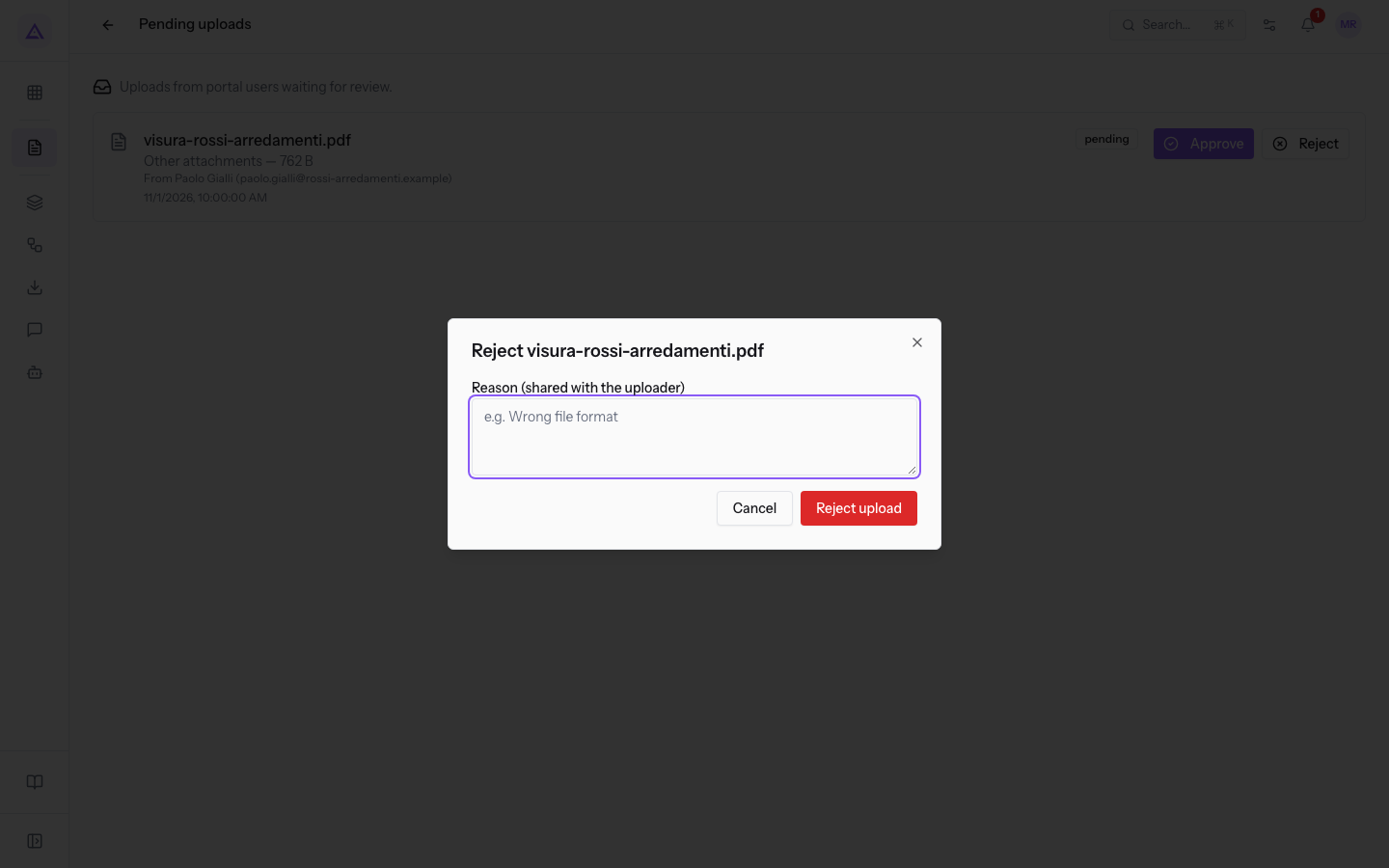
- Fill in the field, if you want to state the reason.
- Press Reject upload. To close the window without rejecting, press Cancel.
The fields of the window:
- Reason (shared with the uploader): the reason for the rejection, which is communicated to whoever uploaded the file. The field is optional.
Tip: in the reason, write what the customer should send in place of the rejected file, such as a company register extract from the last six months.
What happens after rejection
Rejecting a file does not delete it. The file is kept and the upload moves to the Rejected status, with the reason shown or with No reason given.
- Whoever sent the file receives a notice.
- The document request reopens, so the recipients can send another file.
- When the customer opens the request again, they see that the file sent earlier was rejected.
In the demo, the file visura-2023.pdf from Paolo Gialli was rejected.
Important: if the request expired while the file was under review, rejection does not reopen it. In this case the request shows Expired while the file was in review, so the rejection did not reopen it.
To decide which folders the customer sees in the portal, see Sharing folders with customers in the portal.
See it on your company, not on a slide deck.
In 30 minutes we map the software you use today.We show you how much work and how much margin Archimedes gives back.
Show me on my business →What industry are you in?
One tap — it lets us prepare the demo around your world.
What tools do you use today?
Pick the ones you recognise — or just type them. It helps us show you how they migrate.
Last step: your details.
We reply within one working day — and right after, if you like, you pick the demo slot yourself.
We couldn't send your request. Try again, or write to us at [email protected].
By sending, you agree to your data being processed so we can get back to you about the demo. Privacy notice.
Preview form — nothing is sent from this page.
Want to schedule the demo now?
Your call: book the slot you prefer yourself, or we'll call you to arrange it.
Live availability, 30 minutes, instant confirmation. The calendar opens in a new tab.
Lock in your slot ↗We'll get back to you within one working day — and we'll join the call already knowing your world.
The calendar is open in another tab: pick a slot and the demo is booked. Can't see it? Reopen it ↗
Preview page: nothing was sent.
Our calendar is live: take the slot that suits you and the demo is booked. 30 minutes, instant confirmation, no waiting.
Lock in your slot ↗