Documents
All modules
Finding a document in the All Documents list
Documents · 2 of 15 · 6 min read
The All Documents list shows the organization's documents in one table: the files uploaded and the pages written in Documents. It helps you find a document by name, folder, company or tag, preview it, and open, download or move it. For example you can find Framework contract Forniture Neri 2026 or Invoice FV/2026/0002 from Rossi Arredamenti S.r.l.
Opening the list
The list opens from the module menu and immediately shows the active documents with the number of results.
Open Documents › All Documents. The number next to the title counts the documents: 14 results in the demo organization.
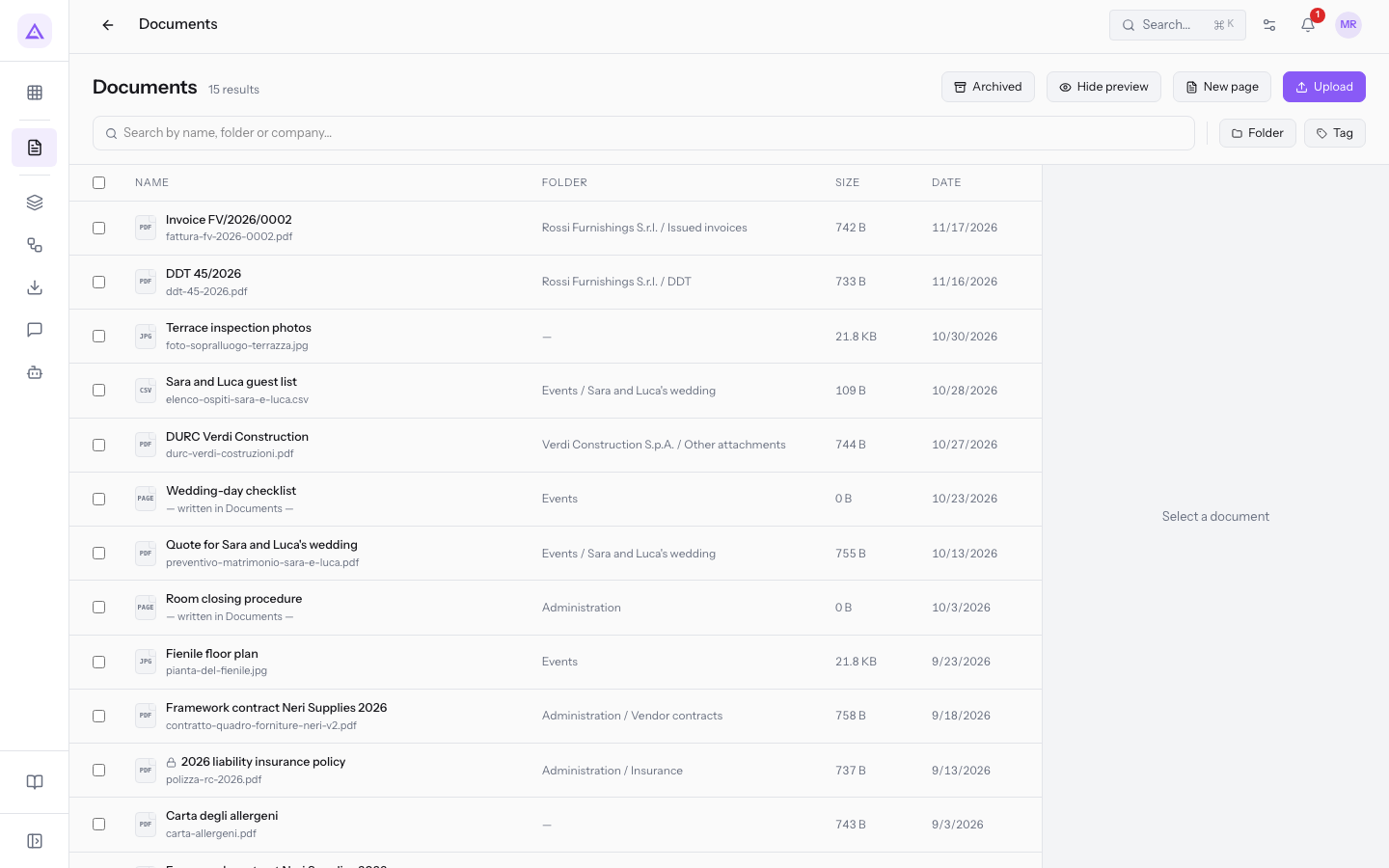
Each row of the list has these columns:
- Name: the document name, under the file name, and on the left an icon with the file extension, for example PDF.
- Folder: the document's folder, preceded by the folder that contains it. For a document without a folder the column shows a dash.
- Size: the file size in B, KB, MB or GB. For pages written in Documents it shows
0 B. - Date: the date the document was created.
At the start of each row there is the Select document checkbox, and at the top of the table there is Select all. For actions on several selected documents, read Move, tag, archive and delete multiple documents together.
When the results exceed one page, buttons to move from one page to another appear below the table.
Recognizing pages and locked documents
In the list some rows have a mark that distinguishes them from uploaded files.
- Page written in Documents: the icon shows
PAGEinstead of the extension and the row shows— written in Documents —in place of the file name, as forWedding-day checklistandRoom closing procedure. - Locked document: a padlock appears in front of the name when a user has locked the document, for example
2026 liability insurance policy, locked by Giulia Verdi. Locking is described in New versions, deadlines and locking a document.
Searching for a document
Search finds documents by name, folder or company.
- Type the text in the Search by name, folder or company… field, for example
Price list. - Press Enter. The list goes back to the first page and shows the documents found.
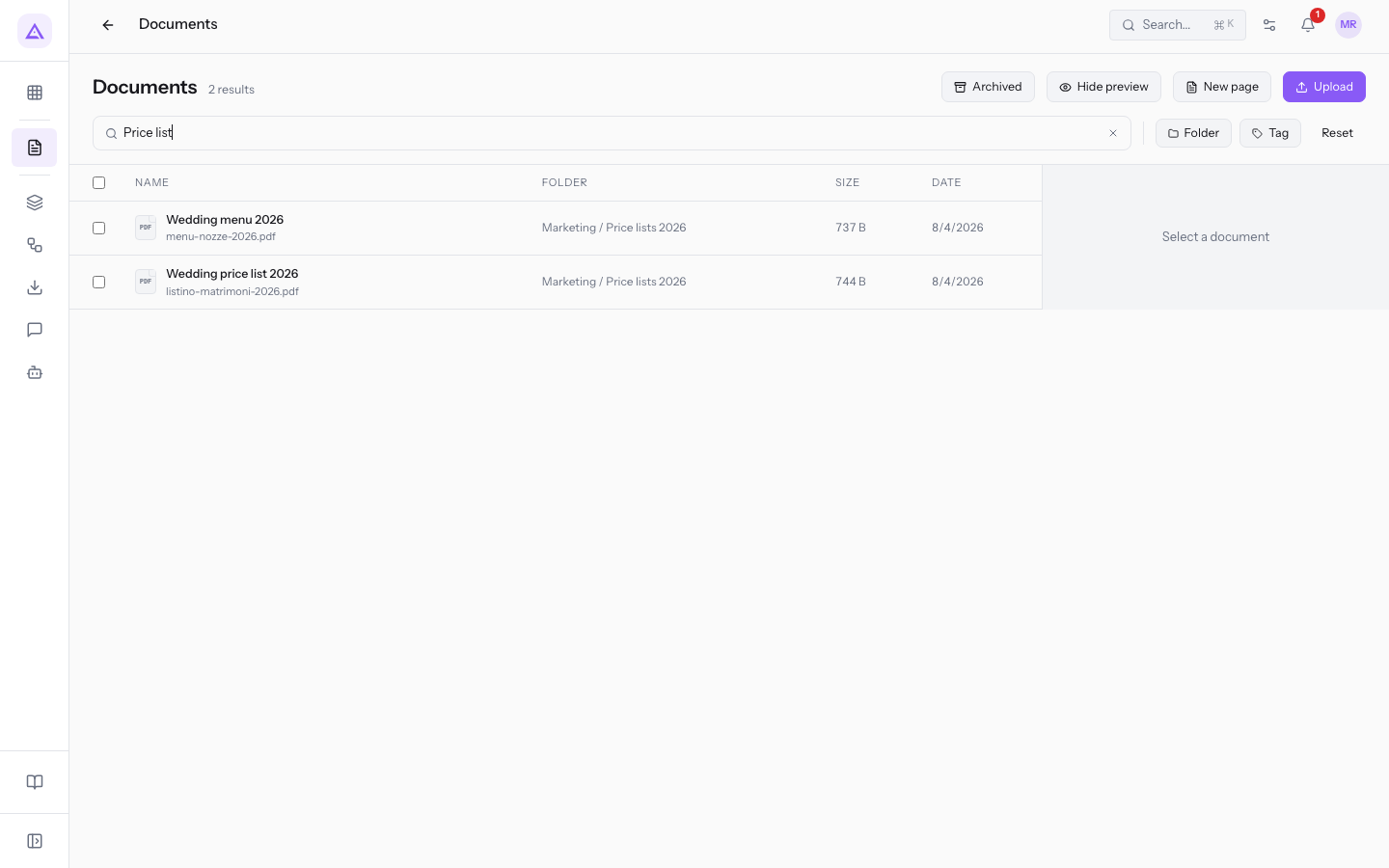
Note: the search only runs when you press Enter. Text typed without pressing Enter does not change the list.
Filtering by folder
The Folder filter limits the list to the documents of one or more folders.
- Press Folder. The folder list opens with the full path, for example
Customers / Rossi Arredamenti S.r.l. / DDT. - To find a folder, type in the Search folder... field.
- Press one or more folders, such as
Administration. The list shows the documents of the chosen folders.
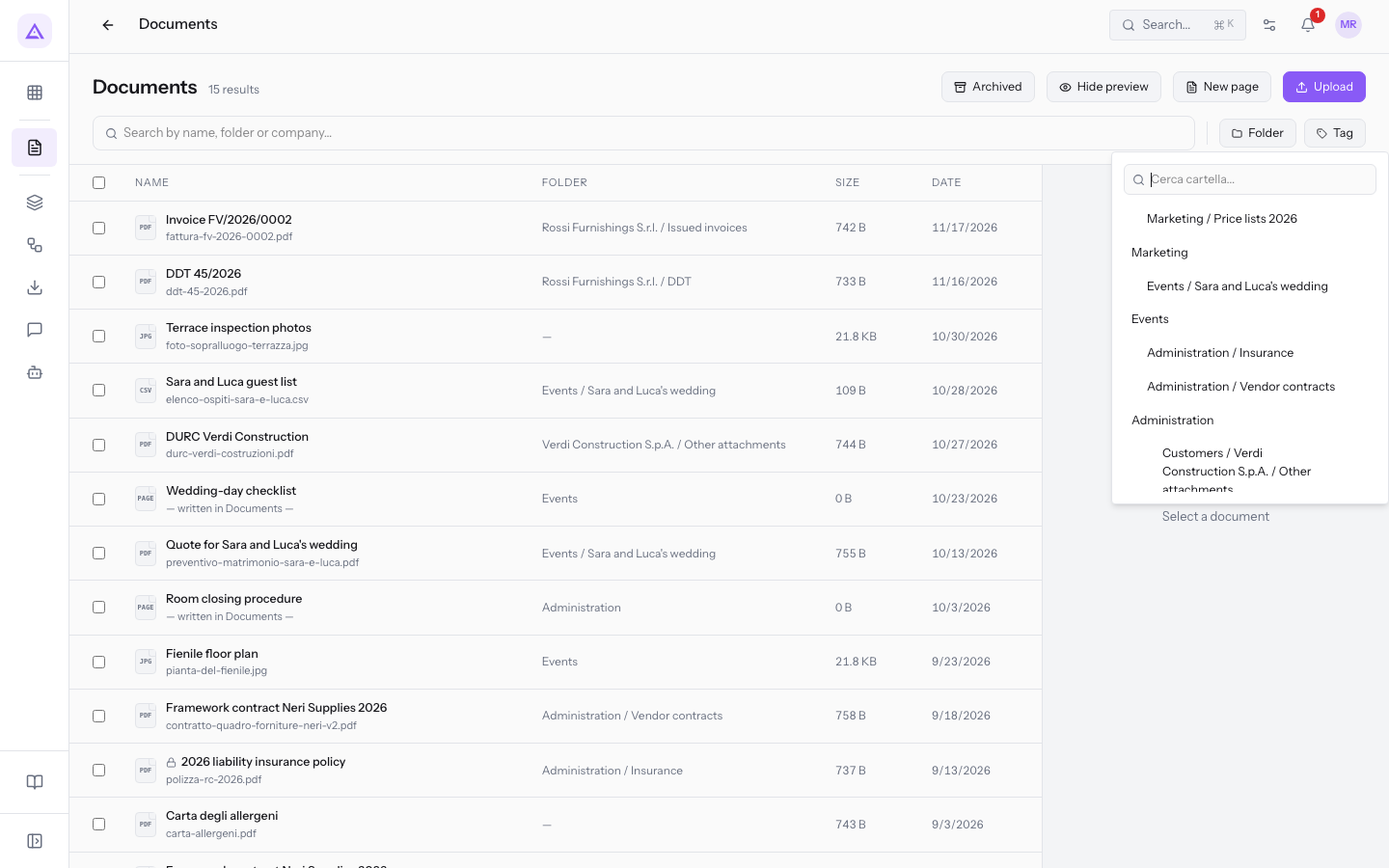
To remove the chosen folders, press Clear selection.
Tip: to move through folders nested inside one another, use the Workspace.
Filtering by tag
The Tag filter shows only the documents with the chosen tags. Tags are grouped by category, such as Document type (Contract, Quote, Invoice, Price list) and Status (To sign, Signed).
- Press Tag.
- Tick the tag checkboxes, for example Contract and To sign.
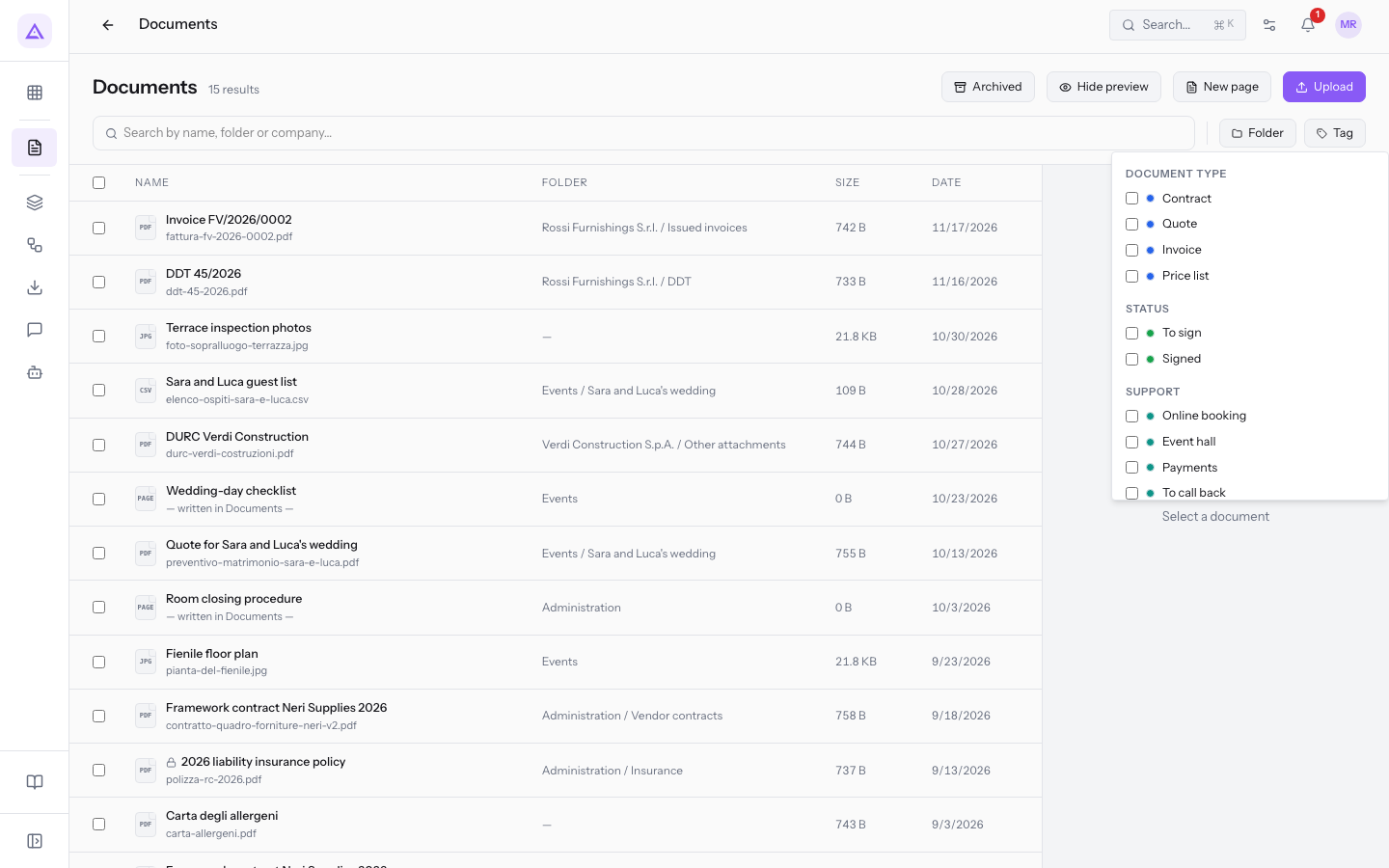
Tags combine like this:
- Tags of the same category: the document must have at least one of the chosen tags. If you choose Contract and Quote, you see contracts and quotes.
- Tags of different categories: the document must have one tag from each category. If you choose Contract and To sign, you see only the contracts to be signed.
Clearing search and filters
When a search, a folder or a tag is active, Reset appears next to the filters. Press it to remove the search text and the chosen folders and tags.
The Archived view does not change with Reset.
Viewing a document preview
The preview panel, on the right of the list, shows the document without leaving the list. It is visible by default.
- To hide it, press Hide preview.
- To show it again, press Show preview.
The choice stays saved in the browser and applies on later visits too.
- With the panel visible, press a row in the list. Until you choose a row the panel shows Select a document.
- Look at the document content in the panel. The panel shows PDF, images, text, video and audio. For other formats it shows Preview not available for this format.
Below the preview the panel shows:
- The document name and the path of its folder.
- Size: the file size.
- Date: the date the document was created.
- Type: the file extension, such as PDF, or
PAGEfor a page written in Documents.
At the bottom of the panel are the document actions:
- Open: opens the document's page, described in View a document's detail page. Going back you find the list with the search and filters you had.
- Preview: opens the full-page preview in a new browser tab.
- Download: downloads the file.
- Move: opens the window to move the document to another folder.
- Create Link: creates a share link for the document. See Sharing a document with a link.
- Delete: asks for confirmation and deletes the document.
Before you start: deleting a document requires the management permission of the Documents module.
To close the panel without hiding the preview, press the X at the top of the panel.
Using the row menu without the preview
When the preview is hidden, the list takes the full width and each row has an actions menu.
- Press Hide preview.
- Press a row to open the document's page directly.
- Alternatively, press the three dots at the end of the row. The menu opens with Open, Preview, Download, Move, Create Link and Delete, which perform the same actions as the preview panel.
Switching from active to archived documents
The list shows active documents by default. Archived documents are in a separate view.
- Press Archived. The list shows only the archived documents, for example
Wedding price list 2025, and the button becomes Active. - To go back to the active documents, press Active.
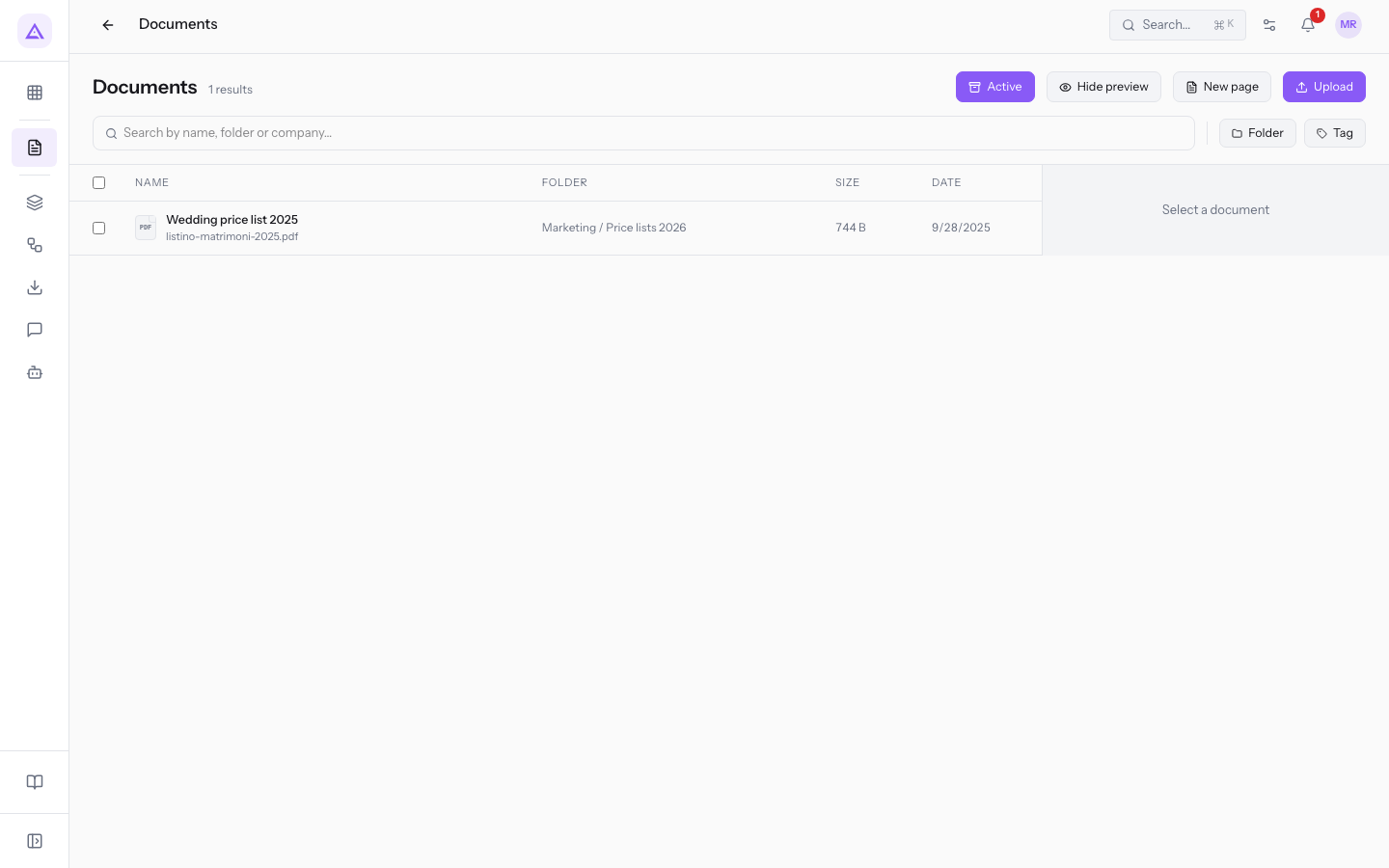
In the archived view, search and filters work the same way. To restore an archived document, read Move, tag, archive and delete multiple documents together.
See it on your company, not on a slide deck.
In 30 minutes we map the software you use today.We show you how much work and how much margin Archimedes gives back.
Show me on my business →What industry are you in?
One tap — it lets us prepare the demo around your world.
What tools do you use today?
Pick the ones you recognise — or just type them. It helps us show you how they migrate.
Last step: your details.
We reply within one working day — and right after, if you like, you pick the demo slot yourself.
We couldn't send your request. Try again, or write to us at [email protected].
By sending, you agree to your data being processed so we can get back to you about the demo. Privacy notice.
Preview form — nothing is sent from this page.
Want to schedule the demo now?
Your call: book the slot you prefer yourself, or we'll call you to arrange it.
Live availability, 30 minutes, instant confirmation. The calendar opens in a new tab.
Lock in your slot ↗We'll get back to you within one working day — and we'll join the call already knowing your world.
The calendar is open in another tab: pick a slot and the demo is booked. Can't see it? Reopen it ↗
Preview page: nothing was sent.
Our calendar is live: take the slot that suits you and the demo is booked. 30 minutes, instant confirmation, no waiting.
Lock in your slot ↗