Documents
All modules
Browse documents by column in the Workspace
Documents · 9 of 15 · 6 min read
The Workspace shows the Documents folder tree in side-by-side columns: each open folder opens the column of its subfolders on its right. Use it to move down the tree, for example from Customers to Rossi Arredamenti S.r.l. to Issued invoices, and to work on the open folder: create a new one, rename it, share it, upload files to it.
Use the Workspace when you know where a folder sits in the tree and want to see its contents level by level. To search for a single document by name, use the Documents › All Documents list instead. To archive, move or pin folders as favorites, use Documents › Folders.
Open the Workspace
The Workspace opens from the Documents module menu.
- Open Documents › Workspace.
- The screen shows on the left the column of top-level folders, with their count. At the top are the New folder and Upload buttons and the Find a folder… field.
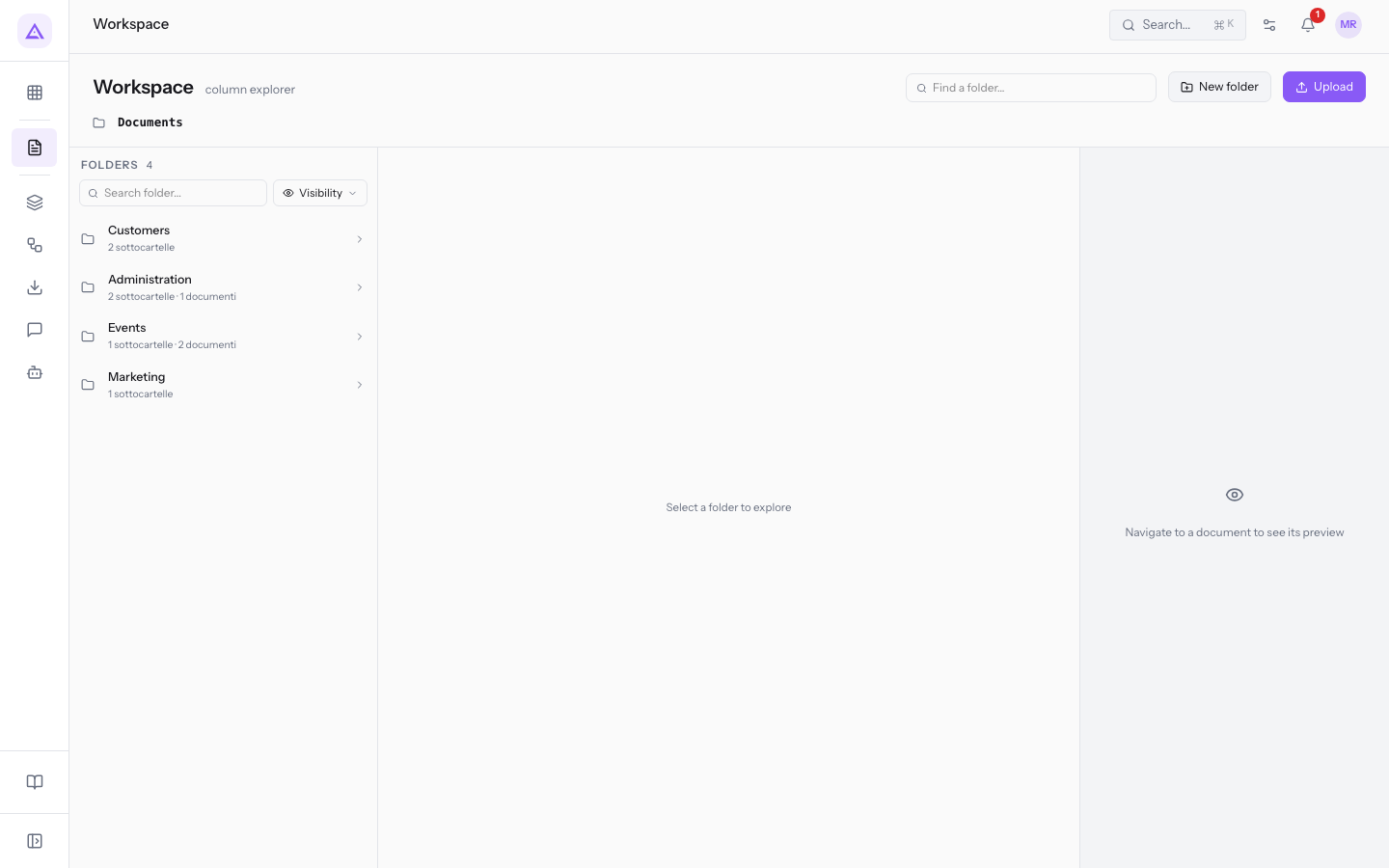
Under each folder name is shown how many subfolders and documents it contains, for example Administration with 2 subfolders · 1 documents.
Filter the folder column
The folder column has a search by name and a filter by visibility.
- In the Search folder... field, type part of the name, for example
Customers. The column shows only matching folders and the count updates. - Press Visibility and choose one or more options. The button shows a number when the filter is active.
Visibility filter options:
- Internal only: folders visible only to the organization's staff.
- Shared with customers: folders shared with one or more customer companies in the portal, such as the folder of Rossi Arredamenti S.r.l.
- Broadcast (public): folders published to all portal customers, such as
Price lists 2026.
Note: visibility belongs to the folder, and the documents inside it inherit it.
Find a folder anywhere in the tree
Find a folder… searches all folders, including those several levels deep, and opens the columns directly up to the chosen one.
- In the Find a folder… field, type part of the name, for example
invoices. - The results list shows each folder with its path, such as
Issued invoiceswithCustomers / Rossi Arredamenti S.r.l. / Issued invoices. - Press the result. The Workspace opens the columns for every level of the path and selects the folder.
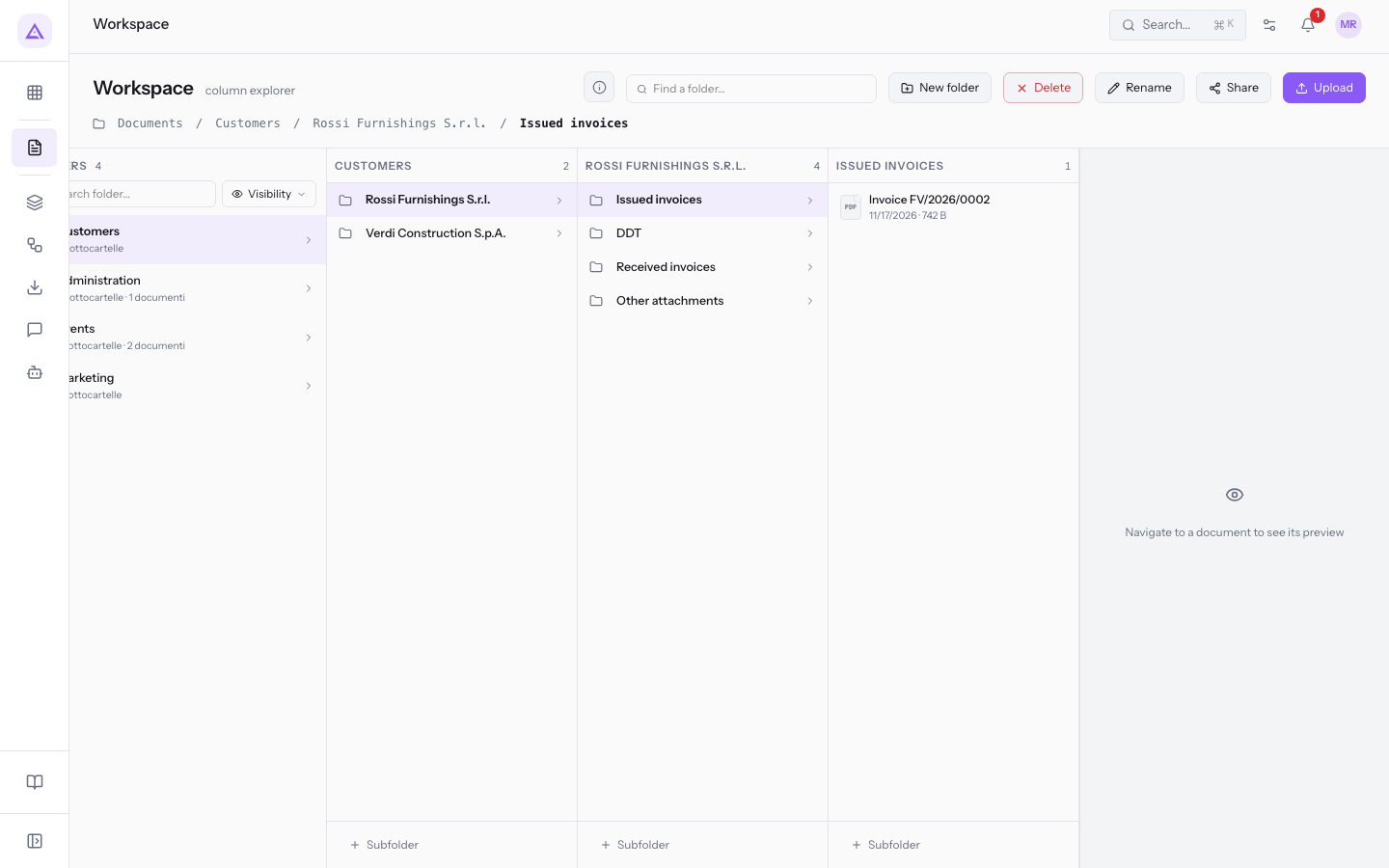
At the top appears the path of the open folder, such as Documents / Customers / Rossi Arredamenti S.r.l. / Issued invoices. Press a level of the path, such as Rossi Arredamenti S.r.l., to return to that folder.
Work with the subfolder columns
Each open folder has its own column, to the right of the one of the folder above, with the subfolders and documents it contains.
- The Subfolder button in the column creates a new folder inside the open one.
- Each column can be collapsed with Collapse column and reopened with Expand column, to leave room for the columns further right.
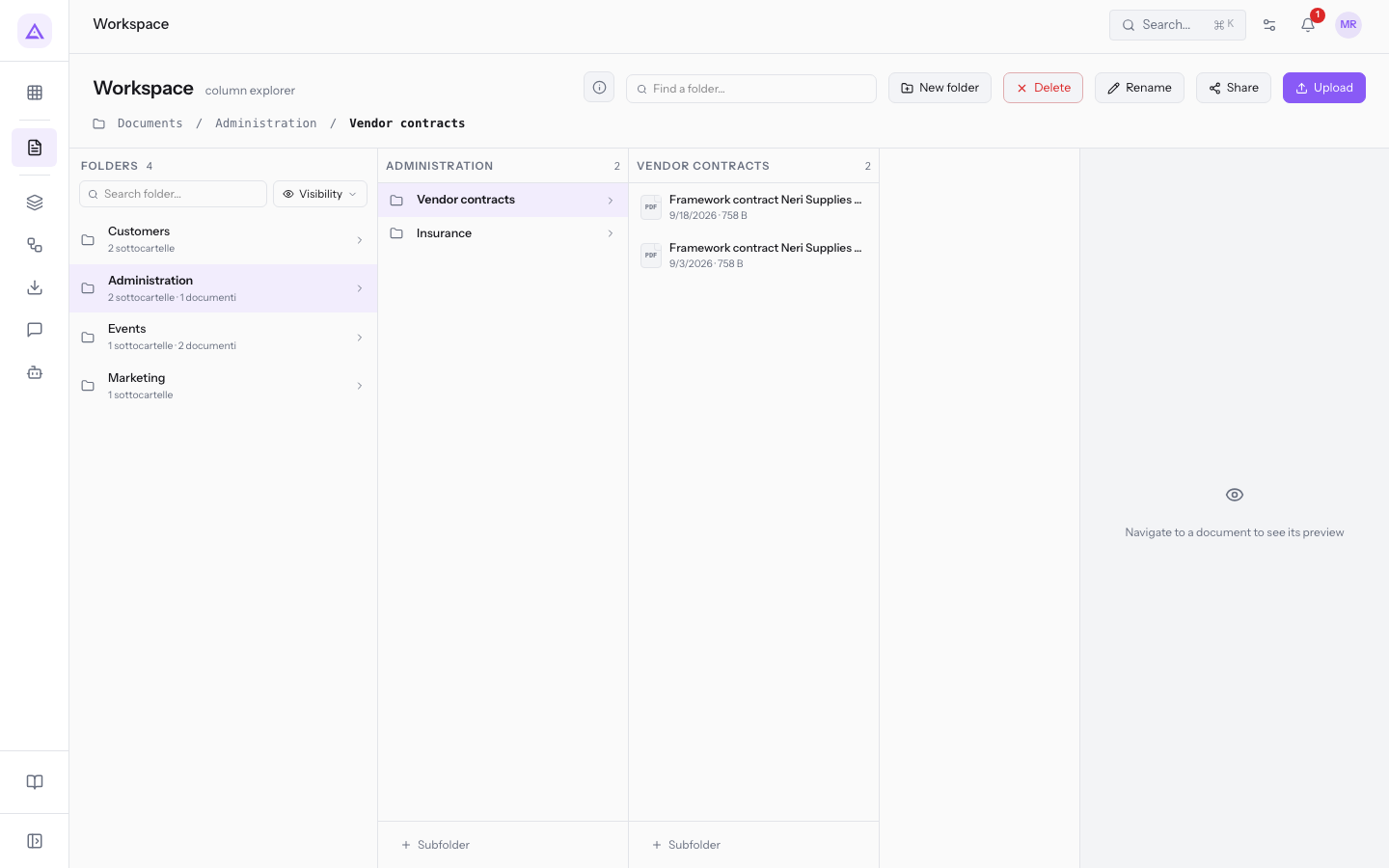
When no folder is open, the column area shows Select a folder to explore.
View folder details
The details summarize the content and visibility of the open folder.
- Open a folder, for example
Rossi Arredamenti S.r.l.. - Press the Folder information button, the i icon.
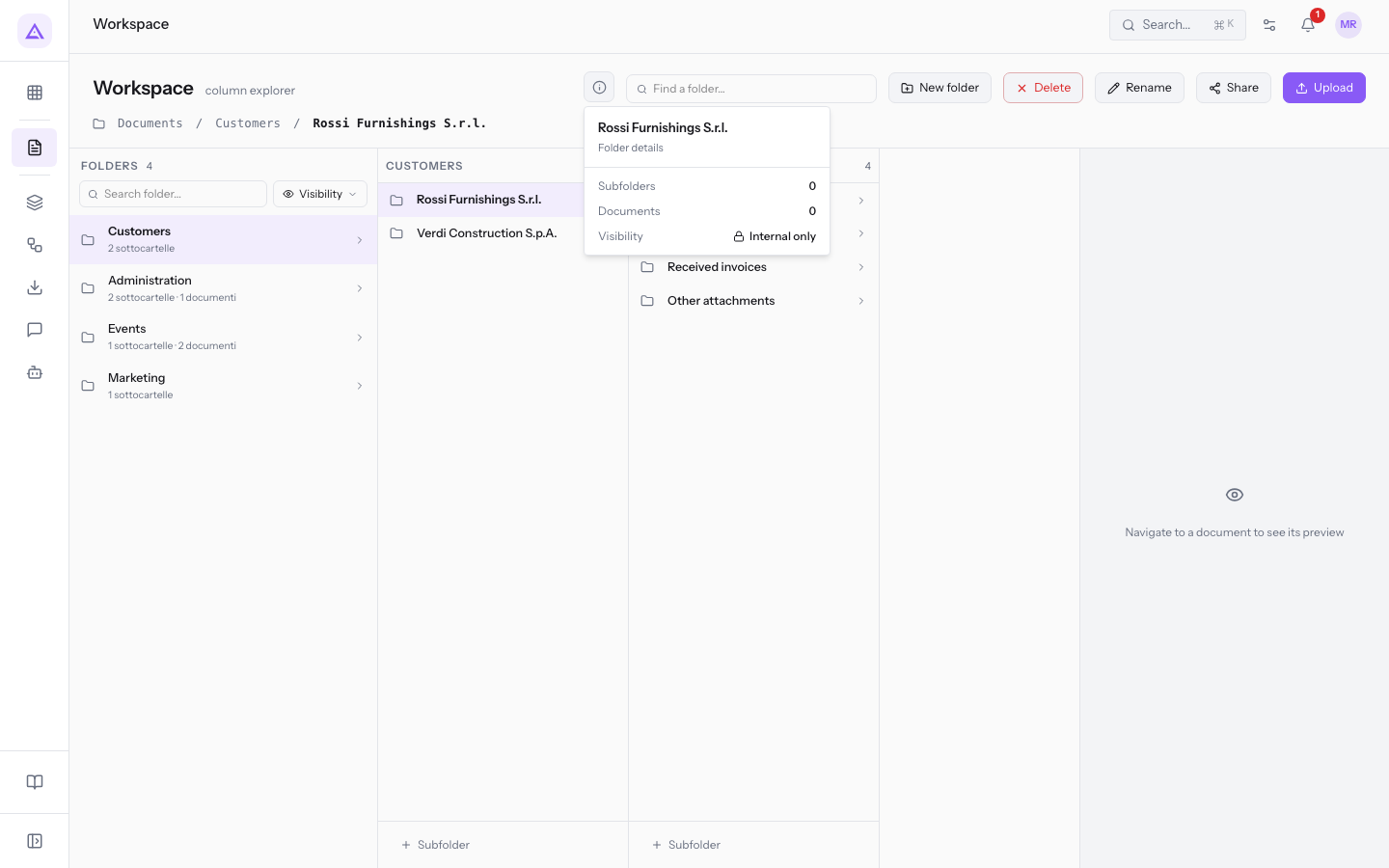
Folder details entries:
- Subfolders: the number of subfolders.
- Documents: the number of documents.
- Visibility: who sees the folder, with the same values as the filter, such as Internal only.
Create a folder
From the Workspace you create a top-level folder or a folder inside another one.
Before you start: creating, editing and deleting folders requires the management permission of the Documents module.
- Press New folder. To create the folder inside the open one you can also use Subfolder in its column.
- Fill in the fields of the New folder window.
- Press Create, or Cancel to close without creating.
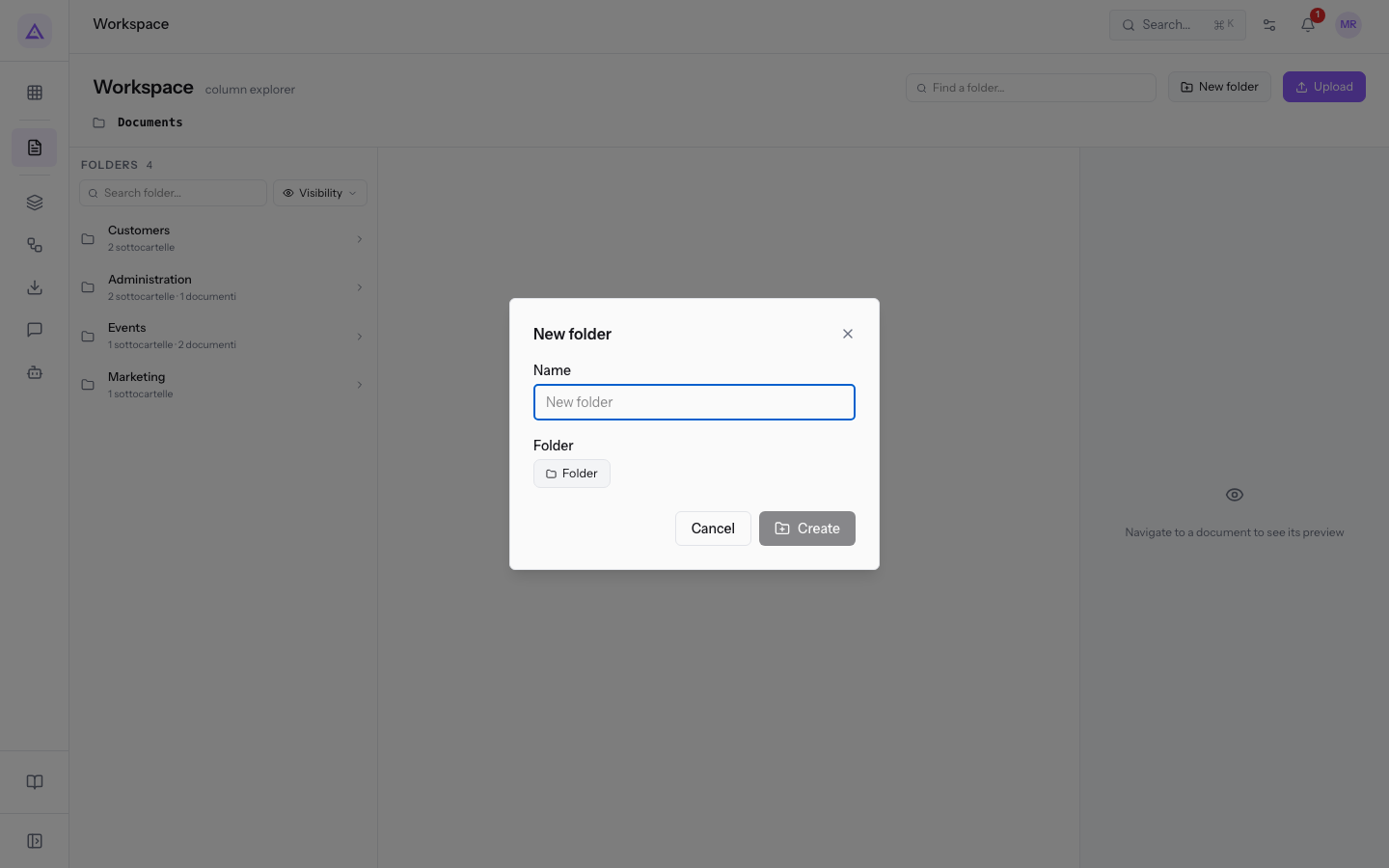
Window fields:
- Name: the name of the folder.
- Folder: the folder where to create it.
Rename a folder
- Open the folder, for example
Rossi Arredamenti S.r.l.. - Press Rename.
- In the Rename window type the new name and press Save. Cancel closes the window without changes.
Share a folder with customers
The Share button opens the same sharing window as the Folders screen.
- Open the folder, for example
Rossi Arredamenti S.r.l.. - Press Share. The Sharing — Rossi Arredamenti S.r.l. window opens.
- Choose with whom to share using Share with an entity or Share by tag, and close with Done.
The Include subfolders option is on by default: every share of the folder also gives access to all subfolders, at any level. Turn it off to share only the folder.
Important: sharing a folder that contains the folders of several customers, such as
Customers, with Include subfolders on would give access to all the client folders inside it.
Each option of the window is described in Sharing folders with customers in the portal.
Upload documents to a folder
Upload opens the Upload Document window. If a folder is open, the window proposes it as the destination.
- Open the destination folder, for example
Rossi Arredamenti S.r.l.. - Press Upload.
- Press Click to select files and choose one or more files. Each file can be at most 100 MB (Max 100MB per file).
- Fill in the fields and press Upload. Cancel closes the window without uploading.
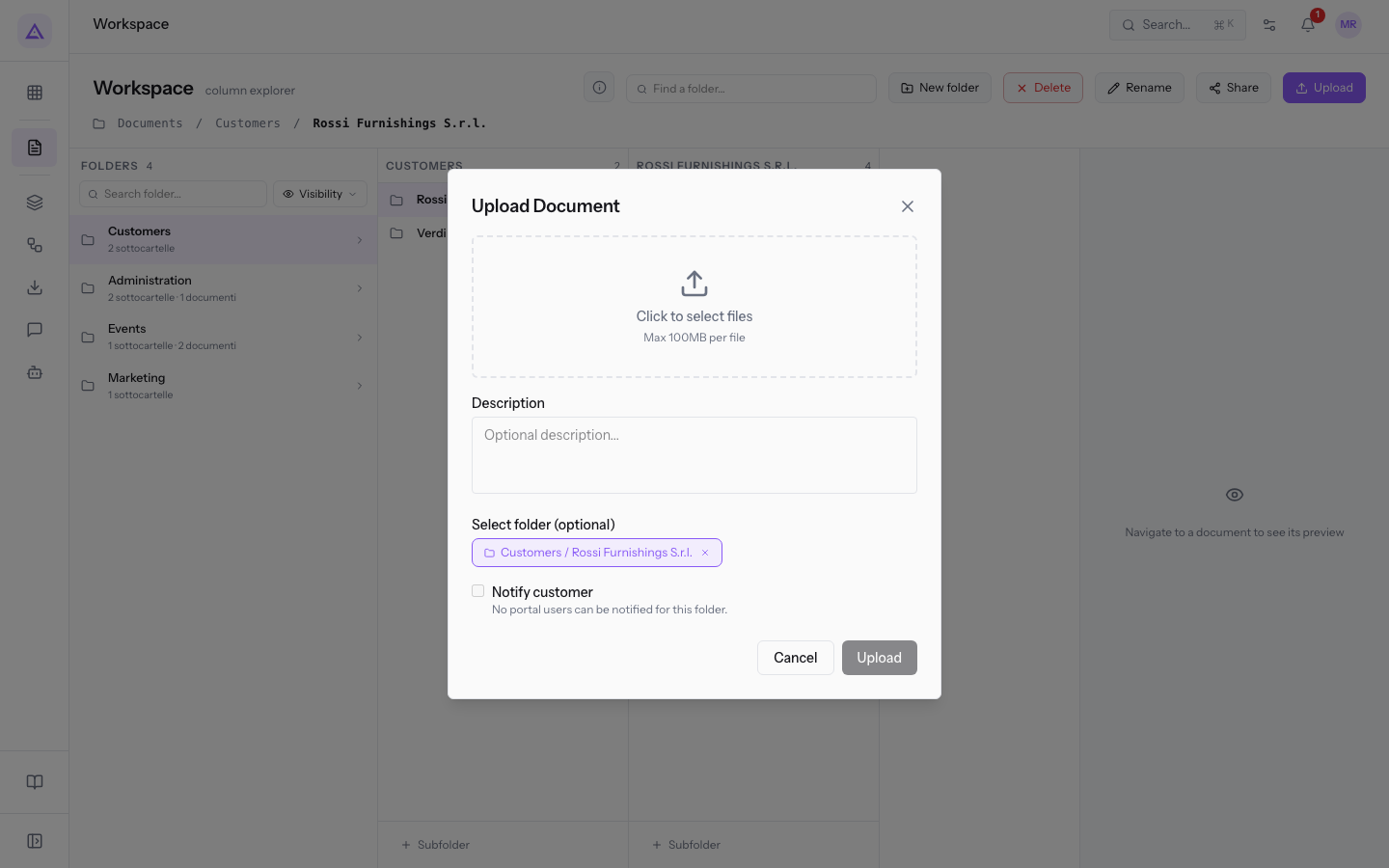
Window fields:
- Description: a description of the document. The field is optional.
- Select folder (optional): the destination folder, such as
Customers / Rossi Arredamenti S.r.l.. It is already filled in with the open folder. - Notify customer: sends an email with the link to the document to the customers who have access to the folder. It appears when you upload into an open folder. If no portal user has access to the folder, the window shows No portal users can be notified for this folder.
Note: customer notifications depend on the Email settings. The uploaded document inherits the visibility of the folder.
Delete a folder
The Delete button deletes the open folder. Only an empty folder can be deleted.
Before you start: only staff with the management permission of the Documents module delete folders.
- Open the folder to delete.
- Press Delete and confirm.
If the folder is not empty, the deletion does not happen:
- With documents inside, This folder cannot be deleted because it contains documents. Please move or delete the documents first. appears.
- With subfolders inside, This folder cannot be deleted because it contains subfolders. Please move or delete the subfolders first. appears.
Tip: to remove a folder from the tree and the portal without losing it, archive it from the Documents › Folders screen: an archived folder can be restored.
See it on your company, not on a slide deck.
In 30 minutes we map the software you use today.We show you how much work and how much margin Archimedes gives back.
Show me on my business →What industry are you in?
One tap — it lets us prepare the demo around your world.
What tools do you use today?
Pick the ones you recognise — or just type them. It helps us show you how they migrate.
Last step: your details.
We reply within one working day — and right after, if you like, you pick the demo slot yourself.
We couldn't send your request. Try again, or write to us at [email protected].
By sending, you agree to your data being processed so we can get back to you about the demo. Privacy notice.
Preview form — nothing is sent from this page.
Want to schedule the demo now?
Your call: book the slot you prefer yourself, or we'll call you to arrange it.
Live availability, 30 minutes, instant confirmation. The calendar opens in a new tab.
Lock in your slot ↗We'll get back to you within one working day — and we'll join the call already knowing your world.
The calendar is open in another tab: pick a slot and the demo is booked. Can't see it? Reopen it ↗
Preview page: nothing was sent.
Our calendar is live: take the slot that suits you and the demo is booked. 30 minutes, instant confirmation, no waiting.
Lock in your slot ↗