Documents
All modules
Request a document from a customer
Documents · 13 of 15 · 6 min read
A document request asks an external contact for a file, for example a company register extract, a DURC, or a copy of the signed contract. The contact uploads the file from the link they receive by email or from the portal, and the file arrives in the folder you chose.
How a request works
Every request has a description, one or more recipients, a destination folder, the tags to apply, a deadline, and a date after which the link no longer works.
- A request accepts files only while it is pending and the link's validity date has not passed. The link of a fulfilled, cancelled or expired request no longer works.
- It is the request, not the destination folder, that decides whether the received file goes straight into the archive or first passes through Pending Uploads.
- Portal customers see folders read-only: they can send files only by replying to a document request. This way every incoming file has a precise question and recipient.
Viewing document requests
The list shows all requests sent to external contacts.
Open Documents › Document Requests.
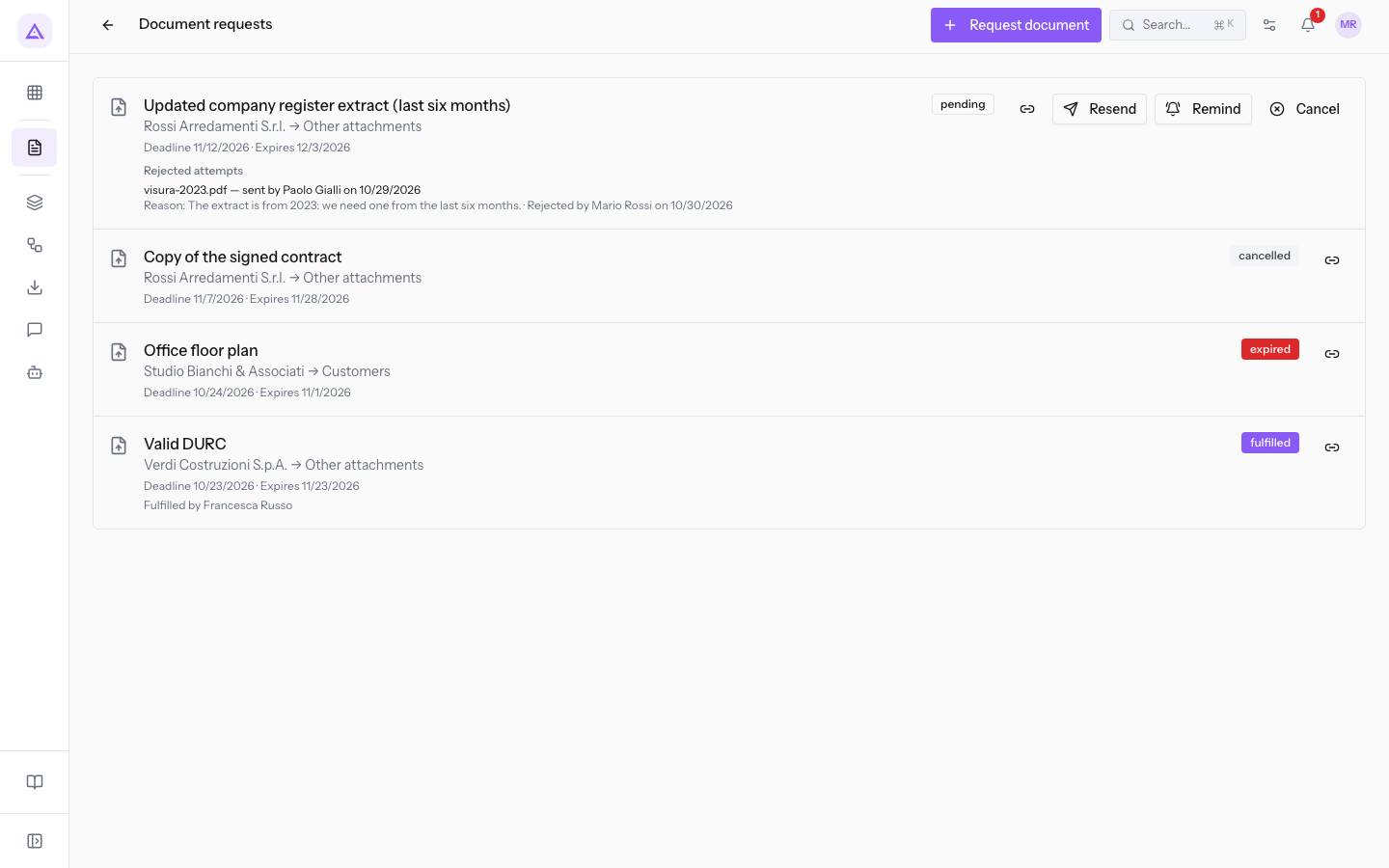
Each row of the list shows:
- The description of the requested document, for example
Updated company register extract (last six months). - The company and the destination folder, separated by an arrow, such as
Rossi Arredamenti S.r.l. → Other attachments. - The deadline and the date the link expires, such as
Deadline 10/15/2026 · Expires 11/5/2026. - The request status:
pending,fulfilled,expiredorcancelled. In the demo,Updated company register extract (last six months)ispendingandCopy of the signed contractiscancelled. - The recipients of the request.
Rejected attempts
Under a request, the Rejected attempts block lists the files the contact had sent and that were rejected in review. In the demo, under Updated company register extract (last six months) the file visura-2023.pdf from Paolo Gialli appears.
A rejected file is not deleted: it is kept, the sender receives a notice, and the request reopens so the recipients can send another file. The exception is a request that expired during review, which the rejection does not reopen. For reviewing files see Approve or reject files uploaded by customers.
Creating a document request
Create a request when you need a file from a customer and want it to arrive directly in their folder.
Before you start: creating a request only needs the basic permission of the Documents module. Approving or rejecting files that go through review requires the management permission, the only one that gives access to Pending Uploads.
- Open Documents › Document Requests and press Request document. The Request a document window opens.
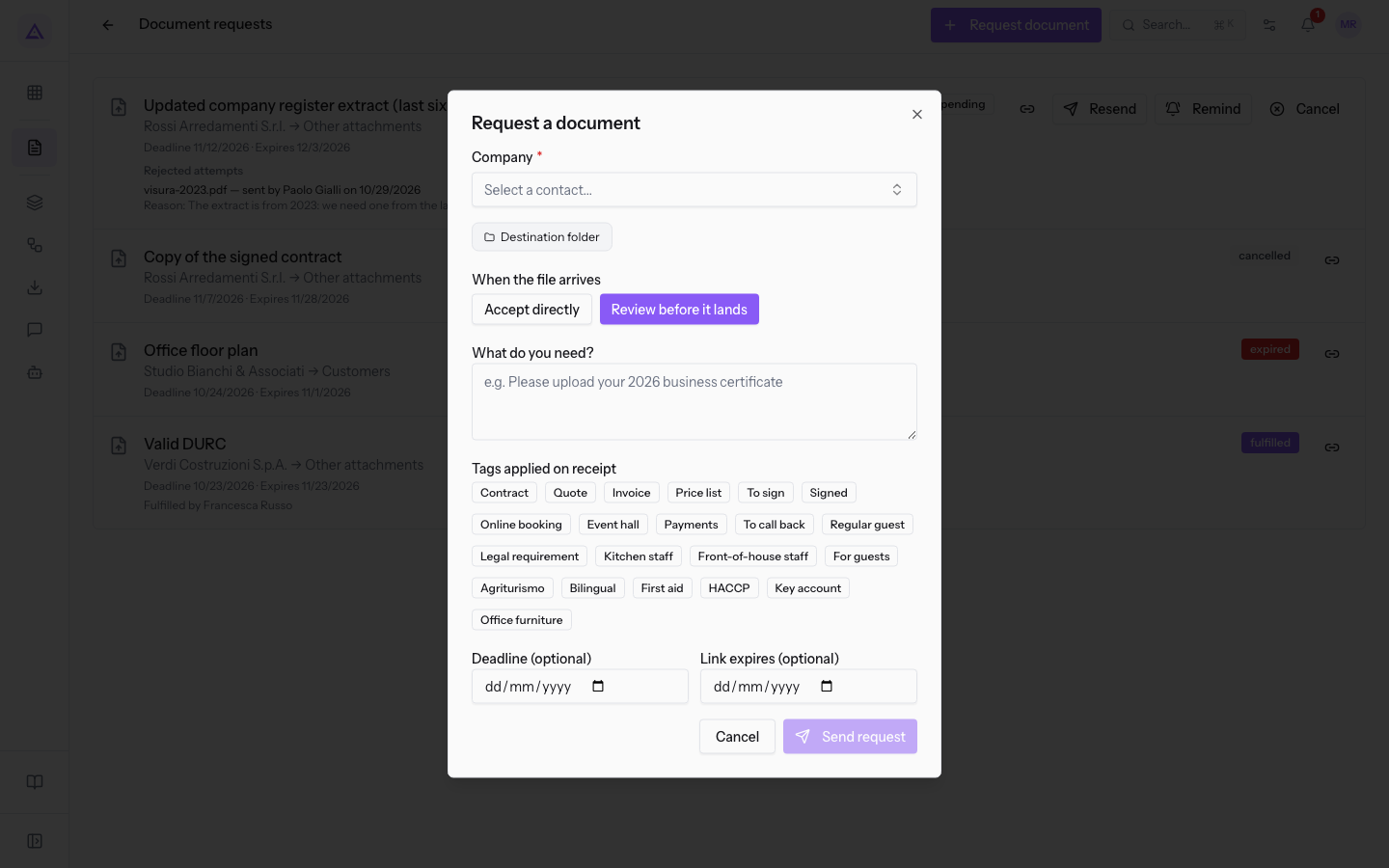
- Press Company and choose the company from the list, for example
Rossi Arredamenti S.r.l.. Its contacts appear below in theRecipientssection.
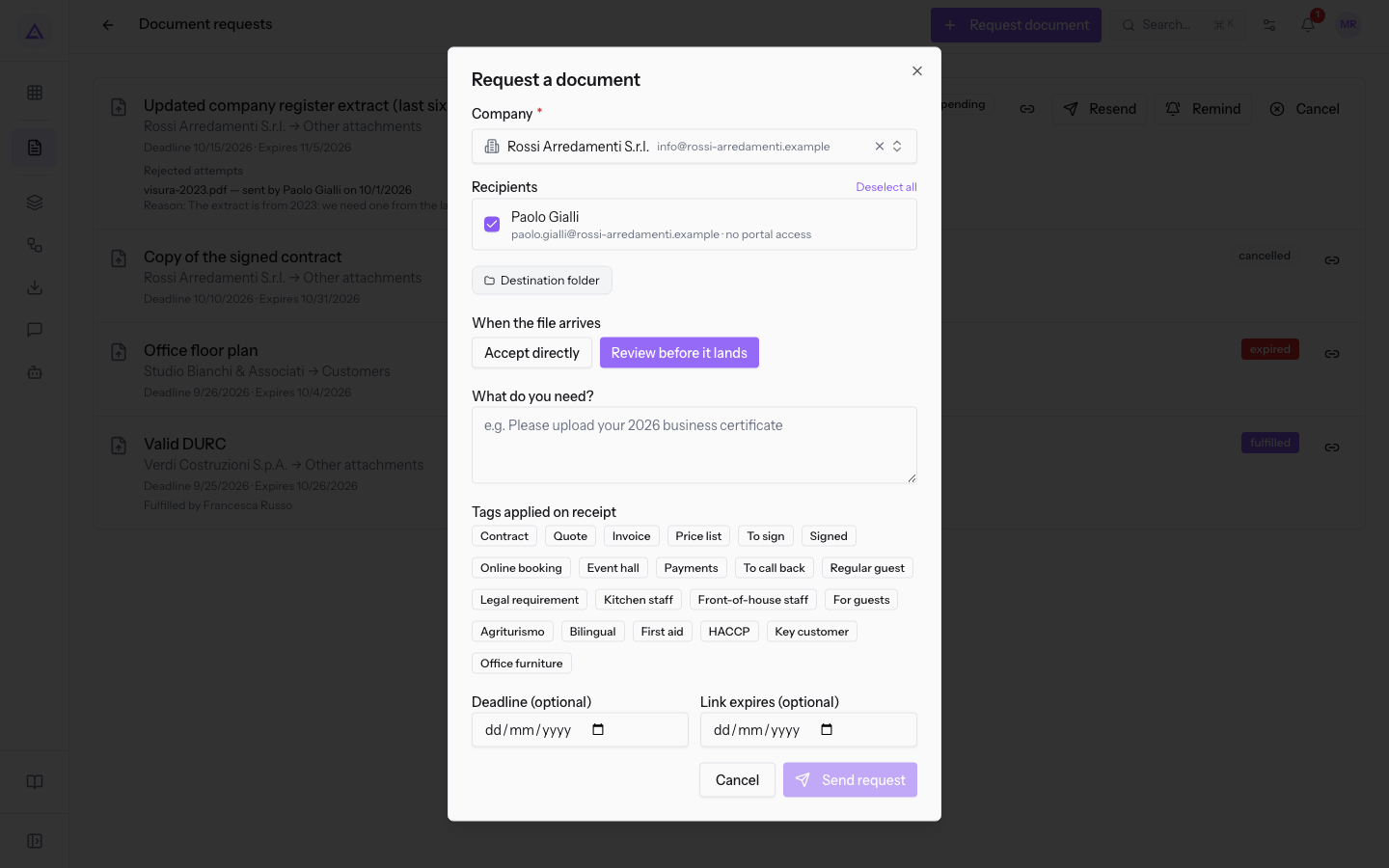
- Check the recipients, choose the folder under Destination folder, and the mode in the
When the file arrivessection. - Write in What do you need? the document you need, choose the tags and, if you want, the dates.
- Press Send request. To close the window without sending anything, press Cancel.
The window contains these fields:
- Company: the company you are asking for the document. Press the field, search in Search contacts... and choose the contact. Each entry shows the name, email and phone. See more loads more contacts, Create new contact creates a new one. The field is required.
Recipients: the people at the company who receive the request. It appears after you choose the company. The contacts are already selected: uncheck anyone who should not receive it, or use Deselect all. Next to each person appear the email and whether they have portal access, such asPaolo Gialli [email protected] · no portal access.- Destination folder: the folder where the received file ends up. Press the field and search for the folder in Search folder.... For
Rossi Arredamenti S.r.l.the list suggests, such as,Customers / Rossi Arredamenti S.r.l.andMarketing / Price lists 2026. When the file arrives: what happens to the file when the contact uploads it.- Accept directly: the file goes straight into the destination folder.
- Review before it lands: the file first passes through Pending Uploads and becomes a document only when a manager approves it.
- What do you need?: the description of the requested document, such as
Updated company register extract (last six months). It is the text that appears in the request list. Tags applied on receipt: the tags applied to the document when the file is accepted. Press the tags to apply, such as Contract, Quote, Invoice, Price list, To sign or Signed.- Deadline (optional): the date by which you need the document. The field is optional.
- Link expires (optional): the date after which the link no longer accepts files. The field is optional.
Choose between the two arrival modes based on the document type:
- If the document only needs archiving, such as a DDT, choose Accept directly.
- If you need to check the file before it enters the archive, such as a company register extract that must be recent, choose Review before it lands.
Note: when a file is accepted, the document is created at version 1 in the request's folder, linked to the contact who sent it, with the request's tags.
Managing a sent request
From a request's row you can act on it as long as the request is pending.
- Copy upload link: the link button, which copies the upload page link to the clipboard, to send to the contact by another means.
- Resend: sends the request to the recipients again.
- Remind: sends a reminder to the recipients.
- Cancel: cancels the request. After cancellation the row no longer shows Resend, Remind and Cancel, and the request link no longer accepts files.
The page the customer opens from the link
The recipient replies to the request from the link received by email or from the customer portal. A contact without an account uploads the file from the request's public page, without signing in.
- The page accepts the file only while the request is pending and the link has not expired.
- If a file sent earlier was rejected, the customer sees The previous file sent for this request, visura-2023.pdf, was rejected., with the name of the rejected file.
- With the Compliance module active, the public page also collects the identification of the uploader, the content of the communication and the IP address.
Files received with Review before it lands are approved or rejected as described in Approve or reject files uploaded by customers.
See it on your company, not on a slide deck.
In 30 minutes we map the software you use today.We show you how much work and how much margin Archimedes gives back.
Show me on my business →What industry are you in?
One tap — it lets us prepare the demo around your world.
What tools do you use today?
Pick the ones you recognise — or just type them. It helps us show you how they migrate.
Last step: your details.
We reply within one working day — and right after, if you like, you pick the demo slot yourself.
We couldn't send your request. Try again, or write to us at [email protected].
By sending, you agree to your data being processed so we can get back to you about the demo. Privacy notice.
Preview form — nothing is sent from this page.
Want to schedule the demo now?
Your call: book the slot you prefer yourself, or we'll call you to arrange it.
Live availability, 30 minutes, instant confirmation. The calendar opens in a new tab.
Lock in your slot ↗We'll get back to you within one working day — and we'll join the call already knowing your world.
The calendar is open in another tab: pick a slot and the demo is booked. Can't see it? Reopen it ↗
Preview page: nothing was sent.
Our calendar is live: take the slot that suits you and the demo is booked. 30 minutes, instant confirmation, no waiting.
Lock in your slot ↗