Documents
All modules
Sharing a document with a link
Documents · 8 of 15 · 3 min read
A share link is a public address that lets you download a document without signing in to Archimedes. It is used to send a file to someone who doesn't use the customer portal, for example a price list to a potential customer or a quote to a vendor. In the demo organization Wedding price list 2026 already has a share link.
Who can open the link
The link is public: anyone who receives it can download the document, without an account and without signing in. For this reason the link does not depend on folder shares with portal customers.
- If the recipient is a portal customer and the document is in a folder shared with their company, you don't need a link. See Sharing folders with customers in the portal.
- If the recipient does not have portal access, or the document is not in a shared folder, create a link.
- If the link should no longer work, revoke it.
Important: anyone with the link can forward it to others. Create links only for documents that are allowed to leave the organization.
Before you start: creating a link requires the basic permission of the Documents module, which allows you to view, upload, edit and share documents.
Create a link from the list
From the document list, create the link from the preview panel, without opening the document page.
- Open Documents › All Documents.
- If the preview panel is hidden, press Show preview.
- Press the document name, for example
Wedding menu 2026. The preview panel shows the buttons Open, Preview, Download, Move, Create Link and Delete. - Press Create Link. The Share Links window opens.
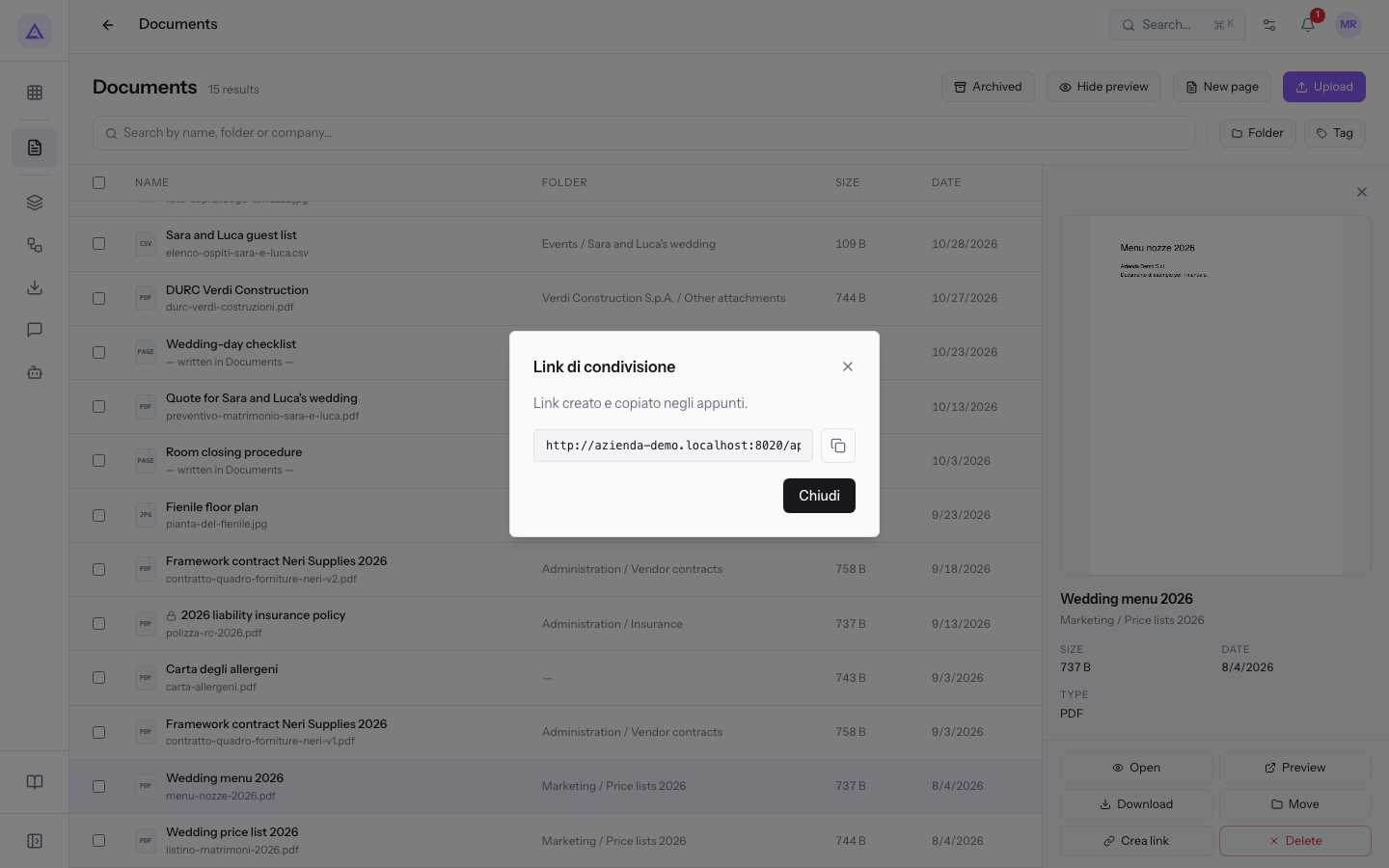
The Share Links window contains:
- Copy link: copies the link, which you can paste into an email.
- Close: closes the window.
For the list and the preview panel, see Finding a document in the All Documents list.
Create a link from the document page
On the document page, the Create Link button is in the Share Links section of the Info tab.
- Open the document page, for example
Invoice FV/2026/0002. To open it, see View a document's detail page. - Press Create Link. The Share Links window opens, with Copy link and Close.
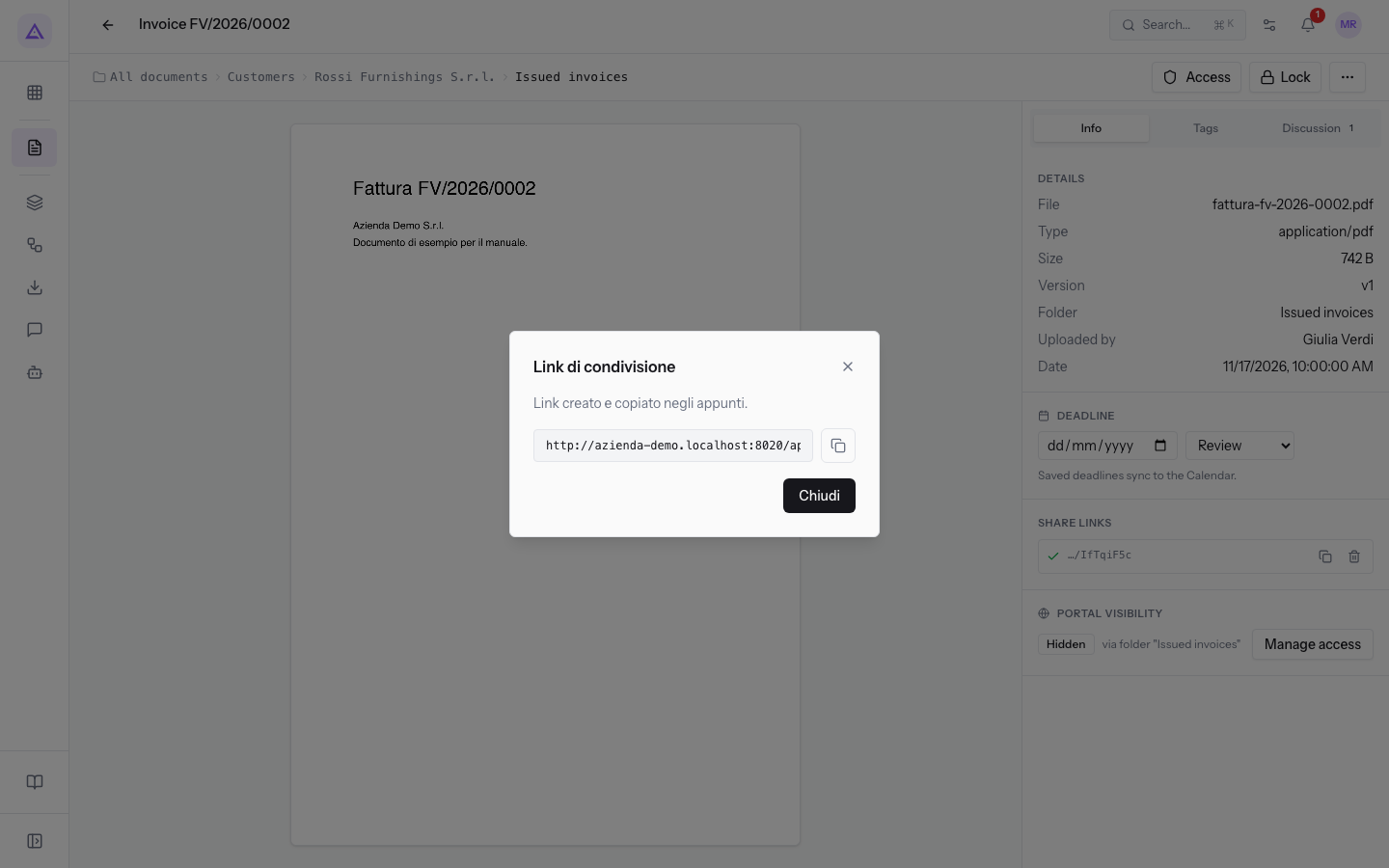
- Press Copy link if you need the link, then Close.
A document locked by a colleague also shows Create Link: see 2026 liability insurance policy, locked by Giulia Verdi.
View and revoke active links
A document's links are managed in the Share Links section of the Info tab, in the right column of the document page.
Open the document page, for example Wedding price list 2026.
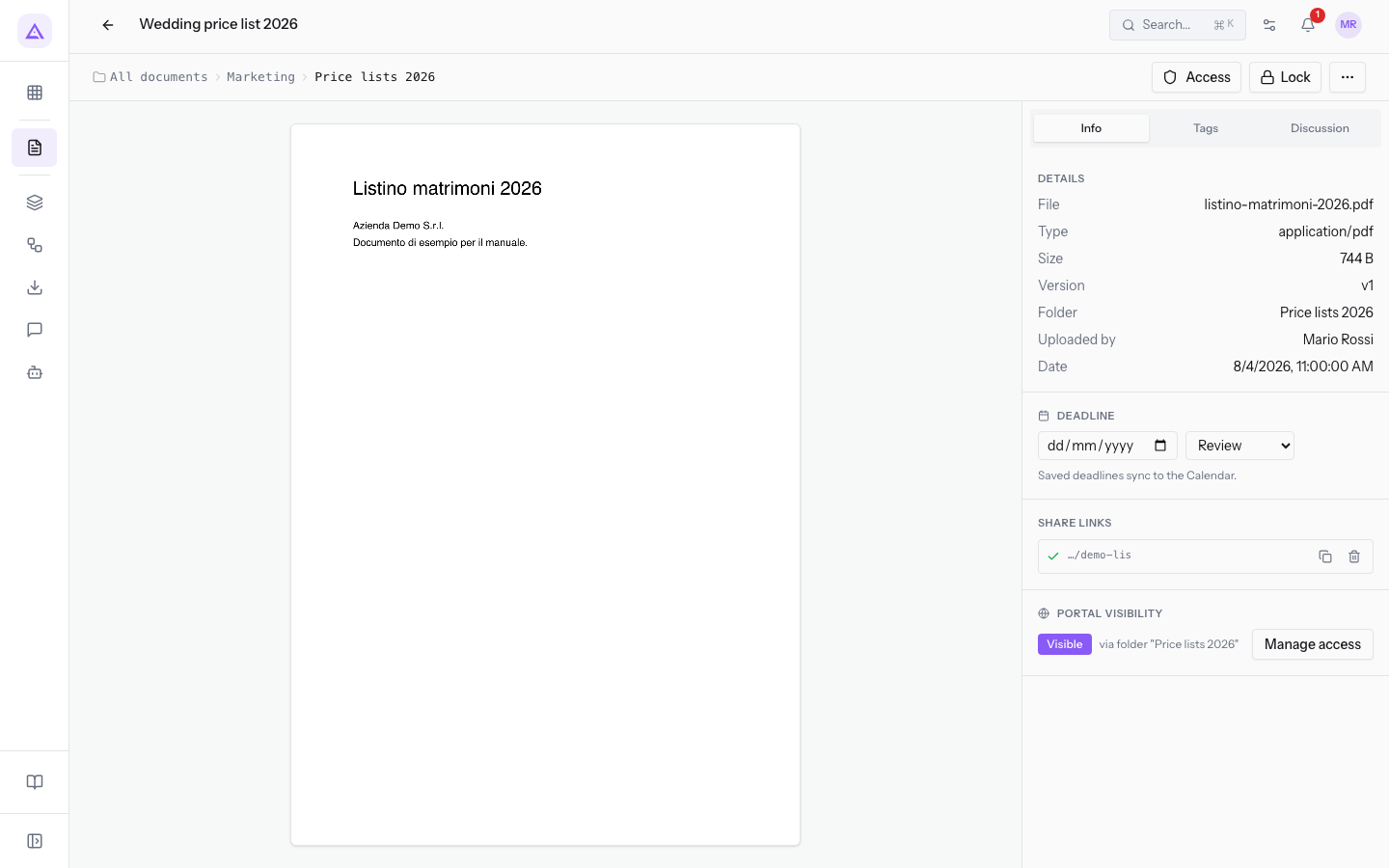
The Share Links section shows:
- the active link, with the button to copy it;
- Revoke: the trash button, which cancels the link.
- No share links yet: the message shown when the document has no active links.
When the document has an active link, the page shows the copy button and Revoke instead of Create Link.
See it on your company, not on a slide deck.
In 30 minutes we map the software you use today.We show you how much work and how much margin Archimedes gives back.
Show me on my business →What industry are you in?
One tap — it lets us prepare the demo around your world.
What tools do you use today?
Pick the ones you recognise — or just type them. It helps us show you how they migrate.
Last step: your details.
We reply within one working day — and right after, if you like, you pick the demo slot yourself.
We couldn't send your request. Try again, or write to us at [email protected].
By sending, you agree to your data being processed so we can get back to you about the demo. Privacy notice.
Preview form — nothing is sent from this page.
Want to schedule the demo now?
Your call: book the slot you prefer yourself, or we'll call you to arrange it.
Live availability, 30 minutes, instant confirmation. The calendar opens in a new tab.
Lock in your slot ↗We'll get back to you within one working day — and we'll join the call already knowing your world.
The calendar is open in another tab: pick a slot and the demo is booked. Can't see it? Reopen it ↗
Preview page: nothing was sent.
Our calendar is live: take the slot that suits you and the demo is booked. 30 minutes, instant confirmation, no waiting.
Lock in your slot ↗