Documents
All modules
View a document's detail page
Documents · 4 of 15 · 5 min read
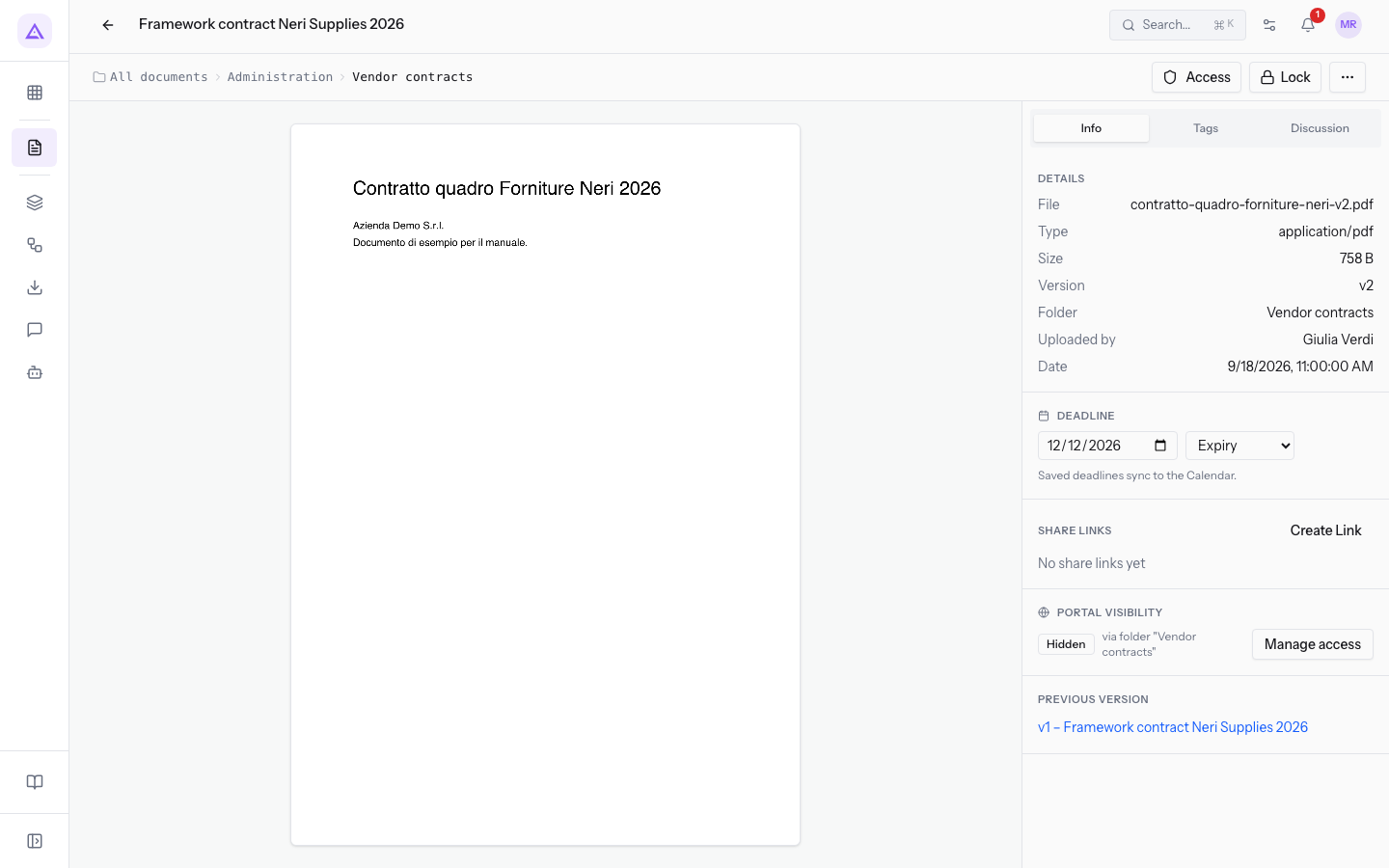
The document page brings together in one screen the file preview, the actions you can take on the document, and its information: details, versions, tags, portal visibility and discussion. For example, from the page of Framework contract Forniture Neri 2026 you see which folder the contract is in, who uploaded it and what the previous version is.
Open the document page
The document page opens from the document list, through the preview panel.
- Open Documents › All Documents.
- Press the document name, for example
Framework contract Forniture Neri 2026. The preview panel shows the document. - Press Open in the preview panel.
To find a document in the list, see Finding a document in the All Documents list.
The document page is split into three parts: at the top the title, the folder path and the buttons; in the center the file preview; on the right the column with the Info, Tags and Discussion tabs.
The folder path
Below the title the page shows the path of the folder that contains the document, starting from All documents.
- For
Framework contract Forniture Neri 2026the path is All documents, Administration, Vendor contracts. - For
Invoice FV/2026/0002the path is All documents, Customers, Rossi Arredamenti S.r.l., Issued invoices. - For
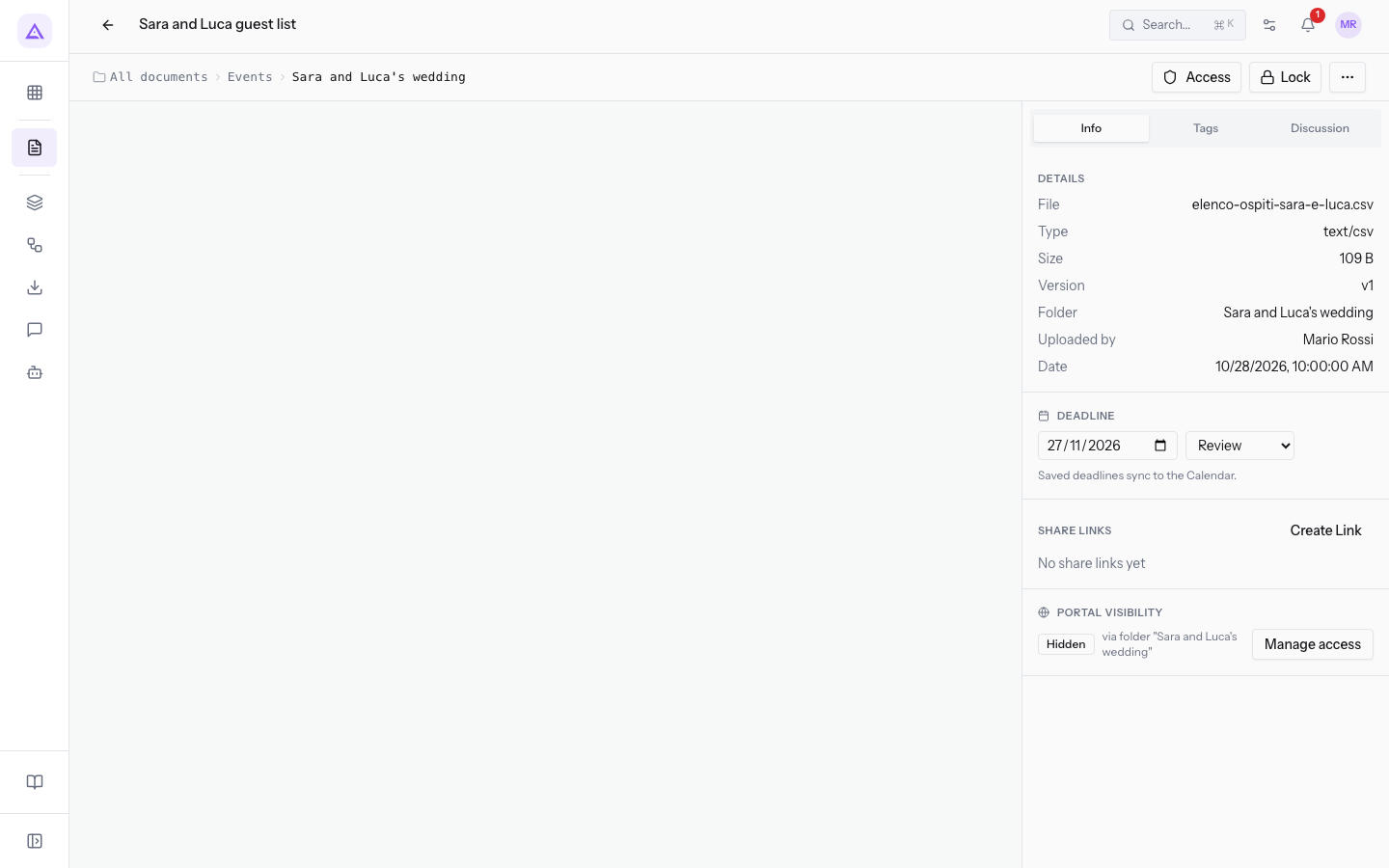
Sara and Luca guest listthe path is All documents, Events, Sara and Luca's wedding.
To change the document's folder use Move in the actions menu.
The file preview
The center of the page shows the file preview. It depends on the file format.
- For PDFs and images the page shows the file content, for example the contract
contratto-quadro-forniture-neri-v2.pdf. - For other formats the page shows the message Preview not available for this format with the Try open button.
Note: pages written in Documents have a document page with the page text in place of the preview. See Writing and updating a page in Documents.
The actions menu
The actions on the document are in the Actions menu, the three-dot button at the top right.
- Open the document page, for example
Invoice FV/2026/0002. - Press the three-dot button.
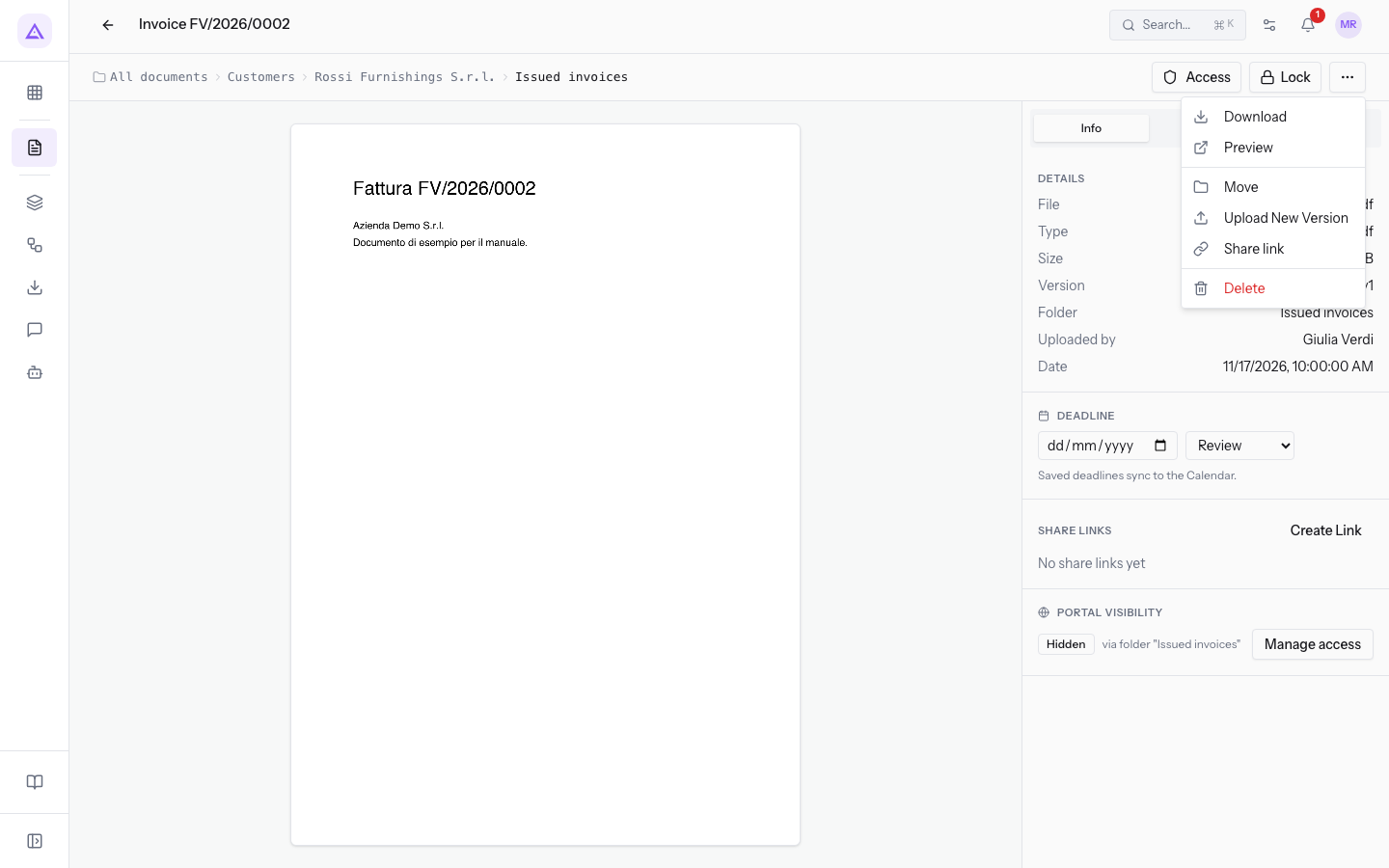
The menu contains these items:
- Download: downloads the file to your computer.
- Preview: shows the document preview.
- Move: moves the document to another folder. See Move, tag, archive and delete multiple documents together.
- Upload New Version: replaces the file and keeps the previous versions. See New versions, deadlines and locking a document.
- Share link: creates a share link for the document. See Sharing a document with a link.
- Delete: deletes the document.
Important: deleting a document requires the management permission of the Documents module. Staff with the basic permission cannot delete documents.
Next to the menu, the Lock button locks the document so colleagues do not edit it. Locking is described in New versions, deadlines and locking a document.
The Info tab
The Info tab in the right column is the one open when you enter the document page. It shows the file details, the previous version, the deadline, the share links and the portal visibility.
Details
The Details section lists the file information. The values are filled in automatically and cannot be changed here.
- File: the name of the uploaded file, for example
contratto-quadro-forniture-neri-v2.pdf. - Type: the file format.
- Size: the file size, such as
109 BforSara and Luca guest list. - Version: the current version number of the document.
Framework contract Forniture Neri 2026is at version 2. - Folder: the folder that contains the document.
- Uploaded by: the user who uploaded the document.
- Date: the date of the document.
Previous version
When the document has several versions, the Previous Version section shows the link to the version before the current one. For Framework contract Forniture Neri 2026 the link is v1 – Framework contract Forniture Neri 2026.
To upload a new version see New versions, deadlines and locking a document.
Deadline and share links
The Info tab also has the document deadline, with the type Review, Expiry, Submission or Other, and the Create Link button for the share link.
- The deadline is described in New versions, deadlines and locking a document.
- Share links are described in Sharing a document with a link.
Portal visibility
The Portal visibility section shows whether the document is visible to customers in the portal. The Manage access button leads to access management.
A document has no visibility of its own: it inherits the visibility of the folder that contains it. A document that is in no folder never appears in the portal, for example Terrace inspection photos.
- If a customer must see the document in the portal, put it in a folder shared with their company or published to all customers.
- If the document must stay internal, keep it in a folder that is not shared.
To share a folder see Sharing folders with customers in the portal.
The Tags tab
The Tags tab shows the document's tags with their category in brackets.
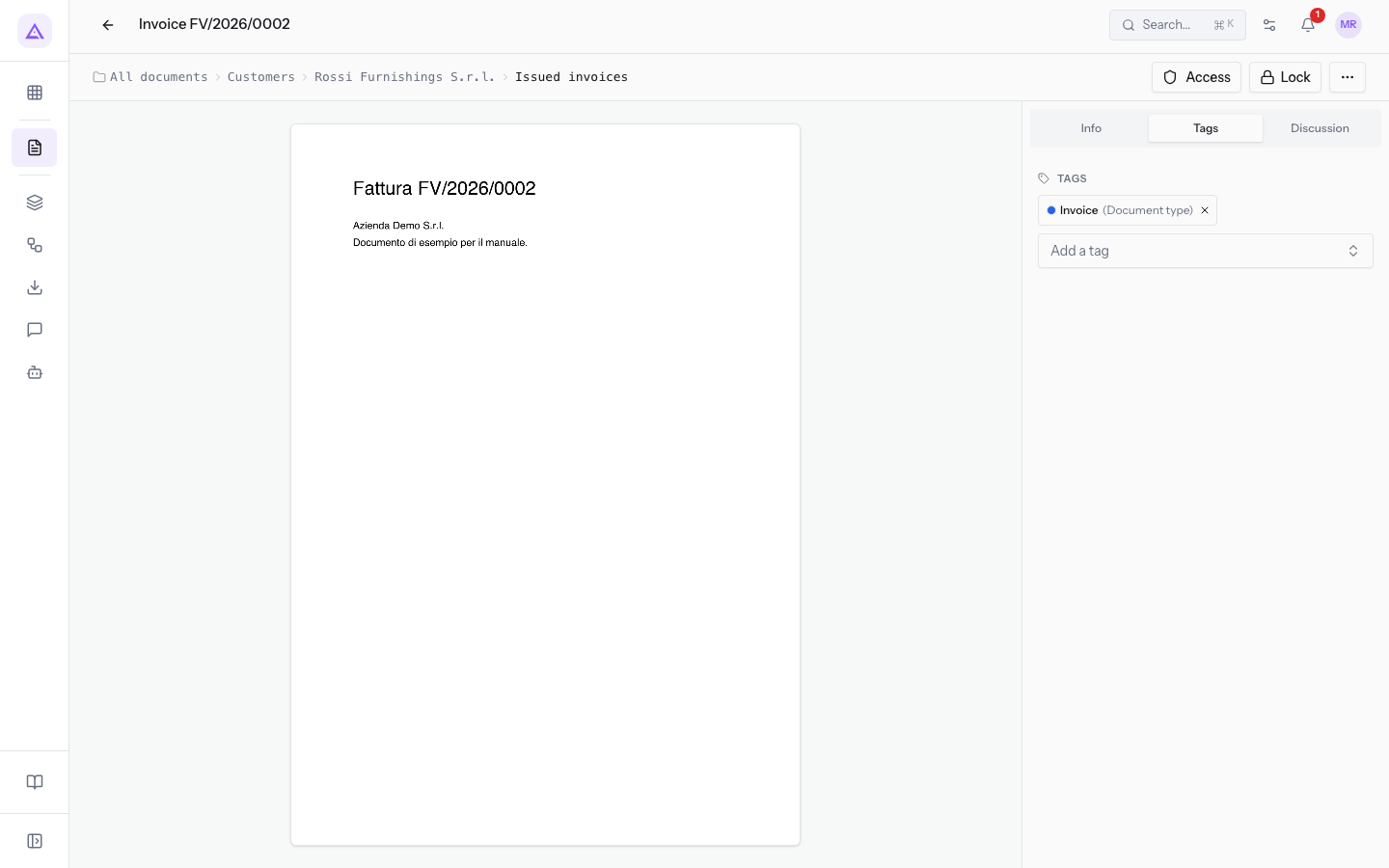
- Each applied tag appears with its category, for example
Invoice (Document type)onInvoice FV/2026/0002. Next to each tag there is the button to remove it. - Add a tag: adds a tag to the document.
To apply tags to several documents together see Move, tag, archive and delete multiple documents together.
The Discussion tab
The Discussion tab collects the messages, notes and history of the document.
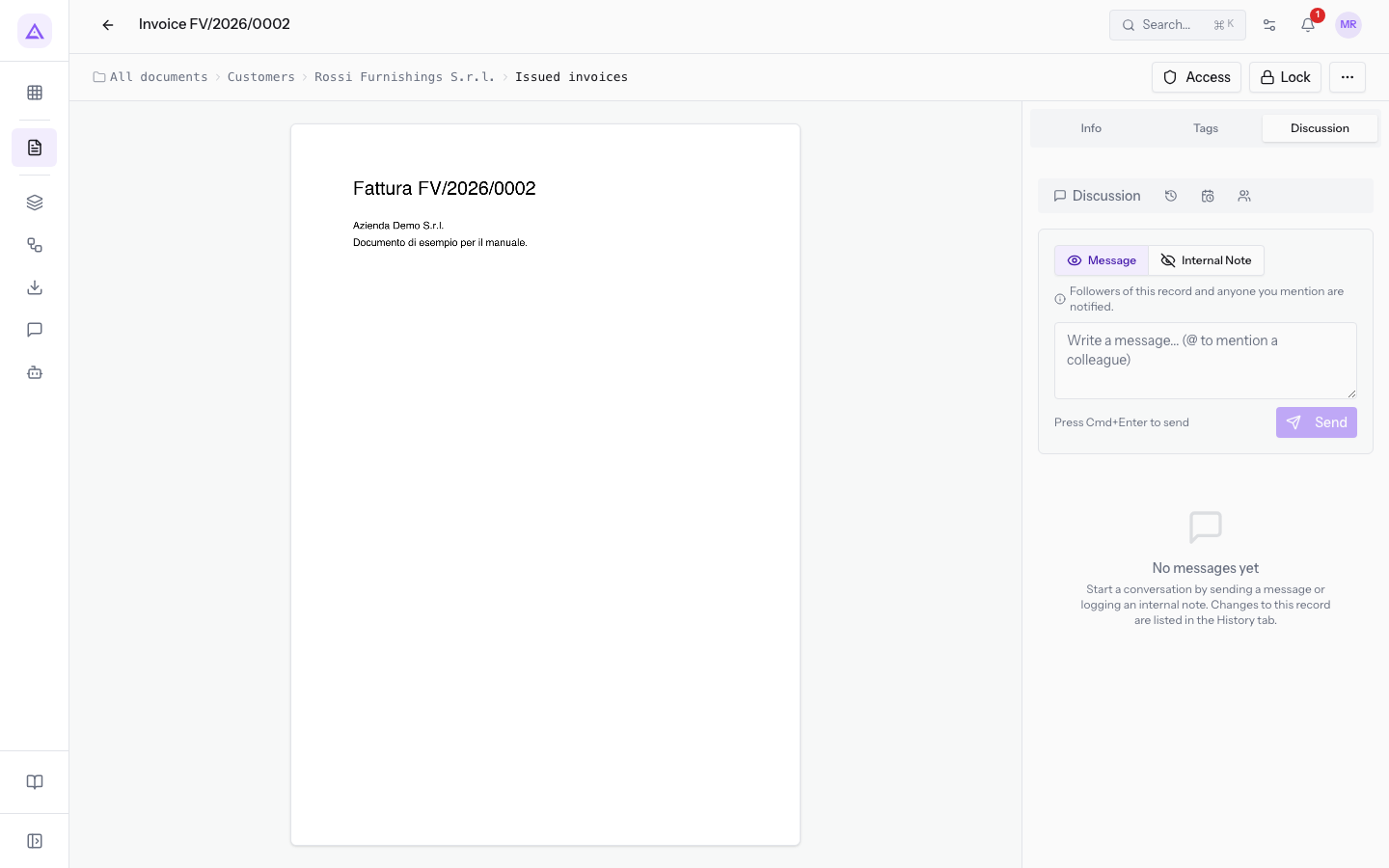
The tab contains these sub-tabs, the last three shown as icons:
- Discussion: the messages and notes written on the document.
- History: the history of the document.
- Tasks: the activities of the document.
- Followers: the users who follow the document.
To write on the document:
- Choose Message or Internal Note.
- Write the text in the message field.
- Press Send.
Full-page preview
The full-page preview shows the document file across the whole window, without the menu and without the right column. At the top are the document name and the Download button.
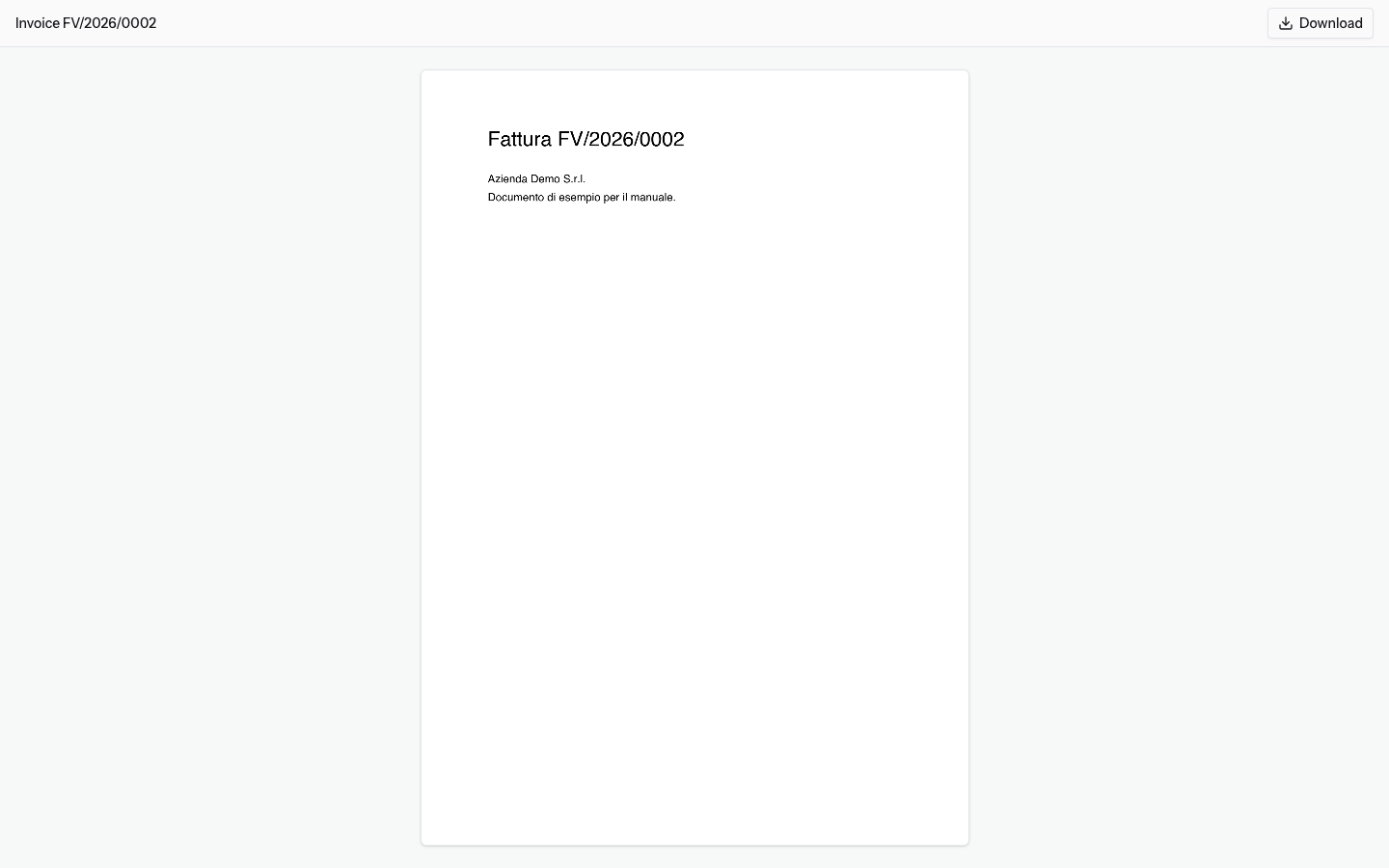
- Download: downloads the file to your computer.
See it on your company, not on a slide deck.
In 30 minutes we map the software you use today.We show you how much work and how much margin Archimedes gives back.
Show me on my business →What industry are you in?
One tap — it lets us prepare the demo around your world.
What tools do you use today?
Pick the ones you recognise — or just type them. It helps us show you how they migrate.
Last step: your details.
We reply within one working day — and right after, if you like, you pick the demo slot yourself.
We couldn't send your request. Try again, or write to us at [email protected].
By sending, you agree to your data being processed so we can get back to you about the demo. Privacy notice.
Preview form — nothing is sent from this page.
Want to schedule the demo now?
Your call: book the slot you prefer yourself, or we'll call you to arrange it.
Live availability, 30 minutes, instant confirmation. The calendar opens in a new tab.
Lock in your slot ↗We'll get back to you within one working day — and we'll join the call already knowing your world.
The calendar is open in another tab: pick a slot and the demo is booked. Can't see it? Reopen it ↗
Preview page: nothing was sent.
Our calendar is live: take the slot that suits you and the demo is booked. 30 minutes, instant confirmation, no waiting.
Lock in your slot ↗