Documents
All modules
Writing and updating a page in Documents
Documents · 6 of 15 · 3 min read
A page is a document whose text is written and updated directly in Documents, without uploading a file. It is meant for text that changes over time, for example a checklist, an internal procedure, or a list of things to prepare for an event.
The demo organization has two pages: Wedding-day checklist and Room closing procedure.
When to write a page
A page and an uploaded file are two types of document. Choose based on how the text is created and changes.
- If the text needs to be written and updated several times in Documents, create a page. Changes to the text stay in the history.
- If the document already exists as a PDF or image, upload it as a file. See Upload documents and create a page.
Creating a page
A new page is created from the list of documents and opens right away, empty.
- Open Documents › All Documents.
- Press New page. The page opens, with the title
Untitled page.
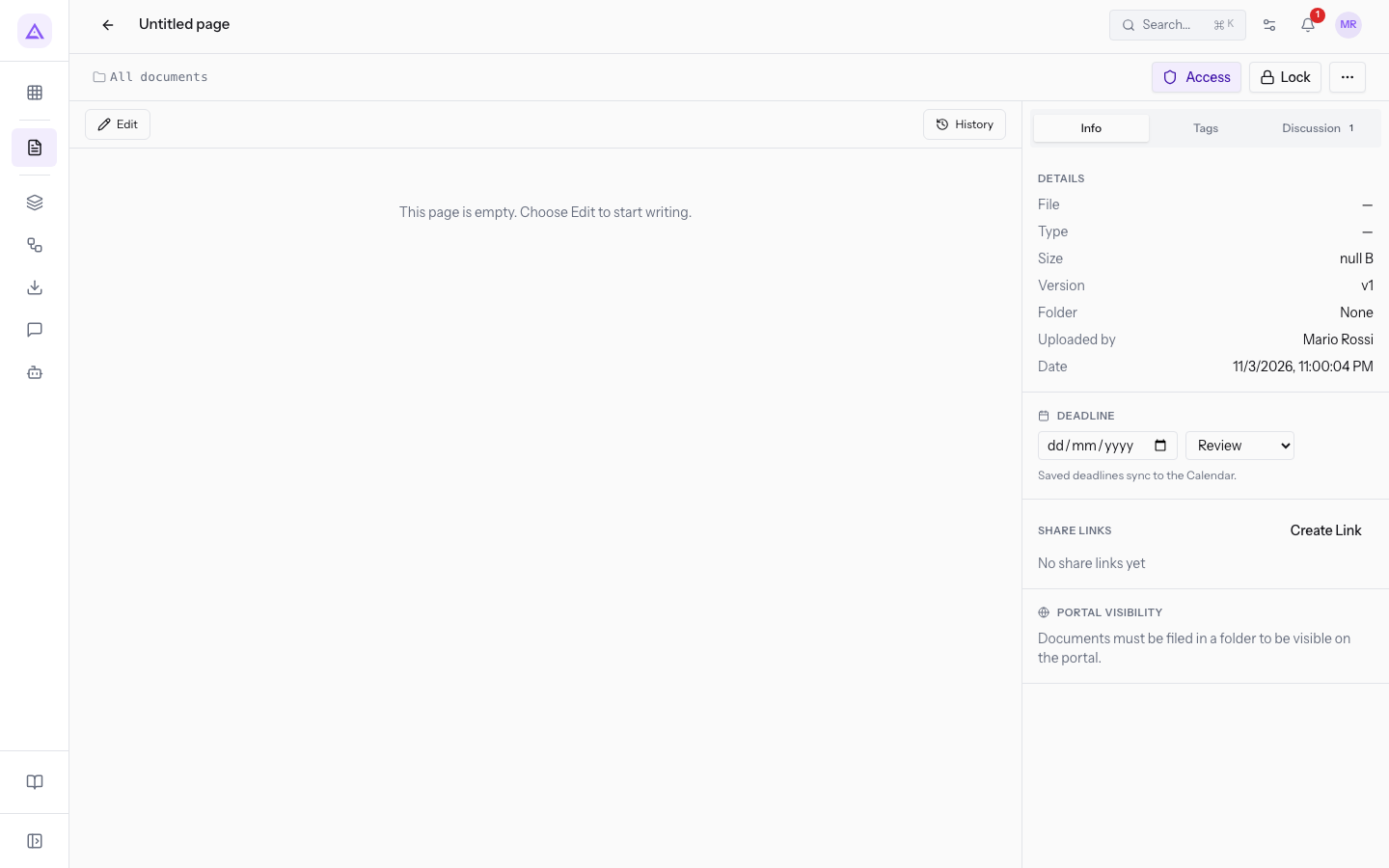
While the page has no text, the message This page is empty. Choose Edit to start writing. appears in place of the content.
- Press Edit to write the text, as described in the next section.
Opening an existing page
A page opens like other documents, from the list and from the preview panel.
- Open Documents › All Documents.
- Press the name of the page, for example
Wedding-day checklist. - Press Open.
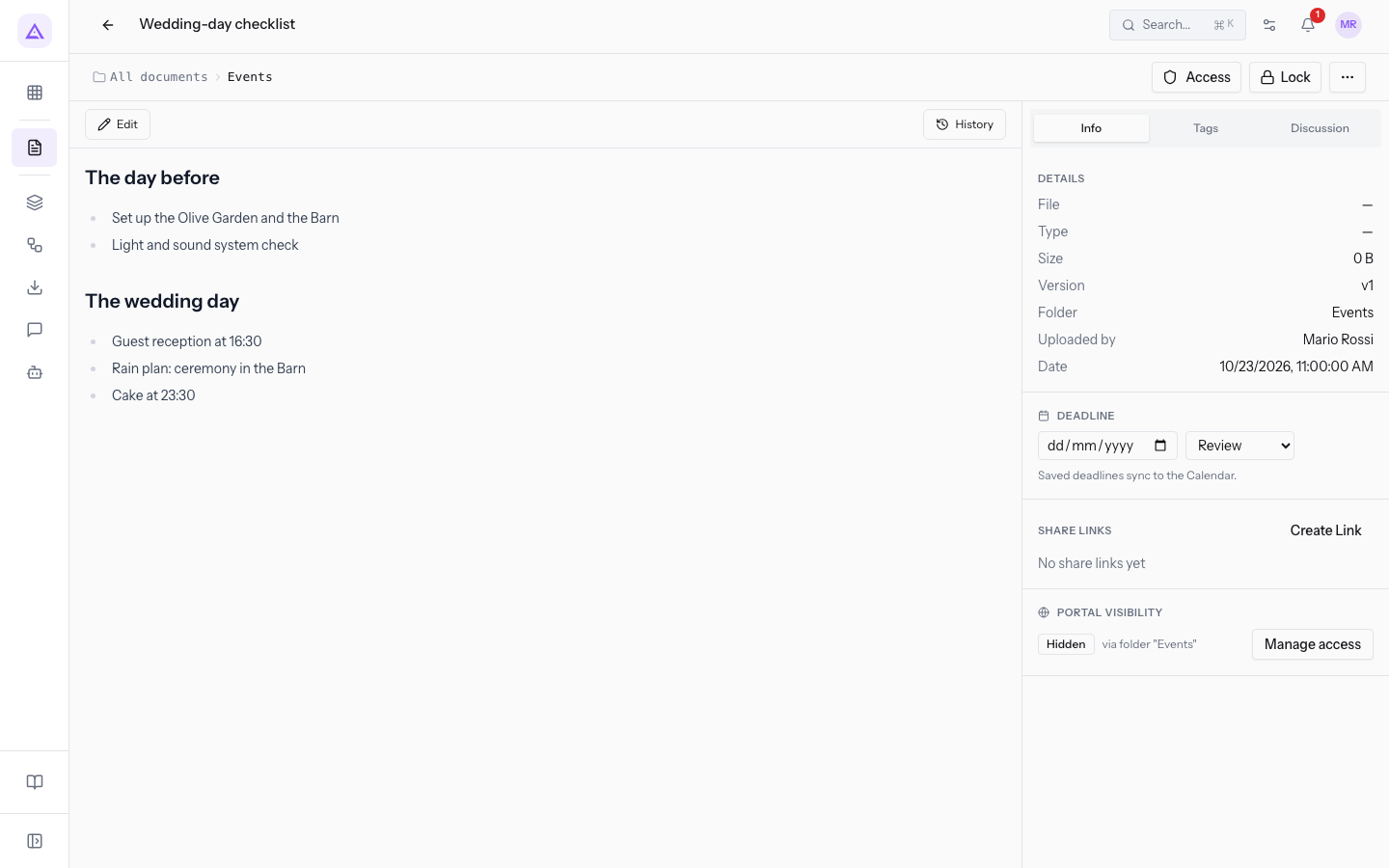
The page shows its text with the headings, such as The day before and The wedding day. Above the text are the Edit and History buttons. On the right are the Info, Tags and Discussion tabs, as for other documents.
The document page is described in View a document's detail page.
Editing the text
The text of a page is changed in edit mode and saved with Save.
- Open the page, for example
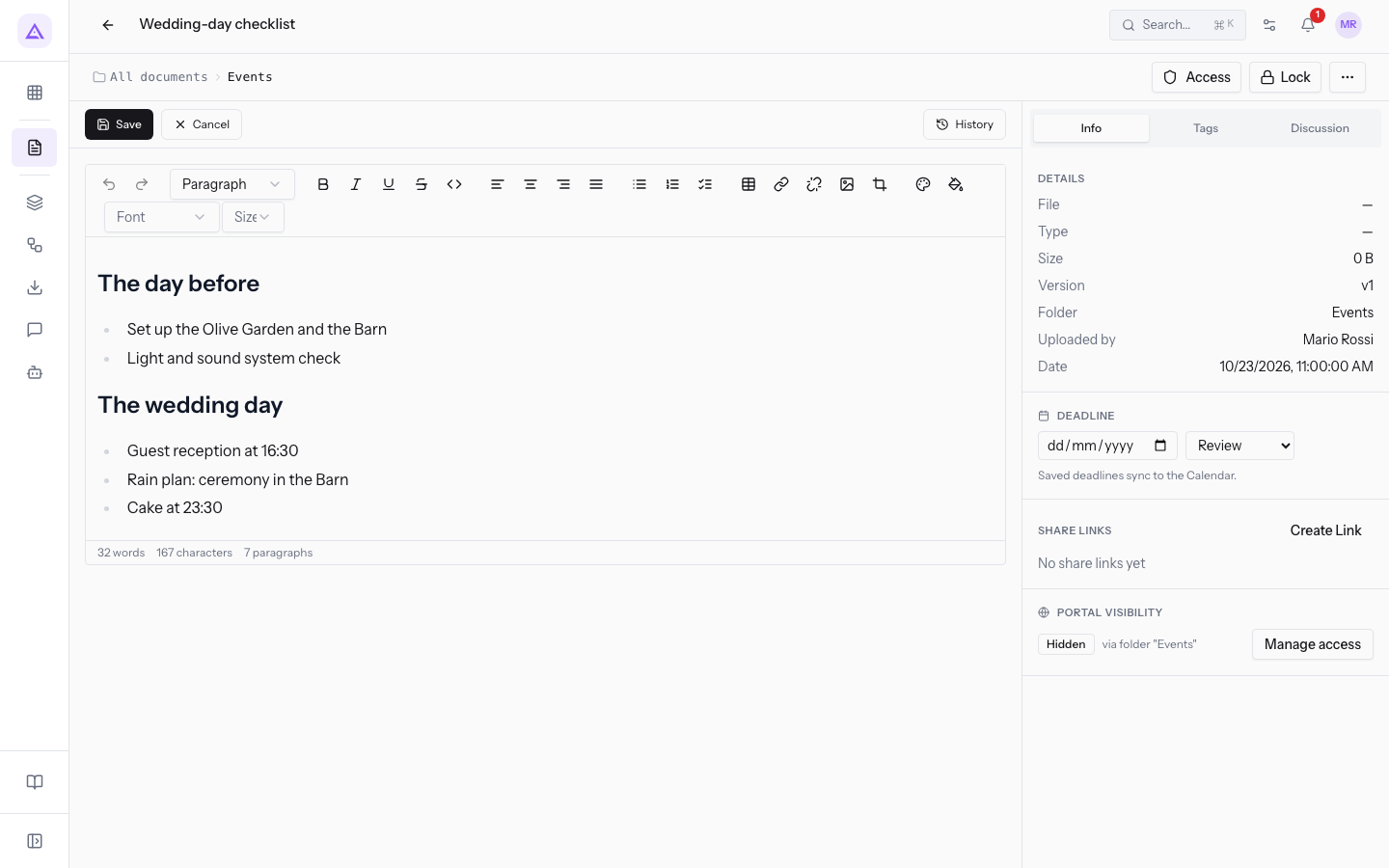
Wedding-day checklist. - Press Edit. The text becomes editable and the formatting bar appears above it.
- Write or correct the text.
- Press Save to keep the changes.
In edit mode, the Edit button is replaced by Save and Cancel. The History button stays available.
The formatting bar lets you:
- choose the paragraph style, the font, and the text size;
- apply bold, italic, underline, and strikethrough;
- align the text left, center, right, or justified;
- create bulleted lists, numbered lists, and checklists;
- insert or remove a link, and insert an image;
- undo and redo the last change.
Tip: for a checklist such as
Wedding-day checklist, use the checklist option in the formatting bar.
If a colleague needs to work on the page after you, or if you want no one to change it while you review it, you can lock it. See New versions, deadlines and locking a document.
Viewing earlier versions
Changes to a page's text stay in the history.
- Open the page, for example
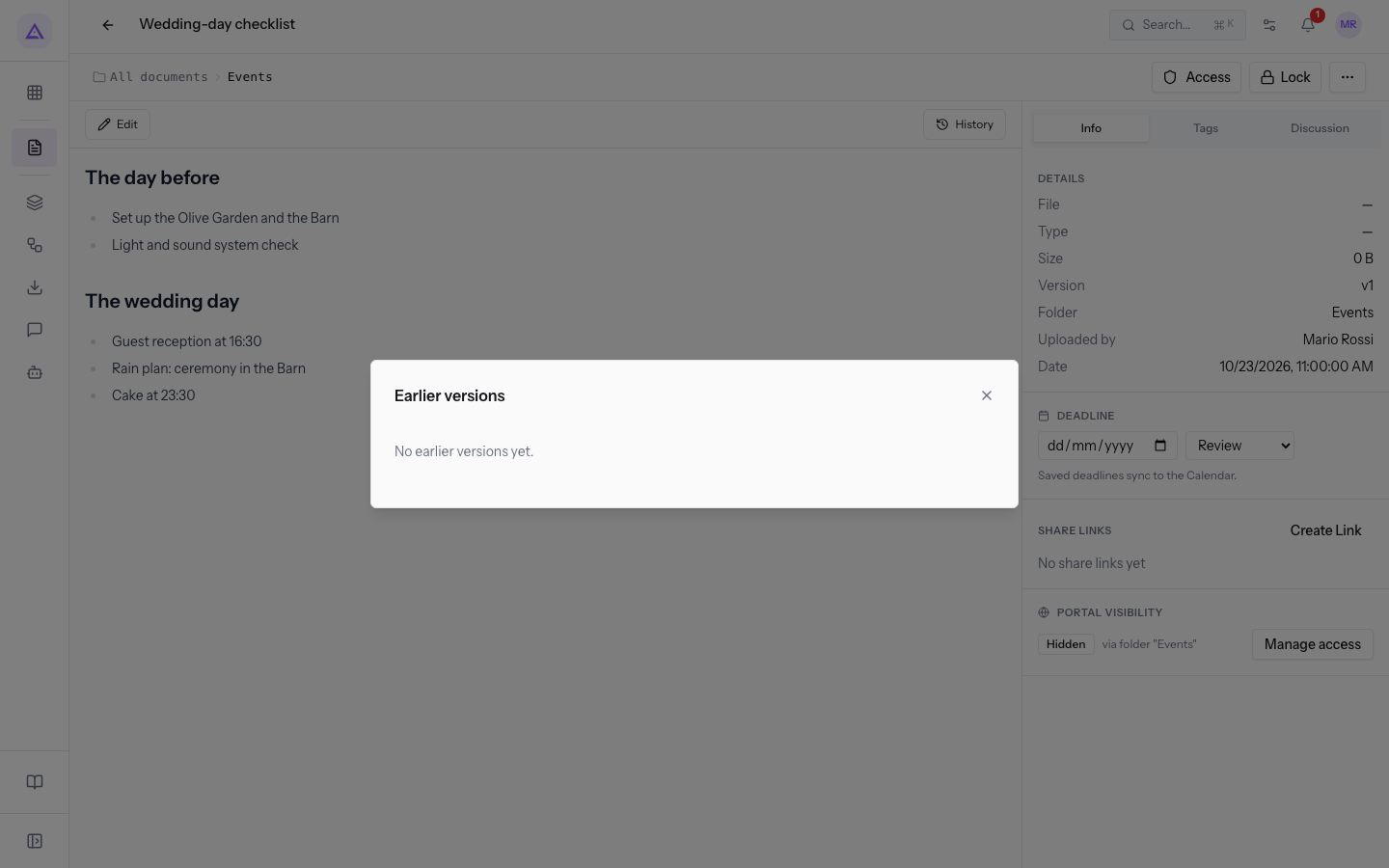
Wedding-day checklist. - Press History. The Earlier versions window opens with the saved versions of the page. Until the text has been changed, it shows No earlier versions yet.
Note: the history of a page records changes to the text. For an uploaded file, versions are instead added with a new version of the file, as described in New versions, deadlines and locking a document.
See it on your company, not on a slide deck.
In 30 minutes we map the software you use today.We show you how much work and how much margin Archimedes gives back.
Show me on my business →What industry are you in?
One tap — it lets us prepare the demo around your world.
What tools do you use today?
Pick the ones you recognise — or just type them. It helps us show you how they migrate.
Last step: your details.
We reply within one working day — and right after, if you like, you pick the demo slot yourself.
We couldn't send your request. Try again, or write to us at [email protected].
By sending, you agree to your data being processed so we can get back to you about the demo. Privacy notice.
Preview form — nothing is sent from this page.
Want to schedule the demo now?
Your call: book the slot you prefer yourself, or we'll call you to arrange it.
Live availability, 30 minutes, instant confirmation. The calendar opens in a new tab.
Lock in your slot ↗We'll get back to you within one working day — and we'll join the call already knowing your world.
The calendar is open in another tab: pick a slot and the demo is booked. Can't see it? Reopen it ↗
Preview page: nothing was sent.
Our calendar is live: take the slot that suits you and the demo is booked. 30 minutes, instant confirmation, no waiting.
Lock in your slot ↗