Documents
All modules
Sharing folders with customers in the portal
Documents · 12 of 15 · 7 min read
Sharing a folder decides which customers see it in the customer portal. You can share a folder with a single company, for example the folder Rossi Arredamenti S.r.l. with the customer itself. You can share it with all companies that have a tag, or with all portal customers, such as the folder Price lists 2026.
How visibility works in the portal
Visibility belongs to the folder: the documents in a folder are visible to anyone who can see the folder. A document that is not in any folder never appears in the portal, for example Terrace inspection photos.
In the portal, customers see files read-only. They do not upload files to shared folders: they send a file only in reply to a document request. This way every incoming file answers a specific request and is addressed to a specific person. To review the files you receive, see Approve or reject files uploaded by customers.
Choose the sharing type based on who needs to see the folder:
- If the folder contains documents of only one customer, share it with their company using Share with an entity.
- If the folder serves a group of companies with the same tag, use Share by tag.
- If the folder serves all customers, such as a price list, turn on Broadcast to all portal users.
Important: a share also applies to subfolders at any level, as long as Include subfolders is on. If you share the folder
Customers, the company sees the folders of all the customers it contains.
Opening the Sharing window
Folder shares are managed from the Sharing window, whose title shows the folder name, for example Sharing — Rossi Arredamenti S.r.l.
Before you start: managing folder shares requires the management permission for the Documents module. The customer sees the folder only if their contact has portal access, which requires an email address. Folder visibility in the portal also depends on the Customer documents in the portal setting: see Set up the client folder structure and portal visibility.
- Open Documents › Workspace.
- Select the folder in the columns, or type part of its name in the Find a folder… field, such as
Rossi, and select the resultRossi Arredamenti S.r.l.. - Press Share.
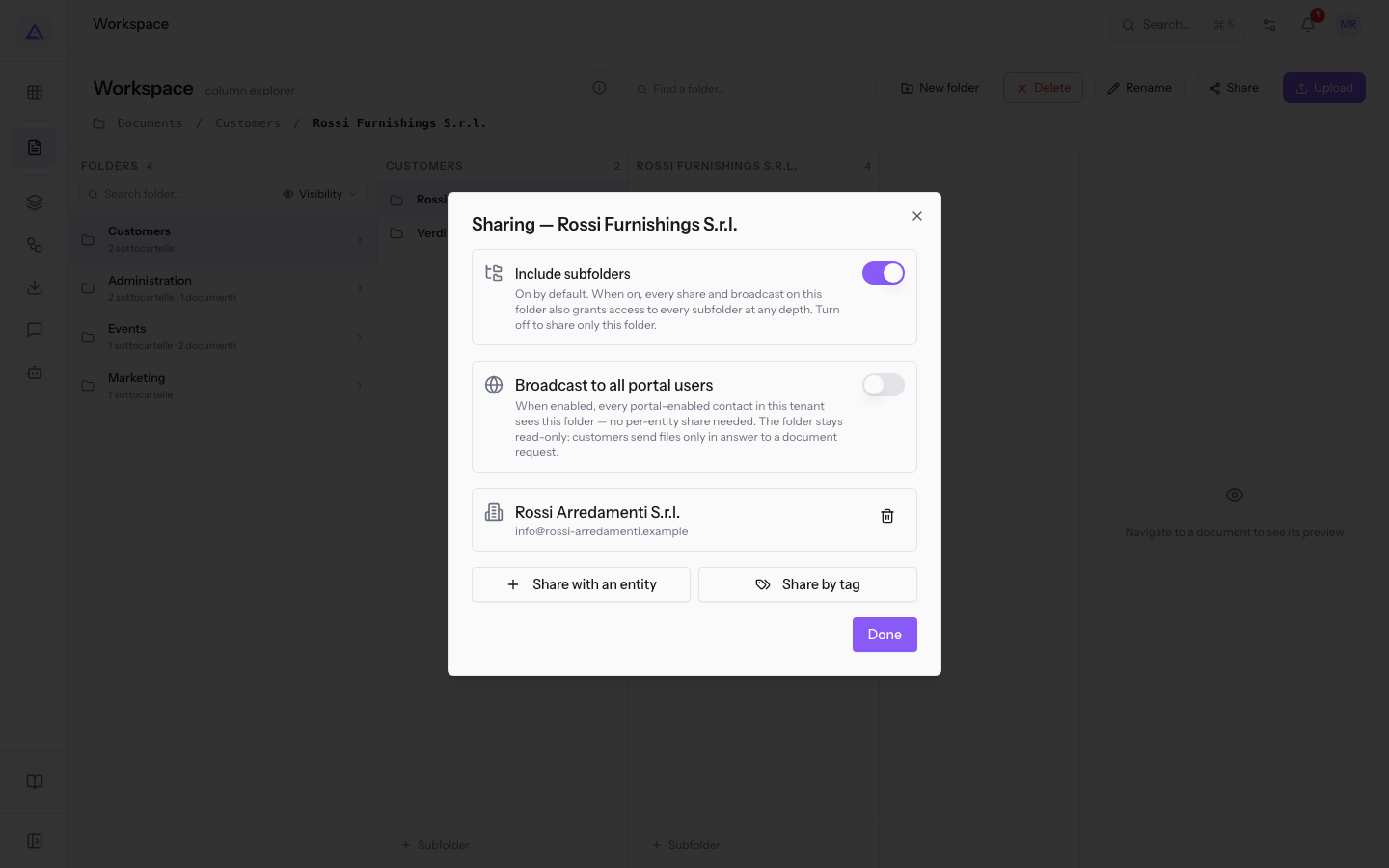
The window contains, from top to bottom:
- Include subfolders: decides whether the folder's shares also apply to subfolders.
- Broadcast to all portal users: makes the folder visible to all portal customers.
- The list of shares: the companies the folder is shared with, with name and email. If there are none, the window shows Not shared with anyone yet.
- Share with an entity and Share by tag: add a share.
- Done: closes the window.
Every change in the window is saved immediately, with no save button.
Sharing a folder with a company
Share with a company a folder that contains its documents, for example invoices and DDT.
- In the Sharing window, press Share with an entity.
- In the Find an entity field, type part of the name, such as
Verdi. - Press
Verdi Costruzioni S.p.A.in the list.
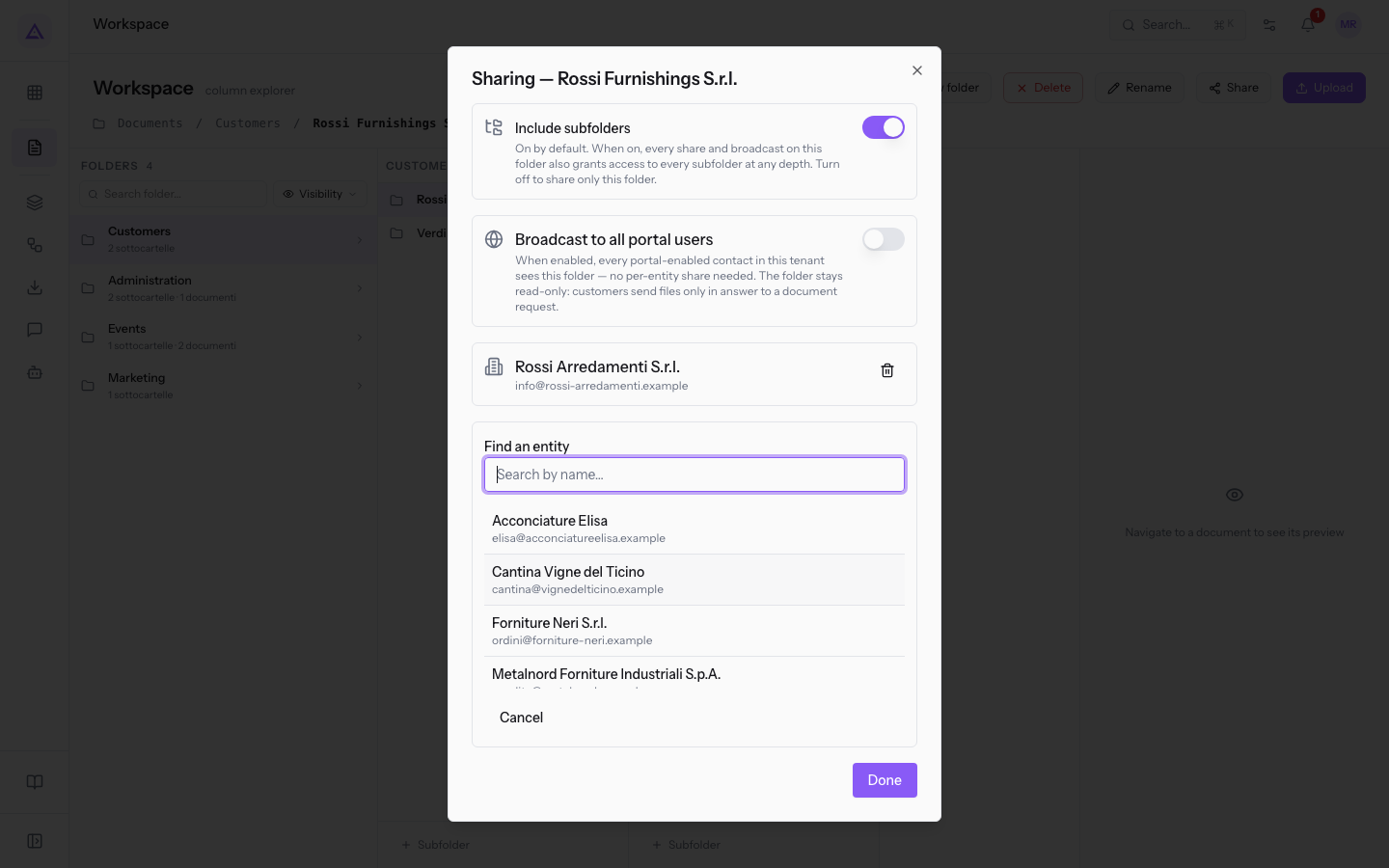
The share is created as soon as you press the company, and the message Shared. appears.
- Find an entity: searches among companies. The list shows the name and email of each. Only companies appear, not people.
- Already shared: appears under a company that already has access to the folder, such as
Rossi Arredamenti S.r.l.. You cannot select it again. - Cancel: closes the search without sharing.
Sharing a folder by tag
Share by tag when the same folder serves several companies. The folder is shared with all companies that have the selected tag.
- In the Sharing window, press Share by tag.
- Open the Share by tag menu, which shows Select a tag, and choose the tag, for example Price list.
- Press Share.
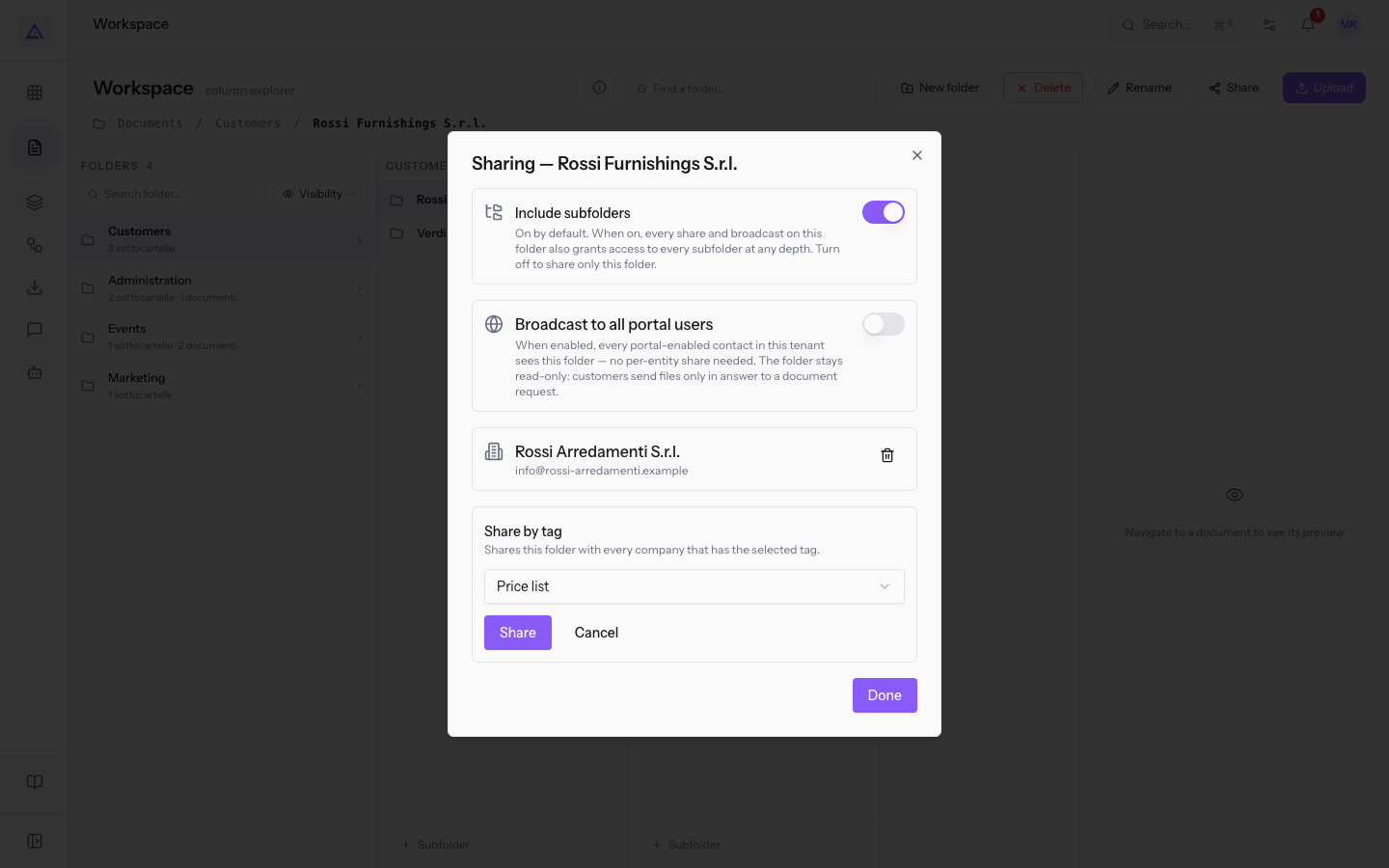
The Share button turns on only after you choose a tag. When it finishes, the message Shared with N companies. shows, in place of N, how many companies were added. Each company appears in the list of shares as a separate share. Cancel closes the choice without sharing.
Publishing a folder to all customers
Publish a folder to all customers when the content is relevant to anyone with portal access, for example the folder Price lists 2026.
- Open the Sharing window of the folder.
- Turn on Broadcast to all portal users.
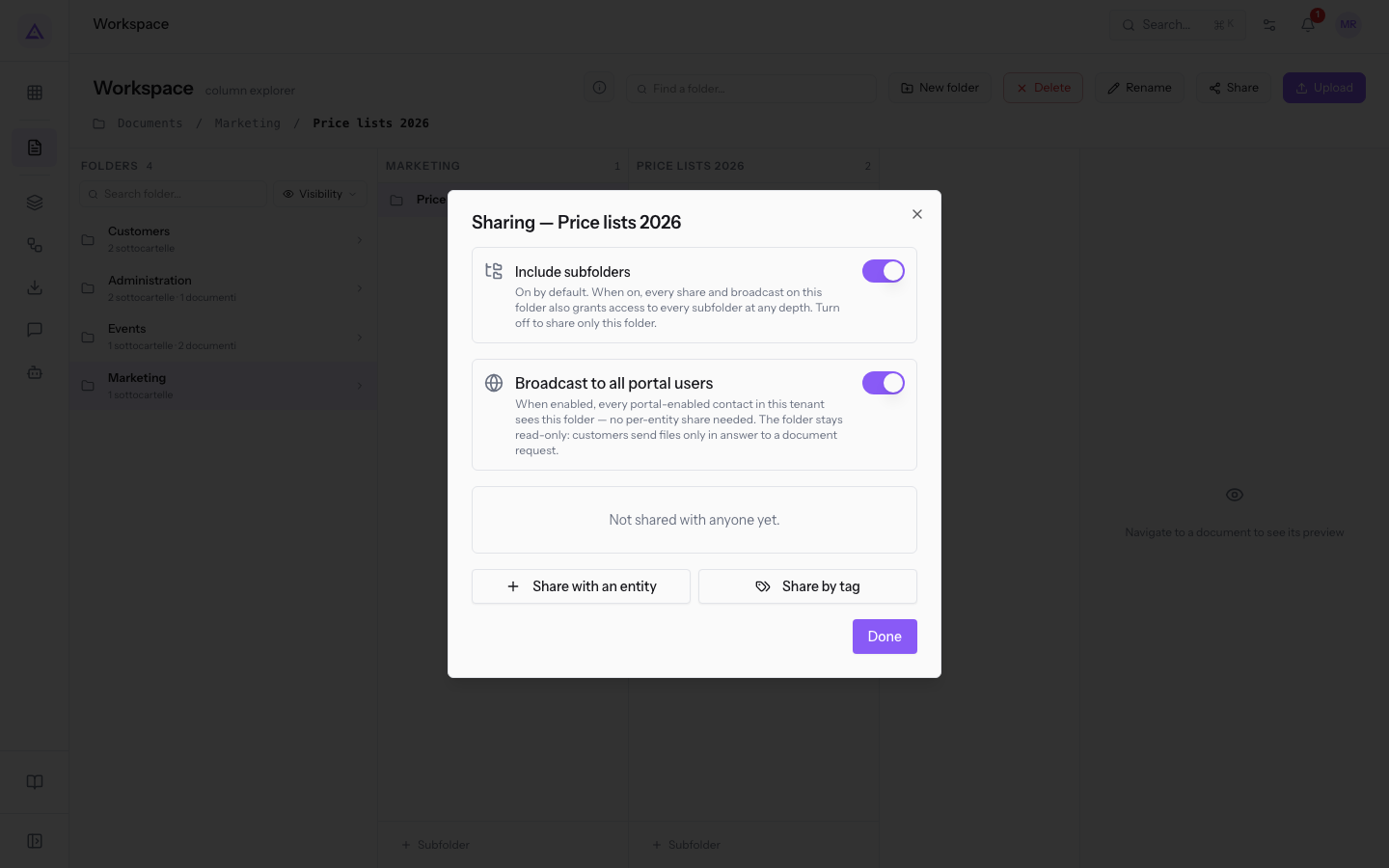
When the option is on, every contact with portal access sees the folder, even without a share for a specific company. The folder stays read-only. To remove the folder from the portal, turn the option off.
Choosing which subfolders to share
Include subfolders is on by default. While it is on, every share of the folder, including publishing to all customers, also gives access to subfolders at any level.
- If the customer should see all the folder's content, leave Include subfolders on.
- If the customer should see only some subfolders, for example
Issued invoicesandDDTbut notReceived invoices, turn it off and choose the subfolders.
- In the Sharing window, turn off Include subfolders. The message Subfolder access updated. appears.
- Under the company in the list of shares, press Pick subfolders. The number next to it shows how many subfolders are already included.
- Select the subfolders to share, such as Issued invoices and DDT. To select them all, press Select all.
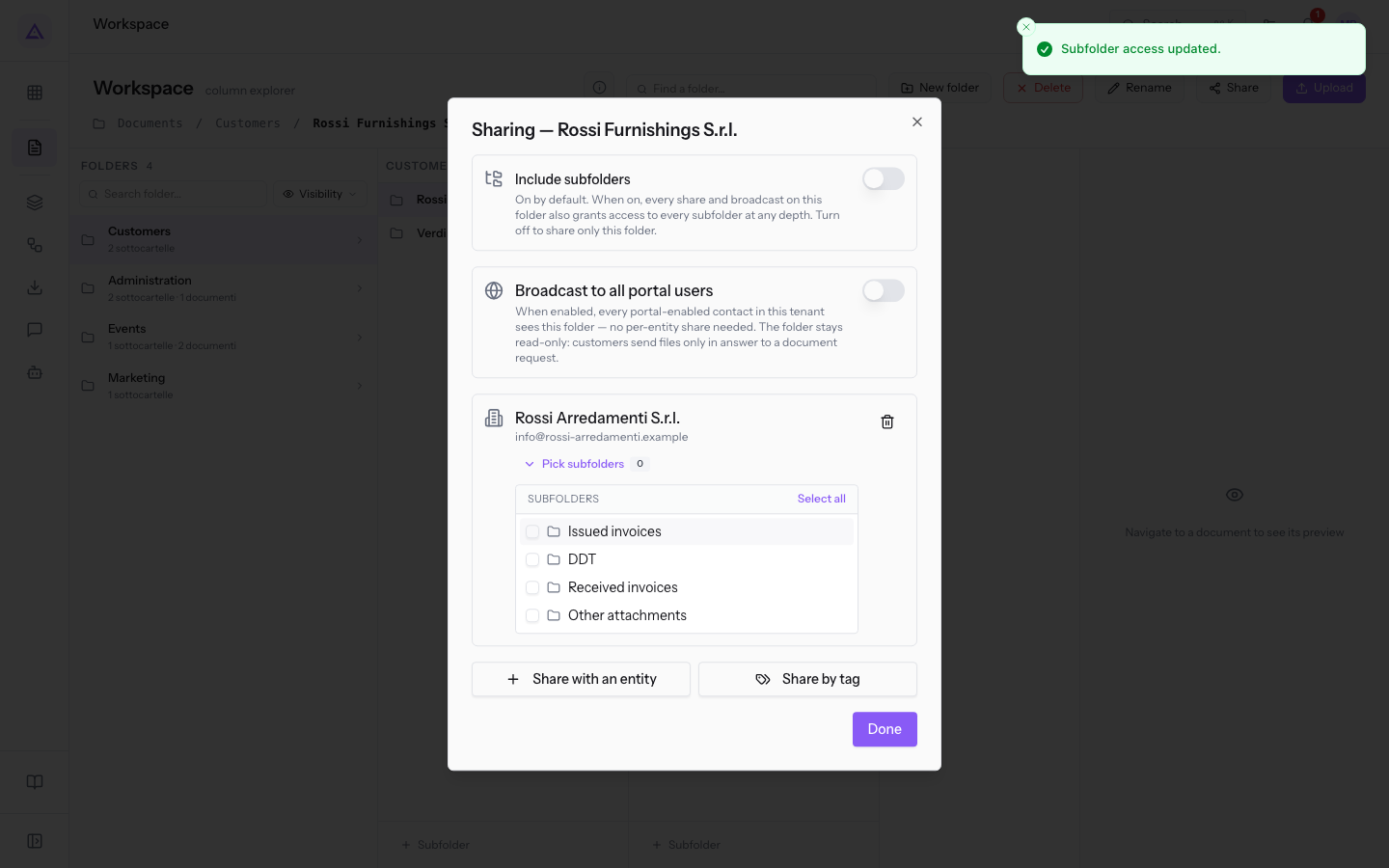
The subfolder choice applies to one company only: each share has its own choice. Pick subfolders appears only when Include subfolders is off. Include subfolders, instead, applies to all shares of the folder.
Revoking a share
Revoke a share when a company should no longer see the folder.
- In the Sharing window, find the company in the list of shares.
- Press the trash icon button on the right of the row.
- Confirm the revocation. The message Share revoked. appears.
After the revocation, the company no longer sees the folder in the portal, unless the folder is published to all customers.
Recognizing shared folders
A shared folder shows a badge with its visibility status. A folder that is internal only has no badge.
- Public to all customers: the folder is published to all portal customers.
- Shared with N customers: the folder is shared with the number of companies shown in place of N. If you hover over the badge, the list of companies appears under Shared with.
To find folders by visibility, in Documents › Workspace press Visibility and choose one or more options:
- Internal only: folders that no customer sees.
- Shared with customers: folders shared with one or more companies.
- Broadcast (public): folders published to all customers.
The document page also has a Portal visibility section. The document follows the visibility of the folder it is in. A document must be in a folder to be visible in the portal.
Notifying customers of a new file
When you upload a file to a shared folder with Upload, turn on Notify customer to send an email with the link to the document to the customers who have access to the folder. If no customer can receive the notice, the message No portal users can be notified for this folder. appears. Sending also depends on the Email settings: if notifications are turned off there, the message Notifications are turned off in Email settings. appears. For the other Workspace buttons, see Browse documents by column in the Workspace.
See it on your company, not on a slide deck.
In 30 minutes we map the software you use today.We show you how much work and how much margin Archimedes gives back.
Show me on my business →What industry are you in?
One tap — it lets us prepare the demo around your world.
What tools do you use today?
Pick the ones you recognise — or just type them. It helps us show you how they migrate.
Last step: your details.
We reply within one working day — and right after, if you like, you pick the demo slot yourself.
We couldn't send your request. Try again, or write to us at [email protected].
By sending, you agree to your data being processed so we can get back to you about the demo. Privacy notice.
Preview form — nothing is sent from this page.
Want to schedule the demo now?
Your call: book the slot you prefer yourself, or we'll call you to arrange it.
Live availability, 30 minutes, instant confirmation. The calendar opens in a new tab.
Lock in your slot ↗We'll get back to you within one working day — and we'll join the call already knowing your world.
The calendar is open in another tab: pick a slot and the demo is booked. Can't see it? Reopen it ↗
Preview page: nothing was sent.
Our calendar is live: take the slot that suits you and the demo is booked. 30 minutes, instant confirmation, no waiting.
Lock in your slot ↗