Data Import
All modules
Mapping the file's columns to Archimedes fields
Data Import · 4 of 11 · 6 min read
When you import a spreadsheet file, Archimedes needs to know which column in the file to read each field from. The Map the columns step does this: you match each column to a field — for example, the VAT number column to the VAT number field — or exclude it from the import. An incorrect mapping puts the data in the wrong field of every imported contact: that is why it is worth checking it before moving on.
How column matching works
Archimedes suggests a mapping automatically based on the file's headers. You review it and correct only the rows that are wrong.
- Archimedes compares each header with the name of each field and its alternative names. Before comparing, it ignores capitalization, accents, and punctuation.
- An identical name takes priority. If no identical name is found, Archimedes accepts a header that contains the field name, or vice versa.
- Each field is matched to only one column. If two columns could go to the same field, the one with the stronger match wins.
- The alternative names include the most common Italian headers: Ragione sociale maps to Name, Partita IVA or P.IVA to VAT number, E-mail to Email, Telefono to Phone, Città to City, CAP to ZIP.
- A column that does not match any field stays on — ignore — and is not imported. In contatti-fiera.csv it is the Interest column, data for which the address book has no field.
How to choose:
- If the suggested mapping is correct, move on to the next step without changing it.
- If a column is matched to the wrong field, choose the correct field from its menu.
- If a column contains data you do not want to bring into Archimedes, choose — ignore —.
Opening the Map the columns step
The step appears in the file procedure, under What to Import, as soon as you choose the data type. The example uses the file contatti-fiera.csv and the Contacts data type. The Data Import entry in the side menu is visible only to organization administrators.
- Open Data Import from the side menu and click the Spreadsheet file source.
- In the File field, upload contatti-fiera.csv. Leave First row is the header selected: Archimedes reads the headers to match from that row.
- Click Next.
- In What to Import, leave Contacts selected and uncheck Products and Issued invoices: a file feeds only one data type, and the mapping applies to the first selected type.
- Below, Map the columns appears, with a row for each column in the file and the field Archimedes has suggested.
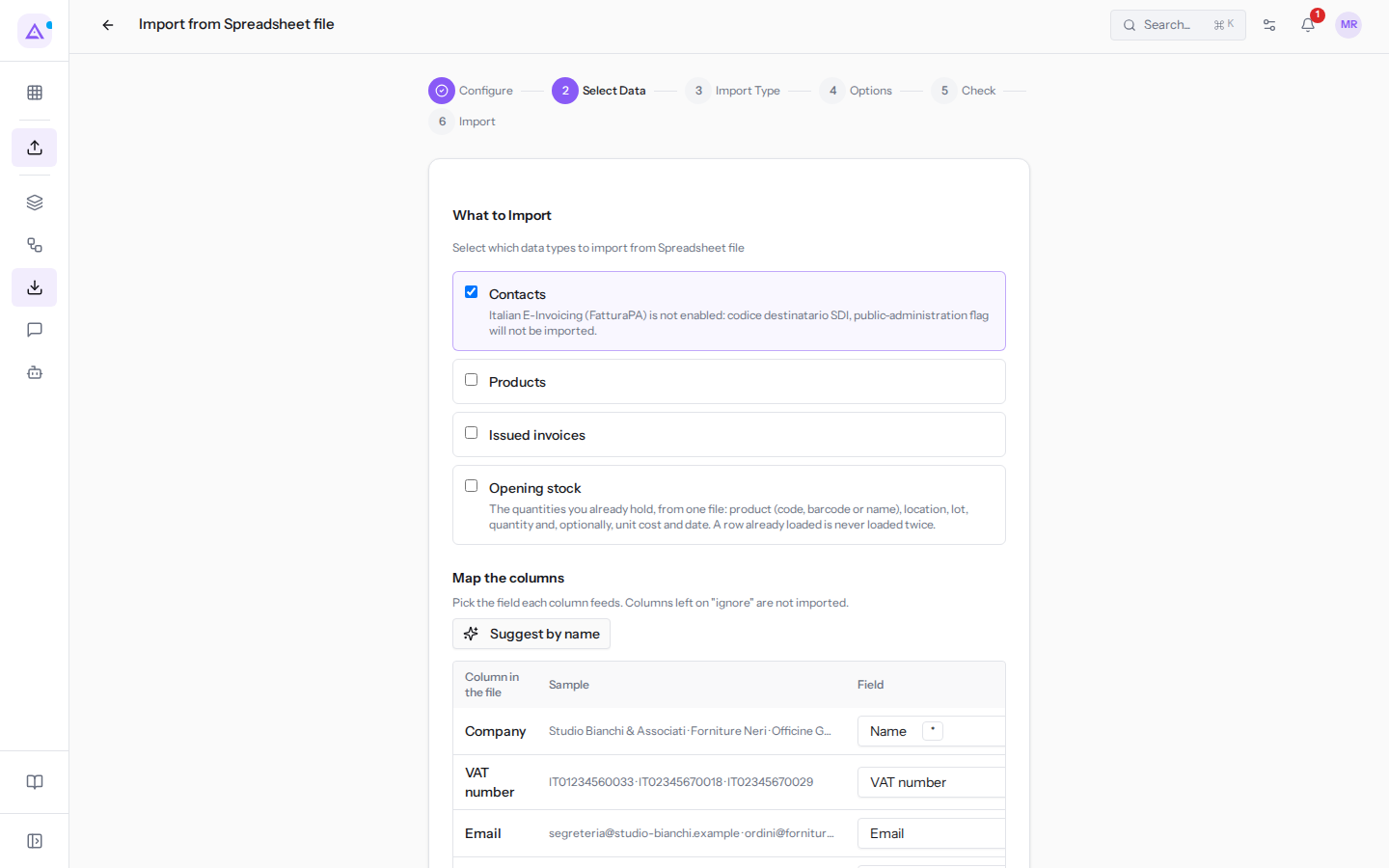
With contatti-fiera.csv, Archimedes suggests the fields Name, VAT number, Email, Phone, City and ZIP; the Interest column stays on — ignore —. The Sample column shows the first values of each column in the file: look at them to check whether the column really contains the data of the suggested field.
Changing a mapping
Each column in the file has a menu with the contact fields. Use it to correct the suggestion or to exclude the column.
- Click the menu of the column you want to correct.
- Choose the destination field, or — ignore — to not import the column.
In the menu, fields already matched to another column are grayed out and cannot be chosen. To move a field from one column to another, first set the column that has it to — ignore —.
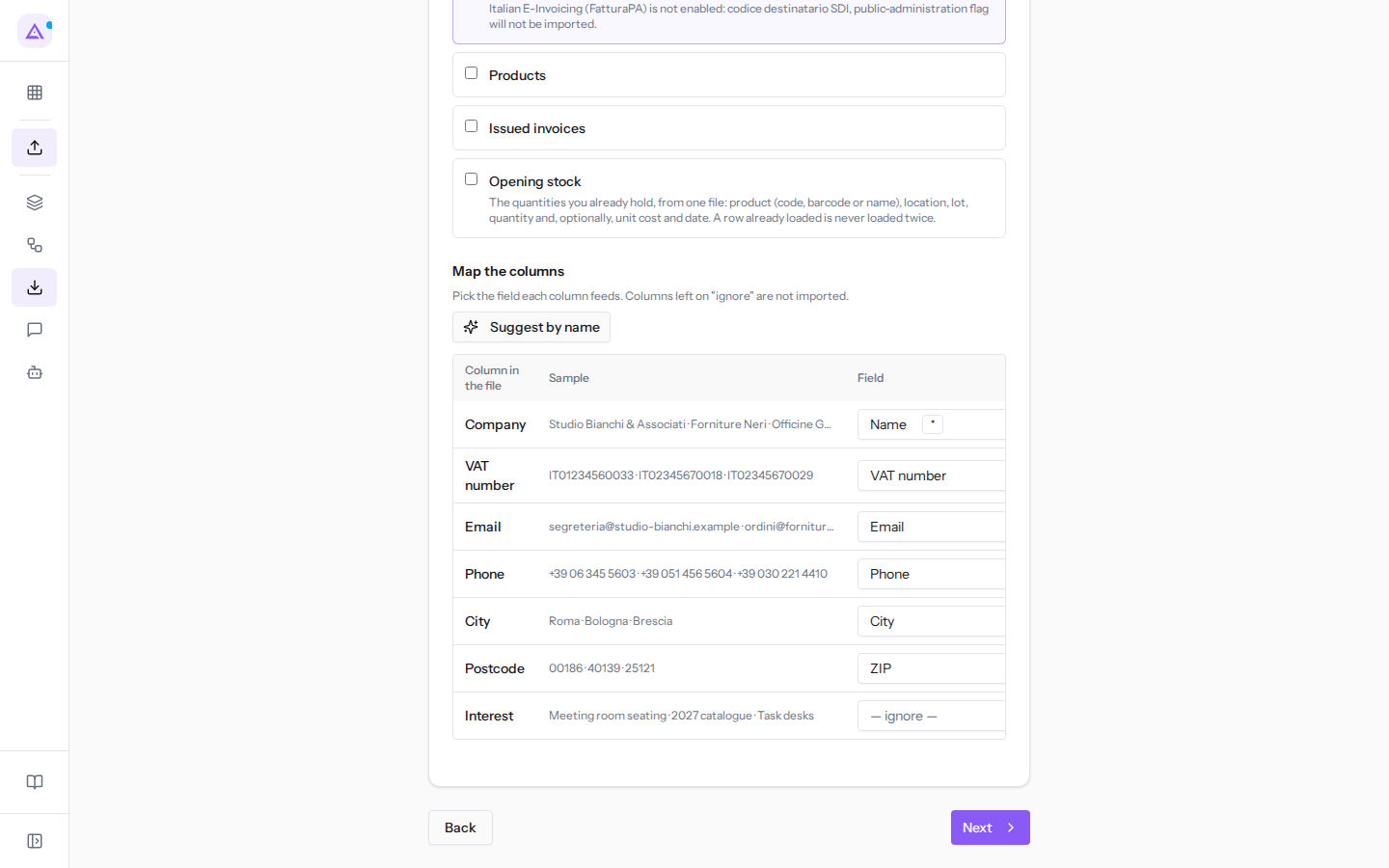
The contact menu contains the following items:
- — ignore —: the column is not imported.
- Name: the contact's name, marked with an asterisk. The field is required.
- Internal code, Is a company, Email, Phone, Mobile.
- VAT number, Fiscal code.
- Website, Street, City, ZIP, Province / state, Country.
- Customer, Vendor, Referent, Notes, Tags.
- IBAN, Bank, BIC / SWIFT.
If you have changed several rows and want to start over, click Suggest by name: Archimedes discards the current mapping, including one carried over from a previous import, and rebuilds it from the file's headers.
Required fields
A field marked with an asterisk, such as Name, must be matched to a column: without a name Archimedes cannot create the contact. As long as a required field has no column, the warning "Required fields without a column: Name" appears above the table and the Next button is disabled. Match a column to the field and the button becomes active again.
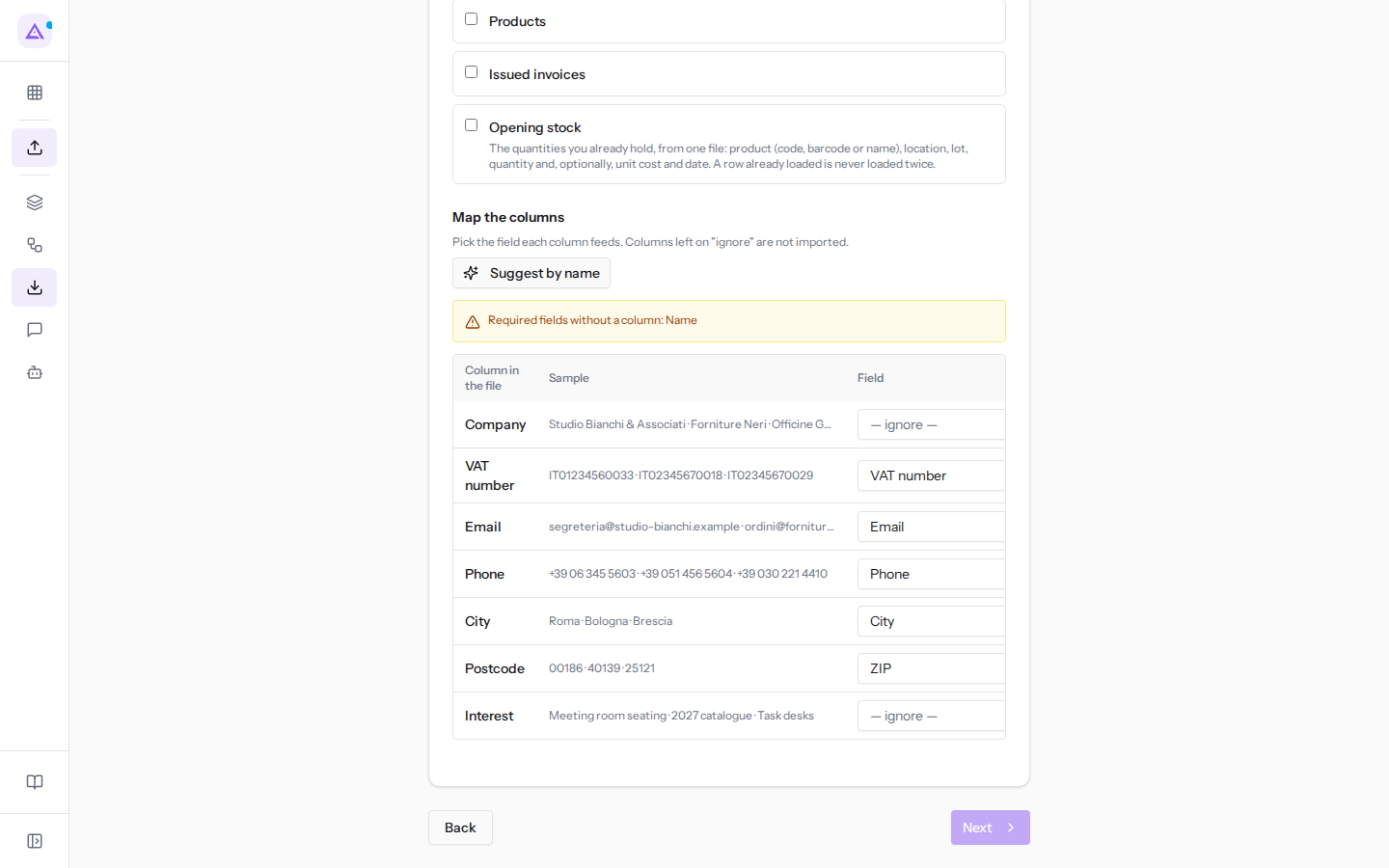
The mapping checks the column, not individual rows. If a row's name cell is empty, that row is discarded and the others are imported: in contatti-fiera.csv it is the last row, without a company name, that the check counts among the invalid rows.
The mapping is remembered
When you start an import, Archimedes saves the mapping used for that data type. The next time you upload a file with the same headers, you will find the mapping already done, with the message "Mapping restored from the last file with this layout. Adjust it if needed." Running the check alone does not save it: the mapping is saved when you press Start Import.
- The comparison is made on the header row, ignoring capitalization, accents, and punctuation.
- If you change the order of the columns or rename a column, the file is considered different and Archimedes suggests a new mapping based on the headers.
For files you import frequently, always export with the same headers and in the same order: that way you do not need to redo the mapping.
Preparing the file
A well-prepared file reduces corrections in the Map the columns step and the number of discarded rows.
- Put one record per row: one contact per row in the file.
- Write the headers in the first row and leave First row is the header active.
- Use clear headers that reflect the name of the data: Archimedes will match them automatically.
- Fill in the VAT number or fiscal code. These are the data that allow Archimedes to reliably recognize a contact already in the address book and update it instead of duplicating it: in contatti-fiera.csv, Studio Bianchi & Associati is recognized by its VAT number. Email identifies a contact with less certainty, like Forniture Neri, which has no VAT number. The name and row position are not used to recognize a contact.
- Fill in the name in every row: it is the required field.
See it on your company, not on a slide deck.
In 30 minutes we map the software you use today.We show you how much work and how much margin Archimedes gives back.
Show me on my business →What industry are you in?
One tap — it lets us prepare the demo around your world.
What tools do you use today?
Pick the ones you recognise — or just type them. It helps us show you how they migrate.
Last step: your details.
We reply within one working day — and right after, if you like, you pick the demo slot yourself.
We couldn't send your request. Try again, or write to us at [email protected].
By sending, you agree to your data being processed so we can get back to you about the demo. Privacy notice.
Preview form — nothing is sent from this page.
Want to schedule the demo now?
Your call: book the slot you prefer yourself, or we'll call you to arrange it.
Live availability, 30 minutes, instant confirmation. The calendar opens in a new tab.
Lock in your slot ↗We'll get back to you within one working day — and we'll join the call already knowing your world.
The calendar is open in another tab: pick a slot and the demo is booked. Can't see it? Reopen it ↗
Preview page: nothing was sent.
Our calendar is live: take the slot that suits you and the demo is booked. 30 minutes, instant confirmation, no waiting.
Lock in your slot ↗