Data Import
All modules
Loading opening stock from a file
Data Import · 5 of 11 · 8 min read
With the opening stock import you tell Inventory how much stock is in each location on the day you start using it. Each quantity is valued at the unit cost, so the warehouse value is correct from day one.
When to use this import
The import records a starting quantity on a location that is still empty. For each row it creates a dated warehouse adjustment, already completed and valued, with the reason "Opening stock from spreadsheet".
- If you are starting to use Inventory and have the stock counted on a spreadsheet, use this import.
- If a product already has stock in that location, do not use it: the row is discarded. Correct the quantity with a warehouse adjustment.
- If you have already uploaded the file and the stock has since had movements, do not re-upload it to update the quantities. A row that has already been uploaded is never uploaded a second time, regardless of the rule you choose.
For this reason the import is done once only, at the beginning. After the first upload the quantities change with receipts, deliveries and stocktakes. If the file were re-read, it would undo all the movements that had occurred in the meantime.
Before uploading the file check three things. The Data Import menu item in the sidebar is reserved for organization administrators. The Inventory module must be active: otherwise each row is discarded with the message "The Inventory module is not active: switch it on to load opening quantities." Products, locations and warehouse must already exist, because the import does not create them: the only data it creates is the lot, when the row is uploaded.
Preparing the file
The file contains one row for each product in each location (and lot). The first row contains the column headers. The columns are:
- Product code: the product's internal reference. Provide at least one of the three pieces of data: code, barcode or name.
- Barcode: the barcode of the product or variant.
- Product name: the product name in the catalog. Prefer the code: two products can have the same name.
- Location: the warehouse location. It can be the full name, with parent locations separated by "/" as Inventory shows it, or just the location name, such as Shelf A. Case and spaces around the slash do not matter. If left empty, the stock goes into the default warehouse's stock.
- Lot: the lot, such as SED-2026-01. It is required for products managed by lots or serial numbers. For a product not managed by lots, the lot is ignored with the warning 'Lot "…" ignored: "…" is not tracked by lot.'
- Quantity: the quantity present. This is the only mandatory column and must be a number greater than zero.
- Unit cost: the cost at which the quantity is valued. If missing, the product's cost is used, with the warning "No unit cost in the file: the stock is valued at the product's cost."
- Date: the day to which the quantity refers, in the format DD/MM/YYYY or YYYY-MM-DD. It cannot be a future date.
If two rows in the same file indicate the same product, the same location and the same lot, only the first is uploaded: the second is skipped, not added. If the same stock appears on multiple rows, add the quantities into a single row before uploading the file.
Quantities and costs can use either convention, such as 1,250.50 or 1.250,50: the last separator is the decimal one. A number with only a dot, such as 1.250, is read as 1.25: write 1250 or 1,250.00.
Uploading the file
The procedure is the same as the spreadsheet import, with the data type Opening stock.
- Open Data Import and, under Available Sources, click Spreadsheet file.
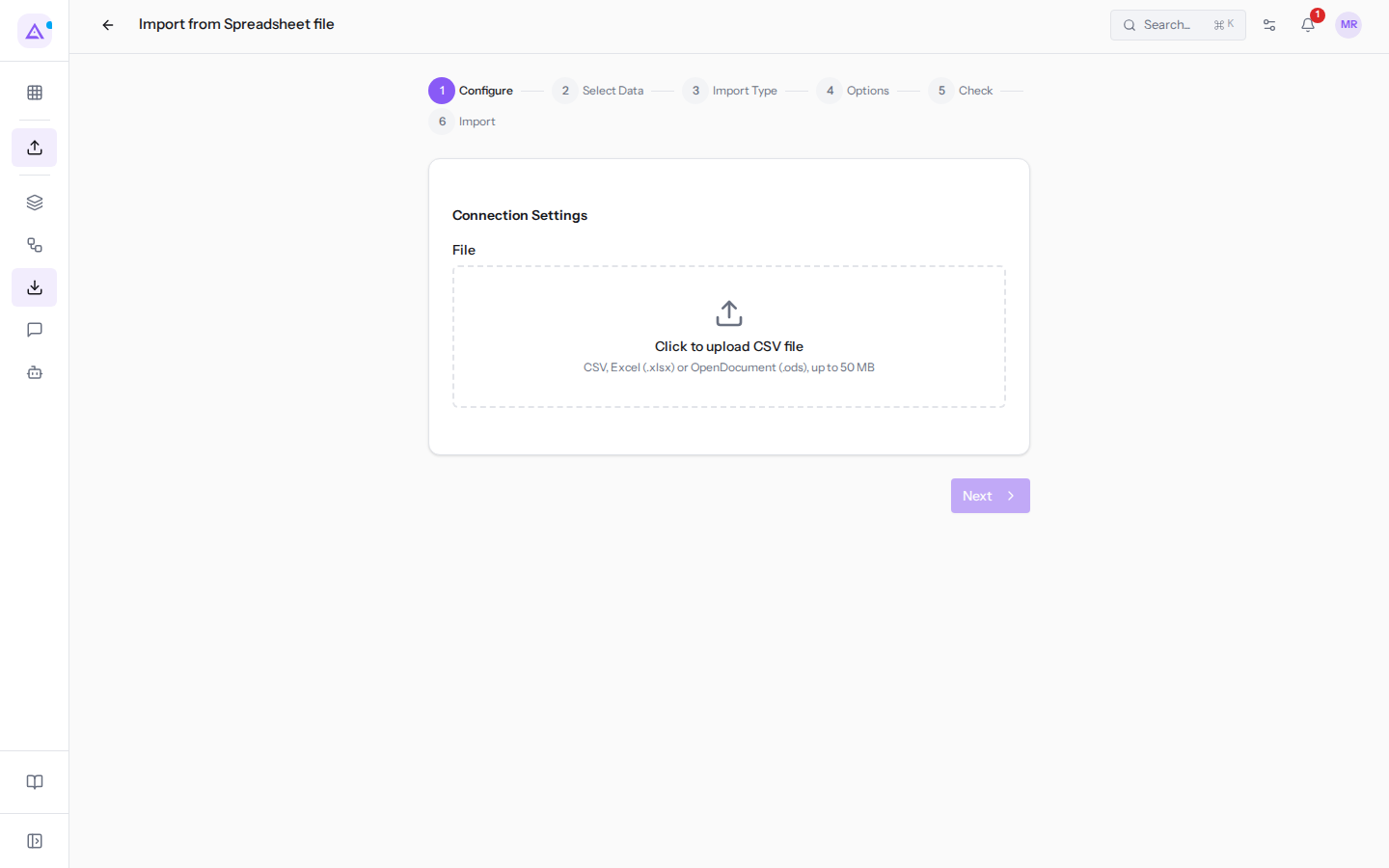
- In the Configure step, upload the file in the File field (CSV, Excel or OpenDocument). Then click Next.
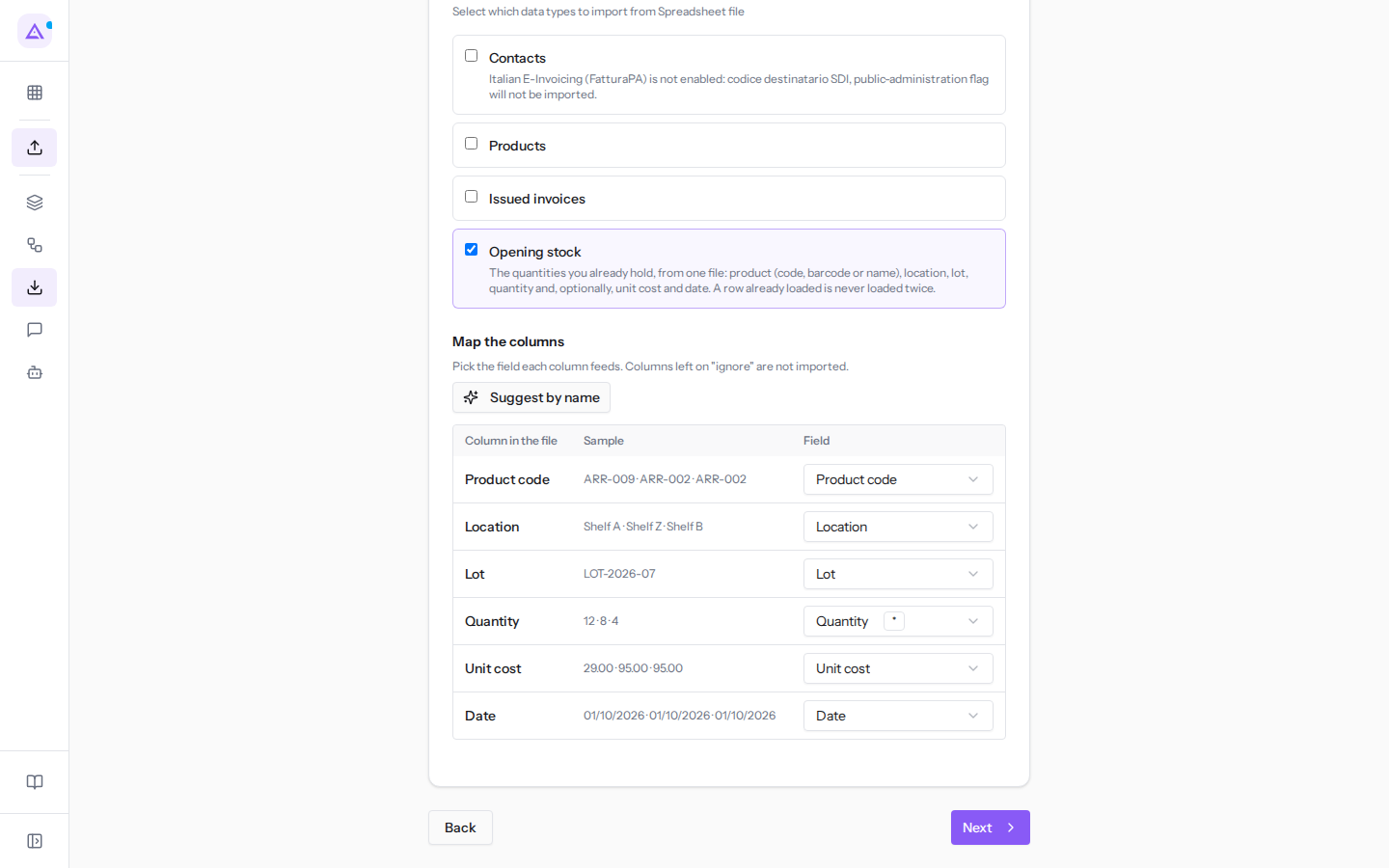
- Under What to Import uncheck Contacts, Products and Issued invoices, which are pre-selected. Then select Opening stock. A file feeds only one data type.
- Under Map the columns check, for each column in the file, the field it corresponds to. The procedure suggests this by recognizing the most common headers, such as Code, Location, Lot, Quantity, Unit cost and Date. As long as no column is mapped to Quantity, the warning "Required fields without a column: Quantity" appears and Next remains disabled. To redo the suggestion click Suggest by name. To exclude a column choose — ignore —.
- Click Next and continue with the Import Type, Options, Check and Import steps.
- In the Check step click Run the check. The check writes nothing and shows for each row the reason it cannot be uploaded.
- If the check discards rows, correct the file or the records and re-upload the file. When the rows are correct, click Start Import, at the bottom of the Check step: the procedure moves to the Import step, where you follow the progress.
Why a row is discarded and what to do
A row that does not pass the checks is not uploaded. The reason appears in the check and in the import detail. In the messages, … stands for the row's value.
- Missing product: "No product: give its code, barcode or name." Fill in at least one of the three columns.
- Product not found: "No product in the catalogue matches …." Create the product in the catalog or correct the code in the file.
- Multiple products with the same name or code: "Several products match …: use a code that names only one." Provide the product code or barcode instead of the name.
- Product with variants: '"…" has several variants: give the variant's code or barcode.' Write one row per variant, with its code.
- Product not stock-tracked: '"…" is not stock-tracked, so it cannot hold a quantity: switch on "Track quantities" on the product and upload the file again.' Enable the option on the product and re-upload the file.
- Location does not exist: 'No stock location is called "…".' Create the location in Inventory or correct the name in the file.
- Ambiguous location: 'Several locations are called "…" (…): use the full name.' Write the full name, for example
WH / Wine cellar. - No warehouse: "The row names no location and there is no warehouse to load it into." Specify the location or create the warehouse.
- Missing lot: '"…" is tracked by lot: give the lot.' Fill in the Lot column.
- Serial numbers: '"…" is tracked by serial number: each serial number is a single unit.' Write one row per serial number, with quantity 1.
- Non-numeric quantity: 'The quantity "…" is not a number.'
- Zero or negative quantity: "The quantity must be greater than zero."
- Invalid cost: 'The unit cost "…" is not a valid amount.'
- Invalid date: 'The date "…" is not valid: use DD/MM/YYYY or YYYY-MM-DD.'
- Future date: "The date … is in the future: an opening quantity cannot be postdated." Use the date of the count or leave the column empty.
- Stock already present: '"…" already holds … in "…": the opening quantity would replace it. Correct it with an adjustment.' Remove the row from the file and correct the quantity with a warehouse adjustment.
- Row already uploaded: "Already loaded by import …: it is not loaded a second time." The row is skipped. No action is needed.
Important: the correct rows of a file can be uploaded even if others are discarded. When you re-upload the corrected file, the rows already uploaded are skipped and do not double the stock.
Example: the import of giacenze-iniziali.csv
In the import history, the import of giacenze-iniziali.csv from 12 days ago has the status Failed: all three rows were discarded.
- ARR-009: the code does not exist in the catalog. ARR-009 (Coat stand) is in the file listino-prodotti.csv, whose import on the same day was cancelled: the product never entered the catalog. Import the price list first, then re-upload the row.
- Shelf Z: in Main Warehouse no location has this name; the shelves are Shelf A and Shelf B. Correct the name or create the location.
- Ergonomic chair Pro: the product is managed by lots and the row does not specify the lot. Add the lot in the Lot column.
To open the discarded rows and read the reason, see Understanding the result of an import and recovering discarded rows.
See it on your company, not on a slide deck.
In 30 minutes we map the software you use today.We show you how much work and how much margin Archimedes gives back.
Show me on my business →What industry are you in?
One tap — it lets us prepare the demo around your world.
What tools do you use today?
Pick the ones you recognise — or just type them. It helps us show you how they migrate.
Last step: your details.
We reply within one working day — and right after, if you like, you pick the demo slot yourself.
We couldn't send your request. Try again, or write to us at [email protected].
By sending, you agree to your data being processed so we can get back to you about the demo. Privacy notice.
Preview form — nothing is sent from this page.
Want to schedule the demo now?
Your call: book the slot you prefer yourself, or we'll call you to arrange it.
Live availability, 30 minutes, instant confirmation. The calendar opens in a new tab.
Lock in your slot ↗We'll get back to you within one working day — and we'll join the call already knowing your world.
The calendar is open in another tab: pick a slot and the demo is booked. Can't see it? Reopen it ↗
Preview page: nothing was sent.
Our calendar is live: take the slot that suits you and the demo is booked. 30 minutes, instant confirmation, no waiting.
Lock in your slot ↗