Data Import
All modules
Importing data from Fatture in Cloud
Data Import · 7 of 11 · 9 min read
The Fatture in Cloud import wizard brings the master data, catalog, and documents you keep in Fatture in Cloud into Archimedes. Use it mainly for the initial switchover to Archimedes. To later bring in data that changes in Fatture in Cloud, you can run it again with incremental import, or leave the work to the automatic synchronization.
The Data Import sidebar item is reserved for organization administrators, and the FattureInCloud source only appears when the Fatture in Cloud plugin is active. It is worth saving the connection first (company ID and token): the wizard suggests it on its own and the automatic synchronization also uses it. How to save it is explained in Connecting Fatture in Cloud.
The wizard steps
The wizard has six steps, shown at the top: Configure, Select Data, Import Type, Options, Check, Import. To move from one step to the next, press Next. To go back to the previous step, press Back.
In the first step, Next remains disabled until Test Connection succeeds: the wizard needs to know that the credentials work and what data types you can read. If the test fails, the reason appears in red next to the button: check the token and company ID, or save the connection again.
Configuring the connection and import options
In the first step you choose which credentials to connect with and how to handle some Fatture in Cloud data.
- Open Data Import.
- In Available Sources, click FattureInCloud. The Configure step opens, with the Connection Settings panel.
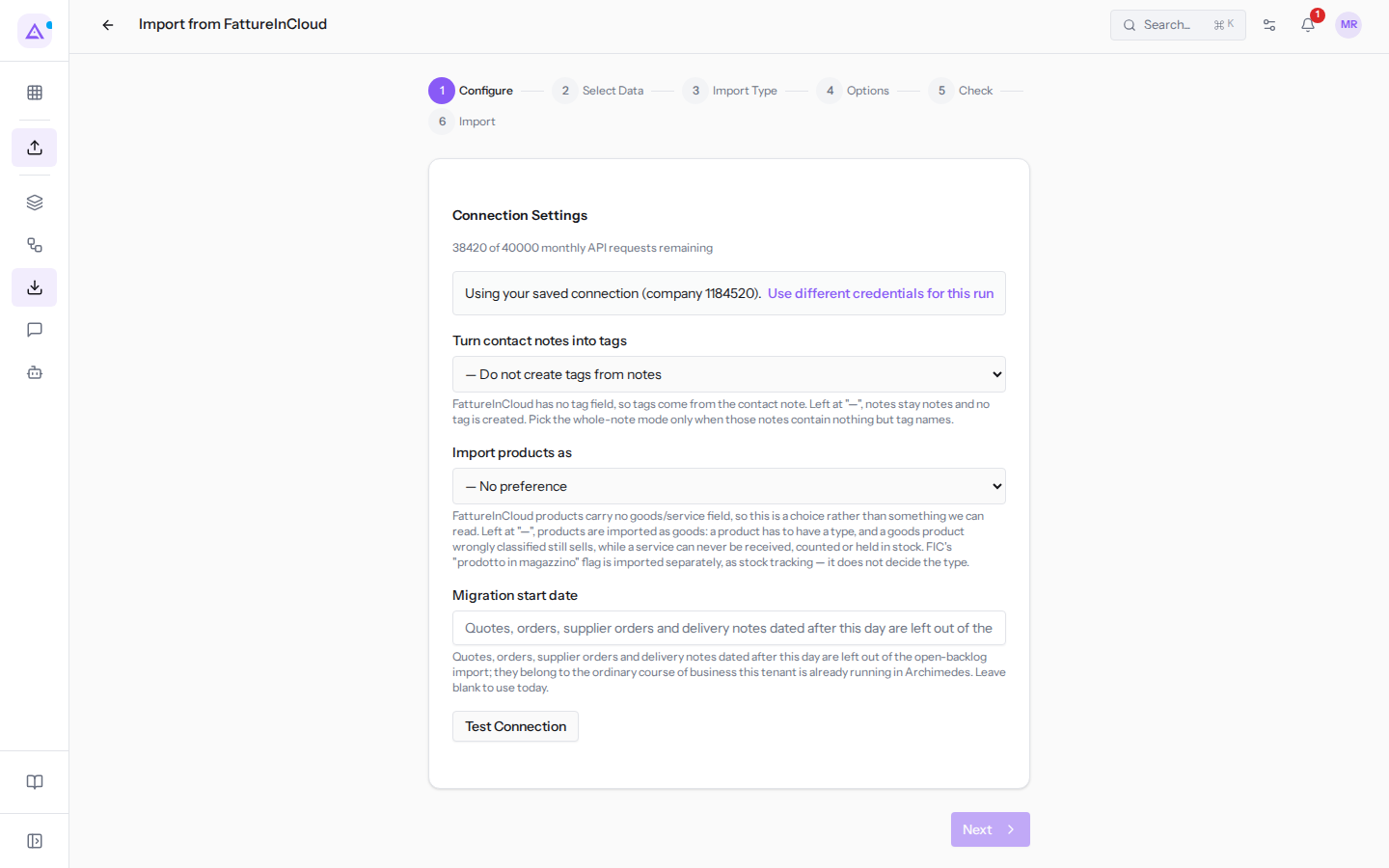
- If the connection is already saved, the wizard suggests it. For this one import you can use different credentials: press Use different credentials for this run and fill in the fields. To return to the saved connection, press Use saved connection.
- Set the options and press Test Connection, then Next.
Below Connection Settings, you can see how many requests you have left this month, here "38420 of 40000 monthly API requests remaining". Each import and each check consumes requests, and a full import of many documents uses quite a few. Fatture in Cloud also sets an hourly limit: when it is reached, the import moves to the Waiting for quota status and resumes on its own. The check, on the other hand, stops before falling below the monthly reserve needed for automatic synchronization: in that case, its numbers only cover the rows that were read.
The fields in the Configure step:
- API Token: the Fatture in Cloud access token. It only appears after Use different credentials for this run. This field is required.
- Company ID: the numeric company ID in Fatture in Cloud. It only appears after Use different credentials for this run. This field is required.
- Turn contact notes into tags: decides whether contact notes become tags. Fatture in Cloud has no field for tags, which is why tags are derived from notes. The note remains on the contact regardless.
- — Do not create tags from notes: creates no tags. This is the default.
- Only inside a … marker: creates one tag for each name written between the two markers and separated by a semicolon.
- Whole note — every word becomes a tag: every word in the note becomes a tag, up to 25 tags. Choose this only if the notes contain nothing but tag names.
- Import products as: the type of imported products. Fatture in Cloud does not distinguish between goods and services, so the choice is yours.
- — No preference: products become goods. This is the default. A good that is misclassified can still be sold. A service, however, cannot be received and has no stock.
- Goods — physical products that can hold stock: goods, which can have a stock level.
- Services: services.
- Migration start date: the day from which Archimedes takes over from Fatture in Cloud. Quotes, orders, supplier orders, and delivery notes with a later date are excluded from the import. The same applies to corrispettivi. Leave the field empty to use today's date.
What each data type brings
In the Select Data step you choose what to import. Each imported record keeps a reference to the Fatture in Cloud record. This way a subsequent import updates it rather than duplicating it.
- Contacts: the customers and suppliers in Fatture in Cloud. A party that is both a customer and a supplier in Fatture in Cloud becomes a single contact with both roles. The code, contact person, note, bank details, and default payment terms and method are also imported.
- Products: the catalog, with name, code, description, sale price, cost, unit of measure, barcode, and category. If the category does not exist, it is created. If the product is inventory-managed in Fatture in Cloud, quantity management is enabled in Archimedes and the stock is brought in as an opening balance at the migration start date.
- Issued invoices: issued invoices and credit notes. A numbered document arrives as posted; one without a number arrives as a draft. Payment status is read from Fatture in Cloud installments.
- Proforma invoices: arrive as proformas. They do not count toward revenue, receivables, the payment schedule, or the VAT register. They can be converted like a proforma created in Archimedes.
- Received invoices: supplier invoices, supplier credit notes, and self-invoices already posted in Fatture in Cloud. They arrive posted, with category, cost center, and deductibility percentages. Self-invoices are added to customer invoices as self-invoices and do not count among payables.
- Documents to register: documents awaiting posting in Fatture in Cloud. They arrive as drafts and remain outside payables and the payment schedule until you post them.
- Archived documents: the files in the Fatture in Cloud document archive (contracts, statements, receipts). They become Archimedes documents. Files are downloaded after the import, one at a time.
- Quotes: only those still open at the migration start date. They become quotes.
- Sales orders: open ones only. They become confirmed sales orders.
- Supplier orders: open ones only. They become confirmed purchase orders.
- Delivery notes: open ones only. They become sales orders that have already been delivered and are ready to invoice. The delivery note as a document is not reproduced.
- Corrispettivi and receipts: one entry per day, with taxable amounts and VAT broken down by rate. They enter the corrispettivi register, VAT settlement, and revenue. They never become invoices or receivables.
- Taxes paid (F24): F24 forms already paid. Fatture in Cloud does not indicate the tax code or the reference period, so someone must confirm what each F24 covered. The payment date is estimated from the due date.
- Expense categories and cost centres: the lists of expense categories, cost centres, and revenue centres.
- Payment methods: payment methods, with bank, IBAN, and beneficiary.
- VAT types: the rates used by the company, which become sales and purchase taxes. This way no imported line loses its VAT.
Quotes, orders, and delivery notes already converted to an invoice or locked in Fatture in Cloud are excluded. This prevents them from being invoiced a second time.
Note: corrispettivi, quotes, orders, and delivery notes with a date after the Migration start date are excluded, because from that day you record them in Archimedes. Importing them would double-count the revenue and VAT for corrispettivi and bring back as arrears documents you are already managing here. Invoices are not affected by this date.
The import order
Documents reference contacts, products, rates, and payment methods. For this reason, it is best to import the lists and master data first, then the documents.
- VAT types, Payment methods, and Expense categories and cost centres: the lists that documents need.
- Contacts and Products.
- The documents: invoices, proformas, documents to register, quotes, orders, delivery notes, corrispettivi, and F24 forms.
For other cases, see Before importing: what to bring, where from, and in what order.
Full and incremental import
In the Import Type step, choose how much to re-read from the source.
- Full Import: re-reads all records of the chosen data types.
- Incremental Sync: re-reads only the records that have changed in Fatture in Cloud since the last time.
The first time, choose the full import. The incremental import does not include records that have not changed at the source, so it would leave out everything that existed before. Afterwards, to update the data, use the incremental import: it reads fewer records and uses fewer requests.
Note: if an incremental import finds nothing to import, the zero result is correct. To re-read even unmodified records, use the full import, or Reset sync history.
F24 forms do not have a modification date at the source, so they are re-read in full on every run. Archimedes recognizes those already imported and does not duplicate them.
Existing records and automations
In the Options step, decide what to do with records that already exist in Archimedes. The rules are the same as for file-based imports, described in Importing contacts and products from a spreadsheet. A payment recorded in Archimedes is never written back to Fatture in Cloud.
By default, imported rows do not trigger rules or workflows: this way an import does not send an email for every imported customer, and no rule changes a just-imported field. Enable Let this import trigger my automations only if you want the import to count as a real work event.
Checking and starting the import
- In the Check step, click Run the check: it reads Fatture in Cloud and counts what will be created, updated, or discarded, without writing anything to Archimedes.
- If the numbers look right, click Start Import, at the bottom of the same step. The procedure moves to the Import step and the run appears in Import History: it continues even if you close the page.
The first import from Fatture in Cloud in the history was started by Mario Rossi 24 days ago: it has the status Completed and brought in 5 contacts, 6 products and 2 issued invoices.
Open invoices and opening balances
The imported invoices that are not shown as settled remain open as receivables from customers or payables to suppliers. However, as long as the opening entry is missing, those receivables and payables do not appear in the balance sheet, which understates them. If Accounting is active, the import detail flags this with a warning that begins with "Imported invoices leave" and reports the number of open documents and the totals of receivables and payables. To fix this, open Opening balances in Accounting and record the opening position.
See it on your company, not on a slide deck.
In 30 minutes we map the software you use today.We show you how much work and how much margin Archimedes gives back.
Show me on my business →What industry are you in?
One tap — it lets us prepare the demo around your world.
What tools do you use today?
Pick the ones you recognise — or just type them. It helps us show you how they migrate.
Last step: your details.
We reply within one working day — and right after, if you like, you pick the demo slot yourself.
We couldn't send your request. Try again, or write to us at [email protected].
By sending, you agree to your data being processed so we can get back to you about the demo. Privacy notice.
Preview form — nothing is sent from this page.
Want to schedule the demo now?
Your call: book the slot you prefer yourself, or we'll call you to arrange it.
Live availability, 30 minutes, instant confirmation. The calendar opens in a new tab.
Lock in your slot ↗We'll get back to you within one working day — and we'll join the call already knowing your world.
The calendar is open in another tab: pick a slot and the demo is booked. Can't see it? Reopen it ↗
Preview page: nothing was sent.
Our calendar is live: take the slot that suits you and the demo is booked. 30 minutes, instant confirmation, no waiting.
Lock in your slot ↗