Data Import
All modules
Connecting Fatture in Cloud
Data Import · 6 of 11 · 5 min read
The FattureInCloud Connection panel on the Data Import page saves your Fatture in Cloud account credentials. You save the connection just once. From that point on, all manual imports from Fatture in Cloud and the daily sync use it, without you having to enter the credentials again.
Who can manage the connection
The Data Import page is reserved for organization administrators, and the connection can only be saved or replaced by someone with the Admin or Owner role. Anyone using imports without one of these roles sees the Restricted badge in the panel and the message "Managing the FattureInCloud connection requires an Admin or Owner role. Ask an organization administrator to set it up." In that case ask an administrator to save it for you.
When the connection is saved, the API credentials panel shows the Connected badge and, at the end of the description, the connected company. In Azienda Demo S.r.l. the connection was saved by Mario Rossi and the panel shows "(company ID 1184520)". The panel does not say who saved the connection or when.
Saving the connection
You need two pieces of information from your Fatture in Cloud account: the API access token, which you generate from your Fatture in Cloud account settings in the section dedicated to APIs and connected applications, and the ID of the company you want to import from, i.e. the number Fatture in Cloud uses to identify that company. If your account manages multiple companies, each has its own ID.
- Open Data Import from the sidebar.
- In the FattureInCloud Connection panel, enter the token in the API Token field and the company number in the Company ID field.
- Press Save. The button is only enabled when both fields are filled in.
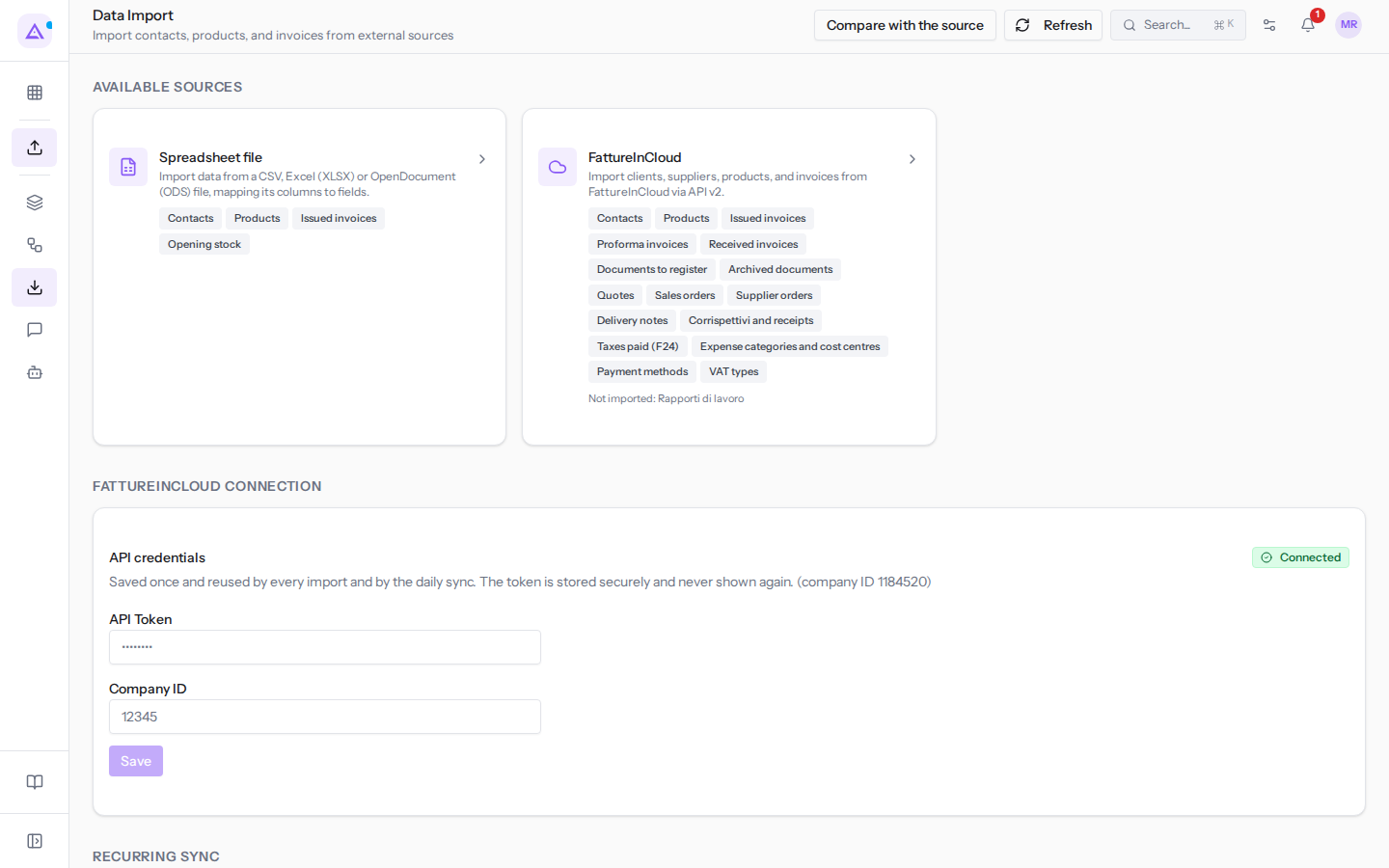
If saving succeeds, FattureInCloud connection saved appears, the API Token field clears and the badge becomes Connected. From that point on the token is stored securely and is no longer displayed, not even to the person who entered it. If it fails, Could not save the connection appears, or the reason for the error: check both fields again and try again.
Saving does not test the connection: Connected only means that a token is saved, not that Fatture in Cloud accepts it. You find out at the first step of the import procedure, with Test Connection (see below).
The saved connection is also used by the recurring sync: until there is one, the Recurring Sync panel asks you to save it before enabling the daily sync. See Keeping Archimedes in sync with automatic synchronization.
Replacing or removing the connection
Replace the connection when the token expires or is revoked in Fatture in Cloud, or when you want to import from a different company. After saving, the API Token field shows only dots and the Company ID field is empty: to replace the connection you must enter both pieces of information again, even if only the token is changing.
- Open Data Import.
- Enter the new token in the API Token field and the company number in the Company ID field, the same as before if the company is not changing.
- Press Save.
The new connection applies to all subsequent imports and to the daily sync. Completed imports are not affected.
You cannot remove the connection from the page, only replace it. If you want to remove Archimedes's access to your account, revoke the token in Fatture in Cloud; if the recurring sync is active, disable it first, otherwise it will fail on every run.
Using the connection in an import
- Open Data Import.
- In the Available Sources section click FattureInCloud.
Import from FattureInCloud opens. At the first step, Configure, under Connection Settings you read "Using your saved connection (company 1184520)." You do not need to enter anything. If for a single import you want to use a different account or a different company, press Use different credentials for this run and enter the details there. The saved connection stays as is and you can return to it with Use saved connection.
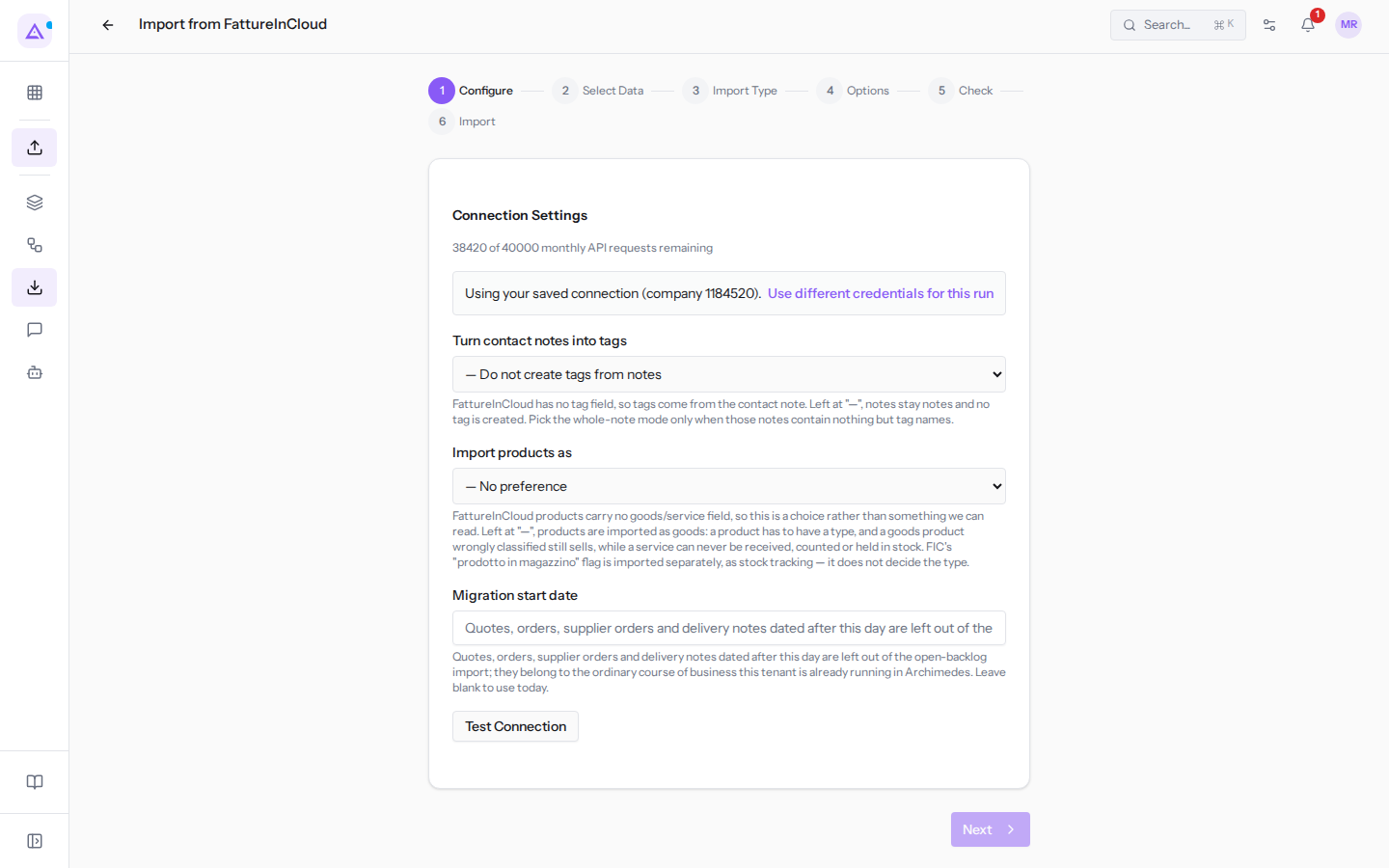
To move to the next step press Test Connection: Next is only enabled if Fatture in Cloud accepts the token. If the test fails, the saved token is no longer valid or the company ID is wrong: replace the connection as explained above. The rest of the procedure is in Importing data from Fatture in Cloud.
The Fatture in Cloud request quota
Fatture in Cloud limits the number of API requests an account can make in a month and in an hour. Each import, each verification and each sync consumes a portion of them, larger the more documents it reads.
- Monthly quota: you can see how many requests remain at the first step of the procedure, under Connection Settings, shown as "38420 of 40000 monthly API requests remaining". Check it before a large import.
- Hourly quota: Fatture in Cloud allows a maximum of 1,000 API requests per hour, as the notice at the Import Type step reminds you.
When a large import exhausts the hourly quota it does not stop: it pauses and resumes on its own when the quota resets, without you having to do anything. In the history it has the status Waiting for quota; if you are following it in the procedure, the last step shows the time around which it will resume. If you do not want to wait, you can cancel it.
Archimedes keeps 10% of the monthly quota in reserve for the recurring sync. Below that threshold the sync does not start, and the verification that precedes an import stops and says after how many rows it stopped: its numbers only concern those rows. An import that you start yourself is not blocked: towards the end of the month check the remaining quota before starting a large one, so as not to leave the sync without requests.
See it on your company, not on a slide deck.
In 30 minutes we map the software you use today.We show you how much work and how much margin Archimedes gives back.
Show me on my business →What industry are you in?
One tap — it lets us prepare the demo around your world.
What tools do you use today?
Pick the ones you recognise — or just type them. It helps us show you how they migrate.
Last step: your details.
We reply within one working day — and right after, if you like, you pick the demo slot yourself.
We couldn't send your request. Try again, or write to us at [email protected].
By sending, you agree to your data being processed so we can get back to you about the demo. Privacy notice.
Preview form — nothing is sent from this page.
Want to schedule the demo now?
Your call: book the slot you prefer yourself, or we'll call you to arrange it.
Live availability, 30 minutes, instant confirmation. The calendar opens in a new tab.
Lock in your slot ↗We'll get back to you within one working day — and we'll join the call already knowing your world.
The calendar is open in another tab: pick a slot and the demo is booked. Can't see it? Reopen it ↗
Preview page: nothing was sent.
Our calendar is live: take the slot that suits you and the demo is booked. 30 minutes, instant confirmation, no waiting.
Lock in your slot ↗