Data Import
All modules
Importing contacts and products from a spreadsheet
Data Import · 3 of 11 · 9 min read
The Import from Spreadsheet file wizard imports records from a CSV, Excel (XLSX) or OpenDocument (ODS) file into Archimedes: the address book exported from another management system, the list of trade fair visitors, a supplier's price list.
The wizard has six steps: Configure, Select Data, Import Type, Options, Check and Import. This page follows them using the sample file contatti-fiera.csv. The file contains 7 trade fair visitors and uses a semicolon as the separator.
The Data Import page and imports are reserved for organization administrators.
Uploading the file
In the first step you choose the file and tell Archimedes how to read it.
- Open Data Import.
- Click the Spreadsheet file tab. Import from Spreadsheet file opens at the Configure step.
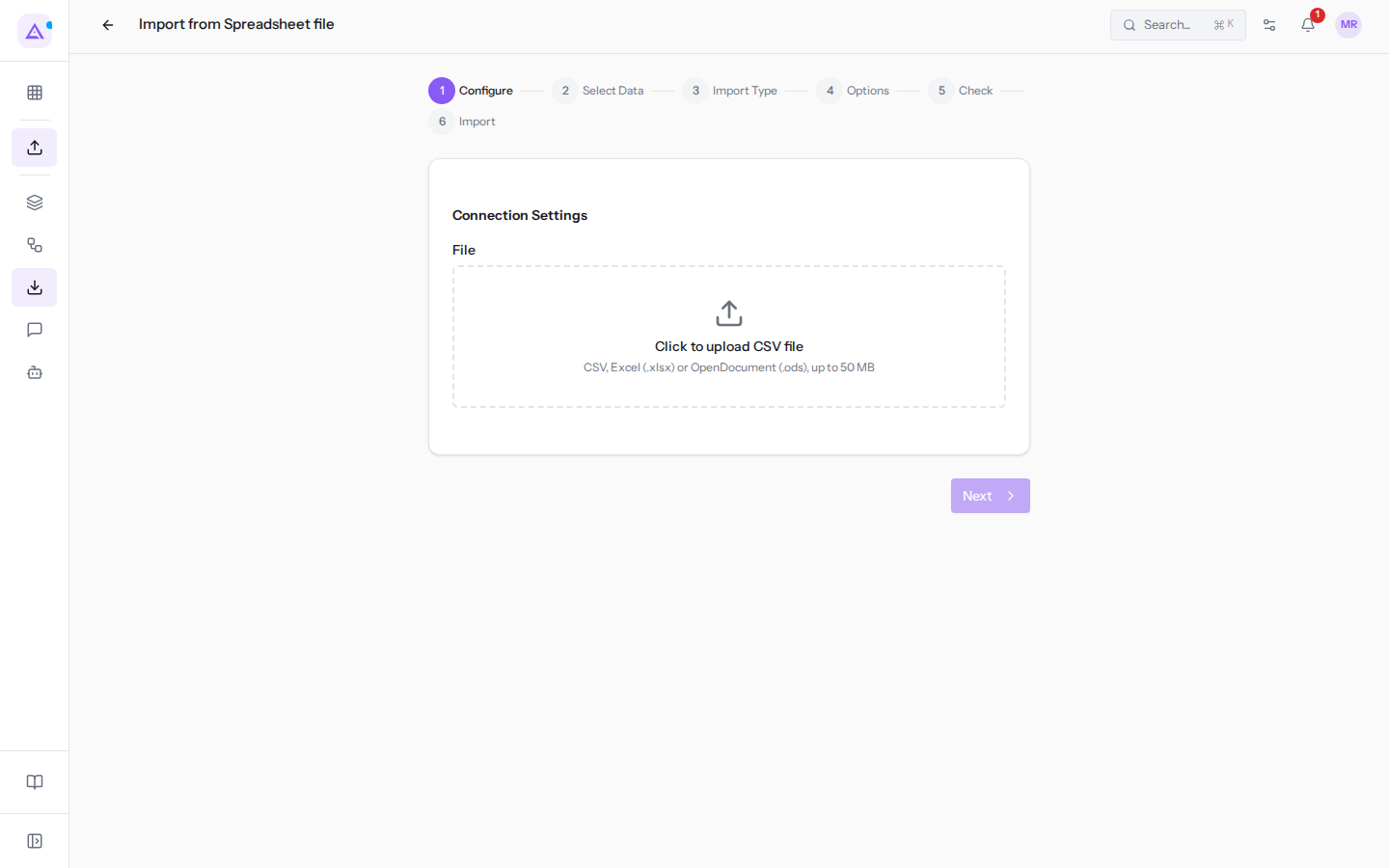
- In the File field click Click to upload CSV file and choose
contatti-fiera.csv. Despite the label, the area also accepts Excel (.xlsx) and OpenDocument (.ods) files, up to 50 MB.
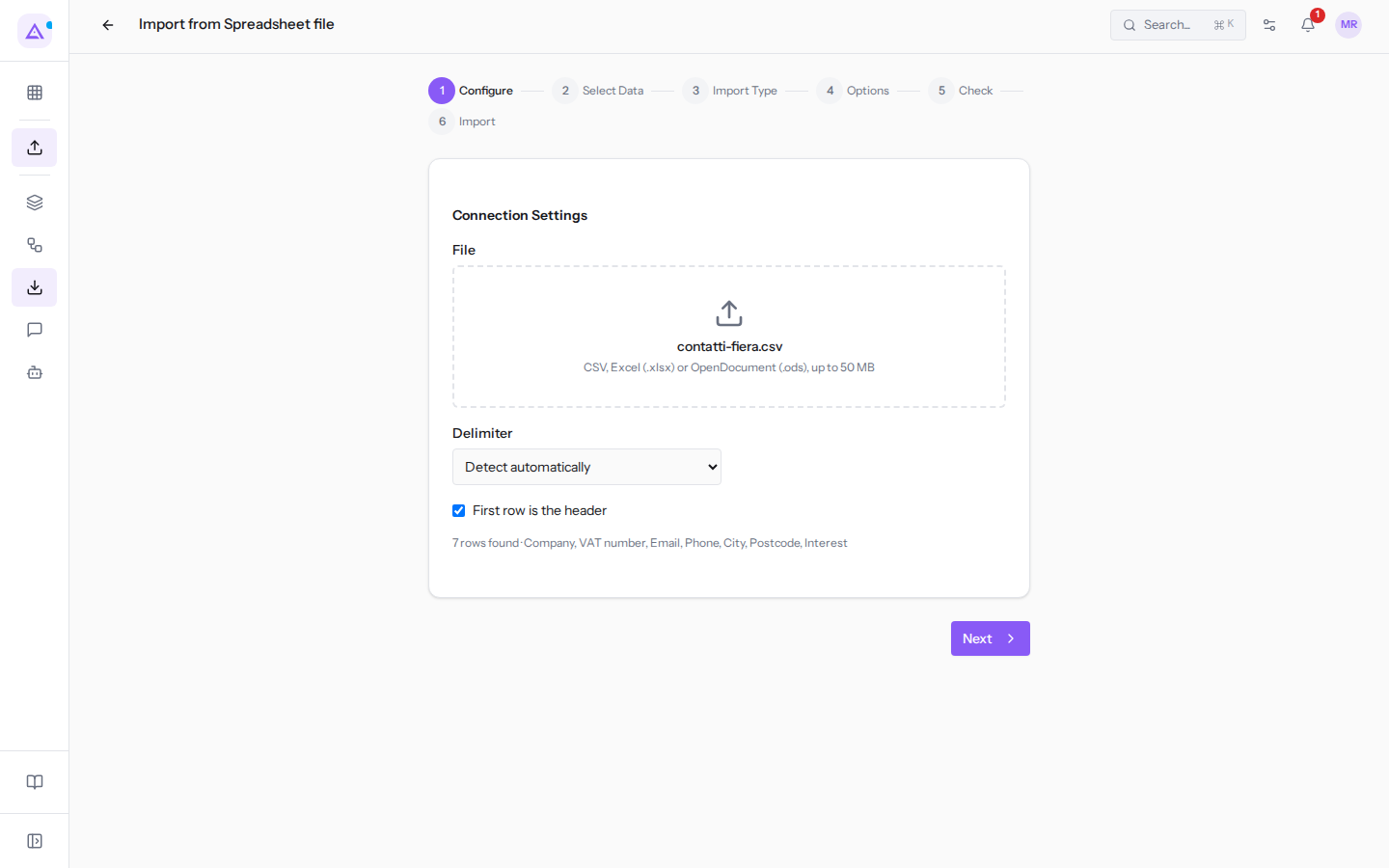
- Check the summary row below the settings and click Next.
As soon as you upload the file, Archimedes reads it and shows the reading settings:
- Sheet: only appears for an Excel or OpenDocument workbook with multiple sheets. Choose the sheet that contains the data.
- Delimiter: only appears for a CSV file. The default value Detect automatically recognizes the character from the file contents; change it to Comma (,), Semicolon (;), Tab or Pipe (|) only if the columns appear merged or split incorrectly.
- First row is the header: is checked by default. Uncheck it only if the first row of the file already contains data.
The summary row is the check to do before going further. For contatti-fiera.csv it reads "7 rows found · Company, VAT number, Email, Phone, City, Postcode, Interest": the number must match the records in the file and the names must be those of your columns. If you see a single column with all the text, change Delimiter; if data appears among the names, check First row is the header. Next only becomes active once the file has been read.
Choosing what to import
In the Select Data step you choose the type of data contained in the file.
The wizard already has Contacts, Products and Issued invoices checked. Opening stock is not checked.
A file feeds only one data type, but the wizard offers three: as long as more than one remains checked, the warning "A file feeds one data type: the mapping below is for the first one selected." appears above the table. Prepare one file for each data type and leave only the right one checked. contatti-fiera.csv contains only contacts, so keep only Contacts.
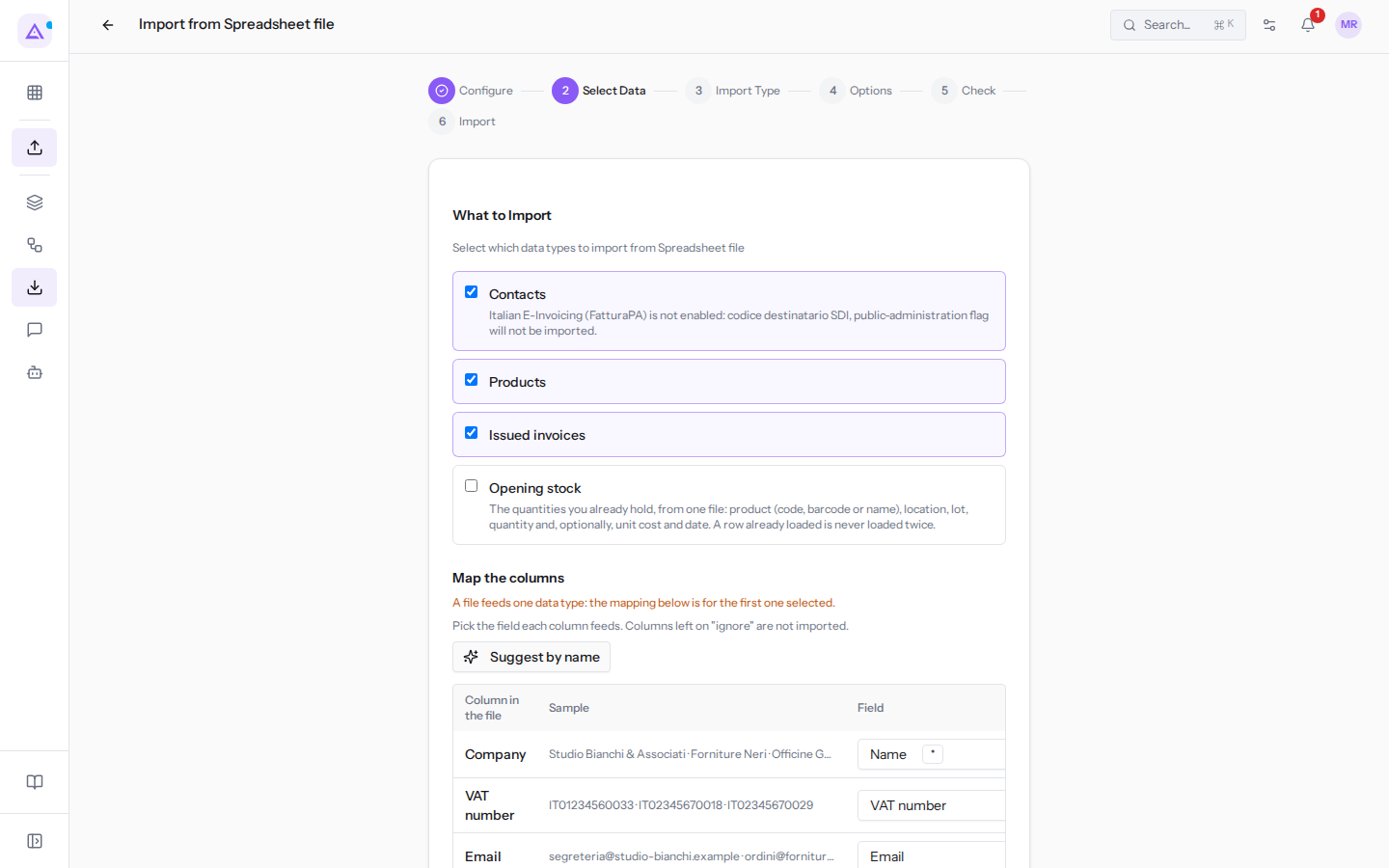
- Uncheck Products.
- Uncheck Issued invoices.
- Leave Contacts checked.
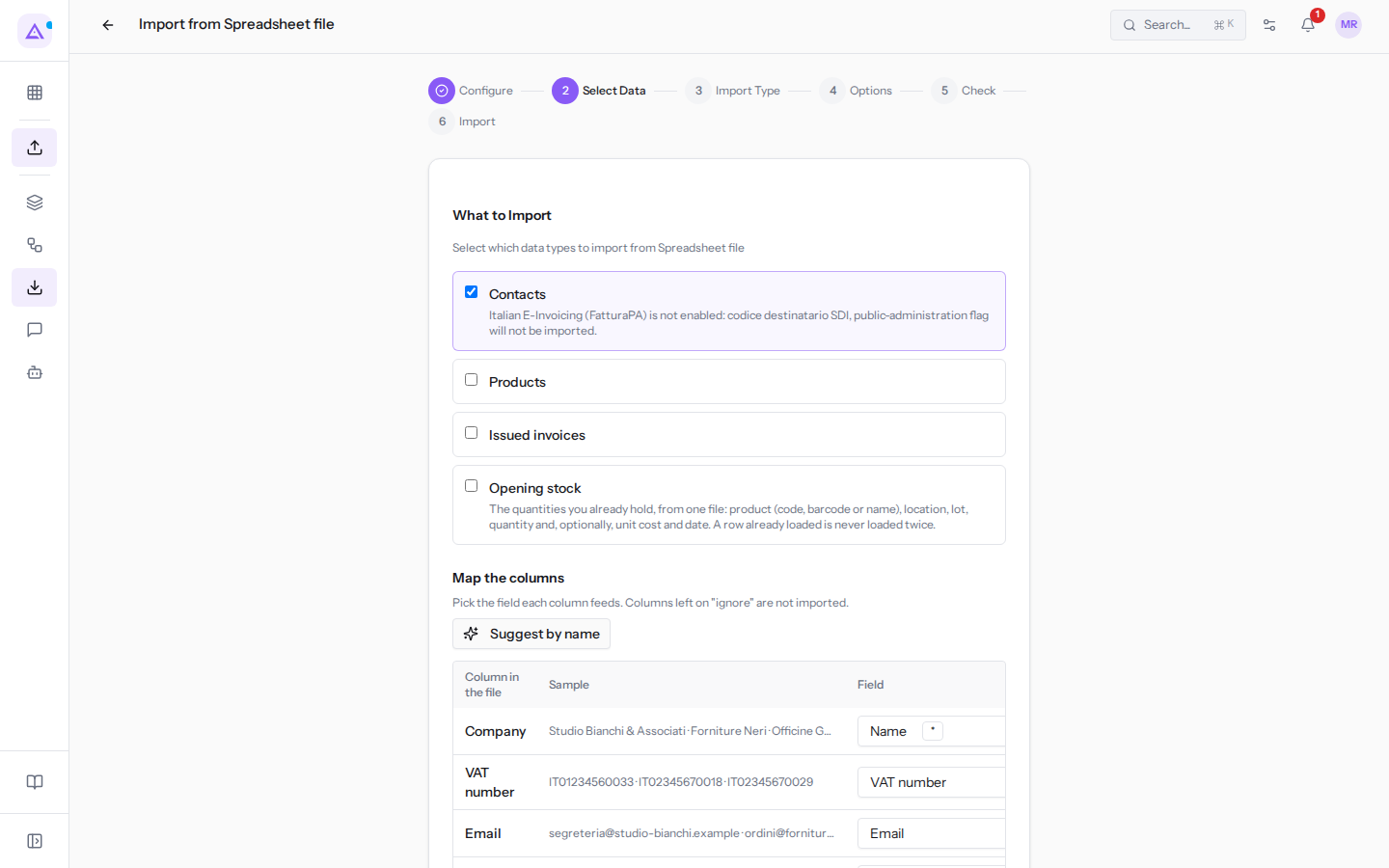
- Under Map the columns check the column mapping and click Next. Next remains inactive until a required field, such as Name, has a column.
Note: under Contacts the warning "Italian E-Invoicing (FatturaPA) is not enabled: codice destinatario SDI, public-administration flag will not be imported." appears. This means that, until the e-invoicing plugin is active, the SDI destination code and the public administration flag present in the file are left out. The rest of the contact is imported.
How to read and correct the mapping is explained in Mapping the file's columns to Archimedes fields. For stock quantities use Opening stock and follow Loading initial warehouse stock from a file.
Import type
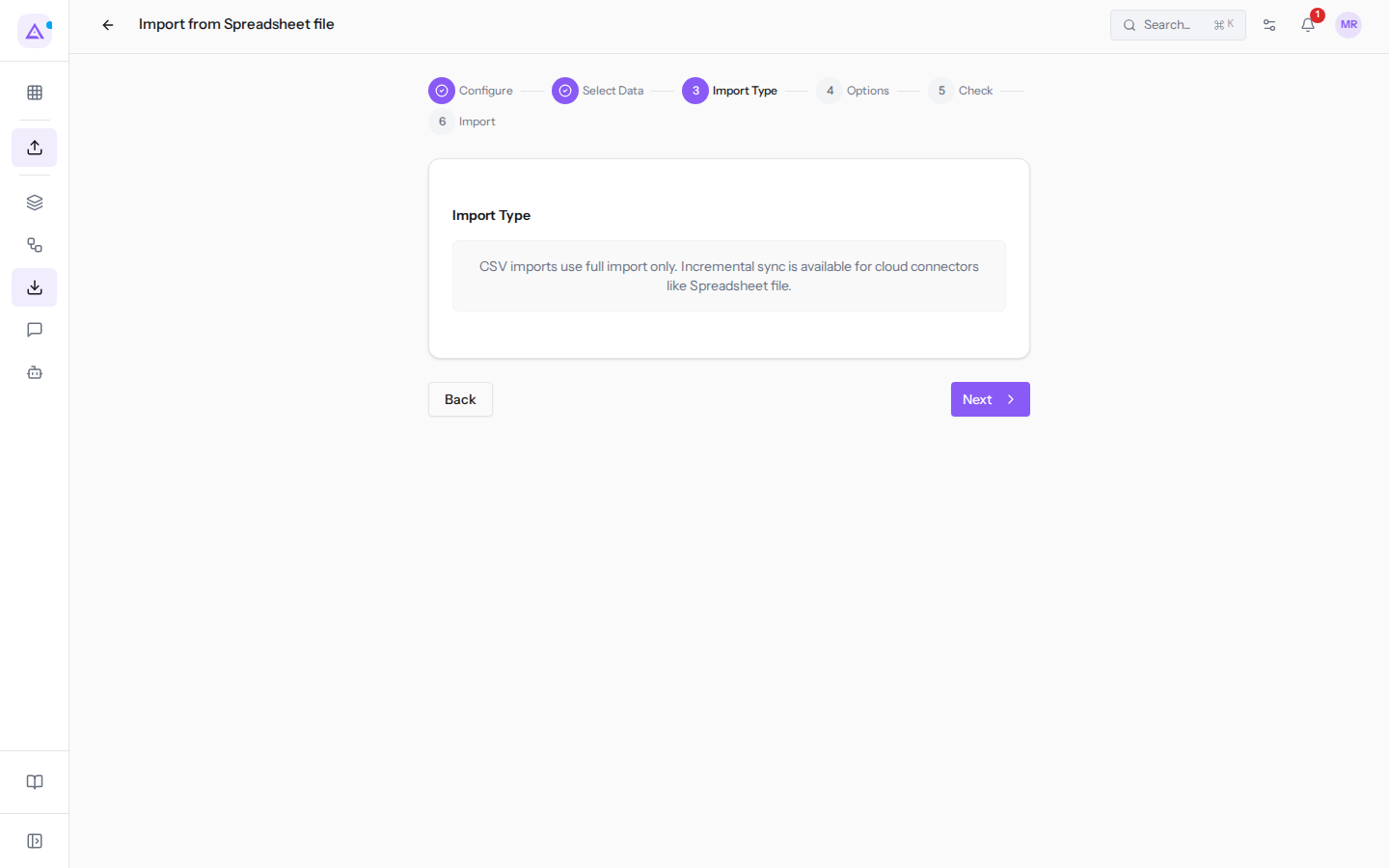
A file is always imported in full: the Import Type step has no choices and shows only the message "CSV imports use full import only. Incremental sync is available for cloud connectors like Spreadsheet file." Only the first part applies: for a file there is only the full import. Incremental sync, which re-reads only what has changed, exists only for Fatture in Cloud. Click Next.
Deciding what to do with existing records
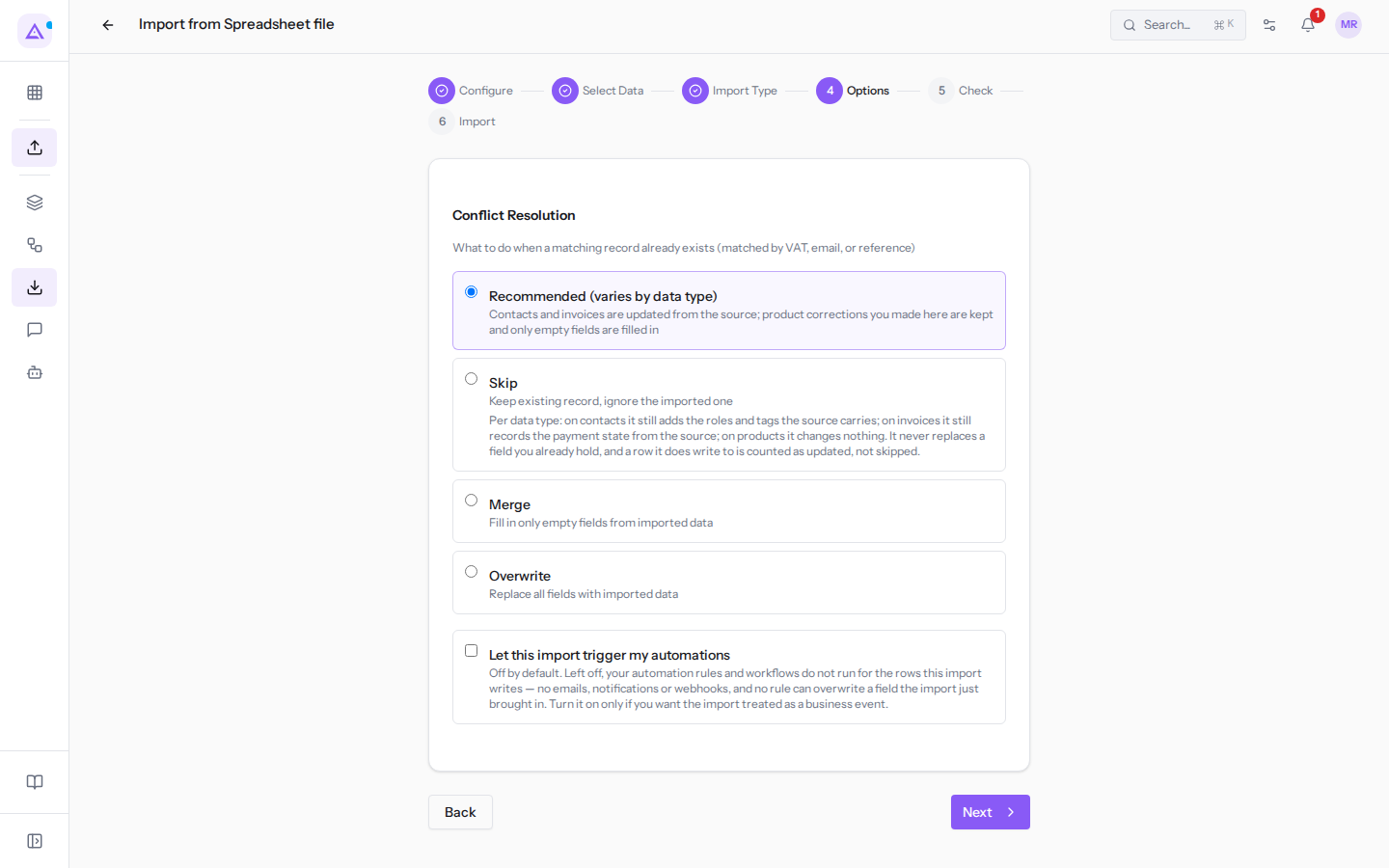
The Options step contains Conflict Resolution. Here you decide what happens when a row in the file matches a record that already exists.
Archimedes recognizes a contact by VAT number, tax code or email, and a product by internal reference or barcode. It never uses the row position. This is why Studio Bianchi & Associati, already in the address book with the same VAT number, is updated rather than duplicated.
The rules to choose from:
- Recommended (varies by data type): contacts and invoices are updated from the source. For products, corrections made in Archimedes are retained and only empty fields are filled in.
- Skip: keeps the existing record and ignores the imported one. For contacts, it still adds any roles and tags present in the source. For invoices, it still records the payment status from the source. For products, nothing changes. A row it writes to shows as updated, not skipped.
- Merge: fills in only empty fields with the imported data.
- Overwrite: replaces all fields with the imported data.
What happens to Studio Bianchi & Associati with each rule:
- If the file has more up-to-date contact details than the address book, choose Recommended (varies by data type) or Overwrite: the record takes the values from the file.
- If the address book is more up-to-date than the file, choose Merge: the file fills in only the empty fields of the record.
- If you do not want to touch existing records, choose Skip: the record stays as it is, except for any roles and tags from the source.
In most cases use Recommended (varies by data type).
Another option in the same step:
- Let this import trigger my automations: is disabled by default. If it remains disabled, automation rules and workflows are not run for imported rows: no email, notification or webhook. In addition, no rule can overwrite a just-imported field. Enable it only if you want the import to count as a business event: an automation that sends a welcome email to every new contact, with the option enabled, would send one for each row in the file.
- Choose the rule and click Next.
Checking the file before importing
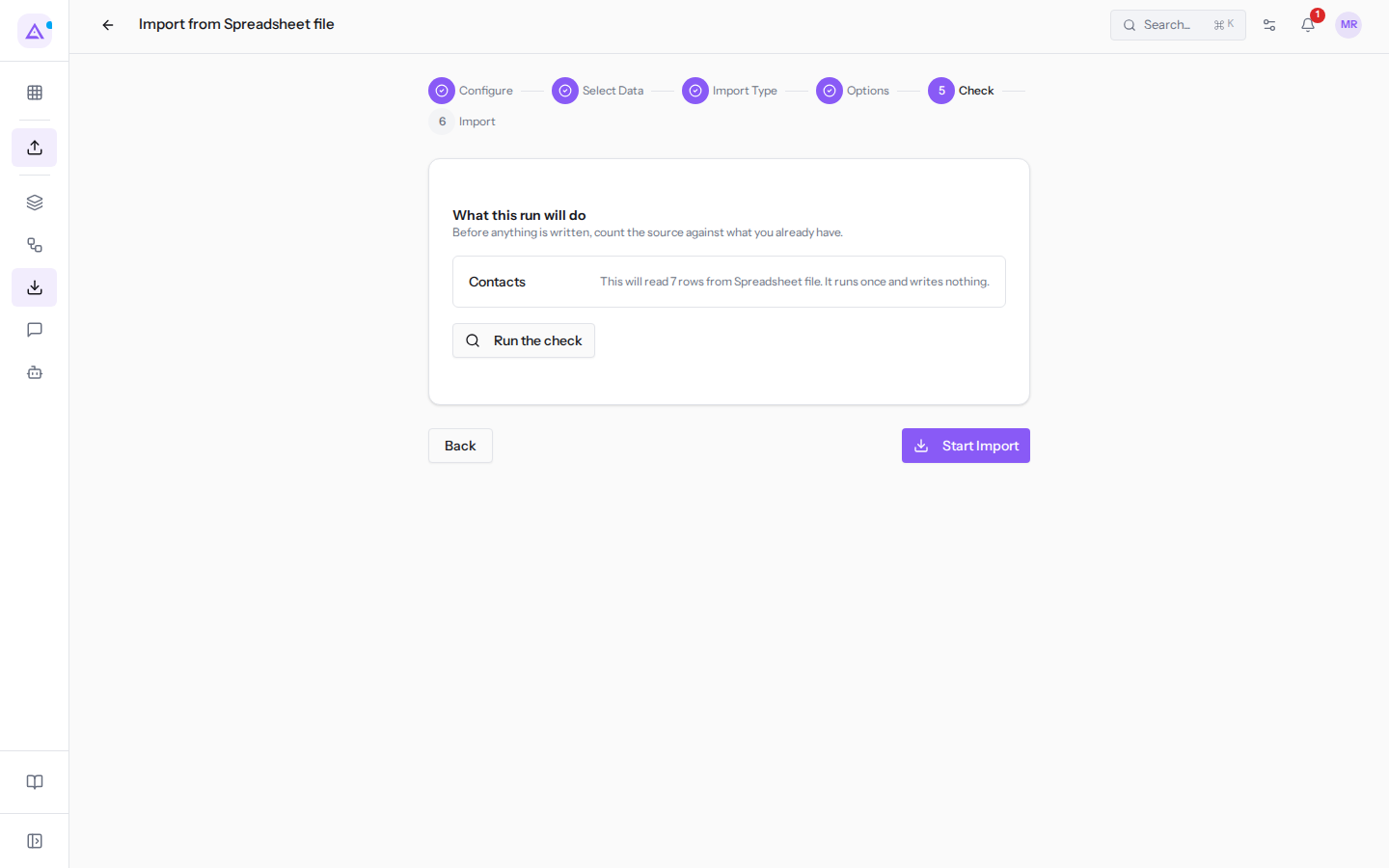
The Check step shows What this run will do. The check compares the file against the data already in Archimedes before anything is written.
The check reads the file and the address book but writes nothing. Run it before every import: this way you can see which rows update an existing record and which are discarded.
- Click Run the check.
- Read the result.
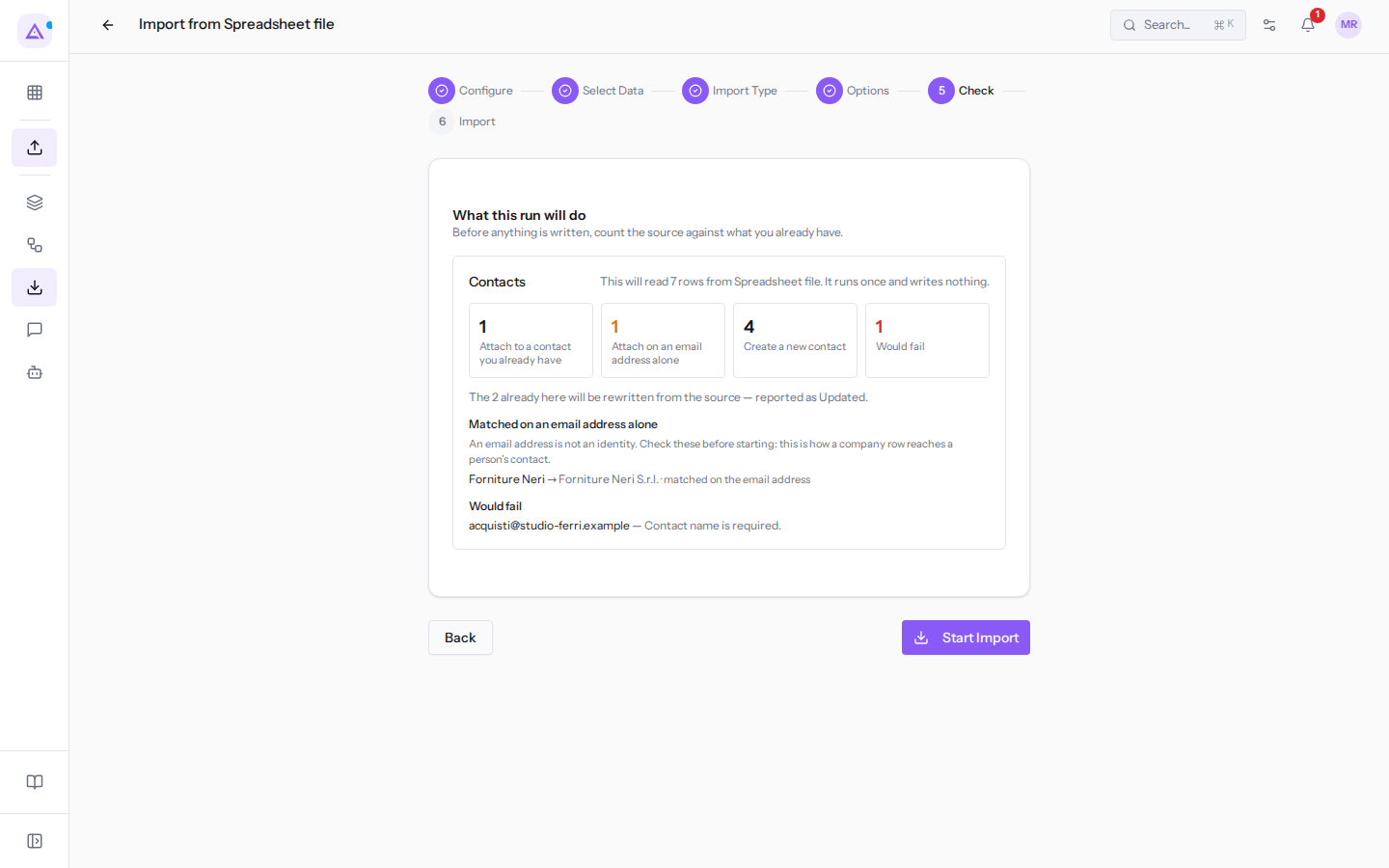
For contatti-fiera.csv the check splits the 7 rows into four boxes:
- 1 "Attach to a contact you already have": Studio Bianchi & Associati, recognized by their VAT number. It will be updated.
- 1 "Attach on an email address alone": the Forniture Neri row, which has no VAT number. Below the counts it appears as "Forniture Neri → Forniture Neri S.r.l. · matched on the email address". An email address can belong to a person rather than a company: check that the contact shown after the arrow is the right one before starting.
- 4 "Create a new contact": visitors who are not yet in the address book.
- 1 "Would fail": the last row, which has no company name. Below it appears "[email protected] — Contact name is required." The row will be discarded; if you need it, fill in the company name in the file and upload it again.
Below the counts a sentence says what the rule chosen in the Options step will do to existing records. With Recommended (varies by data type) it reads "The 2 already here will be rewritten from the source — reported as Updated.": the 2 are Studio Bianchi and Forniture Neri S.r.l.
Important: if a row has no VAT number, tax code, or email address, but the name matches a contact already in the address book, it appears in a separate list, "Matched by name alone". Check it before starting: two people can have the same name. In
contatti-fiera.csvthere are none.
Starting the import
When the check looks as expected, click Start Import, still in the Check step. The button is there even if you have not run the check, but it is better to do it first.
The process moves to Import and shows progress: the title reads "Importing..." and becomes "Import Complete" at the end, with the Created, Updated, Skipped, and Failed counts. The import runs in the background: you can press Done or close the page, and it continues anyway. You can find it in Import History, where the eye-shaped icon opens the detail view with the discarded rows (see Understanding the result of an import and recovering discarded rows).
To stop an import in progress, press Cancel on its row in the history, or Cancel Import in its detail view.
To go back to a previous step and change a choice, click Back. The button is available from the Select Data step to the Check step; in the Import step the import has already started.
Importing a product price list
A product price list is imported with the same procedure. The file listino-prodotti.csv has 4 products and the columns Code, Name, Price, Cost, and Category.
The differences compared to contacts:
- In the Select Data step, leave only Products checked.
- Archimedes recognizes a product already in the catalog by its internal reference or barcode. In
listino-prodotti.csvthe product ARR-004 is already in the catalog and is matched, not duplicated. - With Recommended (varies by data type) the file does not overwrite corrections made to products in Archimedes: it only fills in empty fields. To have the file take precedence, choose Overwrite.
- In the check, a product found only by name, with no reference or barcode, appears in a list to review: two products can have the same name.
See it on your company, not on a slide deck.
In 30 minutes we map the software you use today.We show you how much work and how much margin Archimedes gives back.
Show me on my business →What industry are you in?
One tap — it lets us prepare the demo around your world.
What tools do you use today?
Pick the ones you recognise — or just type them. It helps us show you how they migrate.
Last step: your details.
We reply within one working day — and right after, if you like, you pick the demo slot yourself.
We couldn't send your request. Try again, or write to us at [email protected].
By sending, you agree to your data being processed so we can get back to you about the demo. Privacy notice.
Preview form — nothing is sent from this page.
Want to schedule the demo now?
Your call: book the slot you prefer yourself, or we'll call you to arrange it.
Live availability, 30 minutes, instant confirmation. The calendar opens in a new tab.
Lock in your slot ↗We'll get back to you within one working day — and we'll join the call already knowing your world.
The calendar is open in another tab: pick a slot and the demo is booked. Can't see it? Reopen it ↗
Preview page: nothing was sent.
Our calendar is live: take the slot that suits you and the demo is booked. 30 minutes, instant confirmation, no waiting.
Lock in your slot ↗