Data Import
All modules
Understanding the result of an import and recovering discarded rows
Data Import · 10 of 11 · 8 min read
Every import, started manually or by the recurring sync, has a detail page that shows how it ended, how many records it created, updated, or left unchanged, and which rows did not go through and why. Open it when an import in the history is Incomplete or Failed: there you find the rows to fix before re-importing them. In the history, for these imports, the counts do not appear: you see them only in the detail.
Opening the detail of an import
- Open Data Import.
- In the Import History section find the import. The most recent is at the top; each row shows the source, the imported data, who started it and when. The file name does not appear: you recognize a file import by the
csvsource, the data, and the date. If a recently started import is not there yet, press Refresh. - Click the eye icon to the right of the row.
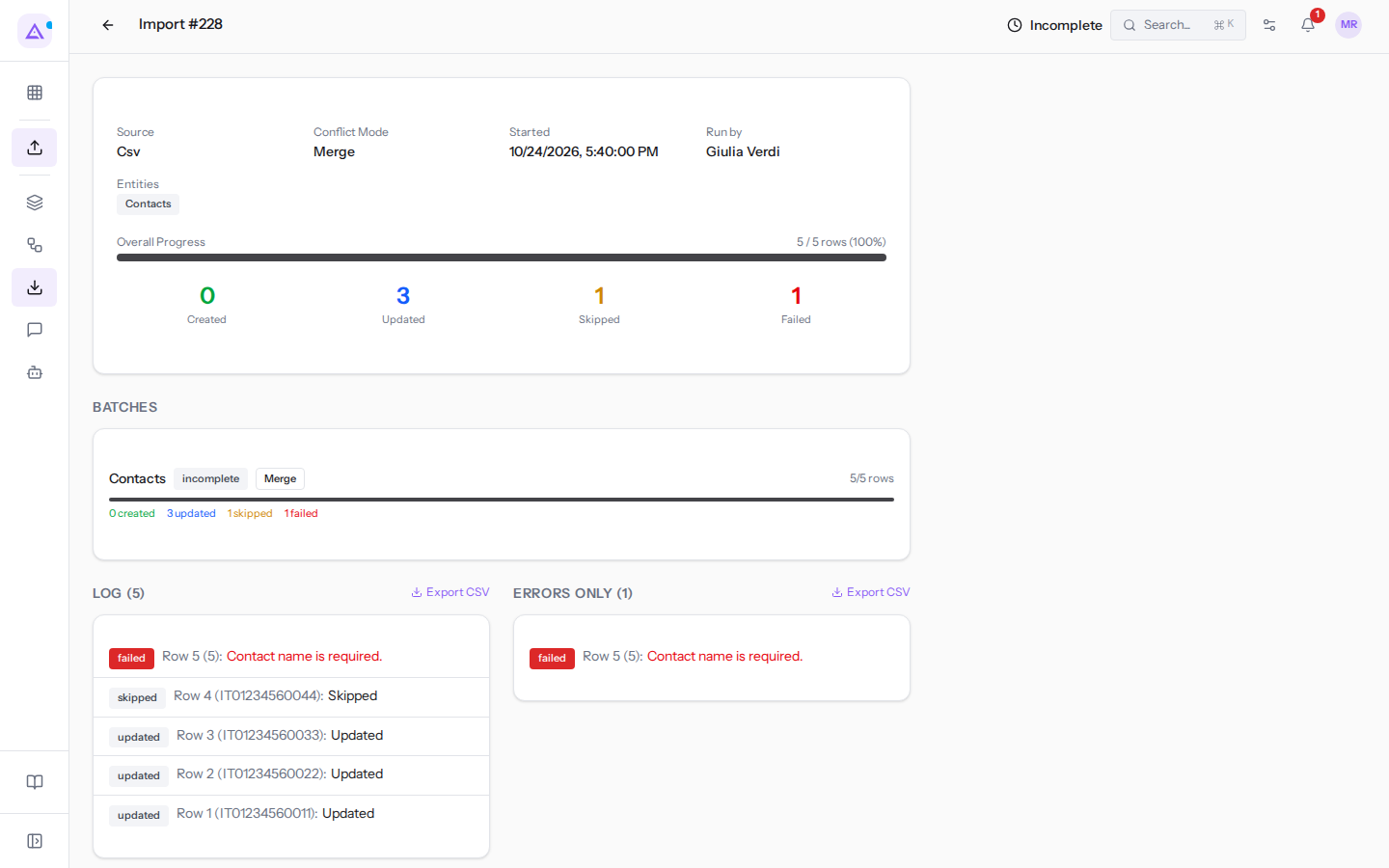
The Import # page opens, followed by the import number, with the status next to the title. Some texts on this page are technical values: below they are quoted as you see them. To return to the history, use the arrow icon next to the title.
The status
Next to the title the status appears as a single word, the same as in the history; only waiting for quota shows as Waiting_quota.
- Pending and Running: the import has not finished. The page updates itself.
Waiting_quota(in the history Waiting for quota) and Paused: an import from Fatture in Cloud has exhausted the hourly request quota and will resume on its own. See Connecting Fatture in Cloud.- Completed: all rows were processed without discards.
- Incomplete: the import has finished, but some rows did not go through. You find them in Errors only.
- Failed: all rows of at least one data type were discarded, or the import stopped due to an error.
- Cancelled: someone cancelled it. Rows that had already gone through remain.
As long as the import has not finished, at the bottom of the page there is Cancel Import: stop it only if it started by mistake, because rows that had already gone through are not removed.
The summary and the four numbers
The box at the top summarizes the import:
- Source:
Csvfor a file,Fattureincloudfor Fatture in Cloud. - Conflict Mode: the rule chosen for existing records:
Skip,Merge,Overwrite. - Started: date and time of start.
- Run by: who started it, or Scheduled for the recurring sync.
- Entities: the data types, with their technical English name, such as
ContactsorInvoices.
Below, Overall Progress shows how many rows have been processed out of the total, and four numbers show what happened to each one:
- Created: new records.
- Updated: existing records that the import wrote something into.
- Skipped: rows that matched an existing record and did not change it, because the rule was Skip or because there was nothing to add.
- Failed: discarded rows that did not go through.
In the file import of customer contacts started by Giulia Verdi 9 days ago, with the Merge rule, you read 0 created, 3 updated, 1 skipped and 1 failed: three contacts received the new contact details, Forniture Neri S.r.l. already had all the data, and row 5 was discarded.
Batches: one data type per row
The Batches section has one row for each imported data type, with its status (in lowercase: completed, incomplete, failed, cancelled), the applied rule, and the counts: rows (rows processed out of the total), created, updated, skipped, failed. You need it when an import brings multiple data types, to understand which one went wrong. The rule of a batch can differ from that of the summary, because with Recommended each data type has its own.
The log and discarded rows
At the bottom of the page there are two lists: Log, with all processed rows, and Errors only, with only the discarded rows. The number in parentheses is the total. The most recent rows are at the top; if there are many, Load more rows shows the next ones.
Each row has the outcome (created, updated, skipped, failed), then Row with the row number, in parentheses the record's reference to the source, and finally the message. For a discarded row the message is the reason, in red. The reference is the VAT number for a contact from a file, the code for a product, the Fatture in Cloud identifier (such as fic_doc_318770412) for a document imported from there.
In the customer contacts import, Errors only (1) contains Row 5 (5): Contact name is required.: row 5 does not have the contact name.
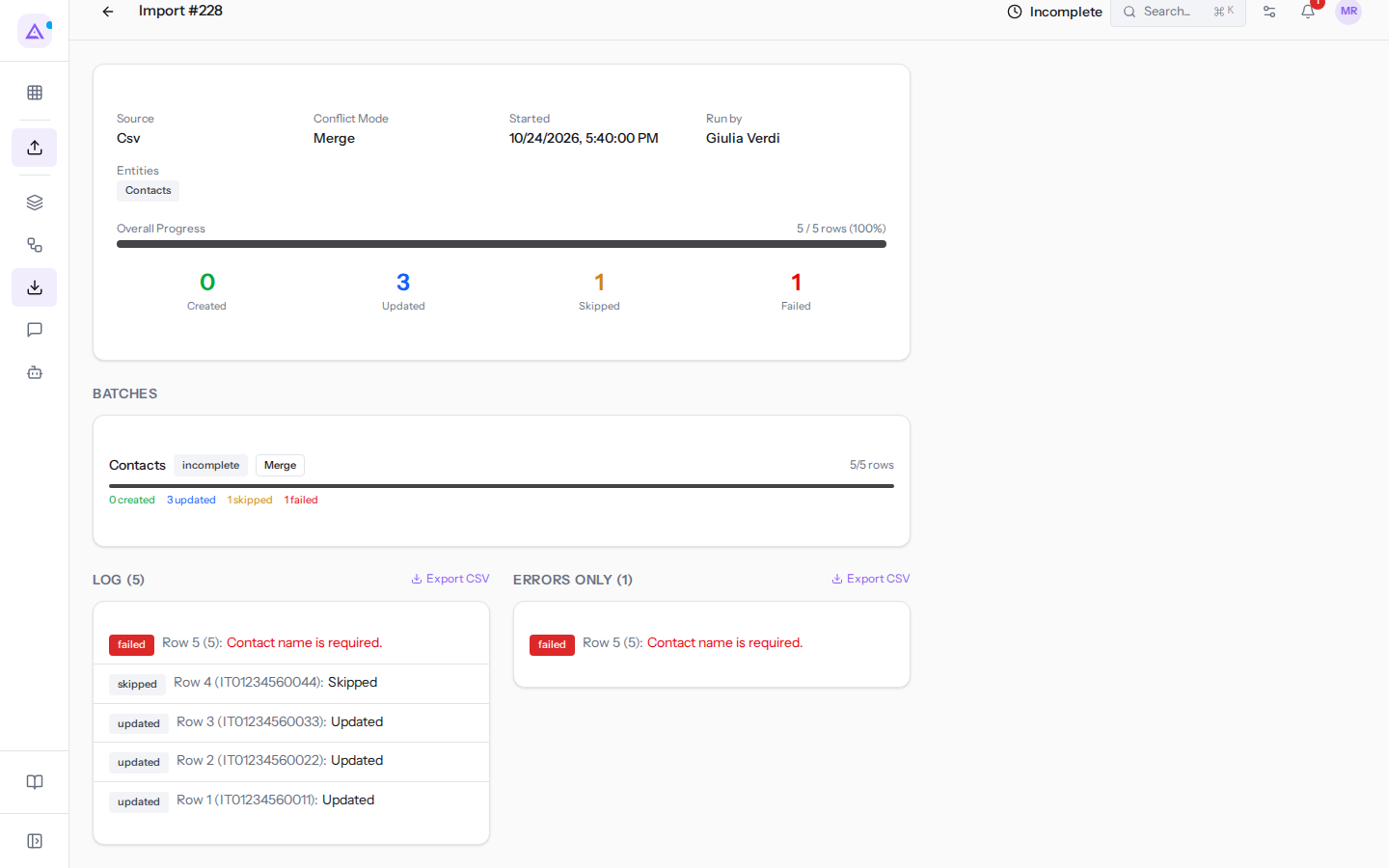
Export CSV, next to each list, downloads all the rows in the list, including those not yet loaded on screen. Export Errors only when there are many discarded rows: you get the list to fix, with row number, reference, and reason. The exported file does not contain the row data, so you make the corrections in your original file.
A failed import: initial stock levels
The file import of initial stock levels from 12 days ago is Failed: all three rows were discarded. In Errors only you find the three reasons:
No product in the catalogue matches code "ARR-009".: the code in the file does not exist in the catalog. Fix the code or create the product first.No stock location is called "Shelf Z".: create the location in Inventory or fix the name in the file."Ergonomic chair Pro" is tracked by lot: give the lot.: add the lot to the row.
All the rules are in Loading initial warehouse stock from a file.
Recurring sync runs
Each run of the recurring sync is its own import in the history, with Scheduled in place of the name of who started it, and has its own detail. A Failed run in which the only document to import was discarded, or Incomplete if others went through, has the reason in Errors only.
In three consecutive runs, invoice 3/2026 from Verdi Costruzioni S.p.A. was discarded each time, because one of its lines uses the VAT nature N6.3, which matches no tax in Archimedes. The message begins with Line 2 uses the VAT nature N6.3 (reverse charge on subcontracting), which matches no tax here. and on the first two nights adds how many times it has already failed (Failed on 1 of 3 runs; the sync sets it aside after 3.). On the third run the sync set it aside (Set aside after failing on 3 runs in a row…) and continued with the other documents. The next run is Completed.
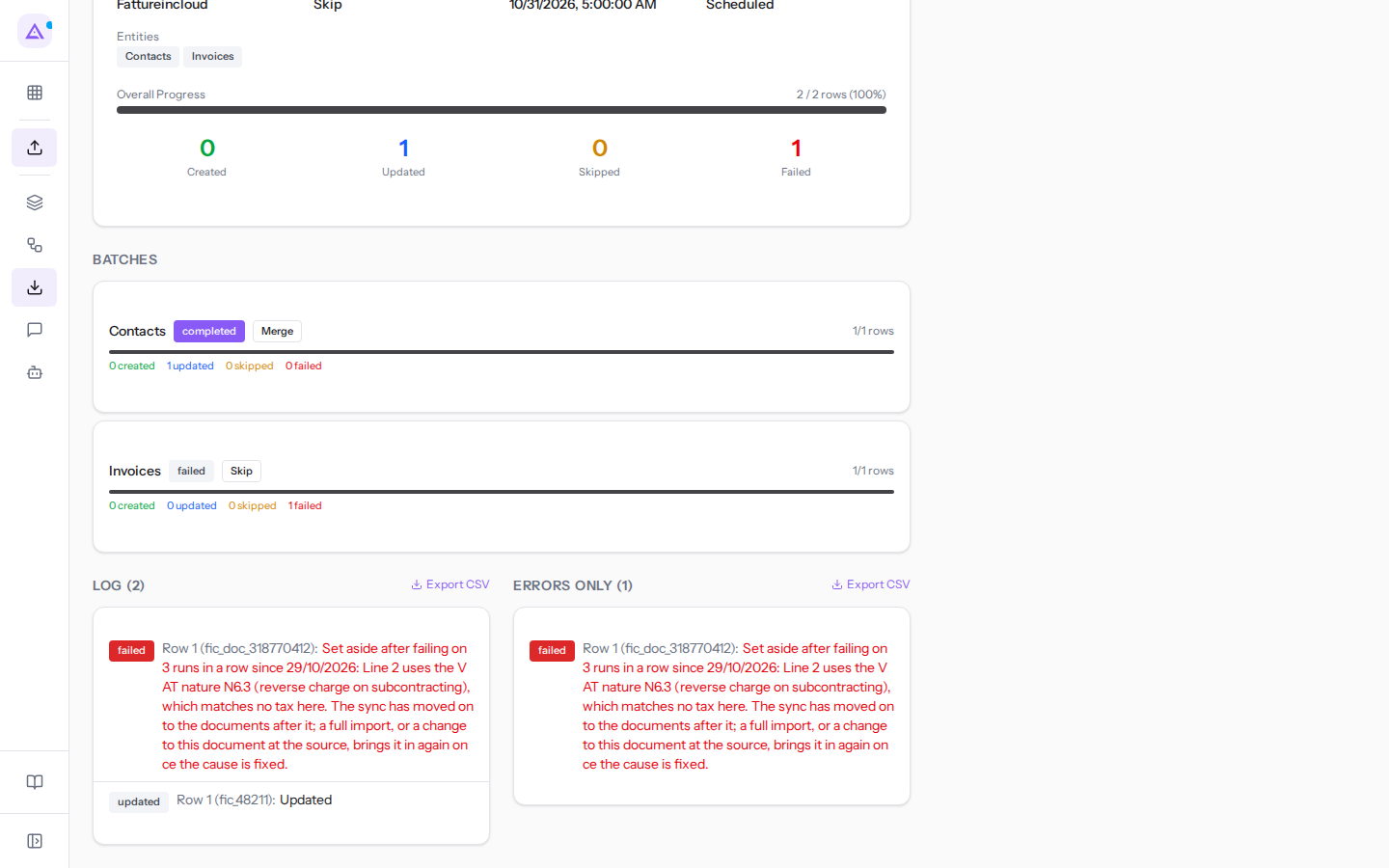
An invoice set aside no longer blocks the runs: it remains listed in the Recurring Sync box and appears in the comparison with the source as Only at the source, not here. To recover it, fix the cause, by creating the tax for the N6.3 nature or by fixing the document in Fatture in Cloud; then run a full import of issued invoices, or edit the document in Fatture in Cloud and the next sync will bring it back.
An error never stops the sync: after each failed or incomplete outcome, owners and administrators receive a notification, and the first successful outcome resets the consecutive error count. See Keeping Archimedes in sync with automatic synchronization.
Fixing and re-importing
- In Errors only read the reason for each discarded row. If there are many, download them with Export CSV.
- Fix the cause: in your file add the missing data, such as the name in row 5 of the customer contacts; if a master record is missing, first create the product or location in Archimedes.
- Import the file again with the Merge rule, and before starting press Run the check: it tells you how many records are already present and how many will be created, without writing anything.
Re-importing the entire file does not duplicate records that have already been imported: each row is recognized by its keys, not by its position in the file. For a contact the keys are the VAT number, the tax code or the email; for a product the code or the barcode; for a document the number and the counterpart. With Merge records that are already present only receive empty fields: those imported the first time show as Skipped if there is nothing to add, and the corrected rows come in. For opening stock, a row that has already been loaded is never loaded again. How to choose the rule is explained in Importing contacts and products from a spreadsheet.
See it on your company, not on a slide deck.
In 30 minutes we map the software you use today.We show you how much work and how much margin Archimedes gives back.
Show me on my business →What industry are you in?
One tap — it lets us prepare the demo around your world.
What tools do you use today?
Pick the ones you recognise — or just type them. It helps us show you how they migrate.
Last step: your details.
We reply within one working day — and right after, if you like, you pick the demo slot yourself.
We couldn't send your request. Try again, or write to us at [email protected].
By sending, you agree to your data being processed so we can get back to you about the demo. Privacy notice.
Preview form — nothing is sent from this page.
Want to schedule the demo now?
Your call: book the slot you prefer yourself, or we'll call you to arrange it.
Live availability, 30 minutes, instant confirmation. The calendar opens in a new tab.
Lock in your slot ↗We'll get back to you within one working day — and we'll join the call already knowing your world.
The calendar is open in another tab: pick a slot and the demo is booked. Can't see it? Reopen it ↗
Preview page: nothing was sent.
Our calendar is live: take the slot that suits you and the demo is booked. 30 minutes, instant confirmation, no waiting.
Lock in your slot ↗