Data Import
All modules
Before importing: what to bring, from where, and in what order
Data Import · 2 of 11 · 6 min read
The Data Import page brings into Archimedes the data the company already keeps in another system — for example, the customer directory, the product catalog, issued invoices, or warehouse stock. You can use it once, when migrating from another management system, or regularly, to keep Archimedes aligned with the source.
Who uses the page
The page is reserved for organization administrators: only they configure the connection, start and cancel imports, enable recurring synchronization, and compare with the source. To open it, choose Data Import in the sidebar.
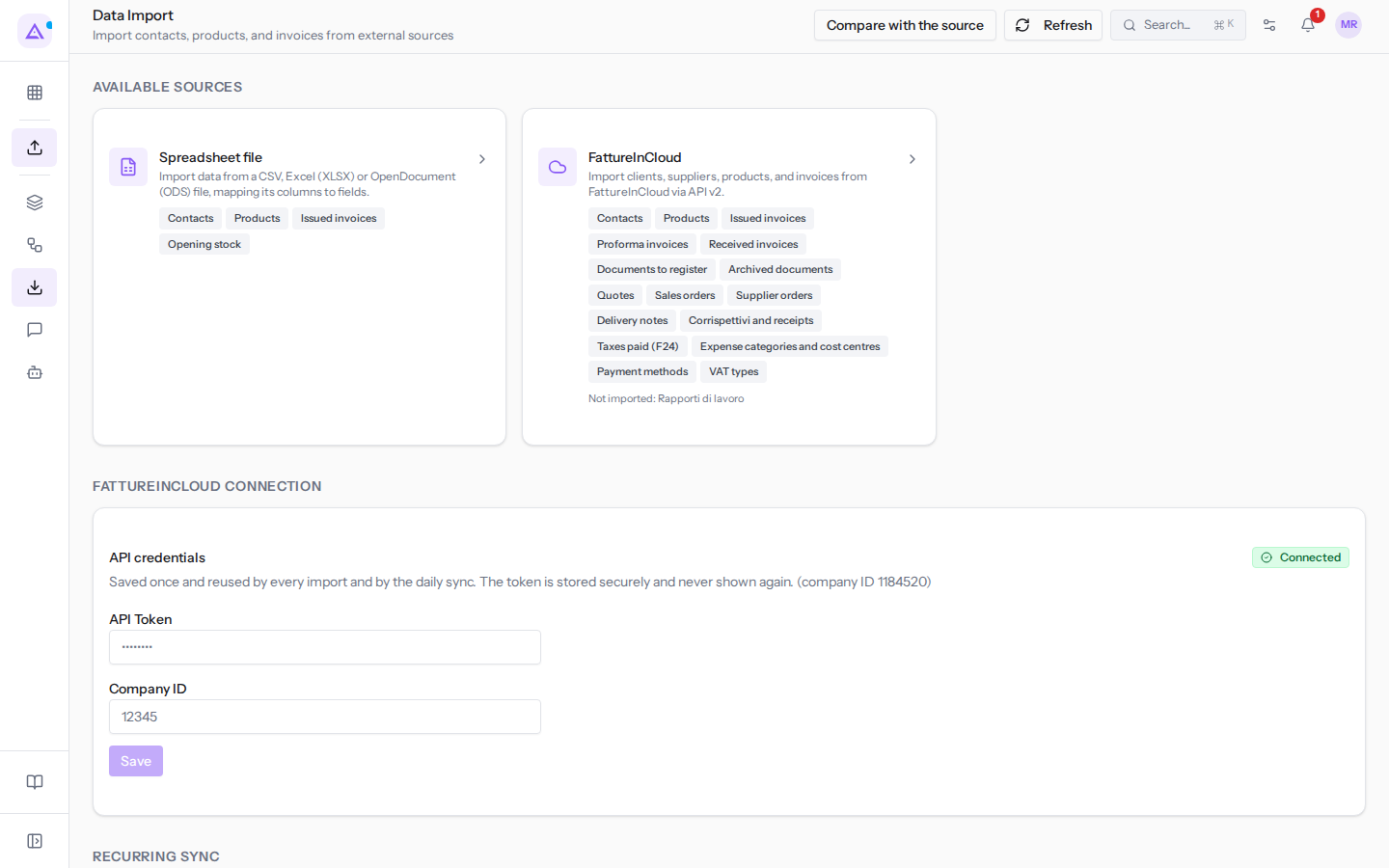
The page has these panels: Available Sources, FattureInCloud Connection, Recurring Sync and Import History. At the top of the page there are the Refresh and Compare with the source buttons. Refresh reloads the page, useful for following an import in progress. Compare with the source opens the page where you compare imported receivables and payables with those in Fatture in Cloud: see Comparing receivables and payables with Fatture in Cloud.
From where: the available sources
The Available Sources panel has a tab for each source. Below the name and description of each tab, labels show what data that source brings.
- Spreadsheet file: a spreadsheet file in CSV, Excel (XLSX) or OpenDocument (ODS) format. The file's columns must be matched to Archimedes fields. From a file you can import Contacts, Products, Issued invoices and Opening stock.
- FattureInCloud: the connection to Fatture in Cloud, available when its plugin is active. It uses the saved connection (token and company ID, see Connecting Fatture in Cloud) and can keep data aligned with a recurring synchronization.
From Fatture in Cloud, many more data types are imported: Contacts, Products, Issued invoices, Proforma invoices, Received invoices, Documents to register, Archived documents, Quotes, Sales orders, Supplier orders, Delivery notes, Corrispettivi and receipts, Taxes paid (F24), Expense categories and cost centres, Payment methods and VAT types.
At the bottom of the tab, the line "Not imported: Rapporti di lavoro" indicates which Fatture in Cloud data the import leaves out: work reports remain in Fatture in Cloud only.
Choose the source based on where your data is today:
- If the data is in a spreadsheet or an export from your old management system, choose Spreadsheet file.
- If you invoice with Fatture in Cloud, choose FattureInCloud: you bring more data types and, if you continue to use it, you can enable recurring synchronization.
In what order to import
An import recognizes records by specific keys and links a document to the records it names. This is why order matters.
- Import contacts and products first. A document names a customer or a supplier, and in its lines, the catalog products: if these already exist, the document links to them.
- From Fatture in Cloud, import payment methods, expense categories, and cost centers before the documents that use them. This way the lists are already complete when you record the documents.
- Then import documents: invoices, proforma, quotes, orders, delivery notes, corrispettivi, F24.
- Load opening stock last. A stock line is discarded if the product or location do not exist, or if the product is lot-managed and the line does not specify the lot.
In the Import History, the import of giacenze-iniziali.csv is Failed: its three lines were discarded because ARR-009 is not in the catalog, Shelf Z does not exist, and Ergonomic chair Pro is lot-managed but the line does not specify the lot. How to correct each case is explained in Loading initial warehouse stock from a file.
The modules that must be active
Each data type ends up in a module: contacts in Contacts, products in Products, invoices in Invoicing, opening stock in Inventory. Contacts, Products and Invoicing are always present, because the import depends on them. Inventory, on the other hand, is optional.
Important: if the module that receives a data type is not active, in the Select Data step below that type the warning "… is not enabled for this organization — these rows will not be imported." appears. An import of stock without Inventory writes nothing: activate Inventory before loading opening stock.
With a similar warning, the procedure signals individual fields that are left out when a component is missing. Under Contacts, without the electronic invoicing plugin, the following appears: "Italian E-Invoicing (FatturaPA) is not enabled: codice destinatario SDI, public-administration flag will not be imported."
What you decide: records already present
An import recognizes an already-existing record by its keys, never by its position in the file or the first column.
- Contact: VAT number, tax code or email.
- Product: internal reference or barcode.
- Document: number and counterpart.
This is why Studio Bianchi & Associati, already in the directory with the same VAT number, is updated and not duplicated when you import contatti-fiera.csv. An import never deletes records you already have: at most it updates them.
Before starting, in the Options step, choose what to do with already-existing records: Recommended (varies by data type), Skip (keeps the existing record), Merge (fills only empty fields) or Overwrite (replaces all fields). What each rule does and which one to use is explained in Importing contacts and products from a spreadsheet.
Note: by default, an import does not trigger automation rules or workflows: imported lines do not send emails, notifications or webhooks. You enable them only by checking Let this import trigger my automations in the Options step.
The other pages in this chapter
- Importing contacts and products from a spreadsheet: the file procedure, step by step.
- Mapping the file's columns to Archimedes fields: how to read and correct the matching.
- Loading initial warehouse stock from a file: the required columns and discarded lines.
- Connecting Fatture in Cloud: the token, the company ID and the saved connection.
- Importing data from Fatture in Cloud: the procedure and data types.
- Keeping Archimedes in sync with automatic synchronization: the Recurring Sync panel.
- Tracking imports in the history: the Import History and the meaning of each status.
- Understanding the result of an import and recovering discarded rows: the detail of each run.
- Comparing receivables and payables with Fatture in Cloud: the page you open with Compare with the source.
See it on your company, not on a slide deck.
In 30 minutes we map the software you use today.We show you how much work and how much margin Archimedes gives back.
Show me on my business →What industry are you in?
One tap — it lets us prepare the demo around your world.
What tools do you use today?
Pick the ones you recognise — or just type them. It helps us show you how they migrate.
Last step: your details.
We reply within one working day — and right after, if you like, you pick the demo slot yourself.
We couldn't send your request. Try again, or write to us at [email protected].
By sending, you agree to your data being processed so we can get back to you about the demo. Privacy notice.
Preview form — nothing is sent from this page.
Want to schedule the demo now?
Your call: book the slot you prefer yourself, or we'll call you to arrange it.
Live availability, 30 minutes, instant confirmation. The calendar opens in a new tab.
Lock in your slot ↗We'll get back to you within one working day — and we'll join the call already knowing your world.
The calendar is open in another tab: pick a slot and the demo is booked. Can't see it? Reopen it ↗
Preview page: nothing was sent.
Our calendar is live: take the slot that suits you and the demo is booked. 30 minutes, instant confirmation, no waiting.
Lock in your slot ↗