Data Import
All modules
Tracking imports in the history
Data Import · 9 of 11 · 5 min read
The Import History section of the Data Import page lists import runs, one row each. There are imports started manually from a file or from Fatture in Cloud and recurring synchronization runs. From here you can check the status of each run, follow its progress, and open the detail.
Opening the history
The history is at the bottom of the Data Import page, below the sources, the connection, and the recurring synchronization. It shows the last 50 runs, the most recent at the top.
- Open Data Import from the sidebar.
- Scroll to the Import History section.
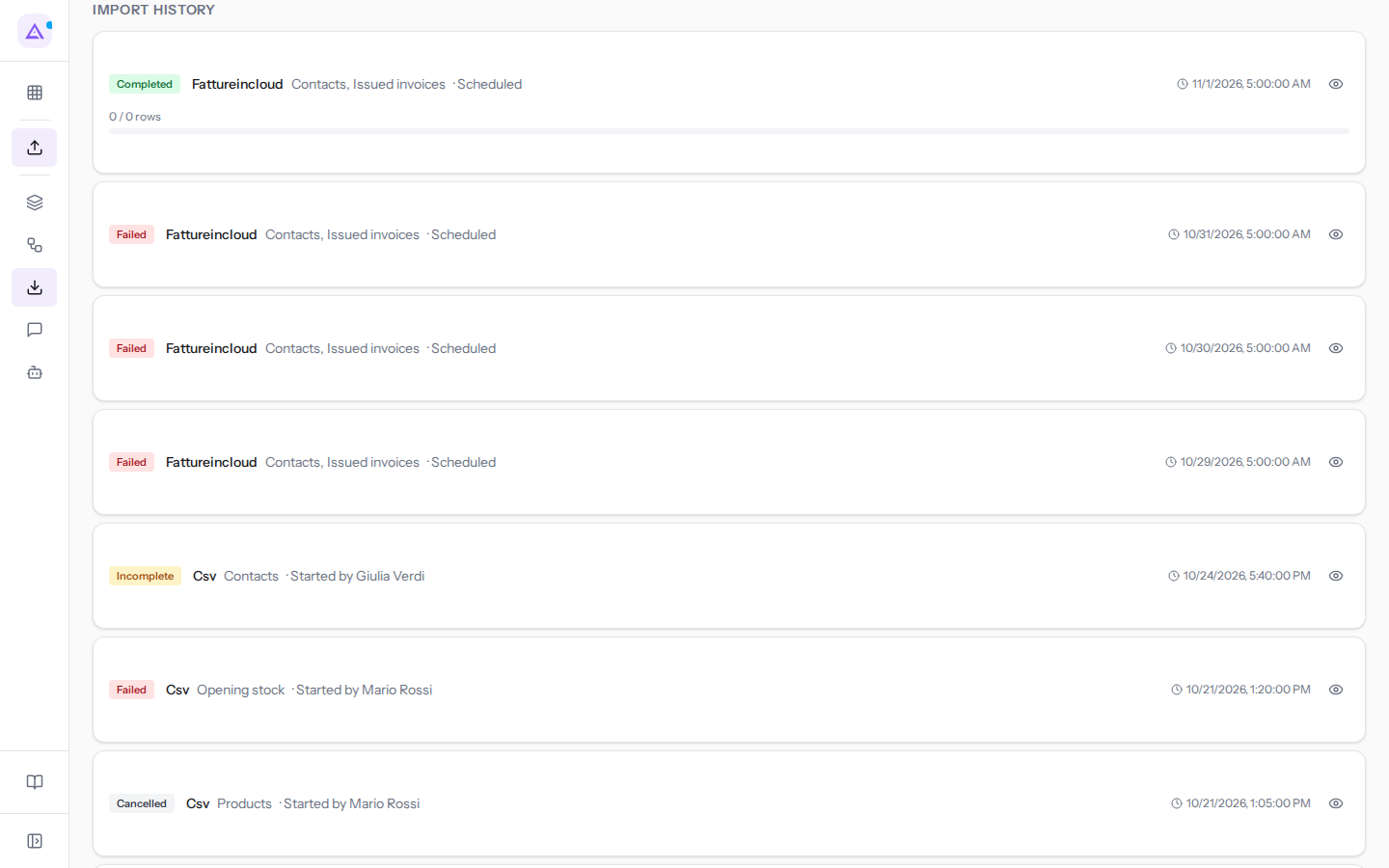
No need to reload the page. While a run is in progress, the history updates itself every three seconds; with recurring synchronization active and no run in progress, every thirty seconds, so a scheduled run appears as soon as it starts. To update it immediately press Refresh at the top.
If no import has ever been done, instead of the list No imports yet. Select a source above to start importing data. appears.
What a row shows
Each row is a run and lets you understand, without opening it, whether it went well and who started it. From left:
- the status, in a colored label (see the next section);
- the source, with the technical name of the connector: "Csv" for a file, "Fattureincloud" for Fatture in Cloud. The file name does not appear;
- the imported data, comma-separated, for example "Contacts, Issued invoices";
- who started it: Started by and the person's name, for example Started by Giulia Verdi, or Scheduled for recurring synchronization runs. That way, when a piece of data seems odd, you know whether a person or the synchronization wrote it;
- the start date and time, next to the clock icon;
- Cancel, only until the run has finished;
- the eye icon, which opens the detail.
For running and completed runs, below the row there also appear the rows processed out of the total (for example "12 / 40 rows"), counts greater than zero among created (green), updated (blue), skipped (yellow) and failed (red), and the progress bar.
Incomplete, failed, and cancelled runs do not show a bar or counts: to find out what went in and what did not, open the detail.
Import statuses
- Pending (yellow): the run is queued and has not yet started writing. No action needed.
- Running (blue): the run is writing. The bar and counts grow as the history updates.
- Waiting for quota (amber): Fatture in Cloud allows 1,000 requests per hour and the limit has been reached. The import resumes automatically when the quota becomes available.
- Completed (green): all rows have been processed. The counts show how many records were created, updated, skipped, or failed.
- Incomplete (amber): the run has finished, but some rows did not go through. Open the detail, read the reason for each discarded row, and correct it.
- Failed (red): the run did not write the data. Open the detail to read the reason.
- Cancelled (grey): someone stopped the run before it finished.
In the history you will find an example for almost every status:
- the first import from Fatture in Cloud, Started by Mario Rossi 24 days ago, Completed with 5 contacts, 6 products, and 2 issued invoices;
- the customer contact details update Started by Giulia Verdi, Incomplete: row 5 of the file has no name and was discarded;
- the initial stock, Failed: ARR-009 is not in the catalog, Shelf Z does not exist, and Ergonomic chair Pro is tracked by lot but the row has no lot. How to prepare these rows is explained in Loading initial warehouse stock from a file;
- the product price list, Cancelled;
- the synchronization runs, all Scheduled and at 5 in the morning: three Failed because invoice 3/2026 from Verdi Costruzioni S.p.A. would not go through, the last Completed after the synchronization set the invoice aside. The case is explained in Keeping Archimedes in sync with automatic synchronization.
Opening the detail of an import
The detail shows the summary, batches, and row log of a run, with the reason for each discarded row. Open it when a run is Incomplete or Failed: press the eye icon at the end of its row.
How to read the detail and recover discarded rows is explained in Understanding the result of an import and recovering discarded rows.
Cancelling a running import
Cancel a run if you started it with the wrong file or data. Press Cancel in its row: the run stops immediately, without a confirmation prompt, and the row changes to Cancelled.
Cancel only appears for Pending, Running, and Waiting for quota runs: a run that has already finished cannot be cancelled.
Cancelling does not remove what had already gone in: records written before the cancellation remain in Archimedes. If you want to remove them, delete them manually. If instead you want to complete the import, start it again: records already imported are recognized and are not created twice.
See it on your company, not on a slide deck.
In 30 minutes we map the software you use today.We show you how much work and how much margin Archimedes gives back.
Show me on my business →What industry are you in?
One tap — it lets us prepare the demo around your world.
What tools do you use today?
Pick the ones you recognise — or just type them. It helps us show you how they migrate.
Last step: your details.
We reply within one working day — and right after, if you like, you pick the demo slot yourself.
We couldn't send your request. Try again, or write to us at [email protected].
By sending, you agree to your data being processed so we can get back to you about the demo. Privacy notice.
Preview form — nothing is sent from this page.
Want to schedule the demo now?
Your call: book the slot you prefer yourself, or we'll call you to arrange it.
Live availability, 30 minutes, instant confirmation. The calendar opens in a new tab.
Lock in your slot ↗We'll get back to you within one working day — and we'll join the call already knowing your world.
The calendar is open in another tab: pick a slot and the demo is booked. Can't see it? Reopen it ↗
Preview page: nothing was sent.
Our calendar is live: take the slot that suits you and the demo is booked. 30 minutes, instant confirmation, no waiting.
Lock in your slot ↗