Data Import
All modules
Keeping Archimedes in sync with automatic synchronization
Data Import · 8 of 11 · 7 min read
The recurring sync re-reads Fatture in Cloud at regular intervals. It brings new or changed documents into Archimedes without importing them manually. You need it if you continue to issue invoices on Fatture in Cloud, for example during the transition period from one management system to another, or if you use Fatture in Cloud for billing and Archimedes for everything else.
When to use it
The sync uses the connection saved in the FattureInCloud Connection panel and, on each run, re-reads only the records that changed on Fatture in Cloud since the previous run.
- If you continue to issue invoices or create contacts on Fatture in Cloud, turn it on: new documents arrive in Archimedes without repeating the manual import.
- If you have already moved everything to Archimedes and no longer use Fatture in Cloud, you don't need it: the one-time full import is enough.
The sync never overwrites a field already filled in Archimedes. It creates new records and, for contacts and invoices, adds the roles and tags indicated by Fatture in Cloud and picks up the payment status. The corrections you make in Archimedes therefore remain. If you want data changed on Fatture in Cloud to replace that in Archimedes, do a manual import with the Overwrite rule, as explained in Importing data from Fatture in Cloud.
Turning the sync on
- Open Data Import from the sidebar.
- Scroll to the Recurring Sync panel, below the connection.
- In Data this sync covers, tick the data to keep in sync.
- In How often it runs, choose Every hour, Every 4 hours, Twice a day or Once a day.
- Press Turn on.
Turn on cannot be pressed until the connection is saved: next to it appears Save the FattureInCloud connection above before turning the daily sync on. It cannot be pressed either if you have not ticked any data.
Turning it on does not start a run immediately. The panel shows On — first run happens on the next scheduled cycle. and the first run starts at the first scheduled check. If you want the data right away, do a manual import first.
The checkboxes are the same data you can import manually from Fatture in Cloud, from Contacts to VAT types. Tick only those that actually change on Fatture in Cloud and choose the lowest frequency that meets your needs: each run consumes requests from the monthly quota that Fatture in Cloud grants. If the remaining quota drops below the safety reserve, the scheduled run does not start and the panel marks it as failed. Imports you start manually are not blocked.
Changing the data or frequency
With the sync active, you can change the data covered and the frequency without turning it off: the next run picks up where it left off.
- In the Recurring Sync panel, tick or untick the checkboxes in Data this sync covers.
- Change How often it runs, if needed.
- Press Save changes. The button only appears after a change. The panel confirms with The recurring sync now covers your selection.
Until you press Save changes, the sync continues with the previous data and frequency.
Turning the sync off
Turn off the sync when you no longer use Fatture in Cloud. Press Turn off in the Recurring Sync panel.
The panel shows Off — new invoices, contacts and products stay out of sync until you import manually. Data already imported stays in Archimedes and the saved connection remains available for manual imports. Turning it off, however, clears the sync settings: if you turn it back on, choose the data and frequency again.
Reading the panel status
With the sync active, the panel shows how the automatic runs went. Check it when the data in Archimedes seems out of date.
- Last run with date, time, and the result:
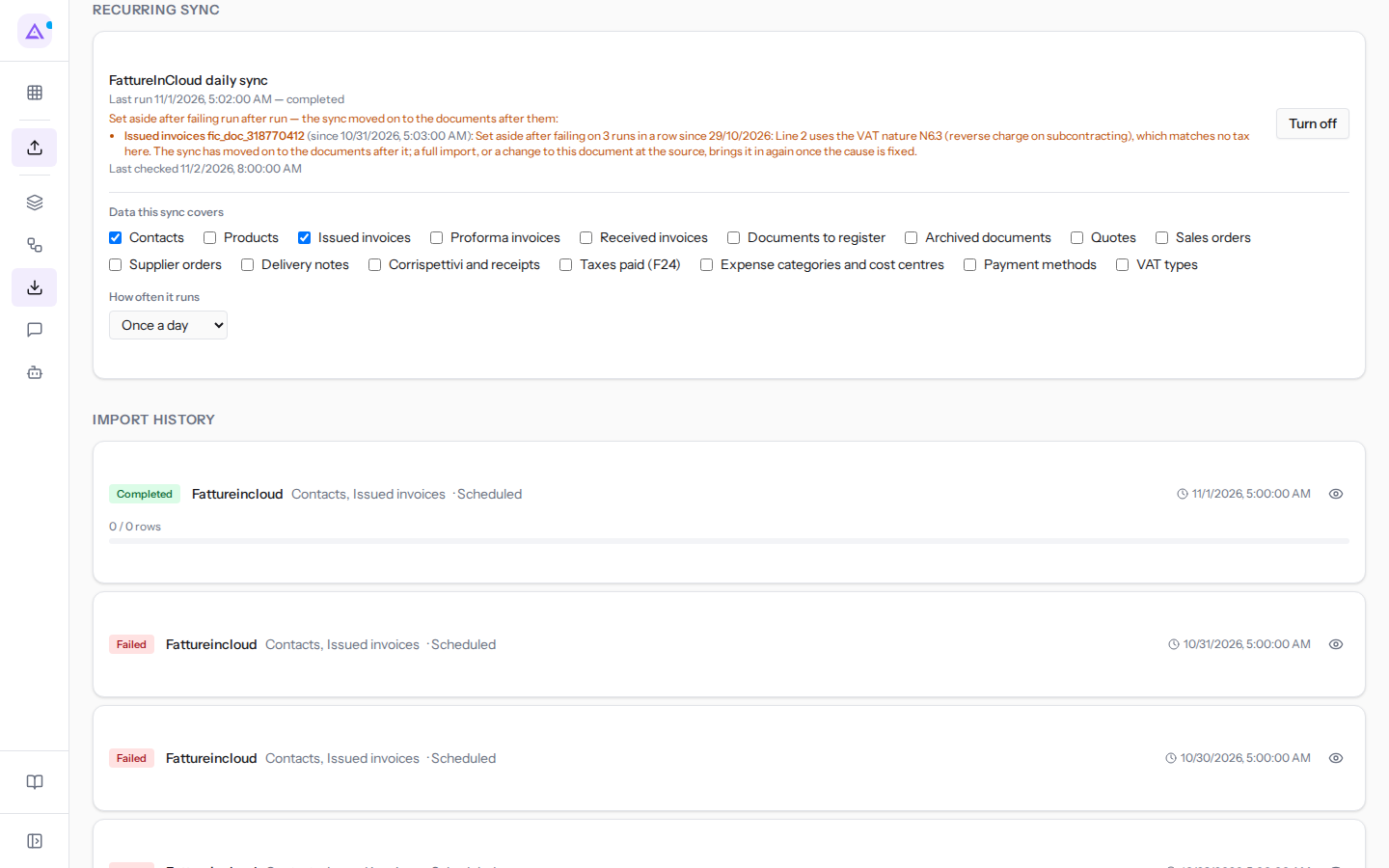
completed,incomplete(finished, but some records did not come through),failedorskipped(did not start, for example because the connection is missing or the quota is below the reserve). After a failed result, the reason appears below in orange. - Last checked with date and time: the last time Archimedes checked whether it was time for a run. It updates even when there is nothing to run: if the time is recent, the sync is working.
- A scheduled run was missed — the last one is older than it should be. and The scheduled sync has not run once since you switched it on. Check the connection, or contact support if it stays this way.: more time has passed than the frequency allows without a run. Check that the connection is still valid; if the warning persists, contact support.
- The last scheduled run did not work. The sync is still on and will try again.: it failed only once. Usually it is enough to wait for the next run.
- The red alert … scheduled runs in a row have not worked, since … The sync is still on and will try again., with the number of runs and the date of the first: the problem is recurring and will not resolve on its own. Open the latest run in the history and read the reason.
Incomplete runs count as failed. An error never turns off the sync, which tries again at the next run; the first successful result resets the count. For every failed, incomplete or skipped result, the organization's owners and administrators receive a notification: it opens the run or, if the run never started, the Data Import page.
Documents set aside
A document that cannot come through due to a problem in its data would cause all runs to fail. For this reason, after three consecutive failed runs on the same document, the sync sets it aside and moves on to the subsequent documents.
The panel lists these documents below the line Set aside after failing run after run — the sync moved on to the documents after them:. For each document the line shows the data type, the document code on Fatture in Cloud, since when it has been set aside, and the reason. The code is not the invoice number: fic_doc_318770412 is invoice 3/2026 from Verdi Costruzioni S.p.A. The document stays in the list until a run manages to import it.
Invoice 3/2026 has VAT nature N6.3, and in Archimedes no tax corresponds to this nature. For three consecutive runs the invoice did not come through and the run ended Failed; at the third, the sync set it aside, and the next run is Completed.
To bring back a document that was set aside:
- Fix the indicated cause. For invoice 3/2026, create a tax in Archimedes that corresponds to the VAT nature
N6.3, or correct the document on Fatture in Cloud. - Bring the document back into Archimedes. If you modified the document on Fatture in Cloud, the next run picks it up, because the sync re-reads changed records. If you only corrected Archimedes, the document on Fatture in Cloud has not changed: do a full import from Fatture in Cloud.
Automatic runs in the history
Every sync run appears in the Import History section of the Data Import page, like a manual import. Instead of Started by and the person's name, the row shows Scheduled.
In the history the three runs with invoice 3/2026 are Failed, the most recent is Completed. Open a run with the eye icon to read the records that did not come through and their reason, as explained in Following imports in the history.
See it on your company, not on a slide deck.
In 30 minutes we map the software you use today.We show you how much work and how much margin Archimedes gives back.
Show me on my business →What industry are you in?
One tap — it lets us prepare the demo around your world.
What tools do you use today?
Pick the ones you recognise — or just type them. It helps us show you how they migrate.
Last step: your details.
We reply within one working day — and right after, if you like, you pick the demo slot yourself.
We couldn't send your request. Try again, or write to us at [email protected].
By sending, you agree to your data being processed so we can get back to you about the demo. Privacy notice.
Preview form — nothing is sent from this page.
Want to schedule the demo now?
Your call: book the slot you prefer yourself, or we'll call you to arrange it.
Live availability, 30 minutes, instant confirmation. The calendar opens in a new tab.
Lock in your slot ↗We'll get back to you within one working day — and we'll join the call already knowing your world.
The calendar is open in another tab: pick a slot and the demo is booked. Can't see it? Reopen it ↗
Preview page: nothing was sent.
Our calendar is live: take the slot that suits you and the demo is booked. 30 minutes, instant confirmation, no waiting.
Lock in your slot ↗