Manufacturing
All modules
Setting up work centers (olive mill, kitchen workshop)
Manufacturing · 3 of 15 · 5 min read
A work center is the place or resource where a production operation takes place, such as an olive mill, a bottling line or a packing bench. On this page you create work centers, set their hourly cost and times, and check the efficiency recorded.
How work centers are used
Work centers are linked to the operations of the bills of materials. Each operation in a bill of materials names the work center and its duration in minutes. When you confirm a manufacturing order, the operations become work orders on those work centers. To add operations see Creating a bill of materials with components and operations; to work them, see Following work orders at work centers.
The cost of the operations of a bill of materials is calculated like this: the operation's duration, in proportion to the quantity produced, converted to hours and multiplied by the work center's hourly cost.
- If an operation should weigh on the product's cost, set a non-zero hourly cost on its work center.
- If a work center has an hourly cost of 0, its operations add no cost to the bill of materials.
Viewing the list of work centers
Before you start: the work centers page is visible only to those who configure production (Manufacturing Manager group). Those who run production can read work centers but cannot edit them.
The list shows all the organization's work centers with their parameters. Open Manufacturing › Settings › Work Centers: the page is titled Work Centers.
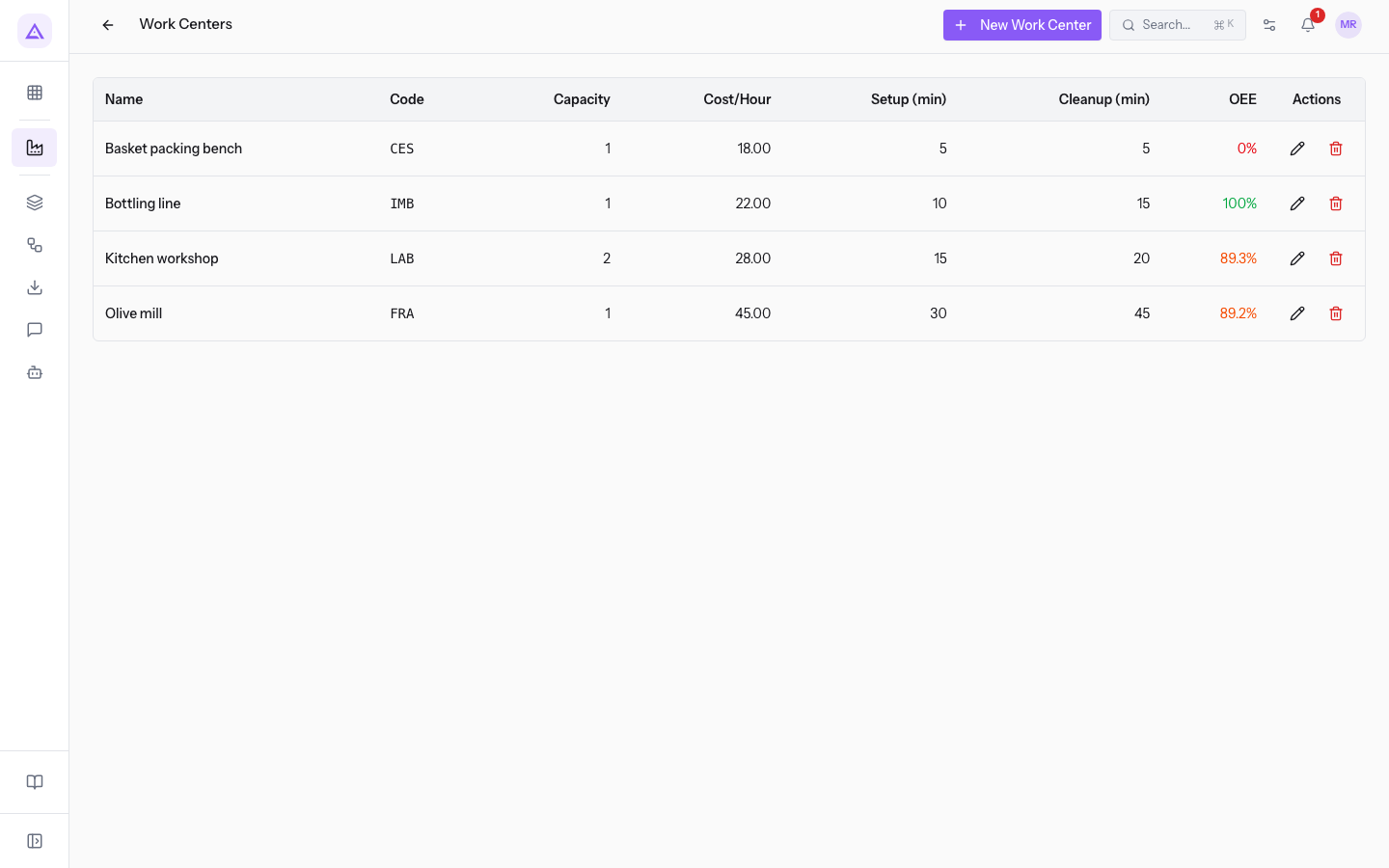
The table columns:
- Name: the name of the work center.
- Code: the short code. If the work center has no code, the column shows a dash.
- Capacity: the capacity of the work center.
- Cost/Hour: the hourly cost.
- Setup (min): the setup time in minutes.
- Cleanup (min): the cleanup time in minutes.
- OEE: the efficiency of the work center, as a percentage. See the section Reading efficiency.
- Actions: the pencil icon opens editing, the trash icon deletes the work center.
The demo work centers:
- Olive mill, code FRA: capacity 1, hourly cost 45.00, setup 30 minutes, cleanup 45 minutes.
- Kitchen workshop, code LAB: capacity 2, hourly cost 28.00, setup 15 minutes, cleanup 20 minutes.
- Bottling line, code IMB: capacity 1, hourly cost 22.00, setup 10 minutes, cleanup 15 minutes.
- Basket packing bench, code CES: capacity 1, hourly cost 18.00, setup 5 minutes, cleanup 5 minutes.
Creating a work center
Create a work center for each resource you want to schedule operations on.
- On the Work Centers page, press New Work Center. The New Work Center window opens.
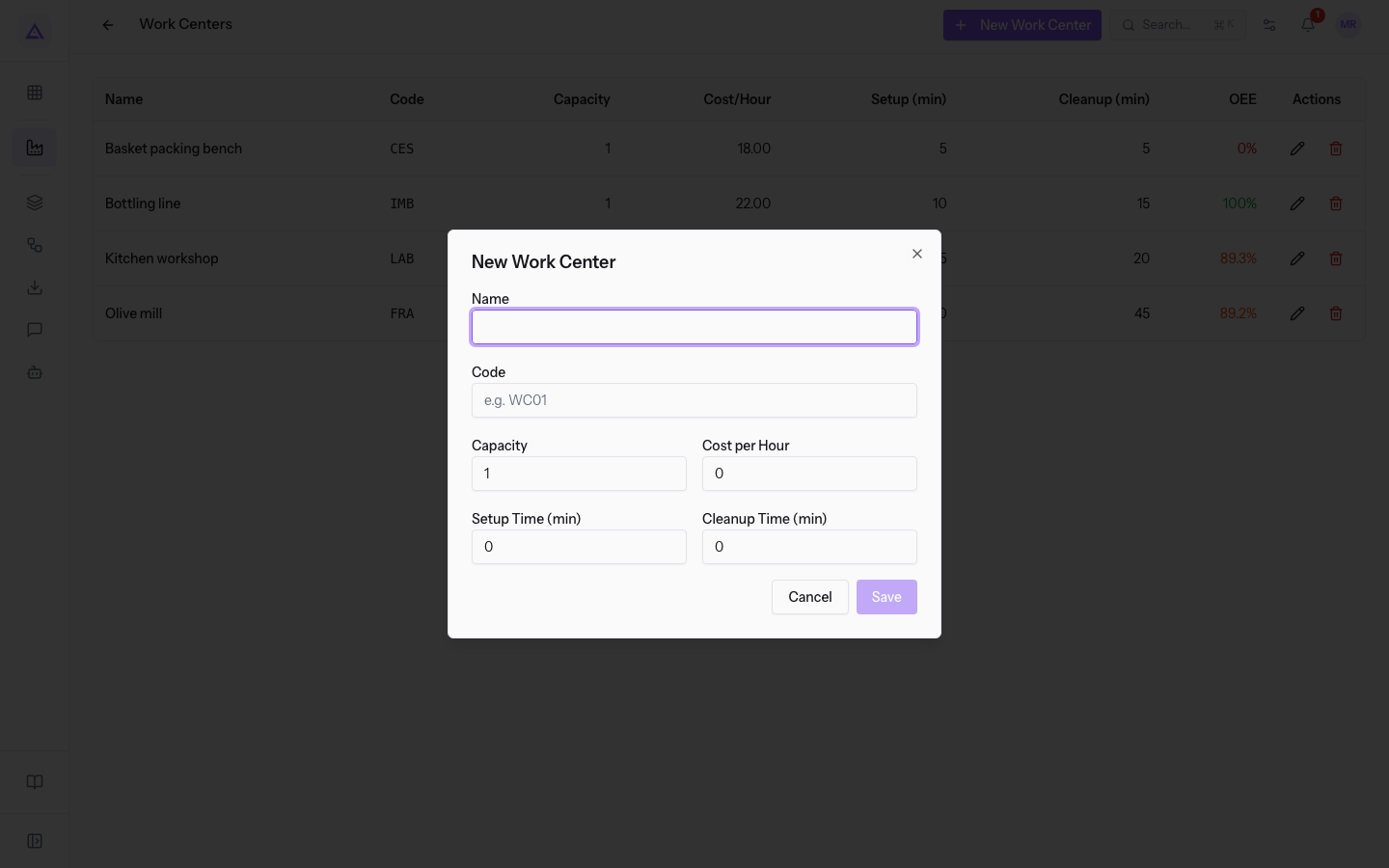
- Fill in the fields.
- Press Save. The work center appears in the list. To close without saving, press Cancel.
The fields of the window:
- Name: the name of the work center. The field is required: while it is empty, Save is not active.
- Code: a short code, optional.
- Capacity: the capacity of the work center. The proposed value is 1.
- Cost per Hour: the cost of one hour of work on the work center, for example 45.00 for the Olive mill. The proposed value is 0. It feeds the cost of the operations of the bill of materials.
- Setup Time (min): the setup minutes of the work center. The proposed value is 0.
- Cleanup Time (min): the cleanup minutes of the work center. The proposed value is 0.
Note: the cost of the operations of a bill of materials uses the operation's duration and the hourly cost. Setup and cleanup times are not part of this calculation. Operations are added as described in Creating a bill of materials with components and operations.
Editing a work center
Edit a work center when its hourly cost or times change.
- In the Actions column of the row, press the pencil icon. The Edit Work Center window opens with the current values, in the same fields as the New Work Center window.
- Change the fields and press Save.
Important: the cost of operations is calculated each time from the work center's current hourly cost, so the new value applies to calculations made after saving.
Deleting a work center
Delete a work center you no longer use.
- In the Actions column of the row, press the trash icon.
- Confirm in the browser's confirmation window. The work center disappears from the list.
If there are no work centers, the table shows the message No work centers configured.
Reading efficiency
The OEE column shows how much of the time recorded on the work center is productive time. The value is calculated by the system and is not entered by hand.
- The system adds up the times recorded on the work center's work orders and calculates the percentage of productive time out of the total. Recorded stoppages lower the percentage.
- A work center with no recorded times shows 0%.
- The colour of the value: green from 90% up, orange from 70% to under 90%, red below 70%.
In the demo:
- Olive mill (89.2%) and Kitchen workshop (89.3%) are below 90% because of recorded stoppages.
- The Bottling line is at 100%.
- The Basket packing bench is at 0% because it has no recorded times yet.
Times are recorded by starting, pausing and finishing work orders: see Following work orders at work centers.
See it on your company, not on a slide deck.
In 30 minutes we map the software you use today.We show you how much work and how much margin Archimedes gives back.
Show me on my business →What industry are you in?
One tap — it lets us prepare the demo around your world.
What tools do you use today?
Pick the ones you recognise — or just type them. It helps us show you how they migrate.
Last step: your details.
We reply within one working day — and right after, if you like, you pick the demo slot yourself.
We couldn't send your request. Try again, or write to us at [email protected].
By sending, you agree to your data being processed so we can get back to you about the demo. Privacy notice.
Preview form — nothing is sent from this page.
Want to schedule the demo now?
Your call: book the slot you prefer yourself, or we'll call you to arrange it.
Live availability, 30 minutes, instant confirmation. The calendar opens in a new tab.
Lock in your slot ↗We'll get back to you within one working day — and we'll join the call already knowing your world.
The calendar is open in another tab: pick a slot and the demo is booked. Can't see it? Reopen it ↗
Preview page: nothing was sent.
Our calendar is live: take the slot that suits you and the demo is booked. 30 minutes, instant confirmation, no waiting.
Lock in your slot ↗