Manufacturing
All modules
Check warehouse stock for components, finished products and minimum levels
Manufacturing · 15 of 15 · 6 min read
Production uses the stock, moves, reorder rules and lots of the Inventory module. From these pages you check the available components, the quantities that manufacturing orders have consumed and produced, the products below minimum stock, and the lots of the finished products.
Note: on these pages you only consult. Do not change stock or rules to follow a production: quantities change on their own when you complete a manufacturing order.
How production moves stock
A manufacturing order takes the components from its Source location and puts the finished product into its Destination location. Both are the first internal location of the warehouse.
- With Confirm the order creates the moves for components, finished products and by-products, and reserves the available components. Reserved components do not go to other transfers.
- With Mark Done the components leave stock and the finished products and by-products enter it. At the same moment the stock value is recorded.
- If you cancel the order, the reservations are released.
If you want to know whether you can start a production, check the stock of the components. If you want to know what an order did, check its moves.
Check component stock
The stock page shows how much there is of each product in each location and how much is already reserved. It lists only the products whose quantities are tracked. For the other components, use Check Availability on the order page.
- Open Inventory › On-Hand. The page is titled On-Hand Inventory.
- Write the name or code of the component in the search field and press Enter.
- To see the goods split by location, press Location in the grouping row.
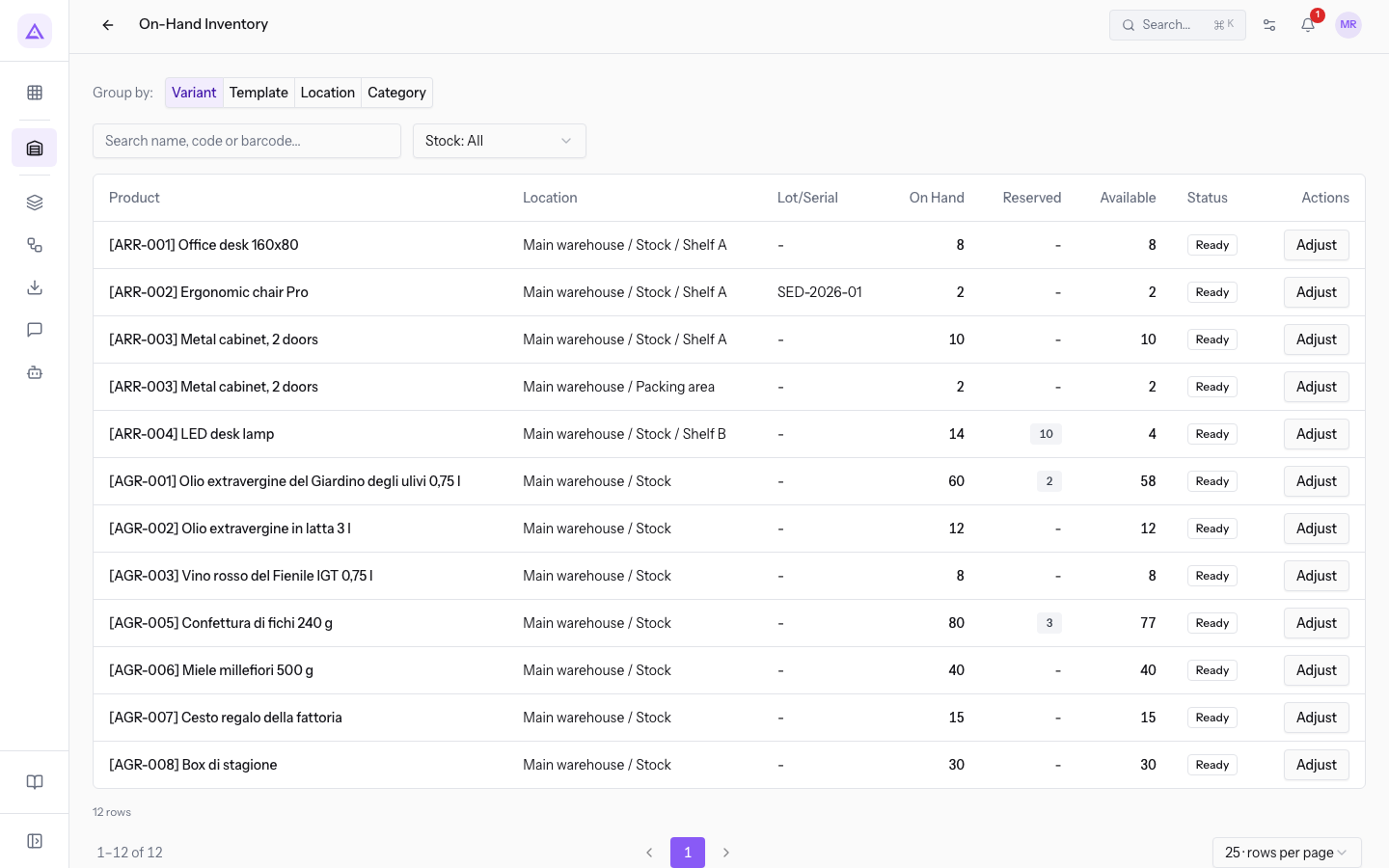
Fields and commands on the page:
- Search name, code or barcode...: searches for the product.
- Groupings: group the rows.
- Variant
- Template
- Location
- Category
- Stock: filters the rows by quantity.
- Stock: All: shows all rows. This is the initial value.
- In stock
- Sold out
- Clear filters: appears when a filter is active and removes it.
List columns:
- Product: the product, preceded by its code.
- Location: where the goods are.
- Lot/Serial: the lot of the row, if the product is tracked.
- On Hand: the quantity present.
- Reserved: the quantity already committed, for example by confirmed manufacturing orders. Press the number to see the reservations.
- Available: the free quantity.
- Status and Actions: the status of the row and the Adjust button.
Important: a manufacturing order compares the required quantity with the free quantity in the source location, not with all the stock. The Adjust button changes the stock: do not use it to check a component.
See the moves of a manufacturing order
Stock moves record every quantity that comes in or goes out. The page is a read-only history.
- Open Inventory › Stock Moves.
- Write the reference of the order, for example MO/00001, in the field Search product, move, or picking... and press Enter.
- To see only the completed moves, choose Done in the Status filter.
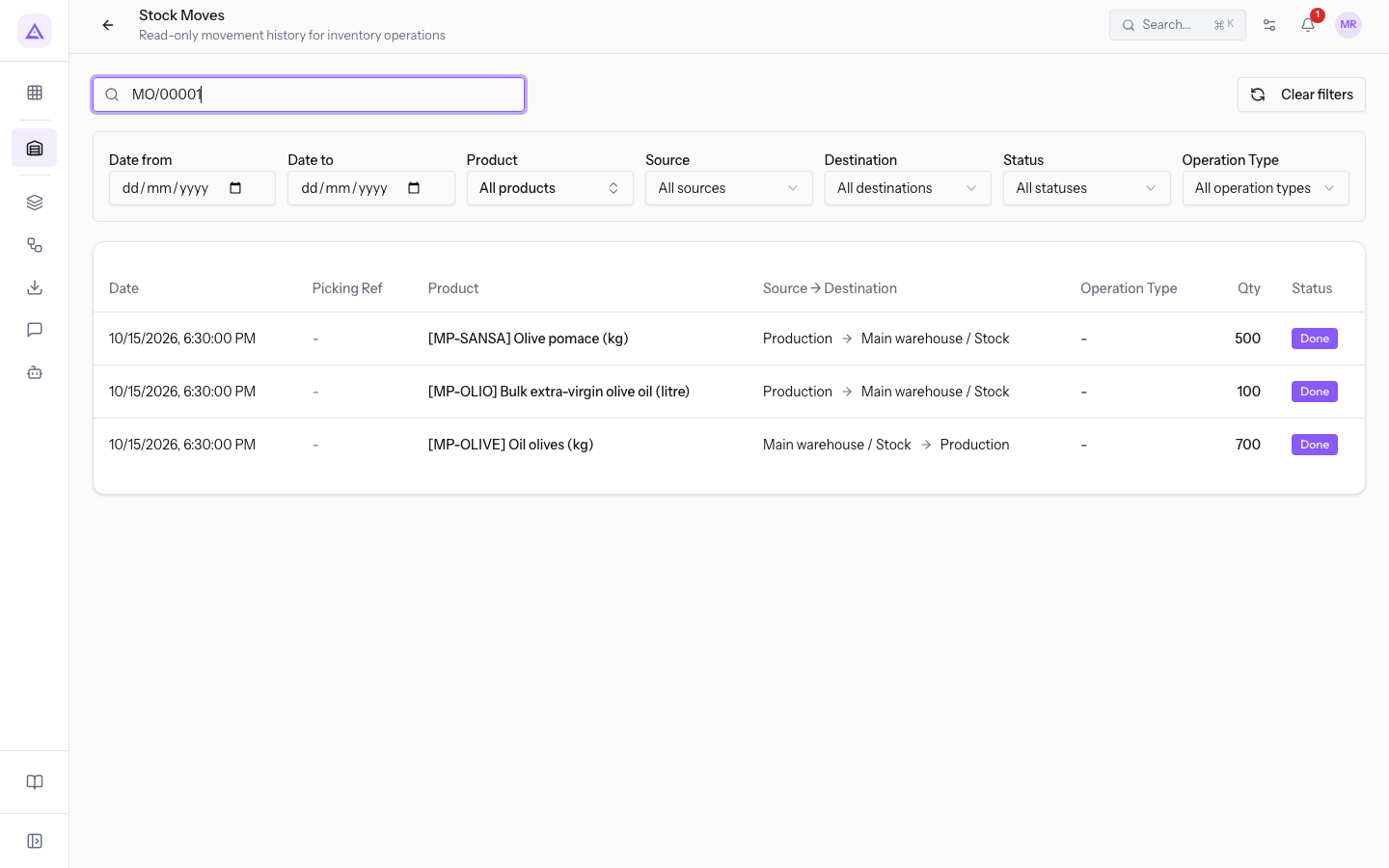
Page filters:
- Search product, move, or picking...: searches by product or by reference.
- Date from and Date to: limit the moves to a period.
- Product: the initial value is All products.
- Source: the initial value is All sources.
- Destination: the initial value is All destinations.
- Status: the initial value is All statuses.
- Operation Type: the initial value is All operation types.
- Clear filters: resets all filters to their initial value.
A completed order has one move for each component consumed and one for each finished product or by-product loaded. For MO/00001 these are the olives consumed and the bulk oil and olive pomace produced.
Check minimum stock with reorder rules
A reorder rule sets for a product the minimum and maximum quantity to keep in a location. For products that have a bill of materials, the rules make production suggestions appear on the production dashboard.
- Open Inventory › Settings › Reorder Rules.
- To see only the products under stock, activate Only below minimum.
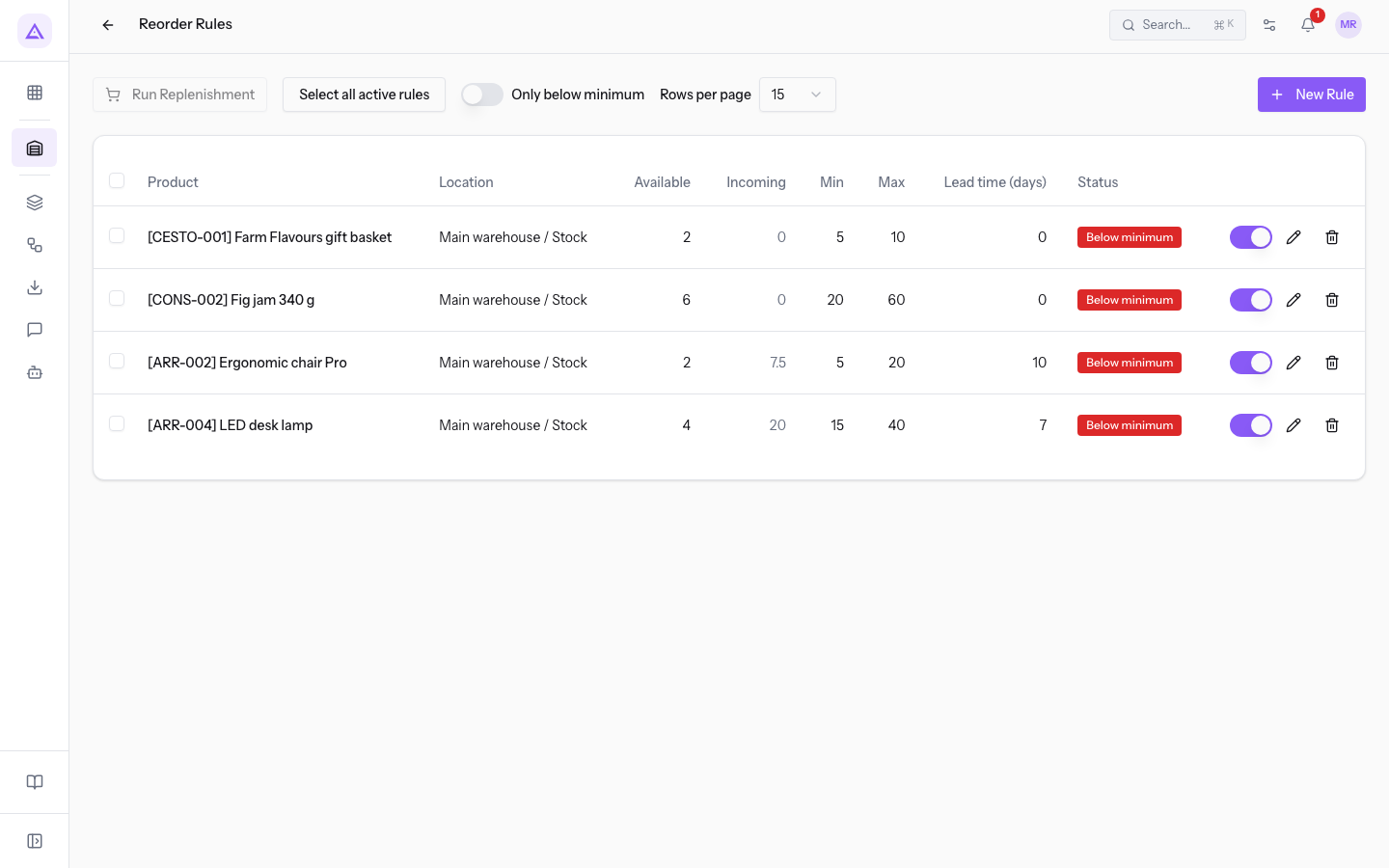
List columns and commands:
- Product and Location: the product and the location the rule applies to.
- Available: the free quantity.
- Incoming: the quantity already expected.
- Min and Max: the minimum stock and the quantity up to which to replenish.
- Lead time (days) and Status.
- Rule on/off: the switch of each row.
- Edit and Delete: change or remove the rule.
- New Rule, Run Replenishment and Select all active rules: create a rule or start the replenishment of the chosen rules.
In the demo, the production rules concern the Fig jam 340 g and the Farm Flavours gift basket.
How production suggestions arise:
- Only products with an active normal bill of materials and a reorder rule count.
- A suggestion appears when the free stock falls below the minimum.
- It proposes producing up to the rule's maximum. If the rule has no maximum, it proposes producing up to the minimum.
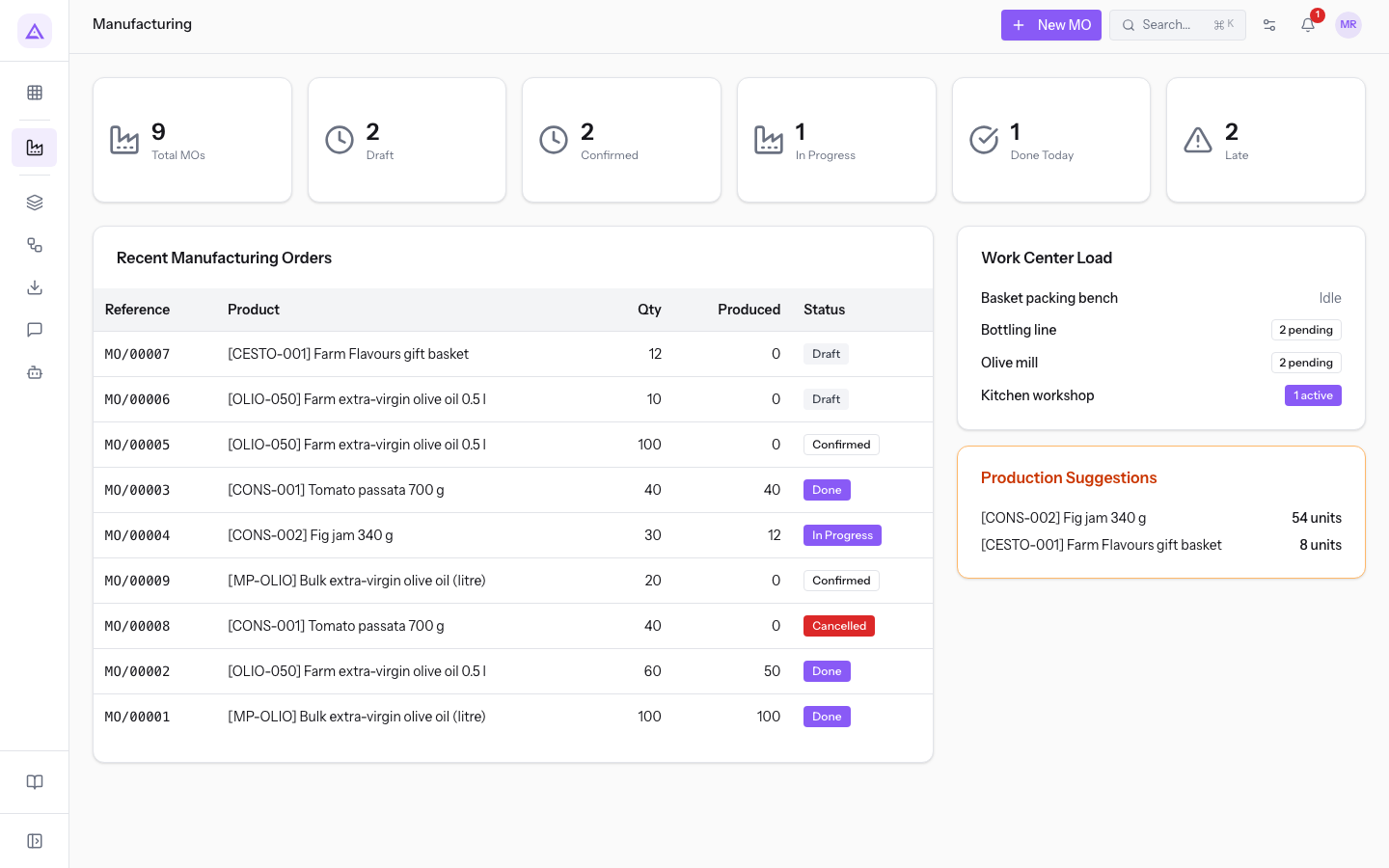
Note: kits do not count for suggestions. If a product does not appear among the suggestions, check that it has an active normal bill of materials and an active rule.
Consult the lots of finished products
When you record the production, in the Record Production window you choose the lot of the finished product in the Lot / Serial Number field. The lots are the ones you find in Inventory, such as OLIO-2026-01 for the bulk oil and EVO-2026-A for the bottled oil.
- Open Inventory › Lots / Serial Numbers.
- Write the lot code in the field Search lot, serial, or reference and press Search.
- Press the lot row to open its page.
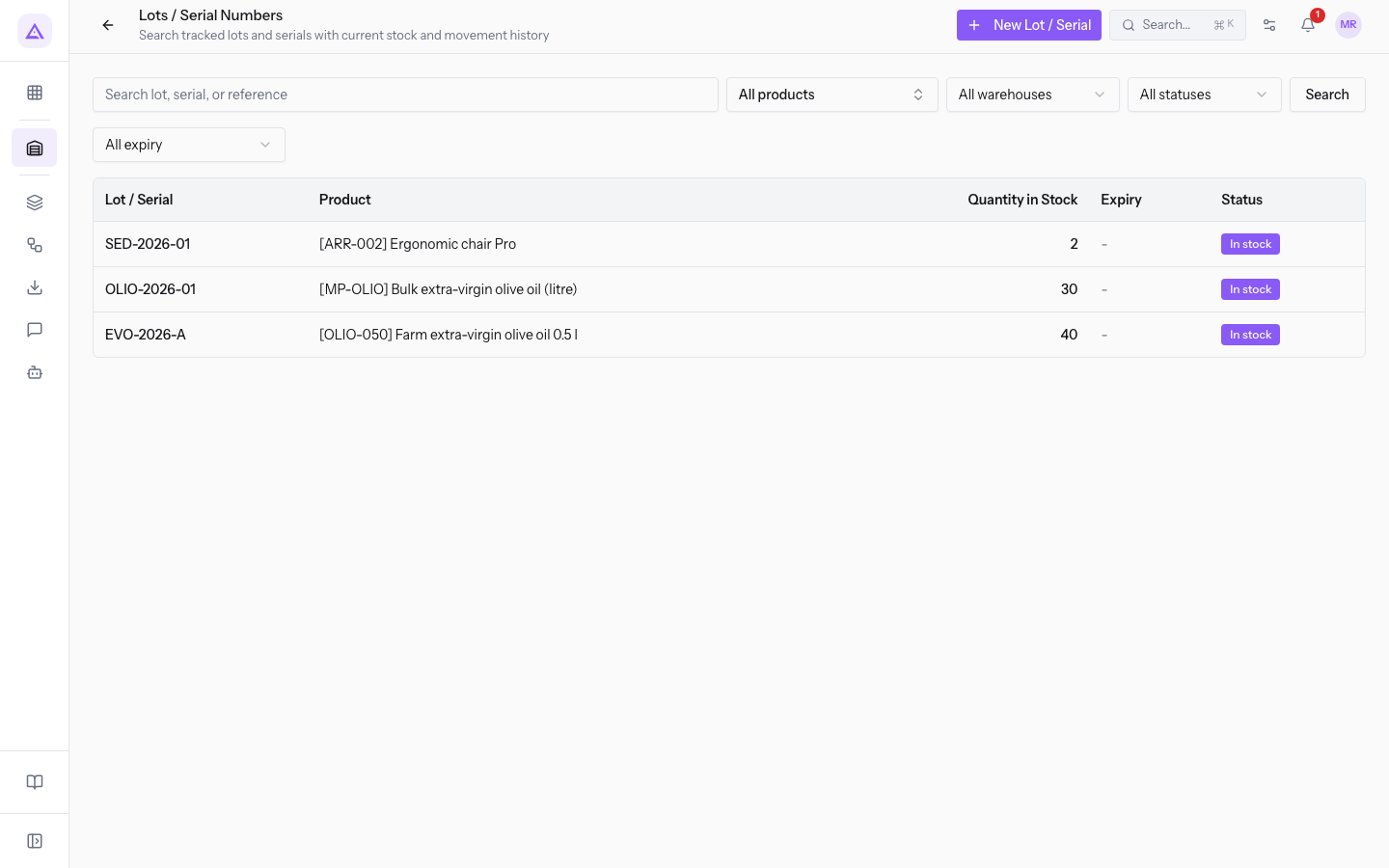
List filters:
- Search lot, serial, or reference: searches by lot code or by reference.
- Product: the initial value is All products.
- All warehouses: limits the lots to one warehouse.
- All statuses: filters by lot status.
- All expiry: filters by expiry.
The lot page has these sections:
- Details: the Product and the Reference.
- Current Location: where the lot quantity is now.
- Traceability: the moves of the lot, with the reference of each document.
From the page you can also use Print label. The Edit button changes the lot data.
See it on your company, not on a slide deck.
In 30 minutes we map the software you use today.We show you how much work and how much margin Archimedes gives back.
Show me on my business →What industry are you in?
One tap — it lets us prepare the demo around your world.
What tools do you use today?
Pick the ones you recognise — or just type them. It helps us show you how they migrate.
Last step: your details.
We reply within one working day — and right after, if you like, you pick the demo slot yourself.
We couldn't send your request. Try again, or write to us at [email protected].
By sending, you agree to your data being processed so we can get back to you about the demo. Privacy notice.
Preview form — nothing is sent from this page.
Want to schedule the demo now?
Your call: book the slot you prefer yourself, or we'll call you to arrange it.
Live availability, 30 minutes, instant confirmation. The calendar opens in a new tab.
Lock in your slot ↗We'll get back to you within one working day — and we'll join the call already knowing your world.
The calendar is open in another tab: pick a slot and the demo is booked. Can't see it? Reopen it ↗
Preview page: nothing was sent.
Our calendar is live: take the slot that suits you and the demo is booked. 30 minutes, instant confirmation, no waiting.
Lock in your slot ↗