Manufacturing
All modules
Complete a manufacturing order and handle the backorder
Manufacturing · 12 of 15 · 4 min read
The Mark Done button closes a manufacturing order. It consumes the components, loads the finished products into stock and closes the work orders still open. If you produced less than planned, the system creates a backorder for the missing quantity.
When to complete an order
You can complete an order that is In Progress or Confirmed. An order in Draft must be confirmed first.
- If you produced the full planned quantity, you can press Mark Done directly. If you recorded no quantity, the system considers the full expected quantity produced.
- If you produced less than planned, first record the actual quantity with Produce, as described in Start production and record produced quantities, then complete the order. A backorder is created for the part that is missing.
- If you no longer want to produce the rest, complete the order anyway and then cancel the backorder in Draft.
Important: a Done order cannot be cancelled, because the stock has already been moved. Before completing it, check the quantity produced.
Complete a manufacturing order
Complete the order when production is finished.
- Open the order from Manufacturing › Manufacturing Orders, for example MO/00004 (Fig jam 340 g, In Progress).
- If you produced less than planned, record the quantity with Produce.
- Press Mark Done.
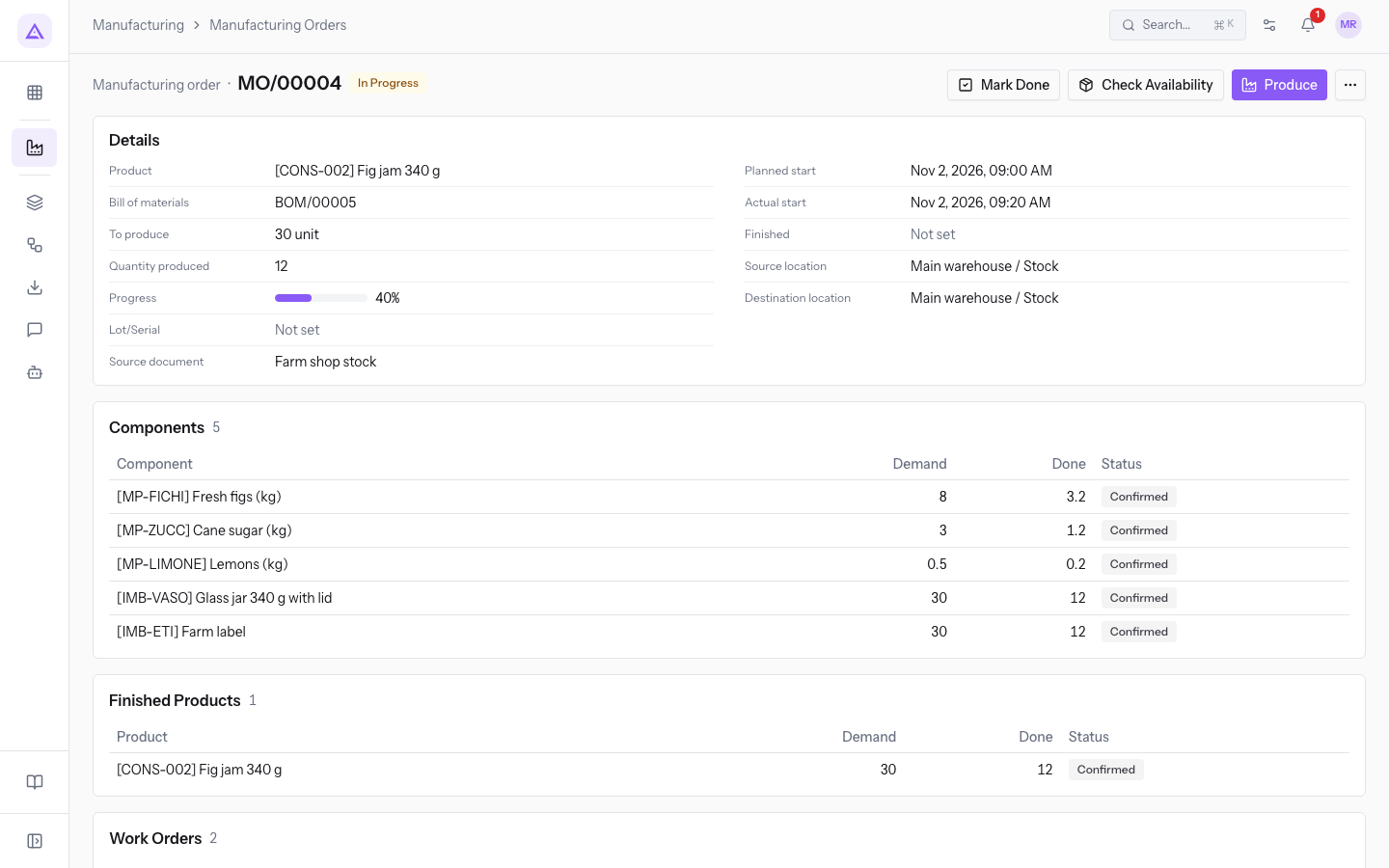
The system shows the message Manufacturing order completed.
On the page of an order in progress there are also Check Availability, Produce and, under More actions, Cancel order.
What happens on completion
When you complete the order, the system automatically does these operations:
- Components: the lines are closed with the consumed quantity. The stock of the components in the source location decreases. If you produced less than planned, the components are consumed in proportion to the quantity produced.
- Finished Products: the lines are closed and the stock of the product in the destination location increases. If you chose a lot when you recorded the production, the stock goes into that lot.
- Work Orders: the ones still open are closed. Those already finished or cancelled stay as they are.
- The order status becomes Done and the Finished date is filled with the moment of completion.
- The reservations of the components are released. What the order does not consume becomes available again for other transfers.
- The stock also records the value of the consumed components and of the loaded products.
To check the stock levels and the generated moves in inventory, see Check warehouse stock for components, finished products and minimum levels.
By-products
If the bill of materials has by-products, these appear in the Finished Products section and are loaded into stock on completion.
For example MO/00001 (Product Bulk extra-virgin olive oil (litre), Bill of materials BOM/00001, To produce 100 l) is Done and also loads the by-product [MP-SANSA] Olive pomace (kg), Done 500.
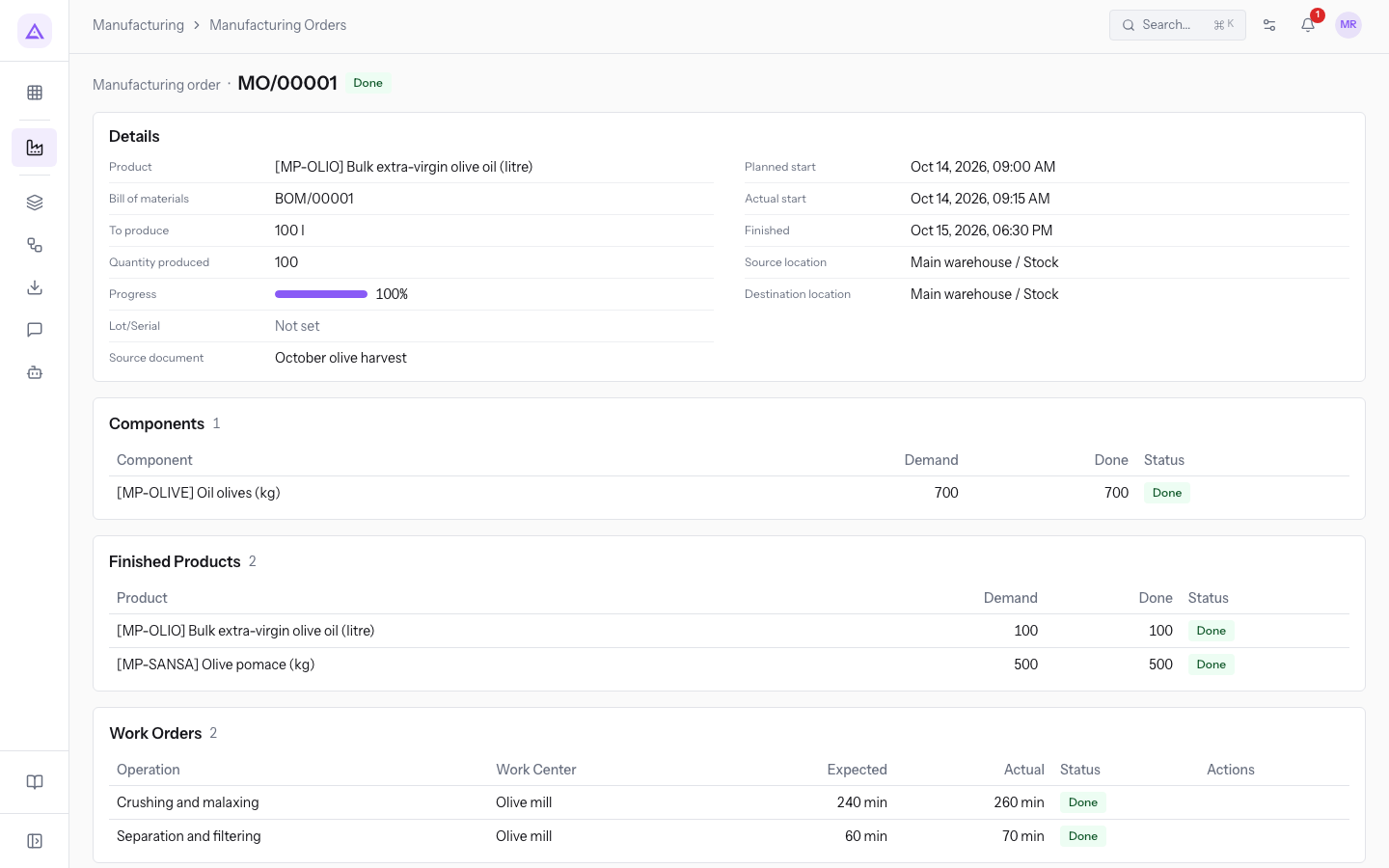
The by-product quantity follows the quantity produced. If you complete the full planned quantity, the expected quantity is loaded. If you complete only part of it, the by-product is loaded in the same proportion.
The backorder
The backorder contains the quantity that the original order did not produce. The system creates it only when you complete an order with a produced quantity lower than the planned one.
For example MO/00002 (Product Farm extra-virgin olive oil 0.5 l) produced 50 bottles out of 60. On completion MO/00006 was created for the 10 missing bottles.
The backorder:
- is created in Draft, without components or work orders;
- has the original order as its Source document;
- takes from the original order the product, the Bill of materials, the consumption mode, the source and destination locations and the priority. So MO/00006 has Flexible consumption, like MO/00002.
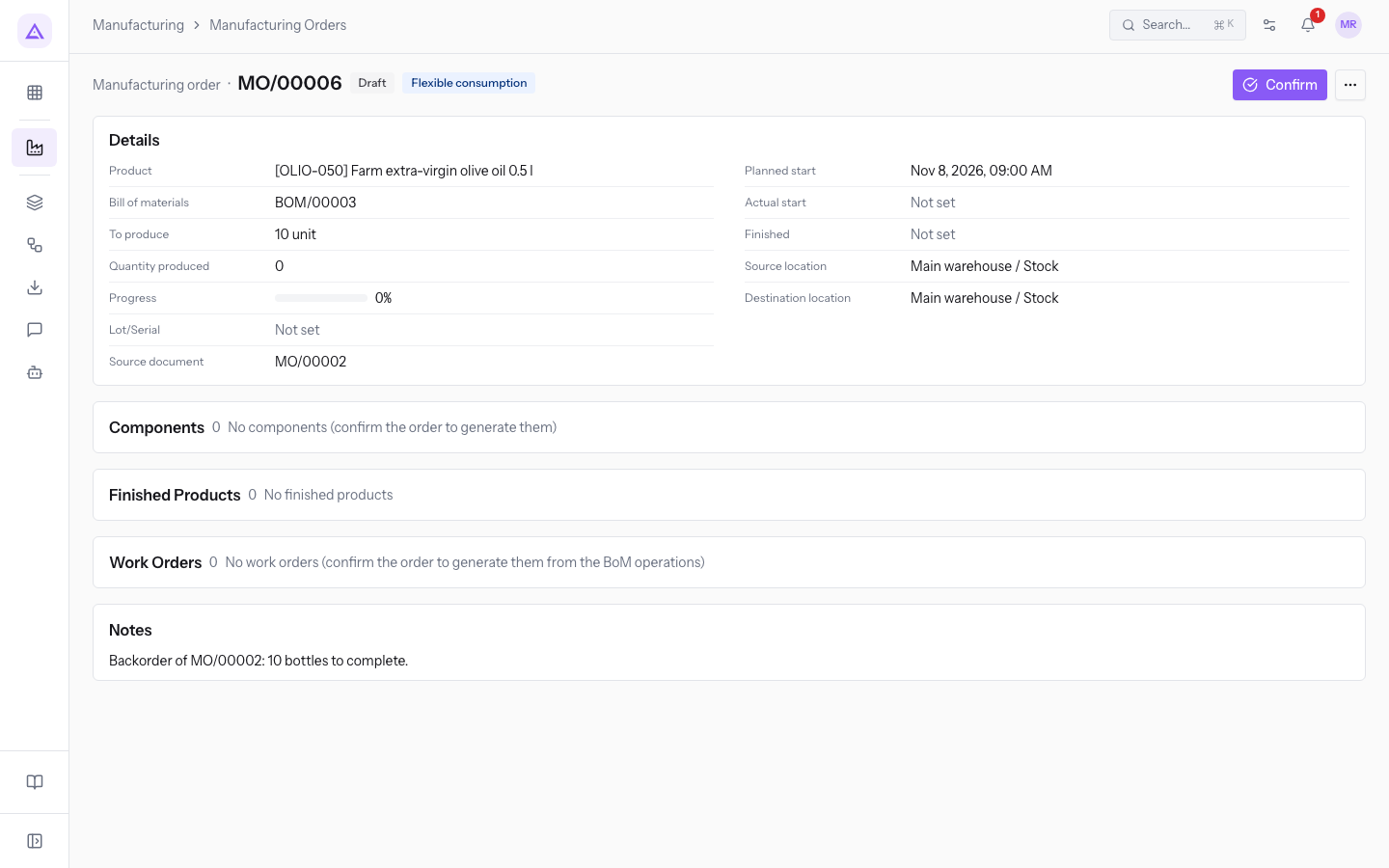
To manage the backorder, open it from Manufacturing › Manufacturing Orders:
- If you want to produce the missing quantity, press Confirm. The order generates components and work orders and proceeds like any other order.
- If you do not want to produce it, press More actions and choose Cancel order.
Note: if you complete an order without recording any quantity, the system considers the full planned quantity produced and does not create any backorder.
A completed order
A Done order no longer has any actions. The page shows only the sections Details, Components, Finished Products, Work Orders and Notes, without buttons. You can no longer record quantities, edit the order or cancel it.
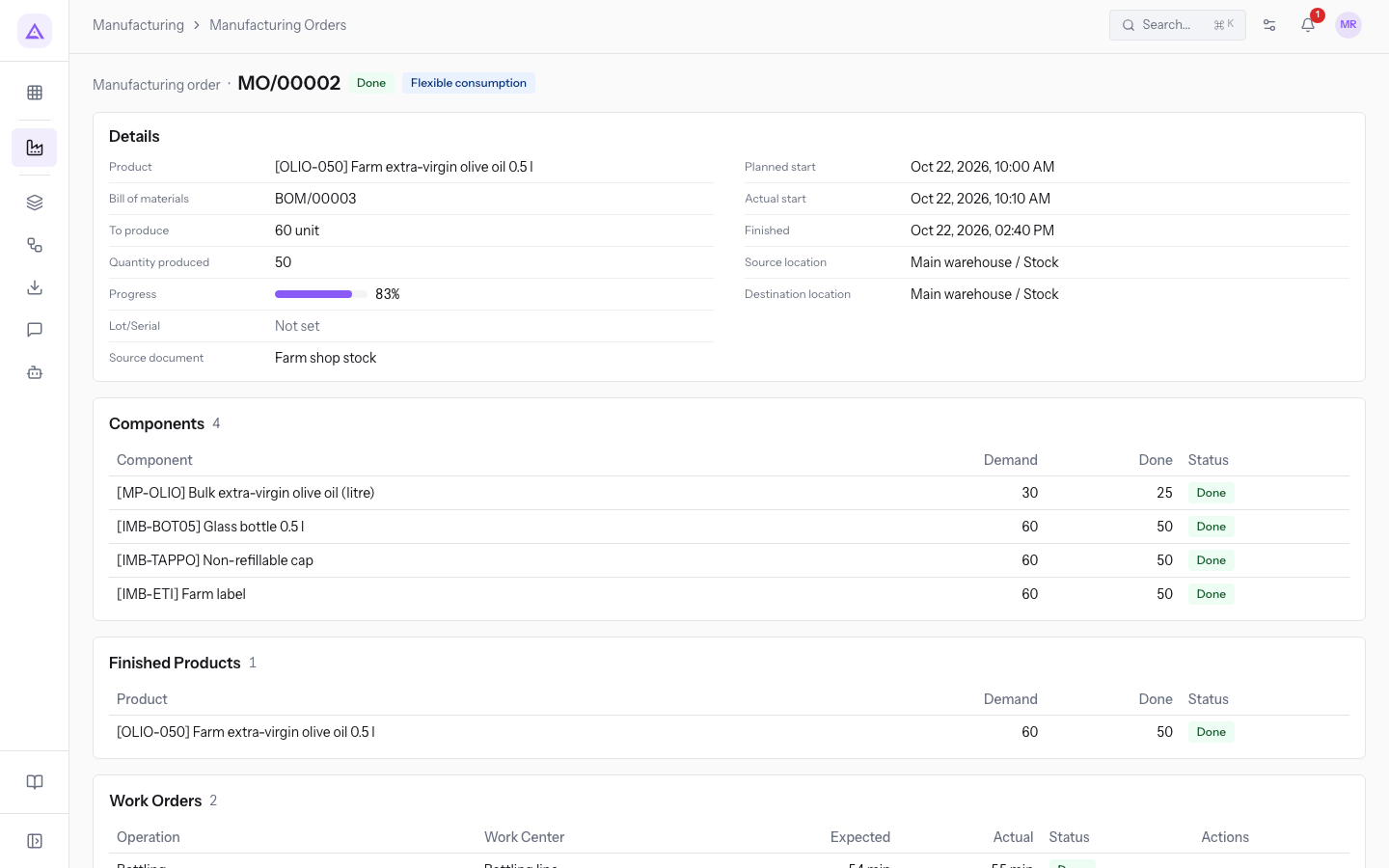
If you need more production of the same product, create a new order or confirm the backorder, if it exists.
See it on your company, not on a slide deck.
In 30 minutes we map the software you use today.We show you how much work and how much margin Archimedes gives back.
Show me on my business →What industry are you in?
One tap — it lets us prepare the demo around your world.
What tools do you use today?
Pick the ones you recognise — or just type them. It helps us show you how they migrate.
Last step: your details.
We reply within one working day — and right after, if you like, you pick the demo slot yourself.
We couldn't send your request. Try again, or write to us at [email protected].
By sending, you agree to your data being processed so we can get back to you about the demo. Privacy notice.
Preview form — nothing is sent from this page.
Want to schedule the demo now?
Your call: book the slot you prefer yourself, or we'll call you to arrange it.
Live availability, 30 minutes, instant confirmation. The calendar opens in a new tab.
Lock in your slot ↗We'll get back to you within one working day — and we'll join the call already knowing your world.
The calendar is open in another tab: pick a slot and the demo is booked. Can't see it? Reopen it ↗
Preview page: nothing was sent.
Our calendar is live: take the slot that suits you and the demo is booked. 30 minutes, instant confirmation, no waiting.
Lock in your slot ↗