Manufacturing
All modules
Following work orders at work centers
Manufacturing · 13 of 15 · 5 min read
A work order is one operation of a manufacturing order carried out at a work center, such as jarring the jam at the Kitchen workshop. From here you start, pause and finish each work order and record its actual duration.
How work orders are created
Work orders are not created by hand. They are created when you confirm a manufacturing order, one for each operation in the bill of materials, with the work center and the expected duration of the operation.
- A manufacturing order in Draft has no work orders. The section shows No work orders (confirm the order to generate them from the BoM operations).
- On confirmation the first work order becomes Ready, the others stay Pending.
- When you finish a work order, the next Pending work order of the same manufacturing order becomes Ready.
For operations and work centers see Setting up work centers (olive mill, kitchen workshop).
Work order statuses
Each work order has one of these statuses. On the Work Orders page they appear in lower case: pending, ready, progress, done and cancel.
- Pending: waits for the previous work order to finish. You can still start it.
- Ready: can be started. A paused work order returns to this status.
- In Progress: started, and the time is being recorded.
- Done: finished.
- Cancelled: cancelled because the manufacturing order was cancelled, like the work orders of MO/00008.
Viewing the list of work orders
The list gathers the work orders of all manufacturing orders, to follow the load on the work centers.
- Open Manufacturing › Work Orders. The page title is Work Orders.
- To see one status only, press one of the buttons All, pending, ready, progress, done, cancel.
- To see one work center only, choose the work center in the All Work Centers filter.
- To open the manufacturing order, press its reference in the MO column.
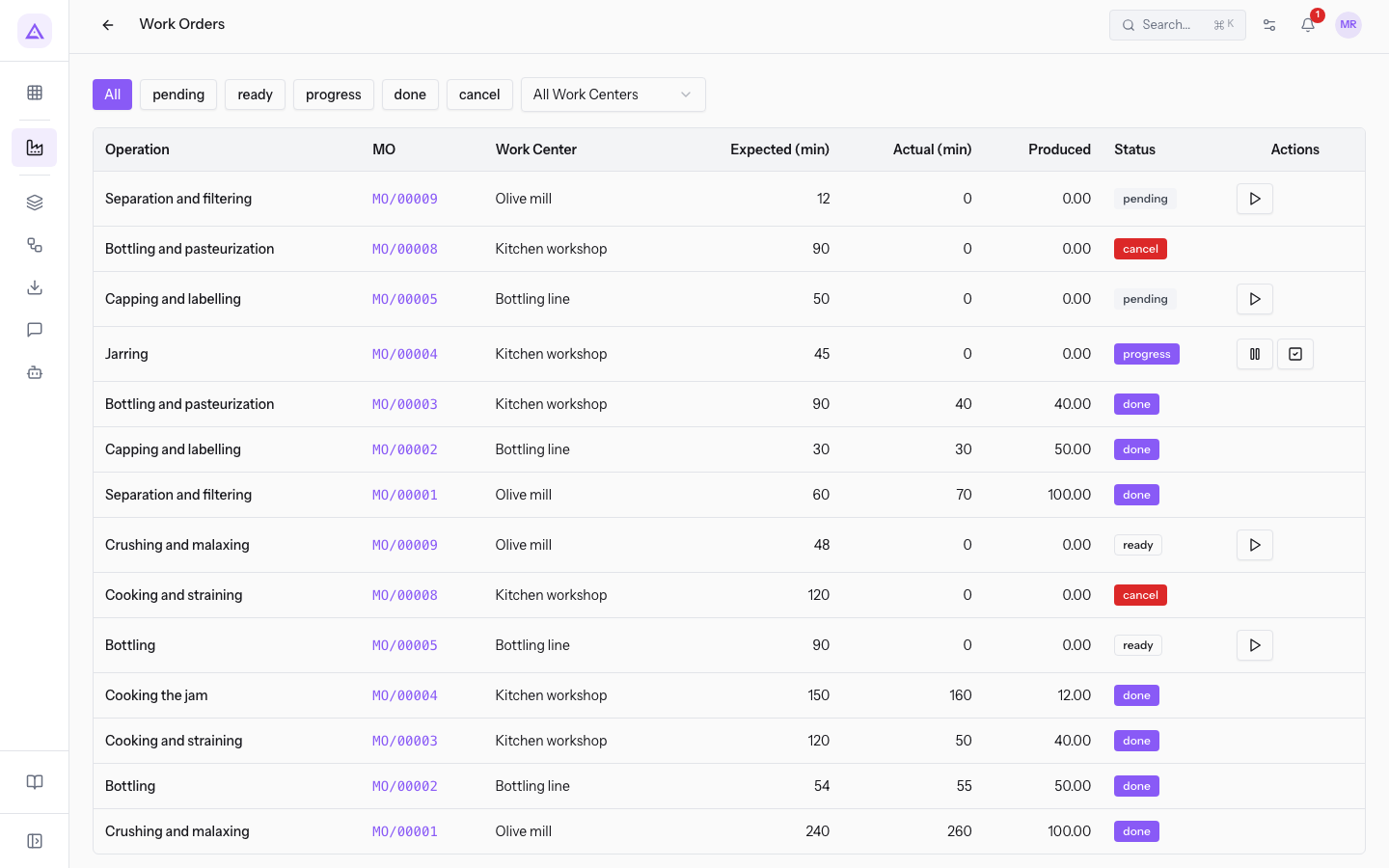
The list columns are:
- Operation: the name of the operation, taken from the bill of materials.
- MO: the reference of the manufacturing order.
- Work Center: the work center.
- Expected (min): the expected duration in minutes.
- Actual (min): the actual duration recorded so far, in minutes.
- Produced: the quantity produced, recorded when finished.
- Status: the status of the work order.
- Actions: the icons to start, pause and finish the work order.
If no work order matches the filters, the page shows the message No work orders found.
Following work orders on the manufacturing order page
The page of each manufacturing order has the Work Orders section, at the bottom of the page, with the work orders of that order.
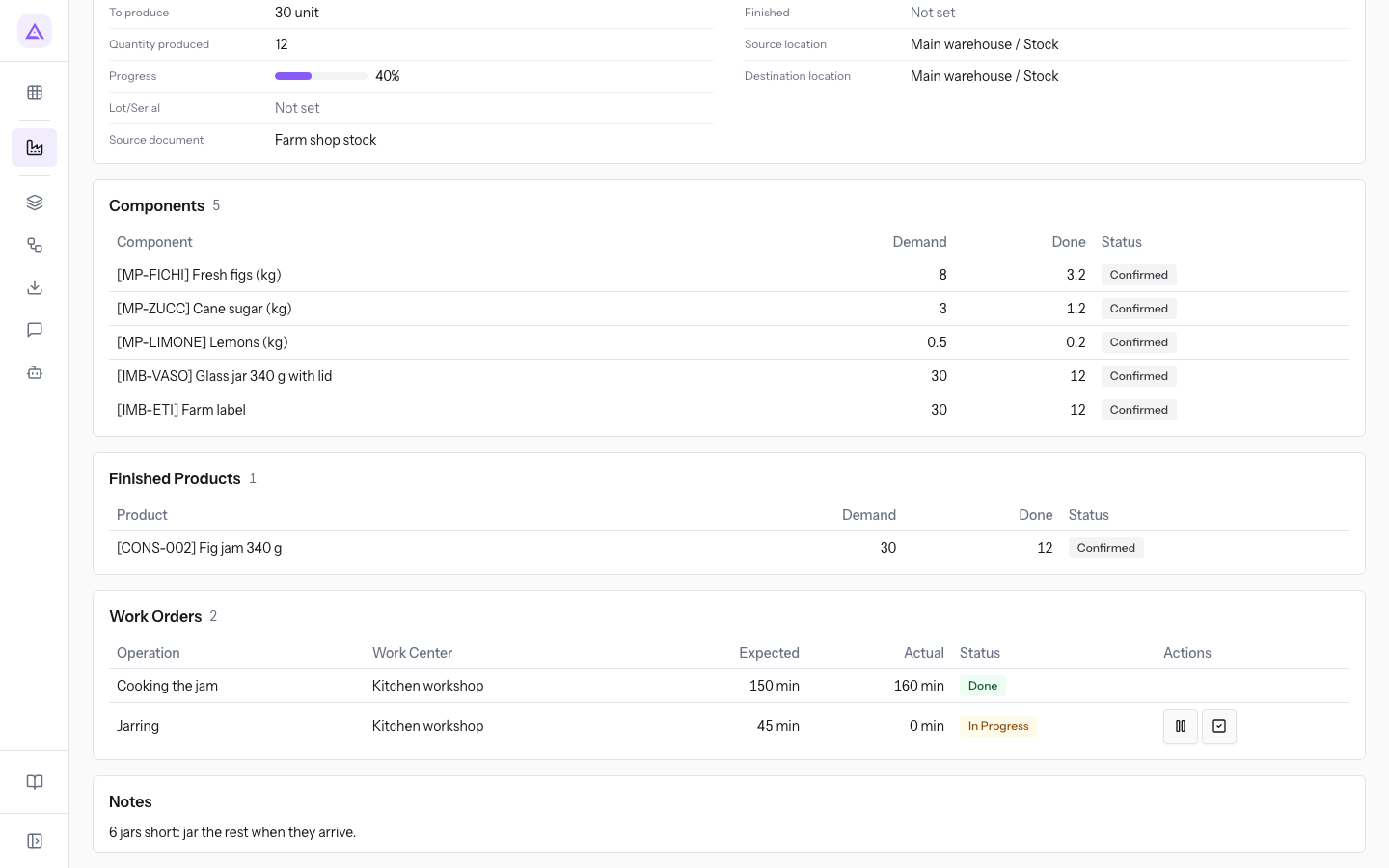
The section columns are:
- Operation: the name of the operation.
- Work Center: where it takes place.
- Expected: the expected duration, in minutes.
- Actual: the actual duration recorded, in minutes.
- Status: Pending, Ready, In Progress, Done or Cancelled.
- Actions: the icons available for the status. Hovering over an icon shows the command with the operation name, for example on MO/00004 Pause Jarring and Finish Jarring.
Starting a work order
Start the work order when the work begins at the work center. You can start a Ready or Pending work order.
Press the start icon in the Actions column of the list or of the order page. The status becomes In Progress and the message Work order started appears.
When you start, this happens:
- The start date is recorded at the first start and does not change at later starts.
- A time interval opens on the work center, and closes at pause or finish.
- If the manufacturing order is Confirmed, it moves to In Progress and its actual start is recorded. You do not need to start it separately.
Note: to start the manufacturing order without going through work orders see Start production and record produced quantities.
Pausing a work order
Pause the work order when the work stops. You can pause only an In Progress work order.
Press the pause icon in the Actions column of the list or of the order page. The status returns to Ready and the order page shows the message Work order paused.
The minutes elapsed since the last start are added to the actual duration. To resume, start the work order again: a new time interval opens.
Finishing a work order
Finish the work order when the work at the work center is complete. You can finish only an In Progress work order.
Press the finish icon in the Actions column of the list or of the order page. The status becomes Done and the message Work order finished appears.
When you finish, this happens:
- The minutes since the last start are added to the actual duration, which stays at its final value.
- The produced quantity and the end date are recorded.
- The next Pending work order of the same manufacturing order becomes Ready.
Note: finishing all work orders does not complete the manufacturing order. To close it use Mark Done on the order page: the work orders still open are closed together with the order.
How the actual duration is calculated
The actual duration is the sum of the intervals between each start and the pause or finish that follows it, in minutes. For example, if you start a work order, pause it after 40 minutes, restart it and finish it after another 20 minutes, the actual duration is 60 minutes. Paused time is not counted.
Compare the Expected (min) and Actual (min) columns, or Expected and Actual on the order page, to see which work orders take longer than planned.
Cancelled work orders
Work orders not yet finished become Cancelled when the manufacturing order is cancelled. MO/00008, a cancelled order, has cancelled work orders and no actions available.
To filter them in the list press cancel.
See it on your company, not on a slide deck.
In 30 minutes we map the software you use today.We show you how much work and how much margin Archimedes gives back.
Show me on my business →What industry are you in?
One tap — it lets us prepare the demo around your world.
What tools do you use today?
Pick the ones you recognise — or just type them. It helps us show you how they migrate.
Last step: your details.
We reply within one working day — and right after, if you like, you pick the demo slot yourself.
We couldn't send your request. Try again, or write to us at [email protected].
By sending, you agree to your data being processed so we can get back to you about the demo. Privacy notice.
Preview form — nothing is sent from this page.
Want to schedule the demo now?
Your call: book the slot you prefer yourself, or we'll call you to arrange it.
Live availability, 30 minutes, instant confirmation. The calendar opens in a new tab.
Lock in your slot ↗We'll get back to you within one working day — and we'll join the call already knowing your world.
The calendar is open in another tab: pick a slot and the demo is booked. Can't see it? Reopen it ↗
Preview page: nothing was sent.
Our calendar is live: take the slot that suits you and the demo is booked. 30 minutes, instant confirmation, no waiting.
Lock in your slot ↗