Manufacturing
All modules
Finding manufacturing orders and filtering them by status
Manufacturing · 8 of 15 · 3 min read
The manufacturing orders list collects all of the organization's orders, in any status. From here you can find an order by reference or by source document, look only at orders in a given status, and open an order's page.
Opening the manufacturing orders list
Open Manufacturing › Manufacturing Orders: the Manufacturing Orders page opens with the list of all orders.
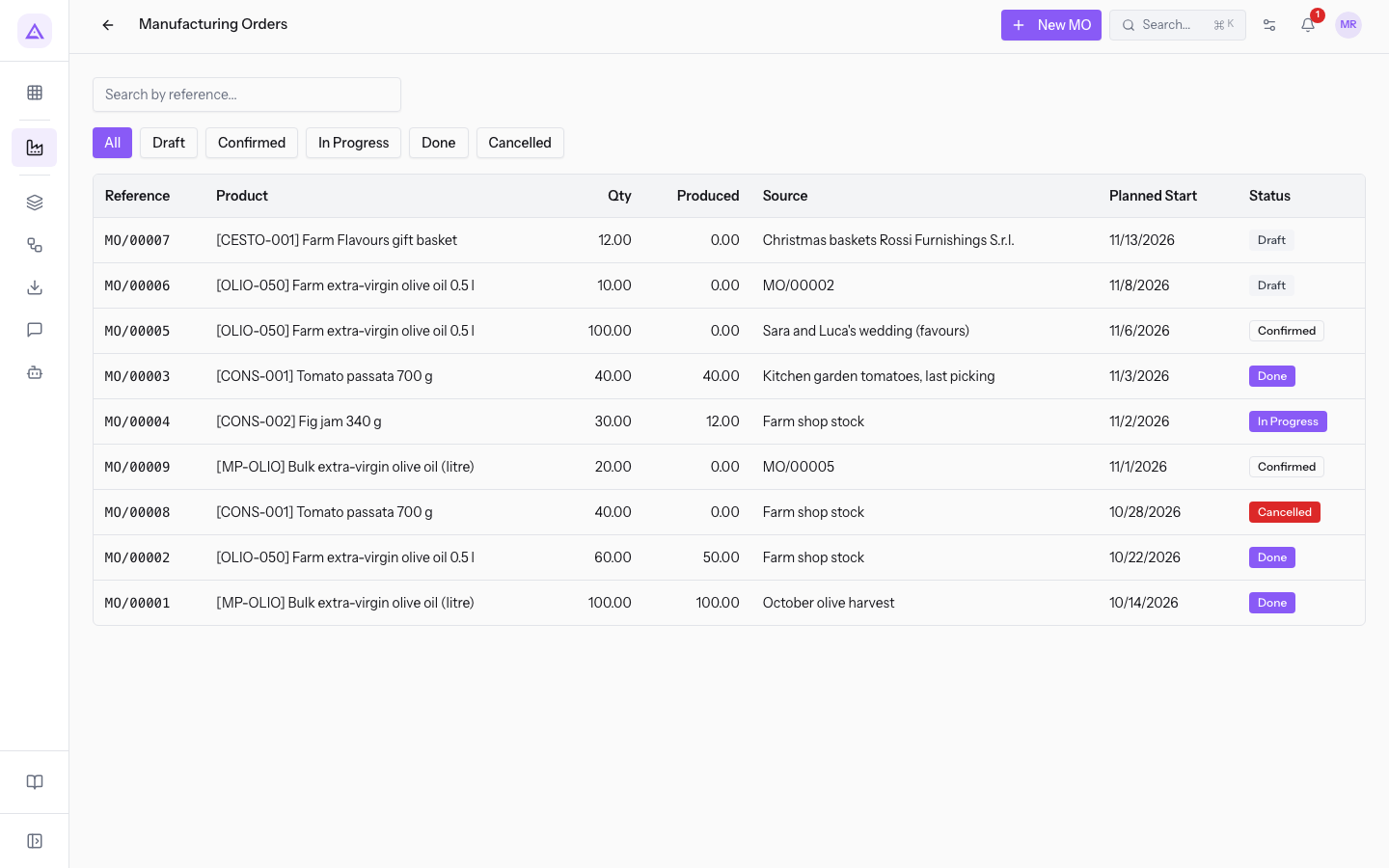
In the top right there is the New MO button, to create a new manufacturing order.
Each row of the list has these columns:
- Reference: the reference of the order.
- Product: the product to be manufactured, with its code in square brackets.
- Qty: the quantity to be manufactured.
- Produced: the quantity already manufactured.
- Source: the source document, that is, what the order comes from, for example the original order of a backorder.
- Planned Start: the planned start date.
- Status: the status of the order.
Filtering orders by status
The buttons above the list show only orders in one status. Press the status button; to go back to all orders, press All.
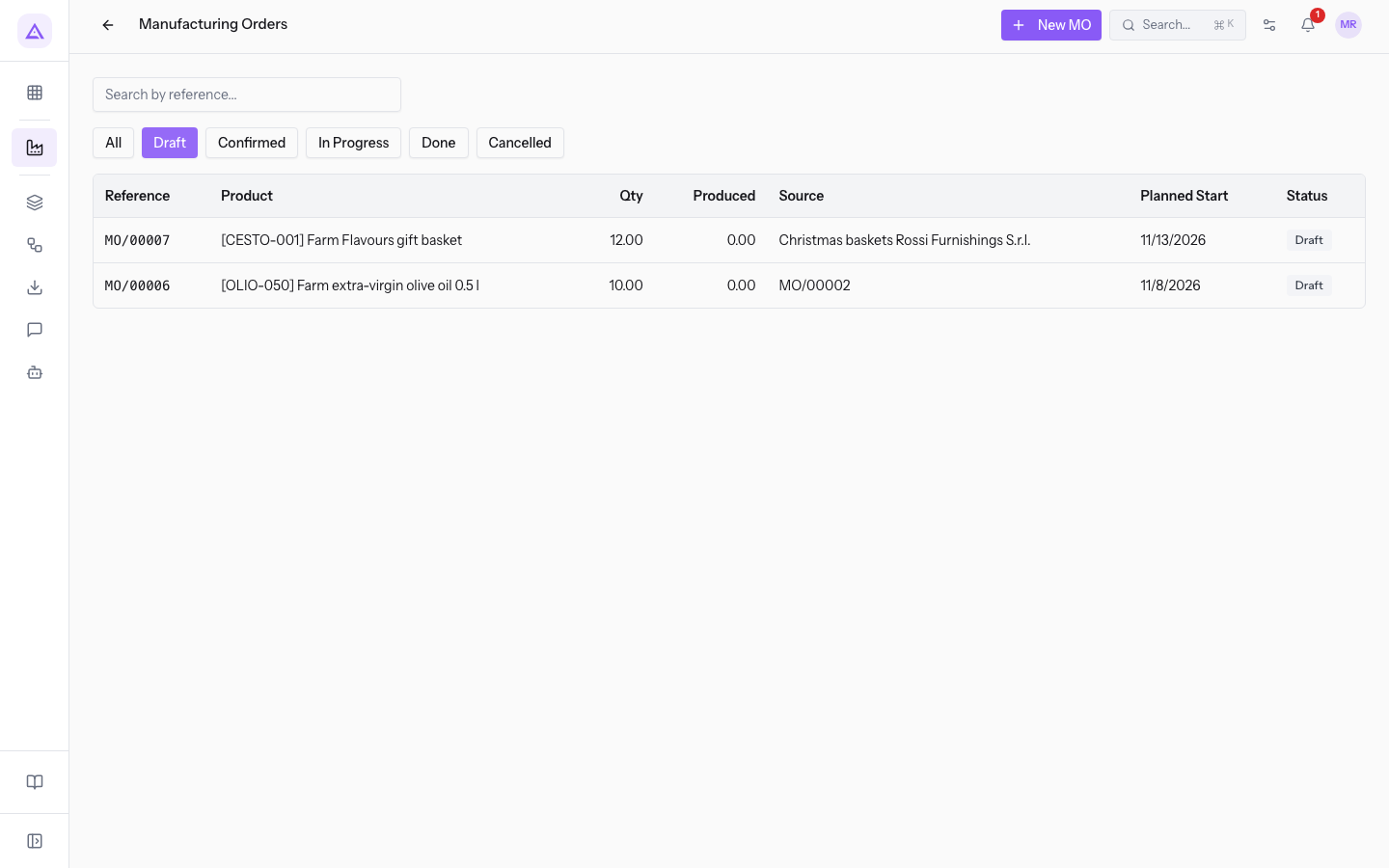
The status buttons are:
- All: all orders, in any status.
- Draft: draft orders, to be checked or confirmed. A draft order does not yet have components or work orders: they are generated on confirmation.
- Confirmed: confirmed orders not yet started.
- In Progress: orders in progress, on which quantities are recorded or which still need to be completed.
- Done: completed orders.
- Cancelled: cancelled orders.
Note: an order is late when it is confirmed or in progress and its planned start date has passed. To find them, choose Confirmed or In Progress and compare the Planned Start column with today's date. In the demo, MO/00004 and MO/00009 are late.
Searching for an order
Search finds orders by reference or by source document. Type the text in the Search by reference... box, for example MO/00002, and press Enter.
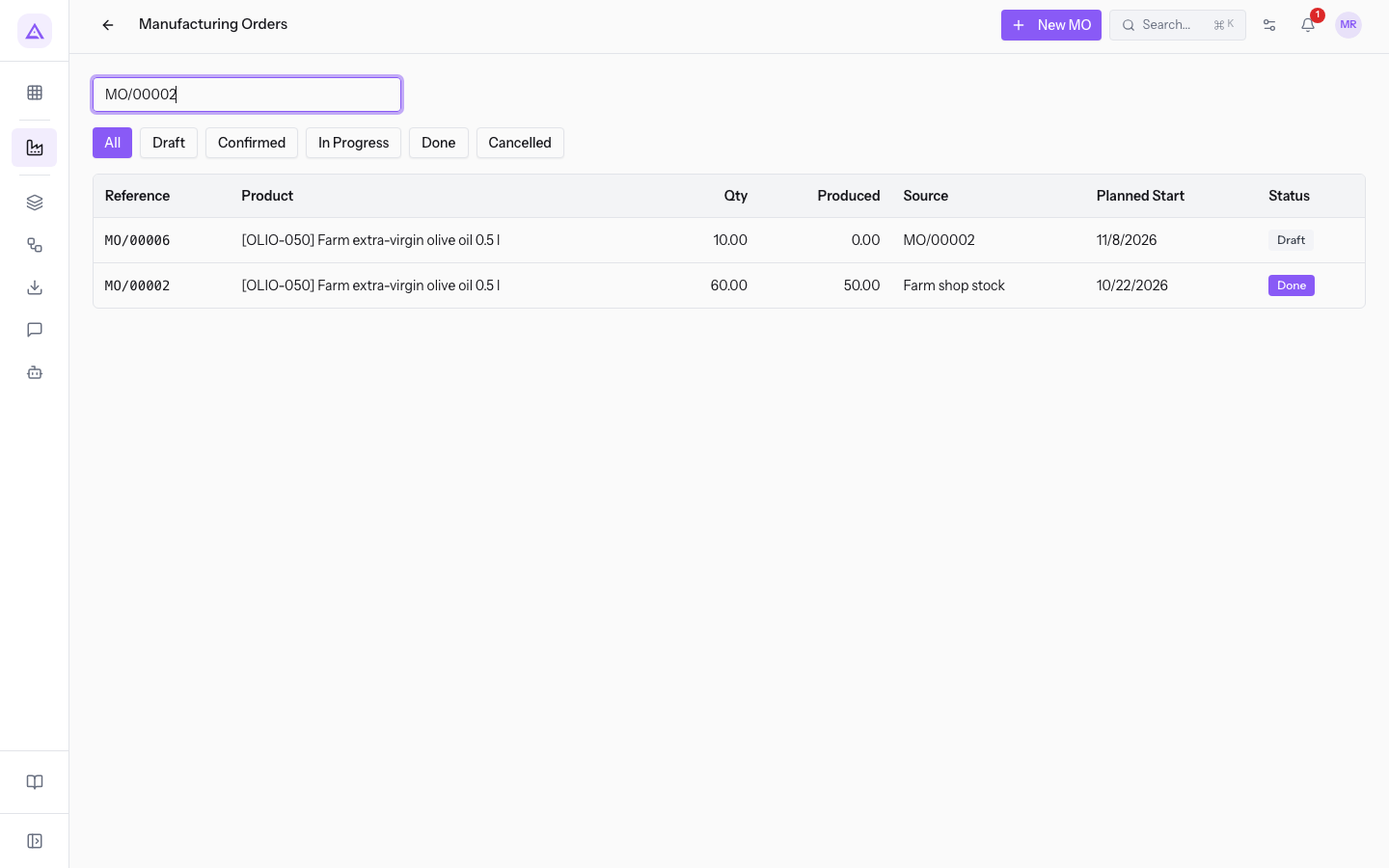
The list shows the orders with that reference and the orders that have it as their source document. Searching for MO/00002 also shows MO/00006, the backorder created from MO/00002.
If no order matches the search or the filter, the list shows the message No manufacturing orders found.
Opening an order from the list
Press an order's row to open its page, with the status next to the reference and the sections Details, Components, Finished Products, Work Orders and Notes. To go back to the list, press Manufacturing Orders in the breadcrumb at the top.
The buttons on the page depend on the status. On an order in progress such as MO/00004 you find Produce, Check Availability and Mark Done. To close an order, read Complete a manufacturing order and handle the backorder; to cancel it, read Cancel a manufacturing order.
See it on your company, not on a slide deck.
In 30 minutes we map the software you use today.We show you how much work and how much margin Archimedes gives back.
Show me on my business →What industry are you in?
One tap — it lets us prepare the demo around your world.
What tools do you use today?
Pick the ones you recognise — or just type them. It helps us show you how they migrate.
Last step: your details.
We reply within one working day — and right after, if you like, you pick the demo slot yourself.
We couldn't send your request. Try again, or write to us at [email protected].
By sending, you agree to your data being processed so we can get back to you about the demo. Privacy notice.
Preview form — nothing is sent from this page.
Want to schedule the demo now?
Your call: book the slot you prefer yourself, or we'll call you to arrange it.
Live availability, 30 minutes, instant confirmation. The calendar opens in a new tab.
Lock in your slot ↗We'll get back to you within one working day — and we'll join the call already knowing your world.
The calendar is open in another tab: pick a slot and the demo is booked. Can't see it? Reopen it ↗
Preview page: nothing was sent.
Our calendar is live: take the slot that suits you and the demo is booked. 30 minutes, instant confirmation, no waiting.
Lock in your slot ↗