Manufacturing
All modules
Managing by-products and kits in bills of materials
Manufacturing · 6 of 15 · 5 min read
A bill of materials can list, besides the main product, the by-products that production generates, such as the olive pomace left over from milling the olives. It can also be a kit: in this case it describes a set of components that appears broken down in manufacturing orders.
Before you start: bills of materials are managed from Manufacturing › Settings › Bills of Materials. The menu item appears only to users in the Manufacturing Manager group.
When to use a by-product and when to use a kit
The two tools serve different needs.
- If production also generates a second product that you want to have in stock, add it as a by-product to a bill of materials of type Normal. BOM/00001 Bulk extra-virgin olive oil (litre) produces 100 l of oil from 700 kg of olives and also returns the Olive pomace (kg).
- If a component is only a way to group several components that always go in together, create a bill of materials of type Kit / Phantom for it and use it as a component of other bills of materials. BOM/00002 Bottle kit 0.5 l (glass, cap, label) is a component of BOM/00003 Farm extra-virgin olive oil 0.5 l.
Bills of materials of type Kit / Phantom do not generate child orders when stock is missing. A Normal bill of materials used as a component does: if there is not enough free stock at confirmation, the system creates a child order for the missing quantity.
Adding a by-product to a bill of materials
By-products are entered in the By-Products view of the bill of materials, where the number in brackets is the number of lines. For the other views see Create a bill of materials with components and operations.
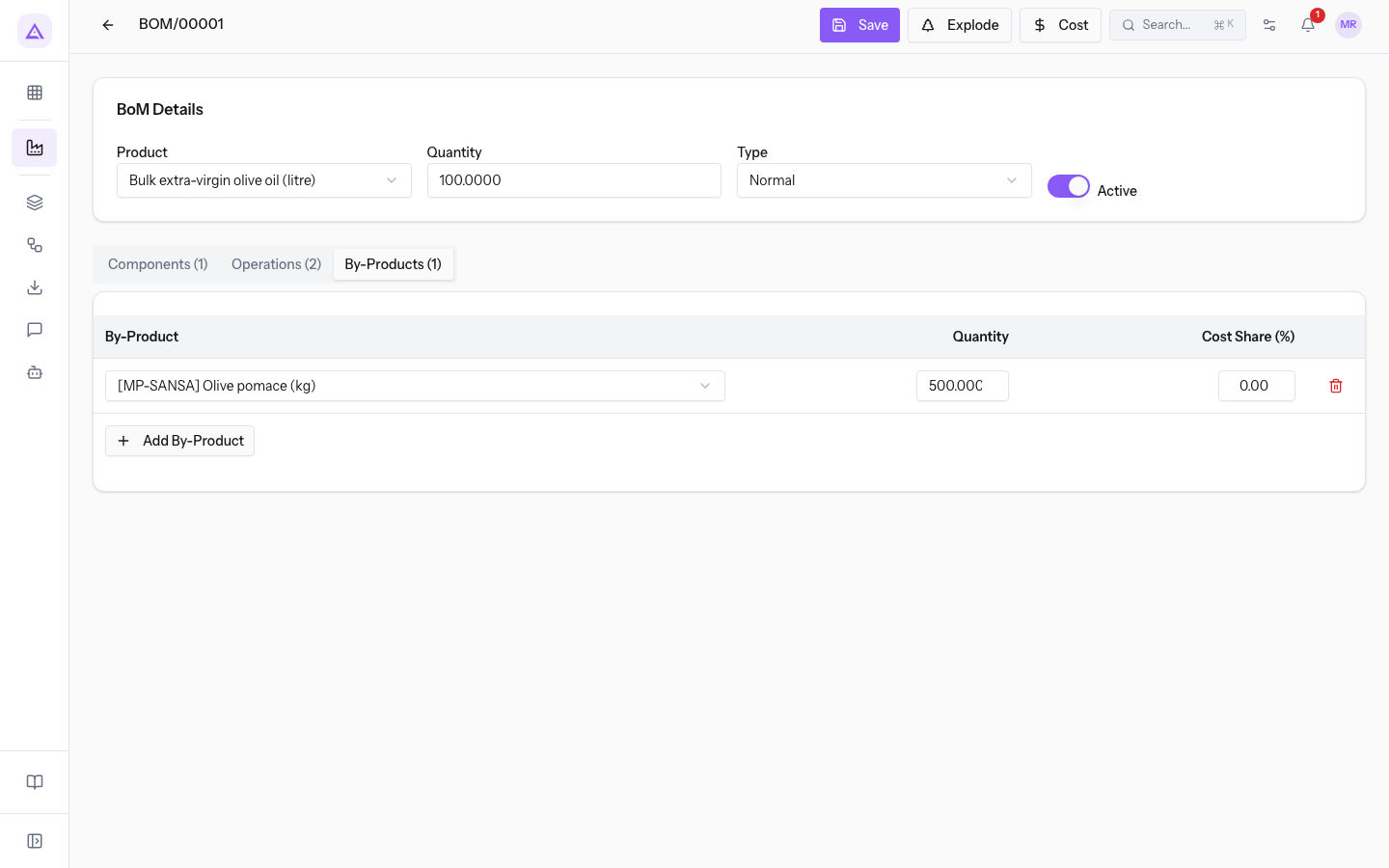
- Open the bill of materials from the list, for example BOM/00001, and go to By-Products (1).
- Press Add By-Product: a new line is added.
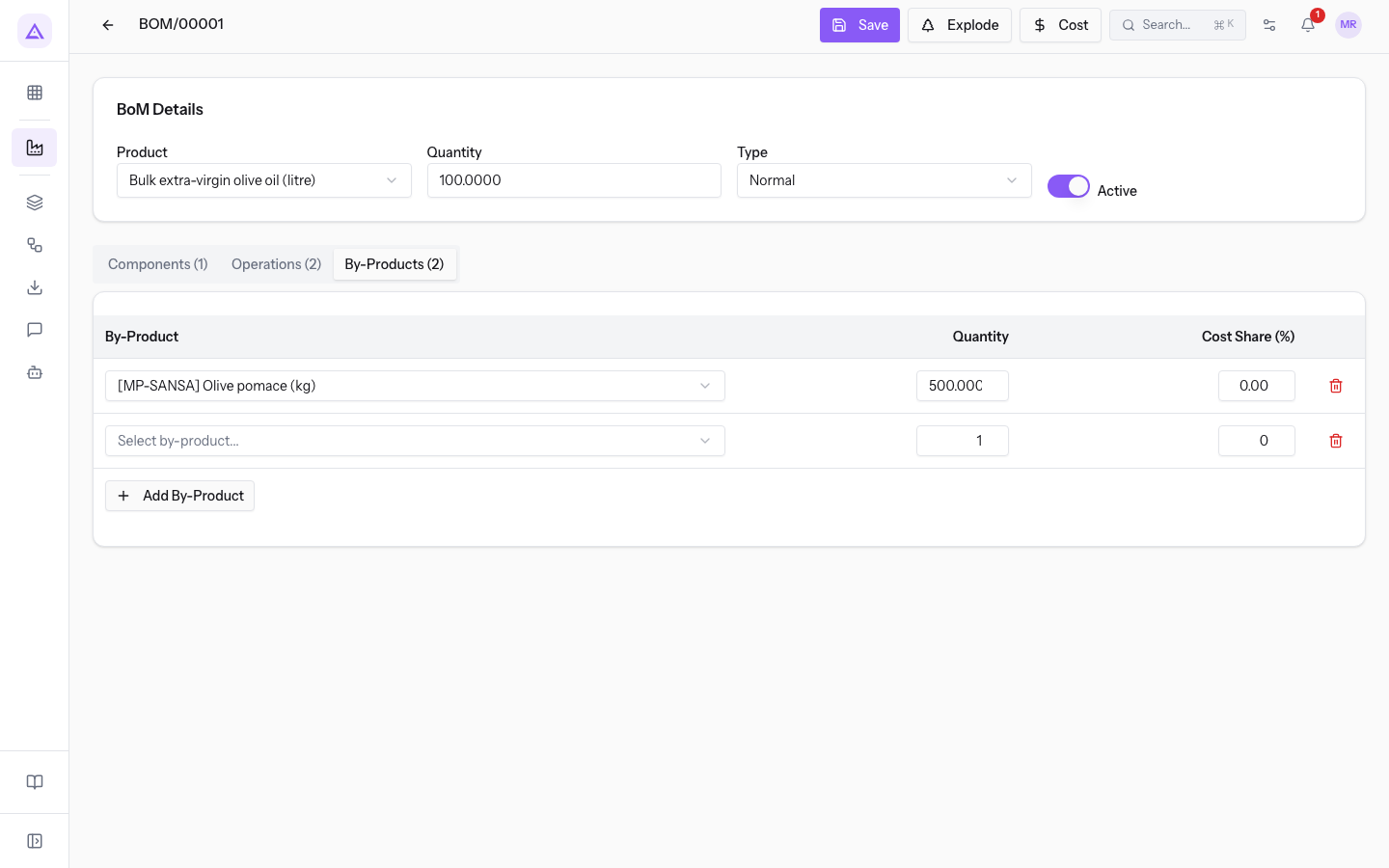
- Fill in the line and press Save.
Each line has these columns:
- By-Product: the catalog product that production generates.
- Quantity: the quantity of by-product obtained. It refers to the quantity of the bill of materials, like the component quantities. In BOM/00001 it is 500 kg of pomace for 100 l of oil.
- Cost Share (%): the percentage share of cost assigned to the by-product. The value is saved with the bill of materials, but the Cost calculation does not use it.
In BOM/00001, the Operations (2) view contains the operations Crushing and malaxing and Separation and filtering, both at the Olive mill work center.
When the by-product enters stock
The by-product follows the manufacturing order from start to finish.
- With Confirm the system creates the moves for components, finished products and by-products.
- With Mark Done the system consumes the components and loads finished products and by-products into stock.
- By-products are loaded in proportion to the quantity produced. If you produce less than expected, the by-product loaded is also smaller and the remainder goes to a backorder in Draft.
Order MO/00001 (Bulk extra-virgin olive oil (litre), status Done) shows the result. In the Components section the Oil olives (kg) are at 700 out of 700, status Done. In the Finished Products section appear both the bulk oil, 100 out of 100, and the Olive pomace (kg), 500 out of 500, both with status Done.
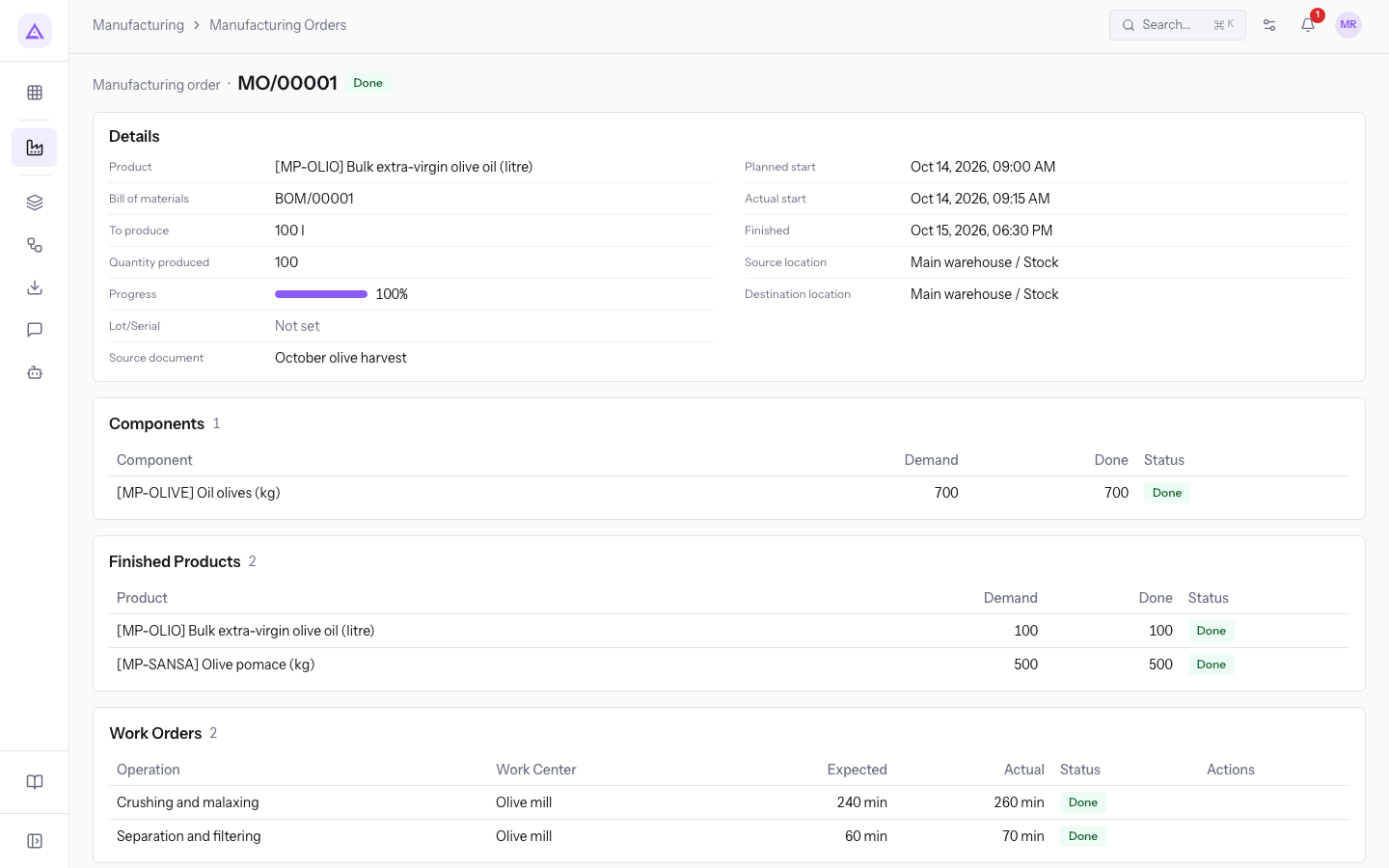
To check the moves written by the order and the stock of the pomace, see Check warehouse stock for components, finished products and minimum levels.
Defining a bill of materials as a kit
The type of the bill of materials is chosen in the Type field of the BoM Details panel.
- Open the bill of materials from the list, for example BOM/00002 Bottle kit 0.5 l (glass, cap, label).
- In the Type field choose Kit / Phantom.
- In Components (3) list the kit's components with Add Component.
- Press Save.
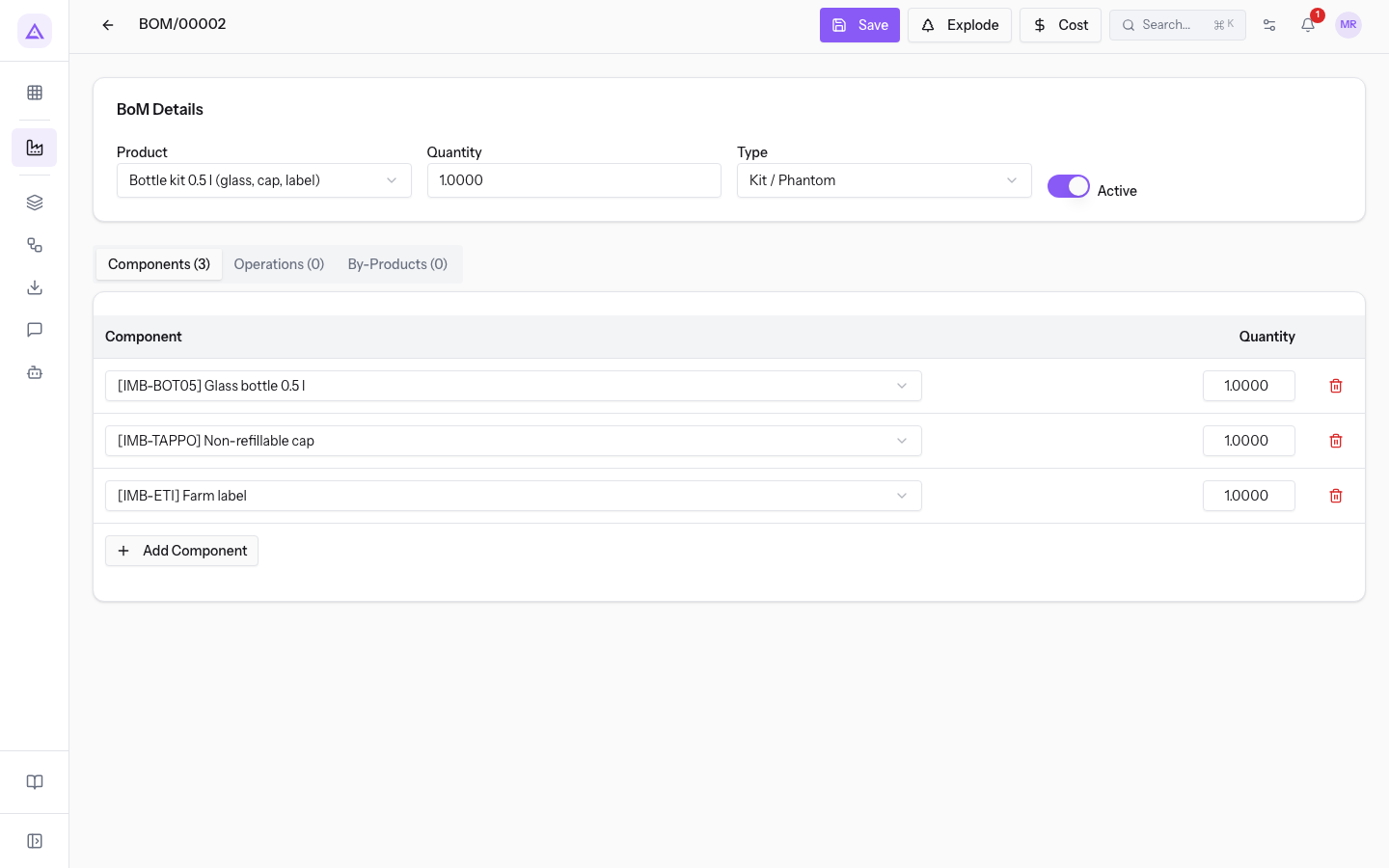
The Type field has two options:
- Normal: the bill of materials describes a product that is manufactured with a manufacturing order. This is the value of BOM/00001.
- Kit / Phantom: the bill of materials breaks the product down into its components. This is the value of BOM/00002, which has three components, no operations and no by-products: Components (3), Operations (0), By-Products (0).
The kit broken down in the manufacturing order
When a bill of materials uses a kit as a component, the manufacturing order lists the kit's components in place of the kit.
Order MO/00005 produces 100 Farm extra-virgin olive oil 0.5 l with BOM/00003, which contains the Bottle kit 0.5 l (glass, cap, label). In the Components section the kit does not appear: its three components appear instead, each for 100 units, alongside the 50 l of bulk oil:
- Bulk extra-virgin olive oil (litre): 50.
- Glass bottle 0.5 l: 100.
- Non-refillable cap: 100.
- Farm label: 100.
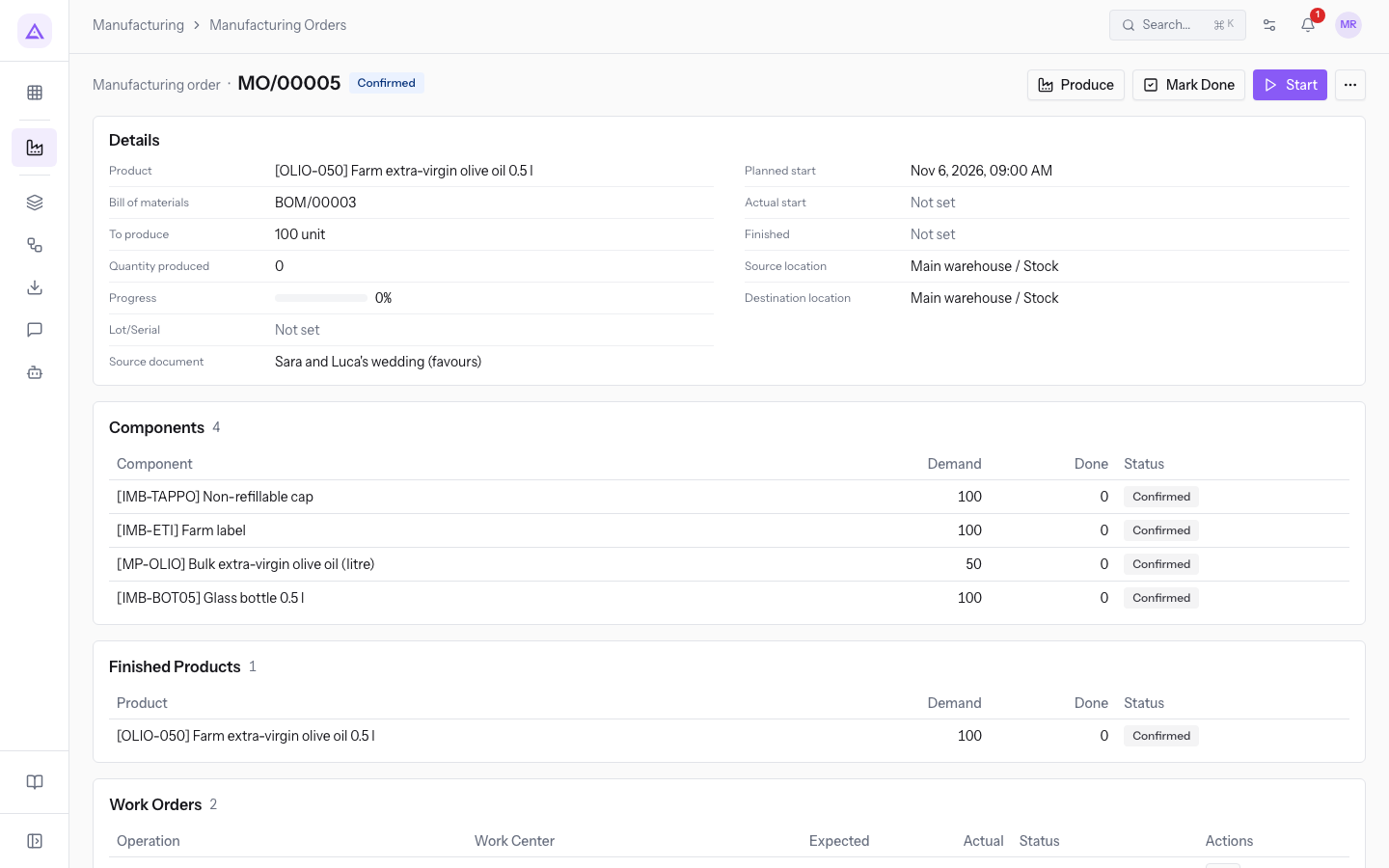
The Work Orders section of MO/00005 lists the operations of BOM/00003, Bottling and Capping and labelling at the Bottling line. The kit has no operations of its own.
Note: in the order each kit component is its own line. To know whether an order has enough bottles, caps and labels, check the stock of the individual products.
See it on your company, not on a slide deck.
In 30 minutes we map the software you use today.We show you how much work and how much margin Archimedes gives back.
Show me on my business →What industry are you in?
One tap — it lets us prepare the demo around your world.
What tools do you use today?
Pick the ones you recognise — or just type them. It helps us show you how they migrate.
Last step: your details.
We reply within one working day — and right after, if you like, you pick the demo slot yourself.
We couldn't send your request. Try again, or write to us at [email protected].
By sending, you agree to your data being processed so we can get back to you about the demo. Privacy notice.
Preview form — nothing is sent from this page.
Want to schedule the demo now?
Your call: book the slot you prefer yourself, or we'll call you to arrange it.
Live availability, 30 minutes, instant confirmation. The calendar opens in a new tab.
Lock in your slot ↗We'll get back to you within one working day — and we'll join the call already knowing your world.
The calendar is open in another tab: pick a slot and the demo is booked. Can't see it? Reopen it ↗
Preview page: nothing was sent.
Our calendar is live: take the slot that suits you and the demo is booked. 30 minutes, instant confirmation, no waiting.
Lock in your slot ↗