Manufacturing
All modules
Create a bill of materials with components and operations
Manufacturing · 5 of 15 · 6 min read
A bill of materials says which components and which quantities are needed to produce a certain quantity of a product, and which operations to run on the work centers. On this page you fill in the form of a bill of materials: the product, the components and the operations.
Before you start: bills of materials are managed from Manufacturing › Settings › Bills of Materials. The menu item appears only to users in the Manufacturing Manager group. Users in the Manufacturing User group can read bills of materials but cannot edit them.
Open the form
The form collects the details of the bill of materials, the components and the operations on a single page. To look at existing bills of materials see Viewing the bills of materials list.
- Open Manufacturing › Settings › Bills of Materials.
- Press New BoM to open an empty form, or press the row of a bill of materials to open it.
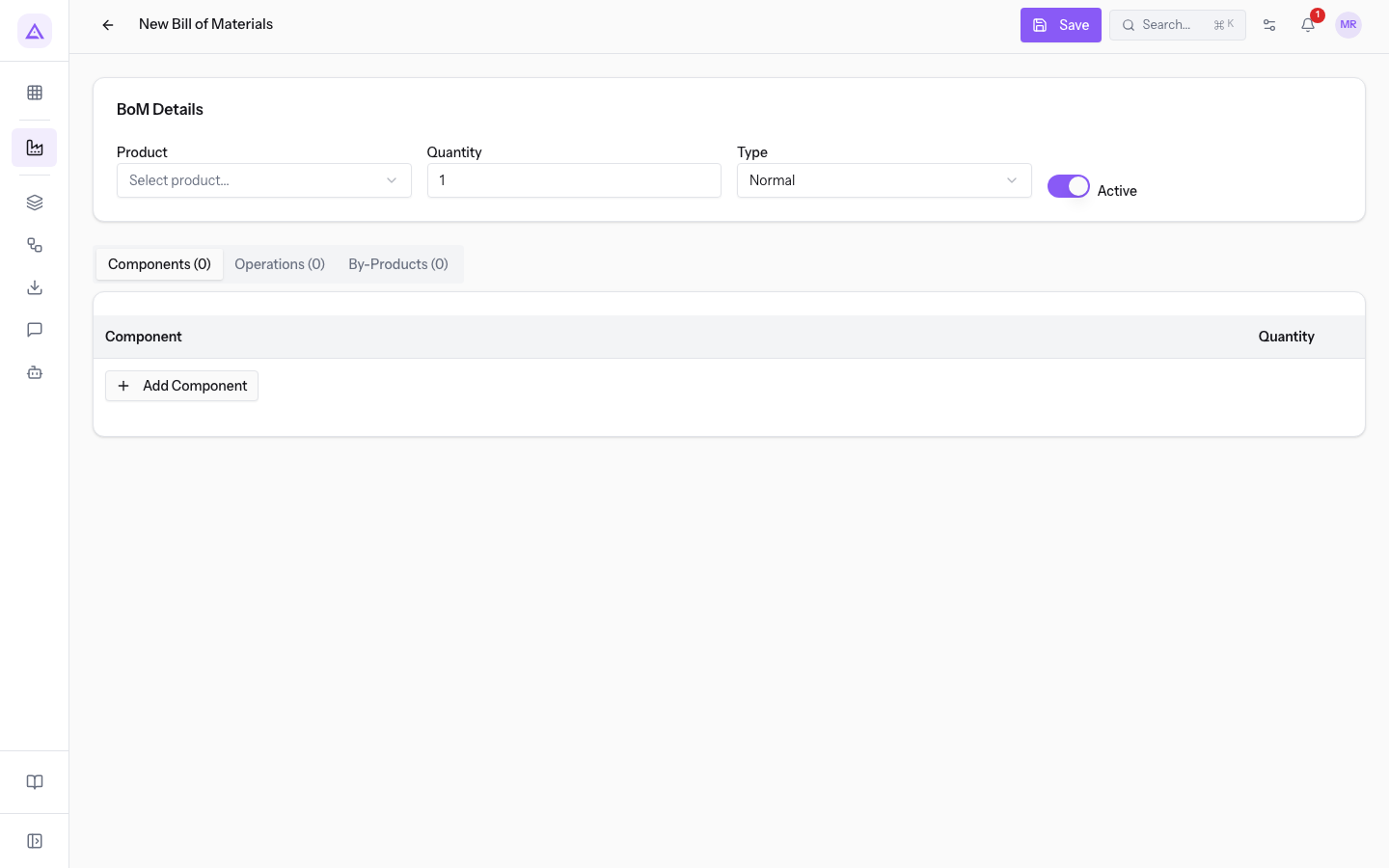
The form has these parts:
- The header, with the Save button. On an existing bill of materials the header shows its code, such as BOM/00005.
- BoM Details: the box with the product, the quantity, the type and the Active switch.
- Components (0): the view with the component lines. The number in brackets counts the lines.
- Operations (0): the view with the operation lines. The number in brackets counts the lines.
- By-Products (0): the view with the by-products, described in Managing by-products and kits in bills of materials.
Choose the type
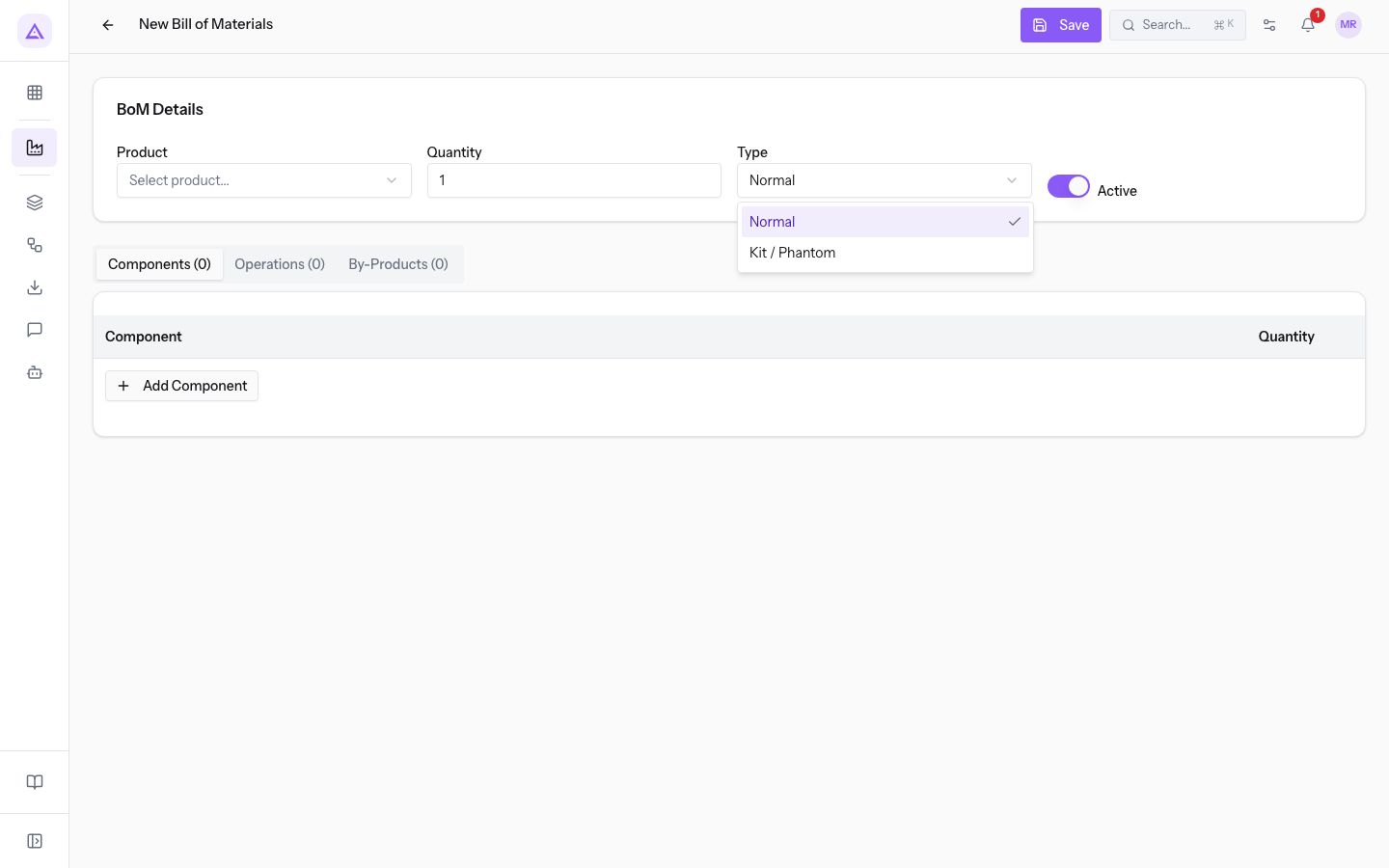
The Type field decides how the system treats the product in manufacturing orders. The options are Normal and Kit / Phantom. The proposed value is Normal.
- If the product is manufactured with its own manufacturing order, choose Normal.
- If the product is a set of parts to be broken down inside another bill of materials, choose Kit / Phantom. BOM/00002 Bottle kit 0.5 l (glass, cap, label) is broken down into bottle, cap and label.
Bills of materials of type Kit / Phantom do not generate child manufacturing orders. For how they are used see Managing by-products and kits in bills of materials.
Fill in the details
The BoM Details box says which product comes out of the bill of materials and in what quantity. All component and operation lines depend on this quantity.
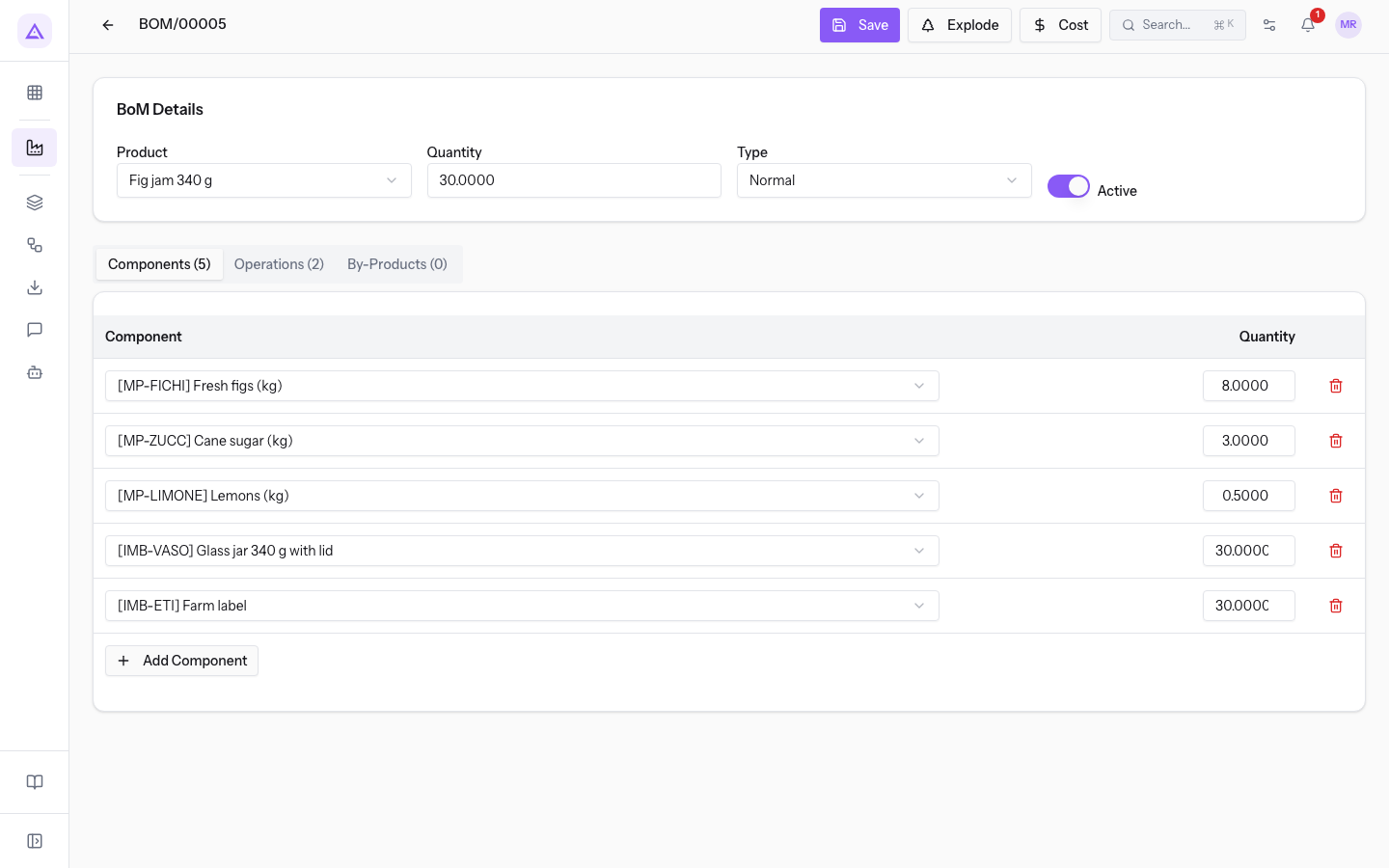
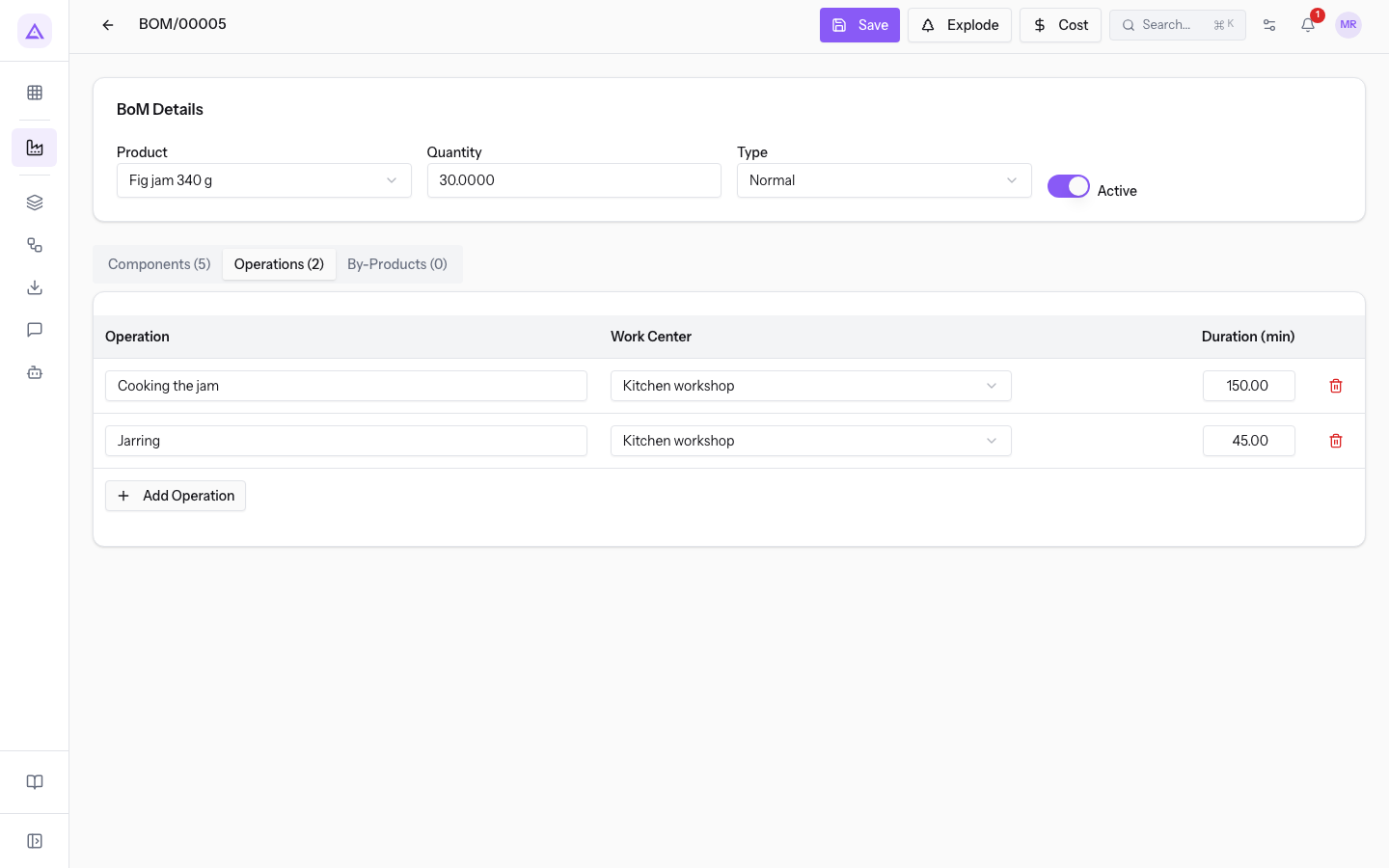
- In the BoM Details box choose the product and enter the quantity the bill of materials produces. BOM/00005 has Product Fig jam 340 g and produces 30 jars.
The fields of the box are these:
- Product: the product the bill of materials produces. You choose it from the Select product... list, which shows the products in the catalog. The field is required.
- Quantity: the quantity of product to which components and operations refer. The proposed value is 1. The field is required and must be greater than zero.
- Type: the type of bill of materials.
- Normal: the bill of materials of a product that is manufactured.
- Kit / Phantom: the bill of materials of a set of parts that is broken down into its components.
- Active: the switch that activates the bill of materials. It is on for new bills of materials. A deactivated bill of materials is no longer picked by the system for manufacturing orders.
Add the components
In the Components (0) view you list what production consumes. The component quantities apply to the Quantity of the bill of materials, not to a single unit: for a different quantity the system recalculates them proportionally. BOM/00005 uses 8 kg of Fresh figs (kg) for 30 jars, so 15 jars require 4 kg.
A component can in turn have a bill of materials. The result depends on the type:
- If the component's bill of materials is Normal and the free stock is not enough, when the order is confirmed the system creates a child manufacturing order for the missing quantity.
- If the component's bill of materials is Kit / Phantom, the system replaces the component with the parts of the kit.
- Open the Components (0) view and press Add Component: a new line appears.
- In Select component... choose the component.
- In the Quantity column enter how much is needed for the Quantity of the bill of materials.
- To remove a line, press the trash icon at the end of the line.
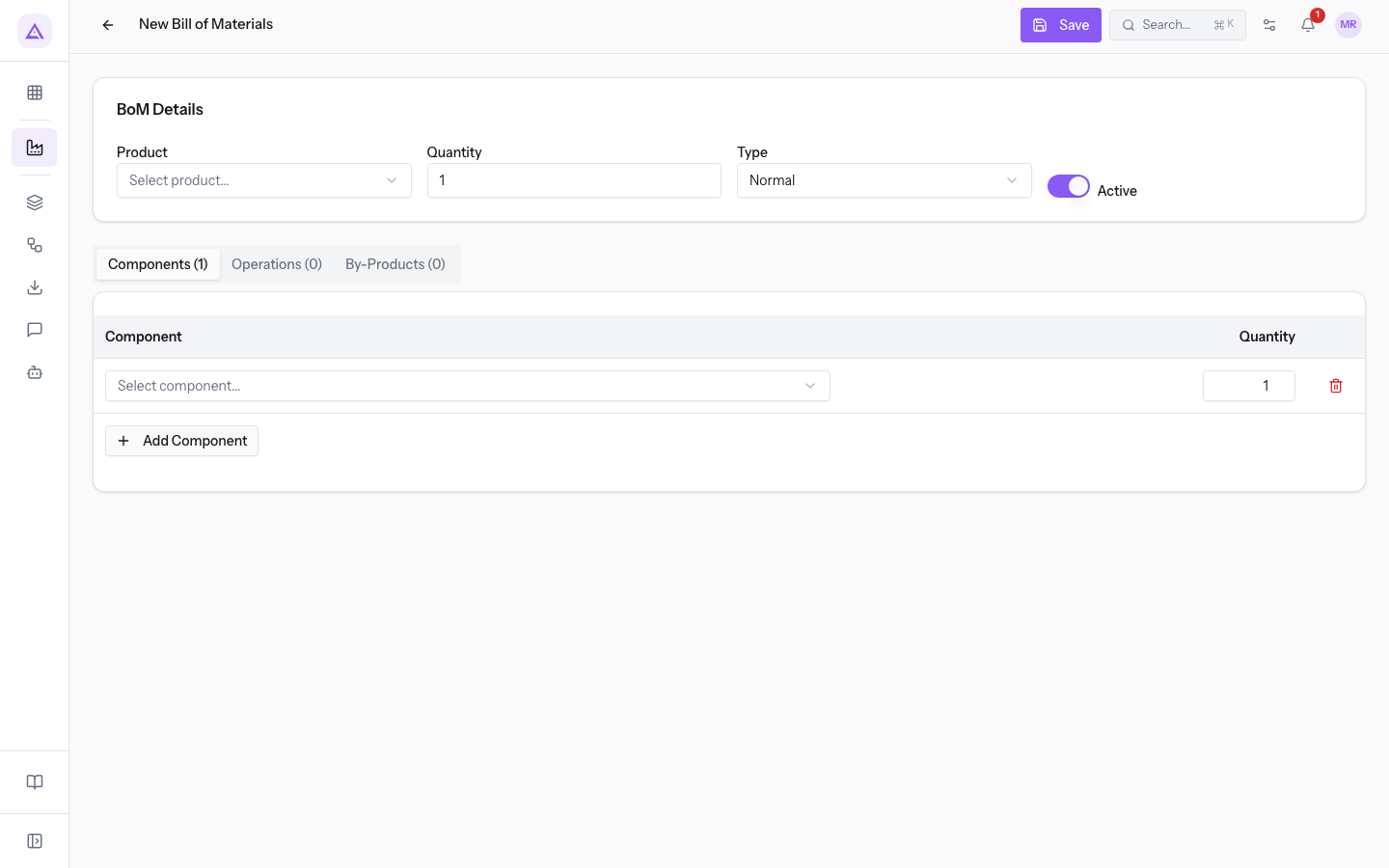
The fields of each line are these:
- Component: the product consumed. The list shows the product code in square brackets and the name, such as [MP-FICHI] Fresh figs (kg). The field is required.
- Quantity: the quantity of the component. The proposed value is 1. The field is required and must be greater than zero. The line has no field for the unit of measure.
BOM/00005 has five components: figs, sugar, lemons, jars and labels.
Add the operations
In the Operations (0) view you list the work steps. Each operation becomes a work order of each manufacturing order: work orders are created when you press Confirm on the order, on the work center indicated in the operation. To work them see Following work orders at work centers.
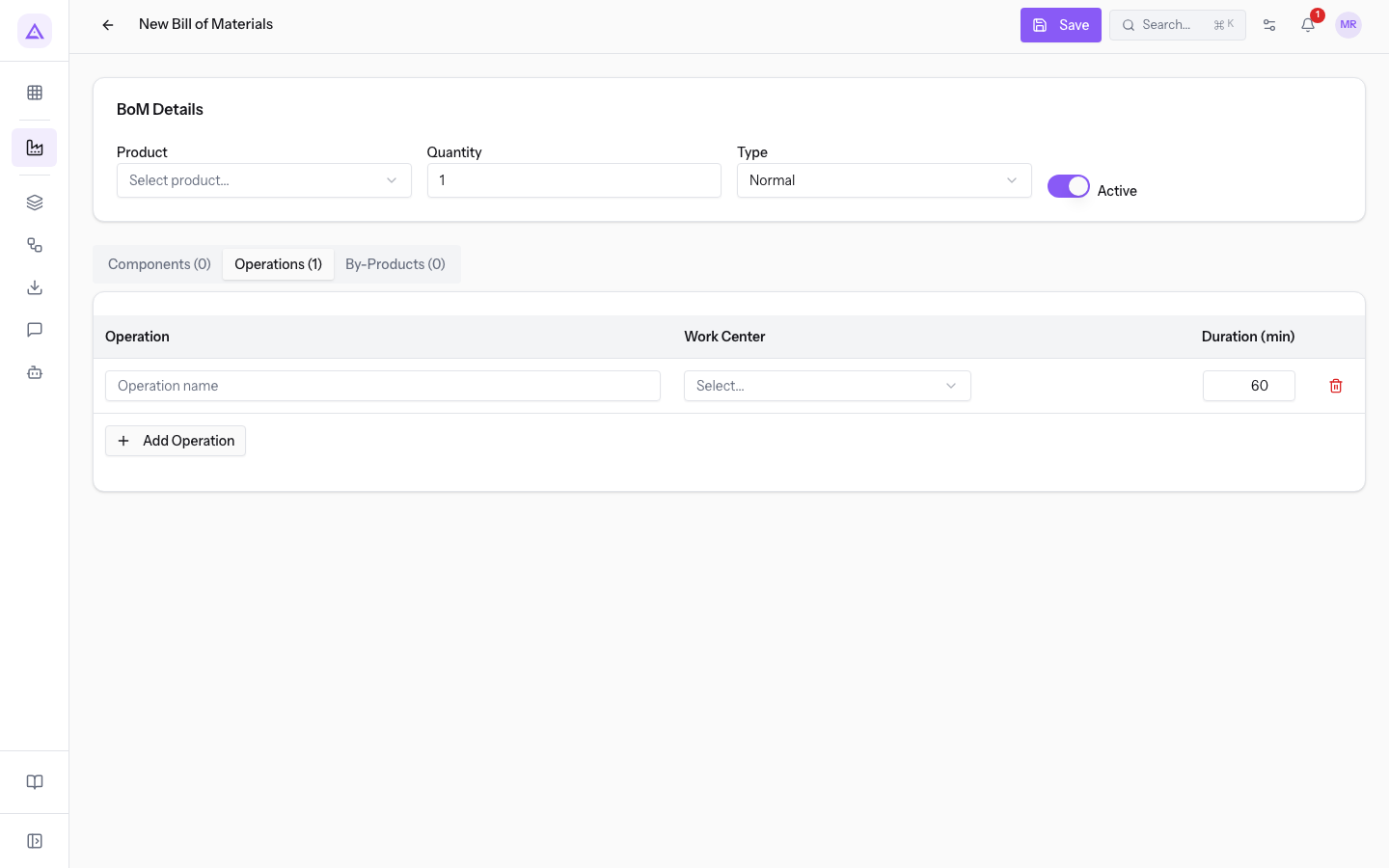
- Open the Operations (0) view and press Add Operation: a new line appears.
- In Operation write the name of the operation.
- In Select... choose the work center.
- In Duration (min) enter the expected minutes.
- To remove a line, press the trash icon at the end of the line.
- Press Save to save the bill of materials.
The fields of each line are these:
- Operation: the name of the operation. The placeholder is Operation name. The field is required.
- Work Center: the work center where the operation takes place. In the demo organization the options are Basket packing bench, Bottling line, Kitchen workshop and Olive mill. The field is required. To create others see Setting up work centers (olive mill, kitchen workshop).
- Duration (min): the duration in minutes for the Quantity of the bill of materials. The proposed value is 60. The field does not accept negative values. The duration and the hourly cost of the work center determine the cost of the operation.
The system numbers the operations in the order their lines appear. BOM/00005 has the operations Cooking the jam and Jarring, both at Kitchen workshop.
Important: a manufacturing order takes components and work orders from the bill of materials at the moment of Confirm. Check the bill of materials before confirming the order.
Use the bill of materials
When you create a manufacturing order, the system looks up the bill of materials for the product, as explained in Create a manufacturing order. To check costs and structure see Calculate the cost and view the structure of a bill of materials.
See it on your company, not on a slide deck.
In 30 minutes we map the software you use today.We show you how much work and how much margin Archimedes gives back.
Show me on my business →What industry are you in?
One tap — it lets us prepare the demo around your world.
What tools do you use today?
Pick the ones you recognise — or just type them. It helps us show you how they migrate.
Last step: your details.
We reply within one working day — and right after, if you like, you pick the demo slot yourself.
We couldn't send your request. Try again, or write to us at [email protected].
By sending, you agree to your data being processed so we can get back to you about the demo. Privacy notice.
Preview form — nothing is sent from this page.
Want to schedule the demo now?
Your call: book the slot you prefer yourself, or we'll call you to arrange it.
Live availability, 30 minutes, instant confirmation. The calendar opens in a new tab.
Lock in your slot ↗We'll get back to you within one working day — and we'll join the call already knowing your world.
The calendar is open in another tab: pick a slot and the demo is booked. Can't see it? Reopen it ↗
Preview page: nothing was sent.
Our calendar is live: take the slot that suits you and the demo is booked. 30 minutes, instant confirmation, no waiting.
Lock in your slot ↗