Accounting
All modules
Reconcile the bank statement
Accounting · 7 of 17 · 7 min read
Bank reconciliation matches each statement line to the invoice or journal entry that explains it. For example, you can match a customer payment, a supplier payment, or a bank fee. When every line in a period is matched, you confirm the statement.
Before you start: the Accounting › Bank Reconciliation menu is visible only to users with full Accounting access. The lines you match must be posted.
The statements list
Open Accounting › Bank Reconciliation. The Bank Reconciliation page opens: the import panel is at the top, the Statements list is on the left, and the detail of the selected statement is on the right.
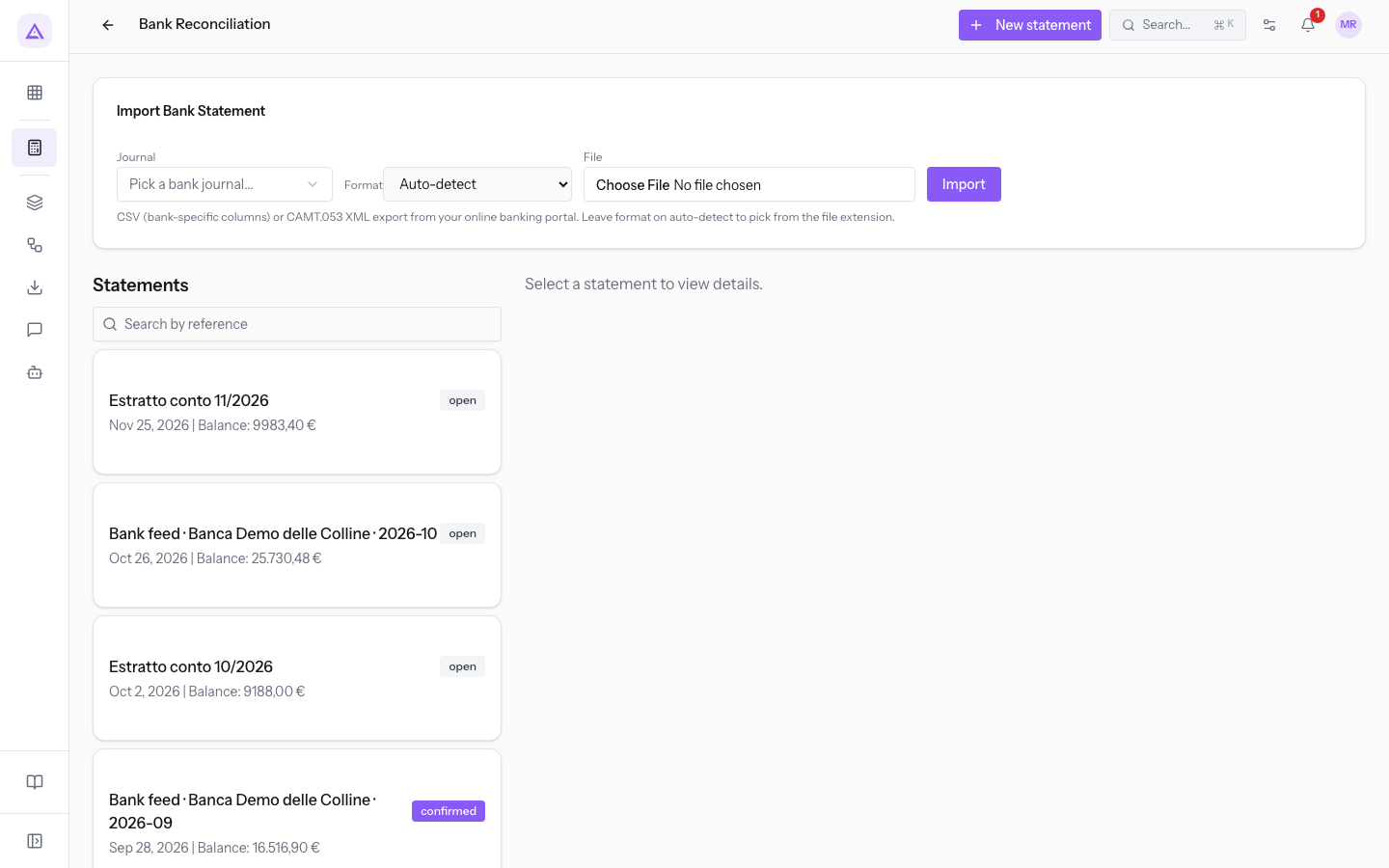
- Search by reference: filters the list by statement reference. If no statement matches, the page shows No statements match that reference.
- Previous and Next: move through the pages of the list. Each page shows 20 statements, with the total count below the list.
- Each statement in the list shows its reference, status, date, and closing balance. Press a statement to open its detail.
In the demo, the most recent statement is open and has three lines to reconcile: the transfer from Rossi Furnishings S.r.l. for FV/2026/0002 (945.50 €), the transfer to Metalnord for the invoice MN 2026/0815 (1,346.88 €), and a Telepass debit (64.30 €).
Create a statement
Create a statement by hand when you do not have a bank file to import. Then add the movements line by line.
- Press New statement.
- Fill in the fields and press Save.
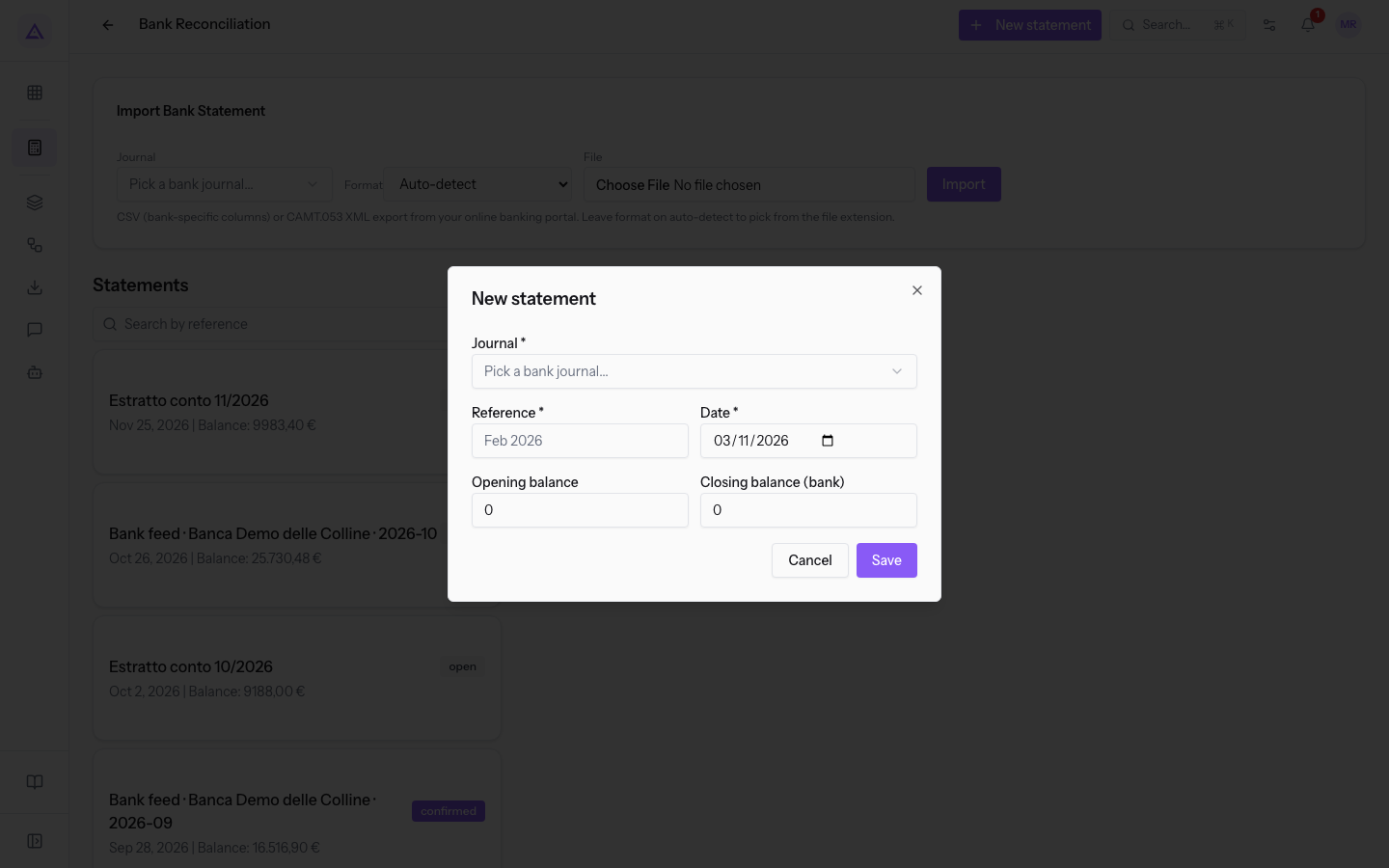
- Journal: the bank journal of the statement, for example BNK1 — Bank. The field is required.
- Reference: the name of the statement, such as
Feb 2026. The field is required. - Date: the date of the statement. The field is required and defaults to today.
- Opening balance: the account balance at the start of the period. If you leave it empty, it is 0.
- Closing balance (bank): the closing balance shown by the bank. If you leave it empty, it is 0.
After saving, the message Statement created appears and the detail of the new statement opens on the right.
Import a statement
If the bank provides a file of movements, import it instead of entering the lines by hand.
- In the import panel, choose the bank journal, for example BNK1 — Bank.
- Choose the file format: CSV or CAMT.053 (ISO 20022). If you do not choose a format, it is detected from the file extension: a
.xmlfile is read as CAMT.053, and the others as CSV. - Select the file, in
.csv,.txt, or.xmlformat. - Press Import.
The imported statement appears in the Statements list. If some lines in the file cannot be read, a warning shows how many were skipped. A warning also appears when the imported movements do not add up to the closing balance declared in the file.
Add a line to a statement
Add a line when a movement is missing from the statement. The button appears only if the statement is open.
- Open the statement from the Statements list.
- Press Add line.
- Fill in the fields and press Save.
- Date: the date of the movement. The field is required.
- Amount: the amount of the movement. An incoming payment is positive, an outgoing one is negative, for example -64.30 for the Telepass debit. The field is required.
- Reference: the movement reference given by the bank.
- The counterparty of the movement, such as Rossi Furnishings S.r.l.
- Note: a free note.
If the line is not yet reconciled and the statement is open, you can delete it with the trash icon.
Read the statement lines
The statement detail shows the opening and closing balances. The table lists the lines with date, reference, counterparty, amount, status, and actions.
- The amount is shown with its sign: positive for incoming payments, negative for outgoing ones.
- The status of each line shows whether it is already Reconciled or still to be matched.
- Open only: hides the lines already reconciled and leaves only the ones to work on.
Match a line to an invoice or a journal entry
Use the suggested matches when the movement pays an invoice or closes a journal entry already in accounting.
- On the line to reconcile, press Find Matches.
- Under the line, the list Suggested Matches: appears. Each suggestion shows the document, the amount, the counterparty, the date, and the account code.
- Press Match next to the correct suggestion.
Each suggestion gives the reasons it was chosen, for example Exact amount or Amount within 5%. The document name opens the entry, so you can check it before matching.
Examples from the demo:
- For the Rossi Furnishings S.r.l. transfer of 945.50 €, choose the suggestion FV/2026/0002.
- For the Metalnord transfer of 1,346.88 €, choose the suggestion BILL/2026/00001, the invoice with reference MN 2026/0815.
If no open entry matches, the message No open entries match this line. Reconcile it directly, or adjust the amount. appears.
If the movement seems to pay an invoice that accounting cannot close, a warning appears above the suggestions. The warning contains a link to the invoice and to the page where you can fix it.
Partial payments and differences
If the amount of the movement does not fully close the invoice, the match is rejected and a message shows how much is still due. Choose how to proceed:
- If the customer paid only part of the amount, press Reconcile as part payment in the message. The invoice stays open for the remaining part.
- If the difference is small, for example a fee kept by the bank, first choose an account in the Book to account field of the line, then press Match. The message then offers to close the difference on that account.
Note: the account for the difference must be different from the one being reconciled. If the difference is more than 5% of the amount, with a minimum always allowed of 1.00, it must be confirmed explicitly.
Post a line to an account
Use this action for a movement that does not pay an invoice and is not yet recorded, for example the Telepass debit of 64.30 €, a bank fee, or an internal transfer.
- On the line, open the Book to account field and choose the destination account.
- Press the button next to the field to post the full amount to that account.
The button is active only after you choose an account.
If a reconciliation rule matches the movement, a box appears after Find Matches with the message Rule “…” books this movement to …, with the name of the rule and the account. From the box you can apply the rule to the line.
Reconcile without a counterpart
The Reconcile button closes the line without matching it to a document. The counterpart is posted to the suspense account of the bank journal, until the line is matched to an invoice.
Important: use Reconcile only when you do not yet know what the movement refers to. If the account is known, use Book to account.
Cancel a reconciliation
A line already reconciled shows the Cancel button in place of the actions. Press Cancel to return the line to the to-reconcile status and match it again.
Recognize the counterpart with a mapping
A partner mapping links a recurring text of the movement, for example the name the bank uses for a customer, to a contact.
- On the line to reconcile, press the Create Partner Mapping icon.
- Fill in the fields and press Save.
- The contact to link, such as Rossi Furnishings S.r.l. The field is required.
- The text to recognize in the movement. It is filled in with the counterparty or the reference of the line. The field is required.
- The priority of the mapping. The proposed value is 100.
After saving, the message Partner mapping created. appears.
Confirm the statement
Confirm the statement when you have finished working on its lines. Confirming closes the period, and it cannot be undone from the page.
- Open the open statement and press the confirm button at the top. The button only appears if the statement is open.
- The Confirm this statement? dialog opens. Read the final balance you are approving, then confirm.
Confirming approves the final balance. The next sync opens a new bank statement instead of adding movements to this one. The message Statement confirmed. appears.
Note: if unreconciled lines remain, the dialog says how many there are. Those lines stay on the statement and can still be reconciled after confirmation.
See it on your company, not on a slide deck.
In 30 minutes we map the software you use today.We show you how much work and how much margin Archimedes gives back.
Show me on my business →What industry are you in?
One tap — it lets us prepare the demo around your world.
What tools do you use today?
Pick the ones you recognise — or just type them. It helps us show you how they migrate.
Last step: your details.
We reply within one working day — and right after, if you like, you pick the demo slot yourself.
We couldn't send your request. Try again, or write to us at [email protected].
By sending, you agree to your data being processed so we can get back to you about the demo. Privacy notice.
Preview form — nothing is sent from this page.
Want to schedule the demo now?
Your call: book the slot you prefer yourself, or we'll call you to arrange it.
Live availability, 30 minutes, instant confirmation. The calendar opens in a new tab.
Lock in your slot ↗We'll get back to you within one working day — and we'll join the call already knowing your world.
The calendar is open in another tab: pick a slot and the demo is booked. Can't see it? Reopen it ↗
Preview page: nothing was sent.
Our calendar is live: take the slot that suits you and the demo is booked. 30 minutes, instant confirmation, no waiting.
Lock in your slot ↗