Appointments
All modules
Finding appointments for a contact or event
Appointments · 16 of 16 · 4 min read
Appointments linked to a contact or an event can be found directly from the contact record and the event detail, for example site visits and tastings for a wedding or the consultation for a corporate dinner.
Use the contact record to see all appointments for a person, regardless of which event they relate to. Use the event detail to see only the appointments linked to that event and to create a new one already linked.
Seeing appointments in the contact record
In a contact's Overview tab, the In progress panel lists everything still open with that contact, including appointments and events, each with its status and date.
- Open Contacts and click the contact, for example
Sara Conti. - In the In progress panel you will find, for example, the appointment
Final site visit Sara and Luca(Confirmed, Nov 13, 2026, 11:00 AM) and the eventSara and Luca's wedding.
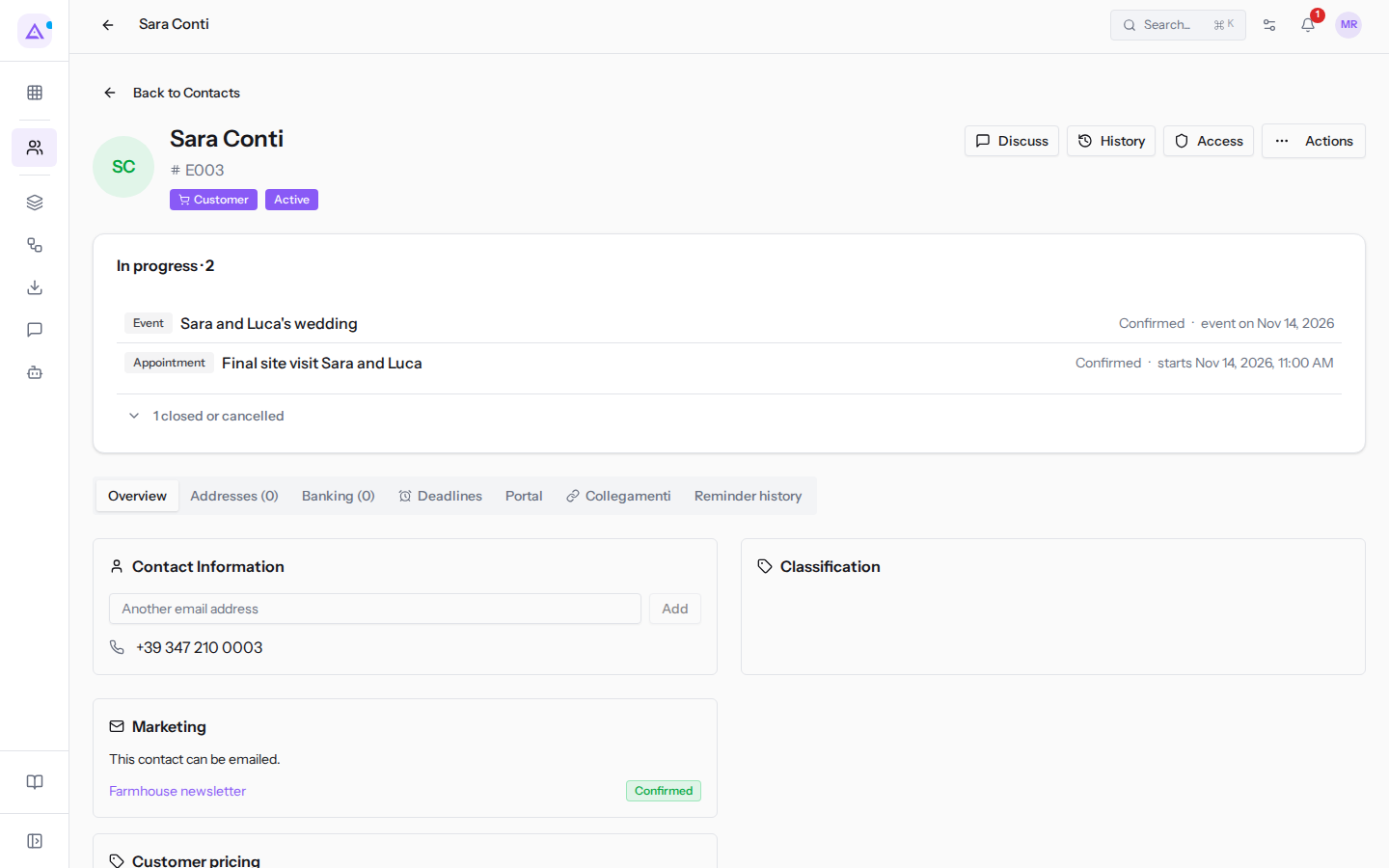
- Click 1 closed or cancelled to also show already closed appointments, for example
Menu tasting Sara and Luca, shown as completed on Oct 27, 2026 at 5:00 PM. The number changes depending on the contact. - Click an item to open the appointment detail.
Opening the list filtered by contact
The Appointments page can show only the appointments for a contact, in a single list that includes past and future dates.
- In the contact record, open the Collegamenti tab (links). For now, the name of this tab and its description appear in Italian, even in the English interface.
- Click the appointments counter, which shows their number, for example 2 · Appointments for Sara Conti.
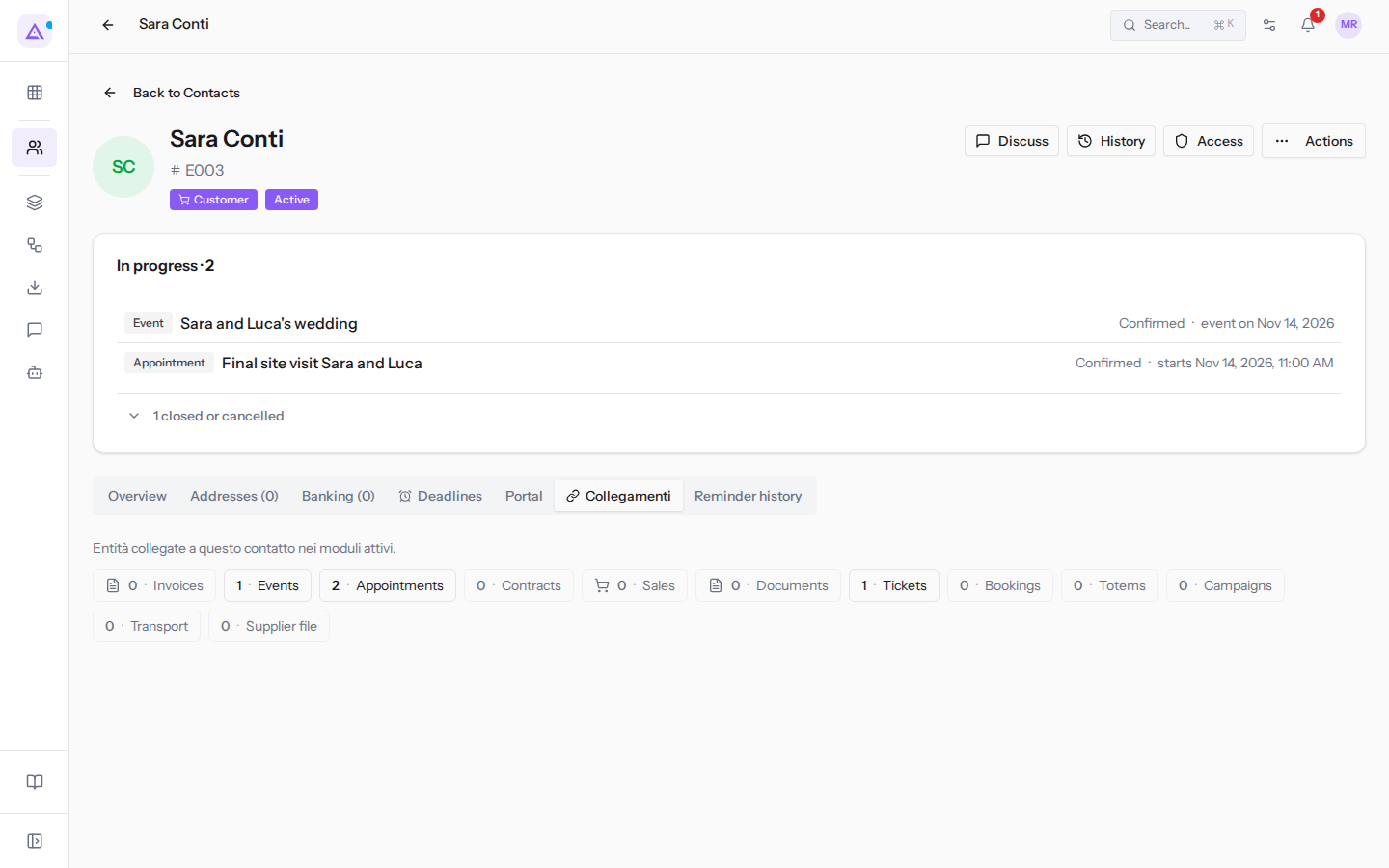
- The Appointments page opens with a panel indicating the contact, for example «Filtered by Sara Conti».
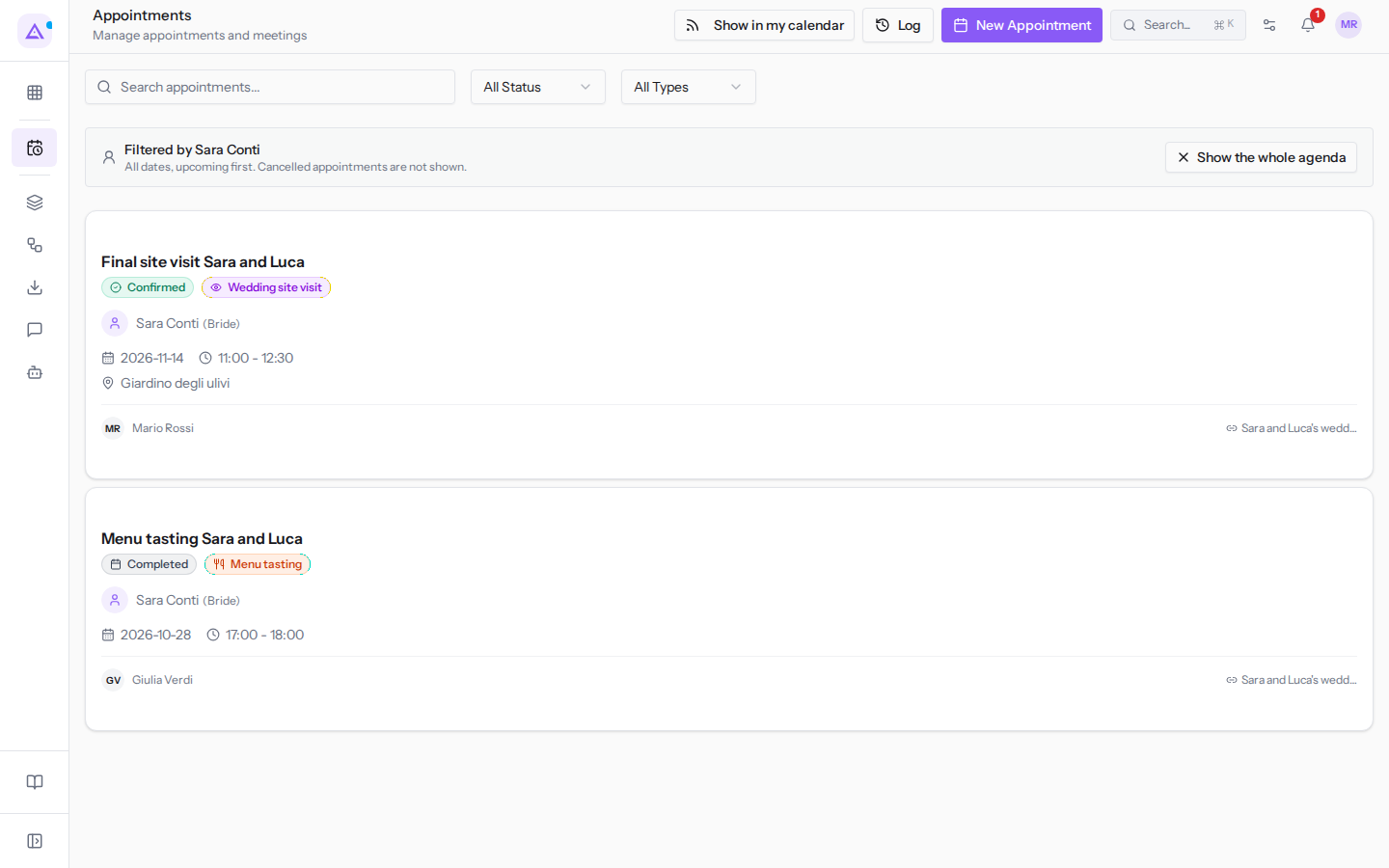
What the filtered list shows:
- The panel shows the list rule: All dates, upcoming first. Cancelled appointments are not shown.
- The contact's appointments, for example
Final site visit Sara and LucaandMenu tasting Sara and Luca. Completed ones also appear. - The Search appointments... search and the All Status and All Types filters remain available and apply to the contact's appointments.
- Show the whole agenda: removes the filter on the contact and returns to the full agenda, where the icons for changing view (Calendar view, Grid view and List view) reappear.
Seeing appointments linked to an event
The detail of an event lists the appointments linked to that event, each with its type and title.
- Open Events and click the event, for example
Sara and Luca's wedding. - You will find the linked appointments, for example Wedding site visit · Final site visit Sara and Luca and Menu tasting · Menu tasting Sara and Luca.
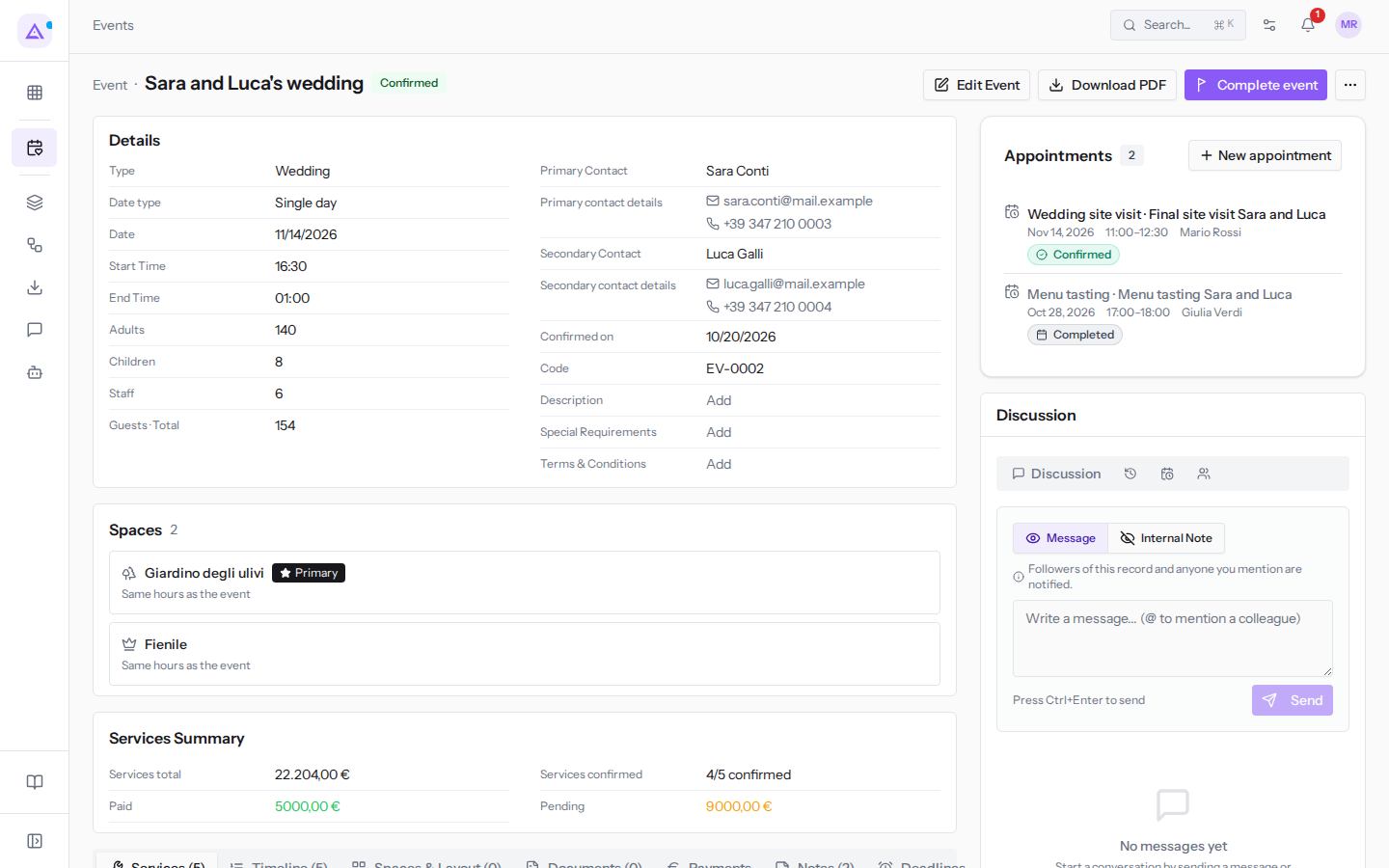
- Click an appointment to open its detail.
If the event has no appointments, the message No appointments linked to this event yet. appears.
Recognizing the linked event in the appointment detail
An appointment linked to an event shows its name in the details, under Linked Event.
- Open the appointment, for example
Menu tasting Sara and Luca. - In the details you will find the name of the event, for example Sara and Luca's wedding.
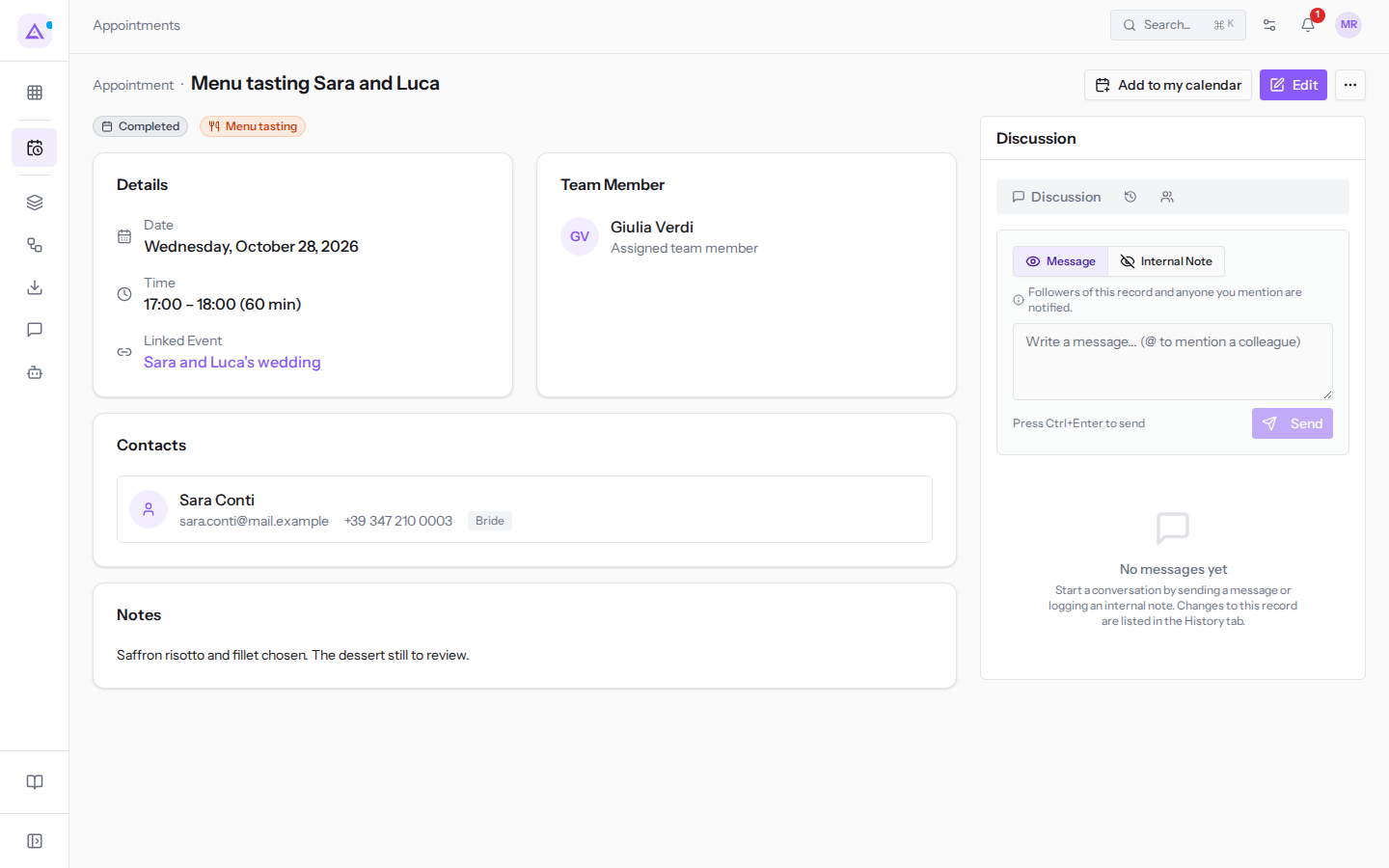
- Click the event name to go back to the event detail.
Creating an appointment from the event
From the event detail you can create an appointment that is already linked to the event.
- In the event detail, click New appointment.
- The Schedule Appointment dialog opens, with the Link to Event (optional) field already filled in, for example
Sara and Luca's wedding · Nov 14, 2026.
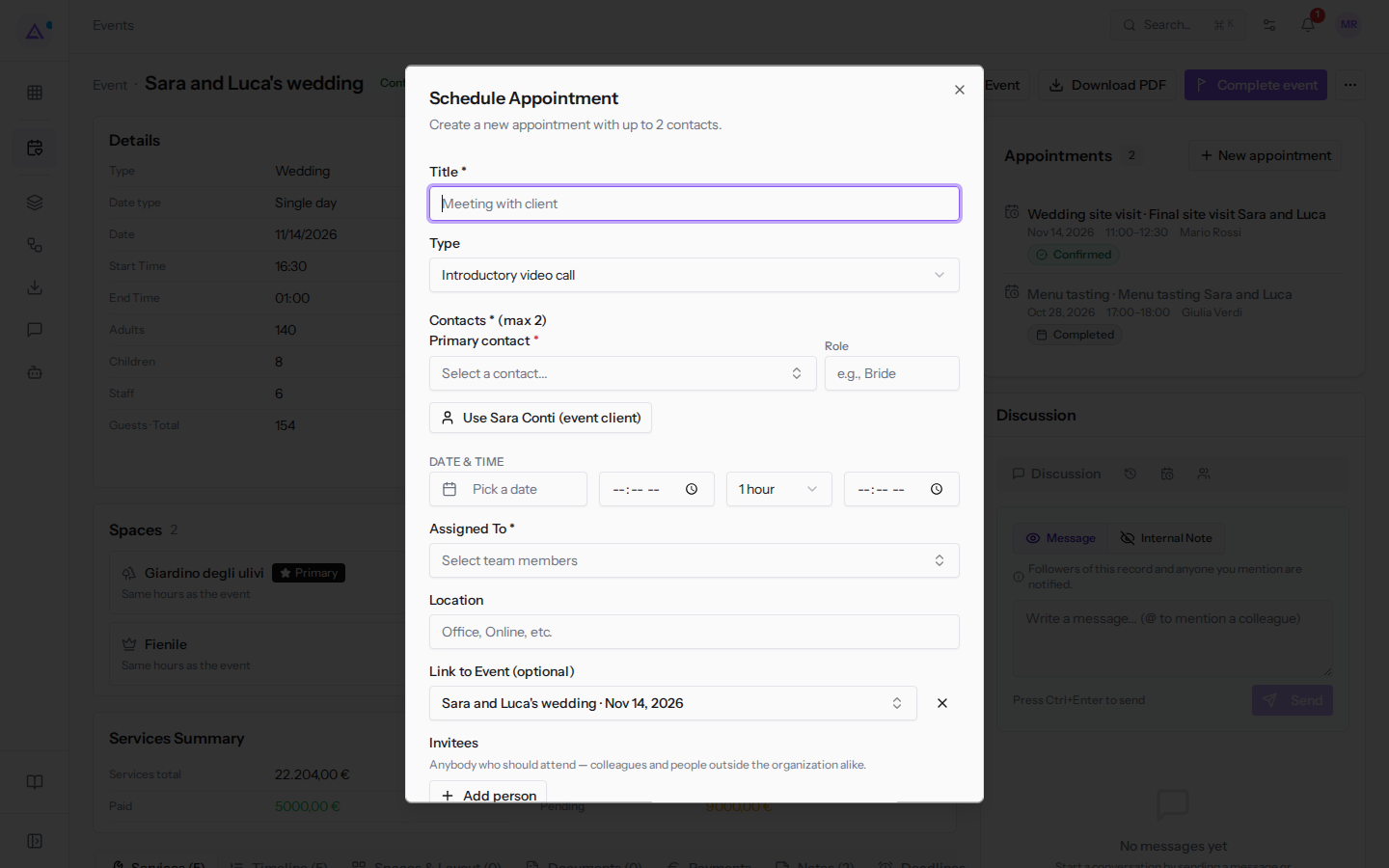
- Fill in the required fields: Title, Primary contact, the start date and time under DATE & TIME, and Assigned To.
- Click Create Appointment.
The dialog fields related to the event:
- Link to Event (optional): the event you started from, already selected. To remove the link, click the × icon next to the field (Remove the linked event).
- Primary contact: it is required and initially empty. The button with the event client's name, for example Use Sara Conti (event client), fills it with that contact.
Note: if you link an event that is not among the selected contact's events, the dialog flags it with The linked event is not one of this contact's events. It stays linked until you change it.
To close the dialog without creating the appointment, click Cancel.
See it on your company, not on a slide deck.
In 30 minutes we map the software you use today.We show you how much work and how much margin Archimedes gives back.
Show me on my business →What industry are you in?
One tap — it lets us prepare the demo around your world.
What tools do you use today?
Pick the ones you recognise — or just type them. It helps us show you how they migrate.
Last step: your details.
We reply within one working day — and right after, if you like, you pick the demo slot yourself.
We couldn't send your request. Try again, or write to us at [email protected].
By sending, you agree to your data being processed so we can get back to you about the demo. Privacy notice.
Preview form — nothing is sent from this page.
Want to schedule the demo now?
Your call: book the slot you prefer yourself, or we'll call you to arrange it.
Live availability, 30 minutes, instant confirmation. The calendar opens in a new tab.
Lock in your slot ↗We'll get back to you within one working day — and we'll join the call already knowing your world.
The calendar is open in another tab: pick a slot and the demo is booked. Can't see it? Reopen it ↗
Preview page: nothing was sent.
Our calendar is live: take the slot that suits you and the demo is booked. 30 minutes, instant confirmation, no waiting.
Lock in your slot ↗