Appointments
All modules
Publishing the booking link and questions for bookers
Appointments · 11 of 16 · 5 min read
Every bookable appointment type has a public booking link and a snippet to embed on your website. You can also set the questions to ask bookers before confirming, for example for a wedding site visit, a menu tasting, or an informational video call.
Before publishing the link
A type is offered online when it is active, has a schedule with real time slots, and has a host who still has availability.
- If the type has no host, it has no public link and does not appear among the embed snippets, for example Guided farm tour.
- If the type has no schedule, or its schedule has no time slots, it offers no slots, even if the link and snippet still appear: for example Company events consultation and Cooking class. Before publishing the link, check that the type is Bookable, as explained in Understanding why a type cannot be booked.
- If no type has a host, the tab shows «Nothing to publish yet. Create a bookable and give it a host.»
Note: Appointments › Settings › Booking setup, public links, and booking questions are only visible to those who manage appointments.
Copying links from the Embed snippets tab
The Embed snippets tab collects the links and snippets for all bookable types on a single page.
- Go to Appointments › Settings › Booking setup.
- Click the Embed snippets tab.
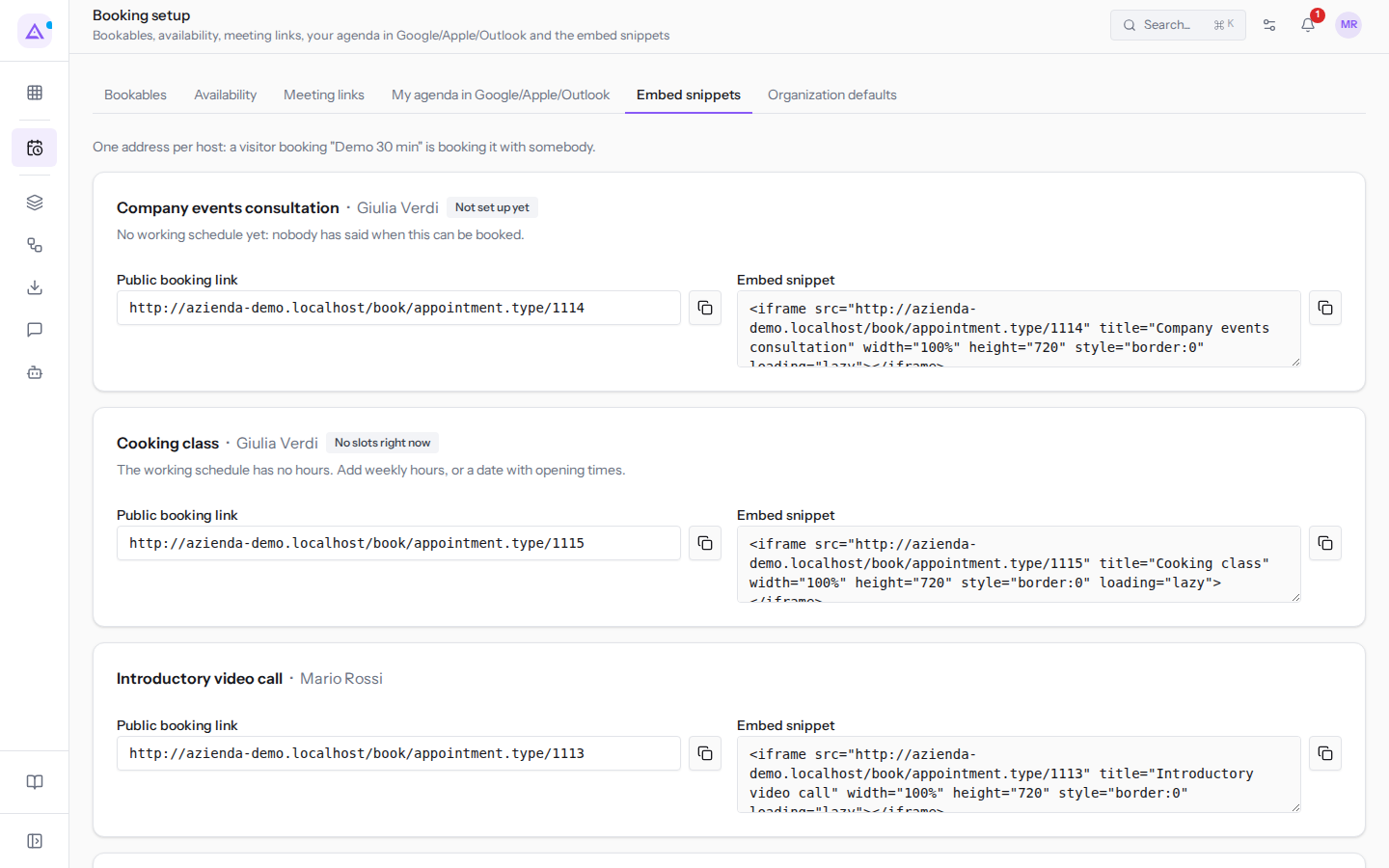
- Find the type in the list, for example Wedding site visit.
- Click the Copy icon (two overlapping pages) next to the field you need.
For each type, the tab shows two fields:
- Public booking link: the address of the page where the visitor books. Send it by email or put it in a button on your website.
- Embed snippet: the HTML code that displays the booking page inside a page of your website, as wide as the page and 720 pixels tall. Paste it into the website page where you want visitors to book.
Note: if copying fails, Could not copy. Select the text and copy it by hand. appears.
Copying the link from a type's detail page
The same link and snippet can also be found in the detail page of each bookable type.
- In Appointments › Settings › Booking setup, Bookables tab, open the type, for example Wedding site visit.
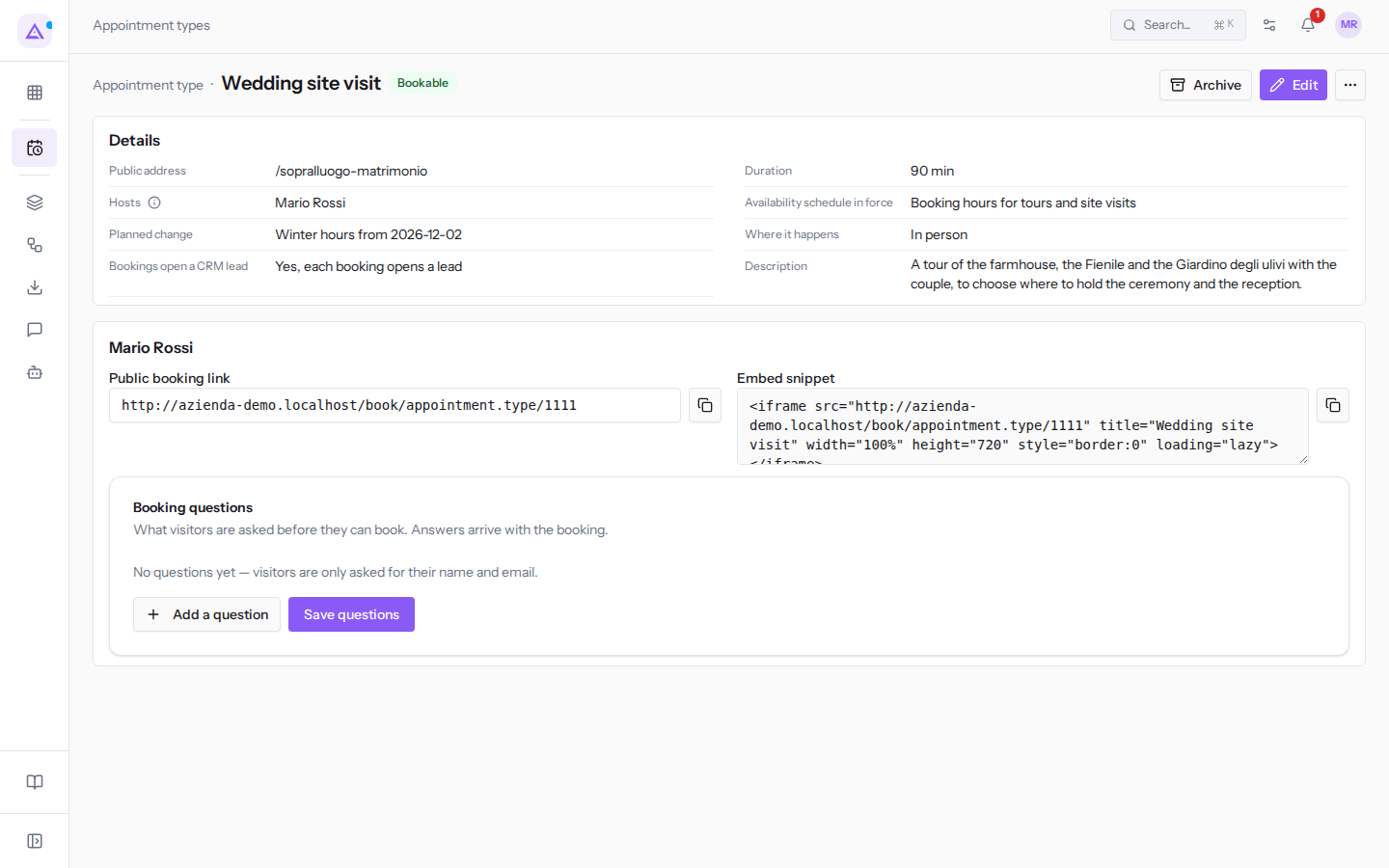
- Click the Copy icon next to Public booking link or Embed snippet.
Both values match those on the Embed snippets tab.
Note: the Public address shown in the type's details, for example
/sopralluogo-matrimonio, is currently not part of the public booking link. Changing it does not change the link: always copy the link from here or from the Embed snippets tab.
Adding questions for bookers
Booking questions define what to ask visitors before they book. The answers arrive with the booking. Without questions, visitors are only asked for their name and email.
Use questions when you need information to prepare for the meeting. For example, for a site visit you can ask the number of guests with a Number answer and the ceremony type with a Single choice.
- Open the type's detail page, for example Wedding site visit. Booking questions are in the host panel, so they only appear if the type has a host.
- Click Add a question. A new row appears.
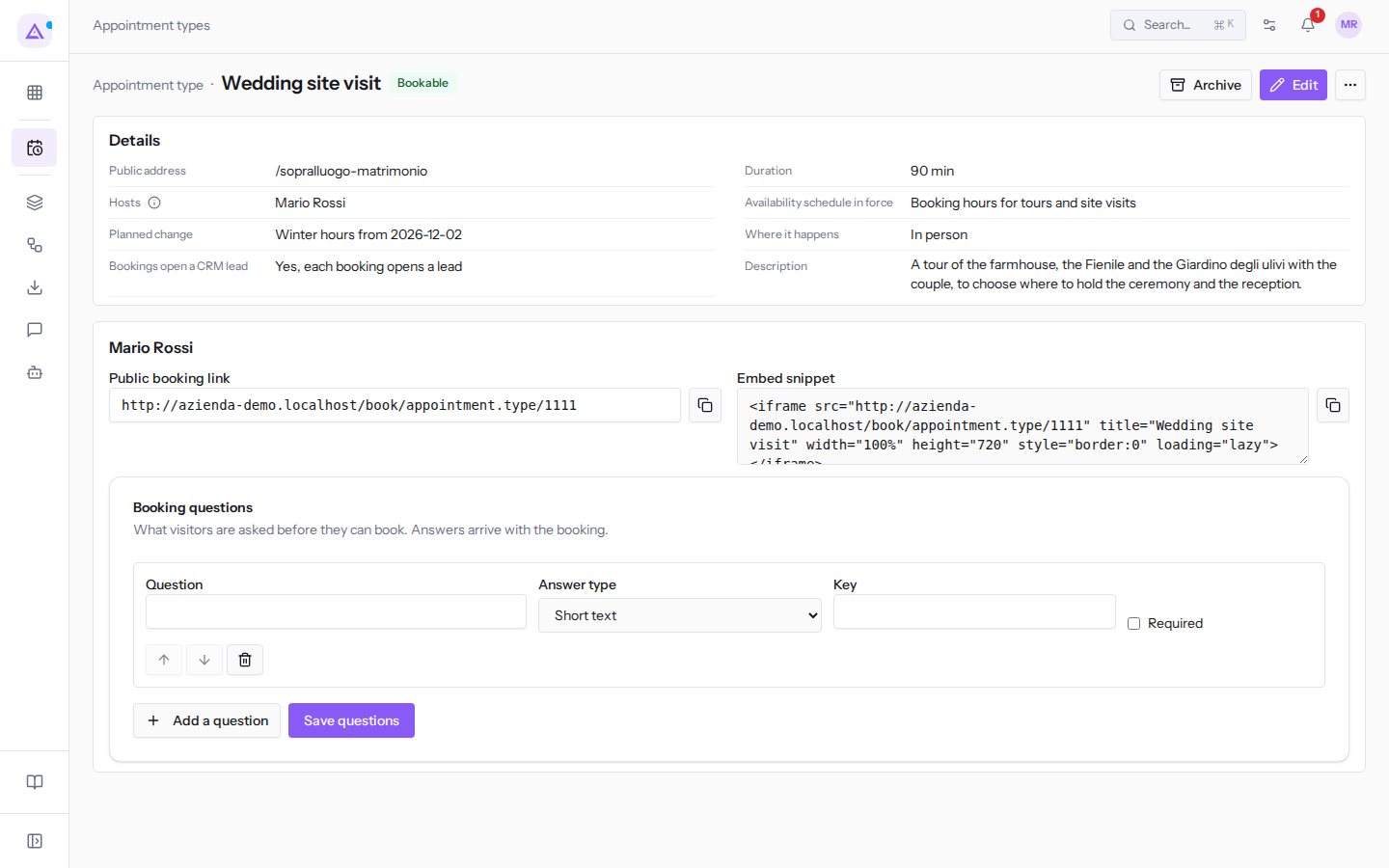
- Fill in the question fields.
- Click Save questions.
Question fields:
- Question: the text shown to the visitor, for example «How many guests are you expecting?».
- Answer type: the type of answer the visitor gives. The initial value is Short text.
- Short text
- Long text
- Single choice: adds the Choices field, where you type the choices one per line; the visitor selects one.
- Number
- Phone
- Consent tick
- Recorded consent: adds the Consent purpose field. A consent question records nothing until it has a purpose. Use
privacy_noticefor acknowledging the privacy notice, which visitors must tick in order to book; any other purpose, for examplemarketing_email, records an optional consent.
- Key: the internal name under which the answer is saved. If you leave it empty, it is derived from the question text on saving. Do not change it for a question that has already received answers: previously recorded answers remain linked to the old key.
- Required: tick it if the visitor must answer in order to book. It is off when you add the question.
Important: new or edited questions only take effect after Save questions: the message «Questions saved» appears. If saving fails, The questions could not be saved appears.
Reordering and removing questions
Visitors see questions in the order of the list.
- In the type's detail page, click the up arrow icon (Move up) or down arrow icon (Move down) below the question you want to move.
- To delete a question, click the bin icon (Remove this question).
- Click Save questions.
Where to read the answers
The visitor's answers appear in the detail page of the booked appointment, in the Booking answers section. For example, they can be read in «Wedding site visit - Chiara Fontana», booked from the website. The article Recognizing and tracking an online booking explains how to read them.
See it on your company, not on a slide deck.
In 30 minutes we map the software you use today.We show you how much work and how much margin Archimedes gives back.
Show me on my business →What industry are you in?
One tap — it lets us prepare the demo around your world.
What tools do you use today?
Pick the ones you recognise — or just type them. It helps us show you how they migrate.
Last step: your details.
We reply within one working day — and right after, if you like, you pick the demo slot yourself.
We couldn't send your request. Try again, or write to us at [email protected].
By sending, you agree to your data being processed so we can get back to you about the demo. Privacy notice.
Preview form — nothing is sent from this page.
Want to schedule the demo now?
Your call: book the slot you prefer yourself, or we'll call you to arrange it.
Live availability, 30 minutes, instant confirmation. The calendar opens in a new tab.
Lock in your slot ↗We'll get back to you within one working day — and we'll join the call already knowing your world.
The calendar is open in another tab: pick a slot and the demo is booked. Can't see it? Reopen it ↗
Preview page: nothing was sent.
Our calendar is live: take the slot that suits you and the demo is booked. 30 minutes, instant confirmation, no waiting.
Lock in your slot ↗