Employees
All modules
Prepare and close monthly payroll data
Employees · 20 of 20 · 6 min read
The Payroll handoff page collects the monthly variables for each employee: days and hours worked, overtime, absences, contract, gross pay and reimbursements. From here you download the file for the payroll consultant. When the month is over you close it, so the submitted data no longer changes.
Use this page to pass data to whoever processes payroll outside Archimedes. The payslips the consultant returns to you are published from Payslip Batches. If instead you calculate payslips within Archimedes, use the Payroll Engine.
Opening the month's data
The page shows a preview of the file: every number is the one that ends up in the exported file.
Before you start: worked hours come from the Attendance module. If the organisation has not activated it, the page shows the notice "Worked hours come from the Attendance module, which your organisation has not turned on. Without it there is nothing to hand over." and no table appears.
- Open Employees › Payroll Handoff.
- In Month choose the month. The page opens on the current month.
- In Year choose the year. You can choose the current year and the two previous ones.
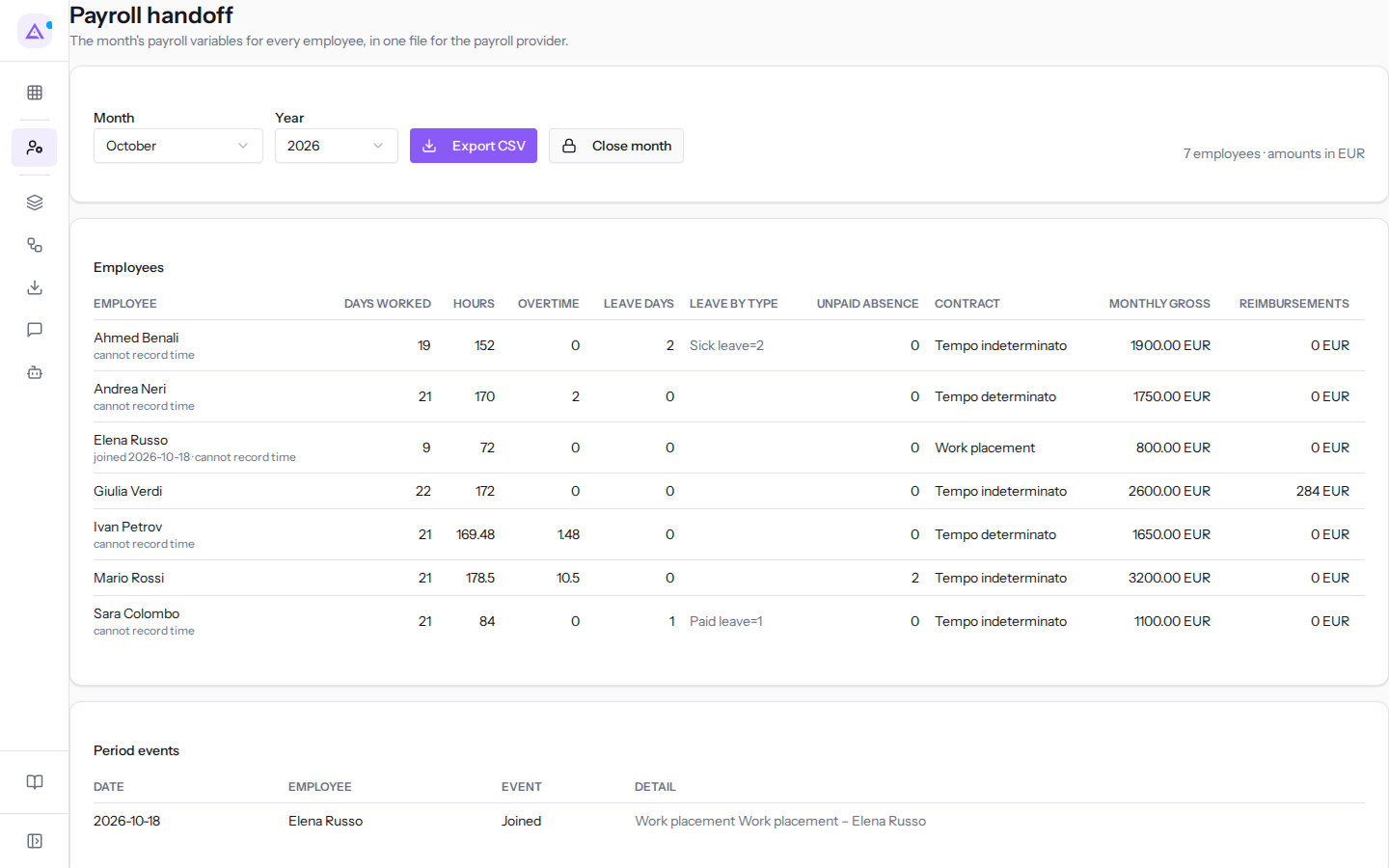
Next to the selectors you find:
- Export CSV: downloads the month's file. The file contains all the columns for the payroll consultant, including those not shown in the preview. The button only appears if the Attendance module is active.
- Close month: opens the closing dialog. It only appears if the month is still open.
- The summary with the number of employees and the currency of amounts, for example "7 employees · amounts in EUR".
The Employees table
The Employees table has one row per person. The preview shows the columns needed to check the numbers before submission.
- Employee: the name. Below the name, if applicable, notes about the period appear: the hire date if the person joined during the month, the termination date if they left during the month, contract changed in the period if the contract changed during the month, cannot record time if the person has no way to record their hours.
- Days worked: days worked in the month.
- Hours: hours worked in the month.
- Overtime: overtime hours for the month.
- Leave days: days of absence for the month.
- Leave by type: absences broken down by type.
- Unpaid absence: days of unpaid absence.
- Contract: the contract type.
- Monthly gross: the monthly gross pay from the contract, with the currency. If missing, a dash appears.
- Reimbursements: the amount of monthly expenses paid by the employee and approved or already reimbursed, with the currency.
Note: for a person marked cannot record time, zero hours do not mean they did not work. Before submission, link their account to the employee record or verify their hours another way.
Period events
The Period events panel lists the month's changes that the consultant needs to know about. Each row shows the date, the employee, the event and a detail.
The events are:
- Joined
- Contract started
- Contract ended
- Left
If nothing happened during the month, the panel shows "Nobody joined, left or changed contract in this period."
Closing the month
Closing freezes the month's data. After closing, clock-ins, corrections, absences, closings and contract changes relating to that month are rejected until the month is reopened. From that point on, the downloaded file is the one frozen at closing. Close the month once you have checked the data and before sending the file to the consultant.
Before you start: Close month and Reopen only appear to users who can edit contracts.
- Open the month in Employees › Payroll Handoff.
- Click Close month. The dialog opens with the month in the title, for example "Close October 2026".
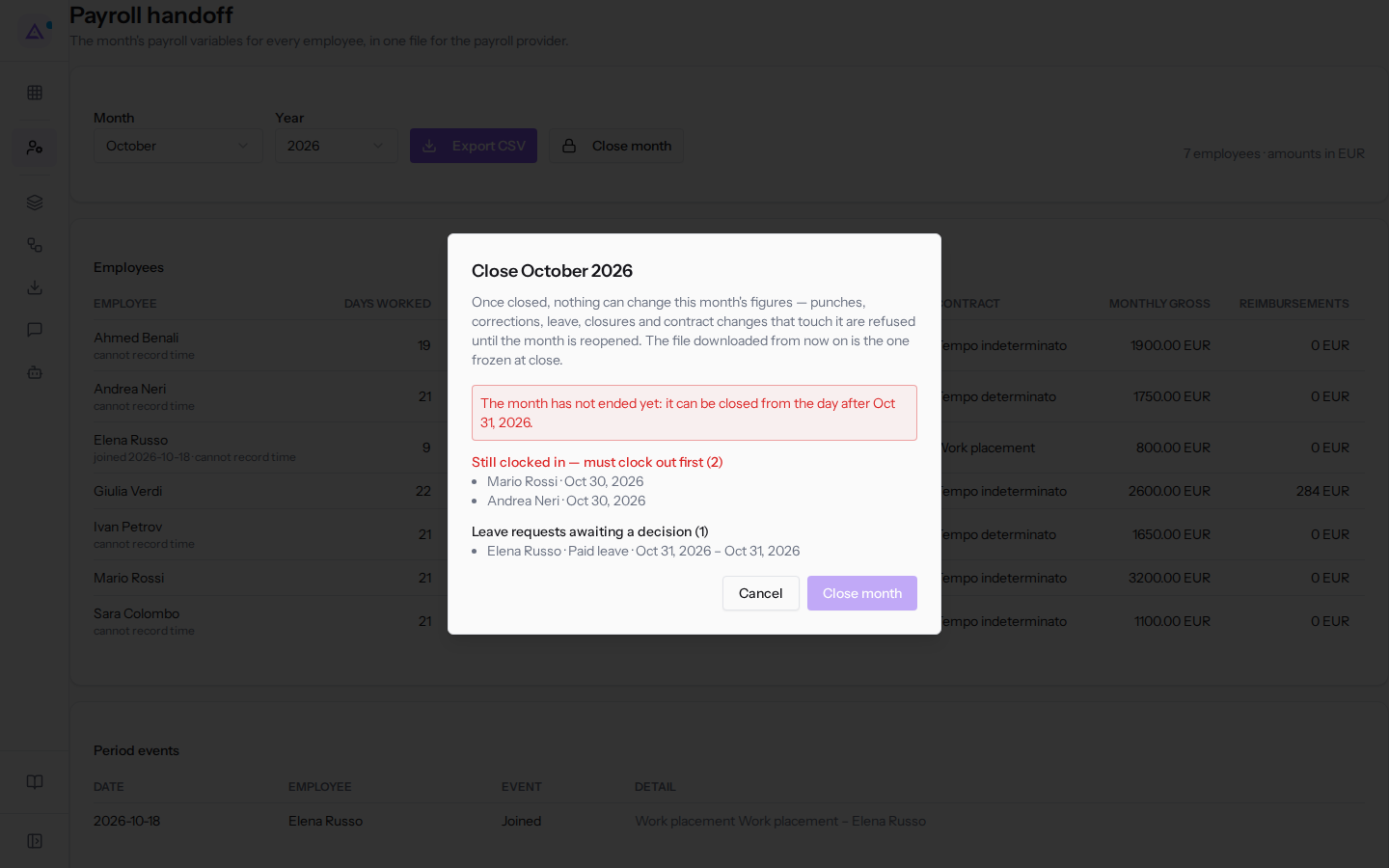
- Read the list of what blocks closing and what is pending.
- If the dialog lists pending items, check the box "I have reviewed the pending items above: after closing they can only be decided by reopening the month."
- Click Close month. To exit without closing click Cancel.
The dialog distinguishes two types of items:
- Blockers: as long as there is one, the Close month button in the dialog remains disabled.
- The month is not over yet: for example "The month has not ended yet: it can be closed from the day after Oct 31, 2026."
- Still clocked in — must clock out first: people who have clocked in but not yet clocked out, with their count in parentheses. Each entry shows the name and the date. In the October 2026 example there are two.
- Pending: attendance corrections, declared hours and absence requests still to be decided, each with the employee and dates. They do not prevent closing, but you must check the confirmation box. After closing you can only decide on these items by reopening the month.
If the closing succeeds, a message appears confirming the month is closed.
Important: decide on pending corrections, declared hours and absence requests before closing. If you leave them open, they are not counted in the frozen file.
Viewing a closed month
A closed month shows the Month closed badge and a line with the date, time and name of who closed it, in the form "Closed on … by …".
- If the month was closed from this page, "The figures and the file are the ones frozen at close." appears alongside. Both the preview and Export CSV use the frozen data.
- If the month was closed from the attendance screen, "Closed from the attendance screen: no frozen file, figures are rebuilt." appears.
The Close history panel lists every closing and every reopening, from the most recent. For each one it shows when it happened, who did it, the action and the date up to which months are closed. The panel only appears if there is at least one entry.
Reopening a month
Reopen a closed month when you need to correct data, for example a clock-in or an absence.
- Open the closed month in Employees › Payroll Handoff.
- Click Reopen. The dialog opens asking for confirmation of the reopening, with the month name in the title.
- Click Reopen month.
The month becomes editable again together with all subsequently closed months, and the file frozen at closing is no longer used. The reopening is recorded with your name and the time, and appears in Close history.
Important: if you have already sent the file to the consultant, after making corrections close the month again and export the new file.
See it on your company, not on a slide deck.
In 30 minutes we map the software you use today.We show you how much work and how much margin Archimedes gives back.
Show me on my business →What industry are you in?
One tap — it lets us prepare the demo around your world.
What tools do you use today?
Pick the ones you recognise — or just type them. It helps us show you how they migrate.
Last step: your details.
We reply within one working day — and right after, if you like, you pick the demo slot yourself.
We couldn't send your request. Try again, or write to us at [email protected].
By sending, you agree to your data being processed so we can get back to you about the demo. Privacy notice.
Preview form — nothing is sent from this page.
Want to schedule the demo now?
Your call: book the slot you prefer yourself, or we'll call you to arrange it.
Live availability, 30 minutes, instant confirmation. The calendar opens in a new tab.
Lock in your slot ↗We'll get back to you within one working day — and we'll join the call already knowing your world.
The calendar is open in another tab: pick a slot and the demo is booked. Can't see it? Reopen it ↗
Preview page: nothing was sent.
Our calendar is live: take the slot that suits you and the demo is booked. 30 minutes, instant confirmation, no waiting.
Lock in your slot ↗