Accounting
All modules
Accounting overview: the dashboard
Accounting · 2 of 17 · 5 min read
The dashboard is the home page of the Accounting module. It summarizes the status of journal entries and accounts and shows a card for each journal. From here you reach period-end actions, such as the year-end close or the deferrals and accruals.
Opening the dashboard
The dashboard opens from the module's side menu.
- Open Accounting › Dashboard.
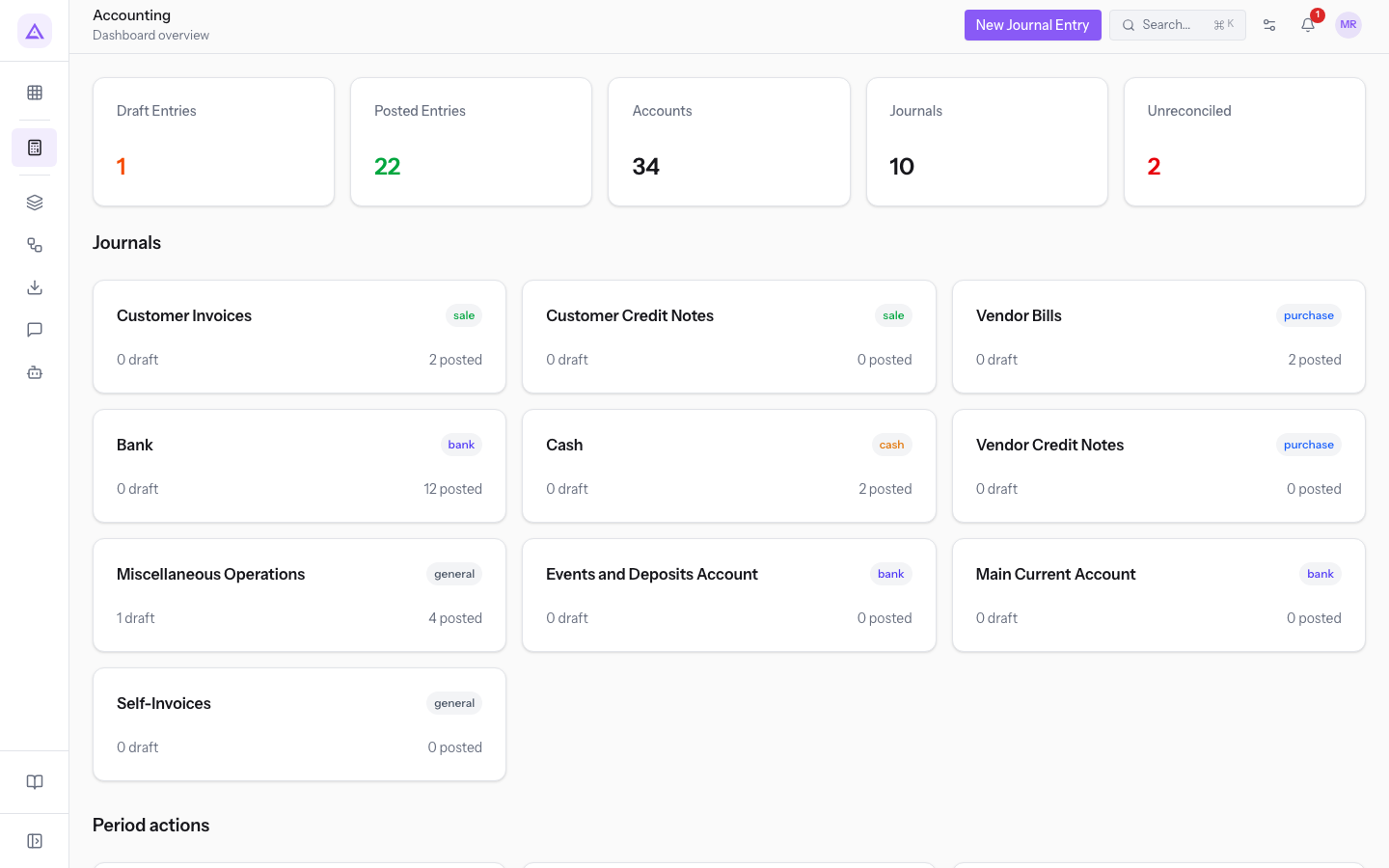
- The page shows the title Accounting, the summary cards, the Journals section and the Period actions section. In the top right is the New Journal Entry button.
The summary cards
At the top of the dashboard, five cards each show a number. The cards only display the number: they do not open other pages.
- Draft Entries: the number of journal entries in draft. In the demo it is
1(the entry "Inventory adjustment"). - Posted Entries: the number of posted journal entries. In the demo it is
22. - Accounts: the number of accounts in the chart of accounts. In the demo it is
34. - Journals: the number of accounting journals. In the demo it is
10. - Unreconciled: the number of items still to be reconciled. In the demo it is
2.
Note: accounting reports and totals read only posted entries. An entry that appears in Draft Entries does not enter the reports until you post it.
The journal cards
The Journals section shows a card for each accounting journal. Use it to see how many entries each journal has and to open its list.
Each card shows:
- the journal name, for example
Customer Invoices; - the journal type, in a label next to the name, such as
salefor Customer Invoices; - the number of draft entries, followed by
draft; - the number of posted entries, followed by
posted. In the demo the Customer Invoices card shows0 draftand2 posted, that is FV/2026/0001 and FV/2026/0002.
In the demo the journals are Customer Invoices, Customer Credit Notes, Vendor Bills, Vendor Credit Notes, Bank, Cash, Miscellaneous Operations, Main Current Account, Events and Deposits Account and Self-Invoices.
To open the entries of a journal:
- In Accounting › Dashboard, press the journal card, such as Customer Invoices.
- The Journal Entries list opens, filtered to the entries of that journal.
The filtered list has the same tools as the full list:
- Search entries...: search among the entries.
- The All, Draft, Posted and Cancelled tabs, to narrow the list to one status.
- The Number, Date, Journal Entry, Reference, Partner, Total and Status columns.
- The New Entry button.
Tip: to check manual entries still to be completed, open the Miscellaneous Operations journal card and choose the Draft tab of the list.
Period actions
The Period actions section groups four cards for period-end and year-end operations. Each card opens the page of that operation.
- Year-end Close: opens the Year-end Close page, with the list of fiscal years (columns Fiscal year, Period and State) and the Open wizard button on each. Use it at year-end to close the fiscal year. In the demo the fiscal year
FY 2026is Open. - FX Revaluation: opens the FX Revaluation page. The page updates the euro value of foreign-currency exposures at period-end. It contains the Revaluation date field and the Load exposures button. Use it only if you have foreign-currency receivables or payables.
- Deferrals & Accruals: opens the Deferrals & Accruals page, to defer costs and revenues that cross the fiscal year-end. It contains the Fiscal year-end field and the Reload button. In the demo there is the prepaid item "2026 liability insurance policy".
- Audit: opens the Audit & Integrity page, with the Audit Events and Integrity Check tabs. The first lists the operations done on entries and can be filtered by user with All users. The second checks that no posted entry has been altered.
Note: the Audit Log menu item opens the same Audit & Integrity page. The item is visible only to users with full access to accounting.
Creating an entry from the dashboard
The New Journal Entry button opens the form to enter a manual journal entry, for example an adjustment or a transfer. Invoices and payments, instead, are recorded automatically by the Invoicing module, so they are not entered here.
- In Accounting › Dashboard, press New Journal Entry.
- Fill in the Header section and the lines, then press Create. With Cancel you exit without saving.
Fields of the Header section:
- Journal: the journal the entry is written in, such as
MISC - Miscellaneous Operations. The field is required. - Date: the date of the entry. Today's date is suggested.
- Reference: a free reference, such as the number of a document.
- Narration: the text describing the entry.
Fields of each line:
- Account: the account from the chart of accounts, such as
1110 Bank Accountor6800 Bank Fees. - Label: the description of the line.
- Debit: the amount in debit.
- Credit: the amount in credit.
The form opens with two lines. Add more with Add Line and remove extra ones with the trash icon.
Important: a journal entry can be posted only if it is balanced, that is if the total debit equals the total credit. Its date must also be after the lock date. Until you post it, it stays in draft and the dashboard counts it in Draft Entries.
See it on your company, not on a slide deck.
In 30 minutes we map the software you use today.We show you how much work and how much margin Archimedes gives back.
Show me on my business →What industry are you in?
One tap — it lets us prepare the demo around your world.
What tools do you use today?
Pick the ones you recognise — or just type them. It helps us show you how they migrate.
Last step: your details.
We reply within one working day — and right after, if you like, you pick the demo slot yourself.
We couldn't send your request. Try again, or write to us at [email protected].
By sending, you agree to your data being processed so we can get back to you about the demo. Privacy notice.
Preview form — nothing is sent from this page.
Want to schedule the demo now?
Your call: book the slot you prefer yourself, or we'll call you to arrange it.
Live availability, 30 minutes, instant confirmation. The calendar opens in a new tab.
Lock in your slot ↗We'll get back to you within one working day — and we'll join the call already knowing your world.
The calendar is open in another tab: pick a slot and the demo is booked. Can't see it? Reopen it ↗
Preview page: nothing was sent.
Our calendar is live: take the slot that suits you and the demo is booked. 30 minutes, instant confirmation, no waiting.
Lock in your slot ↗