Construction - Qualification and Tenders
All modules
Recording staff licences and qualifications
Construction - Qualification and Tenders · 9 of 13 · 4 min read
The Personnel tab collects the licences and qualifications of the people who work for an economic operator. It lets you record each qualification with its issuing body, number and dates, and check its expiry. It is part of the qualification file, together with the SOA tab, described in Record SOA attestations and check their expiry dates, and the other tabs.
Viewing qualifications
The Personnel tab shows one card for each qualification under the heading Personnel qualifications. A person with two qualifications has two cards. If no qualification is recorded, the message No qualifications recorded appears.
Before you start: the Personnel tab appears only on contacts activated as economic operators. To delete an entry you need the
Tender Managergroup; theTender Usergroup can create and edit it.
- In Contacts, press the row of the economic operator, such as
Verdi Construction S.p.A. - Open the Personnel tab.
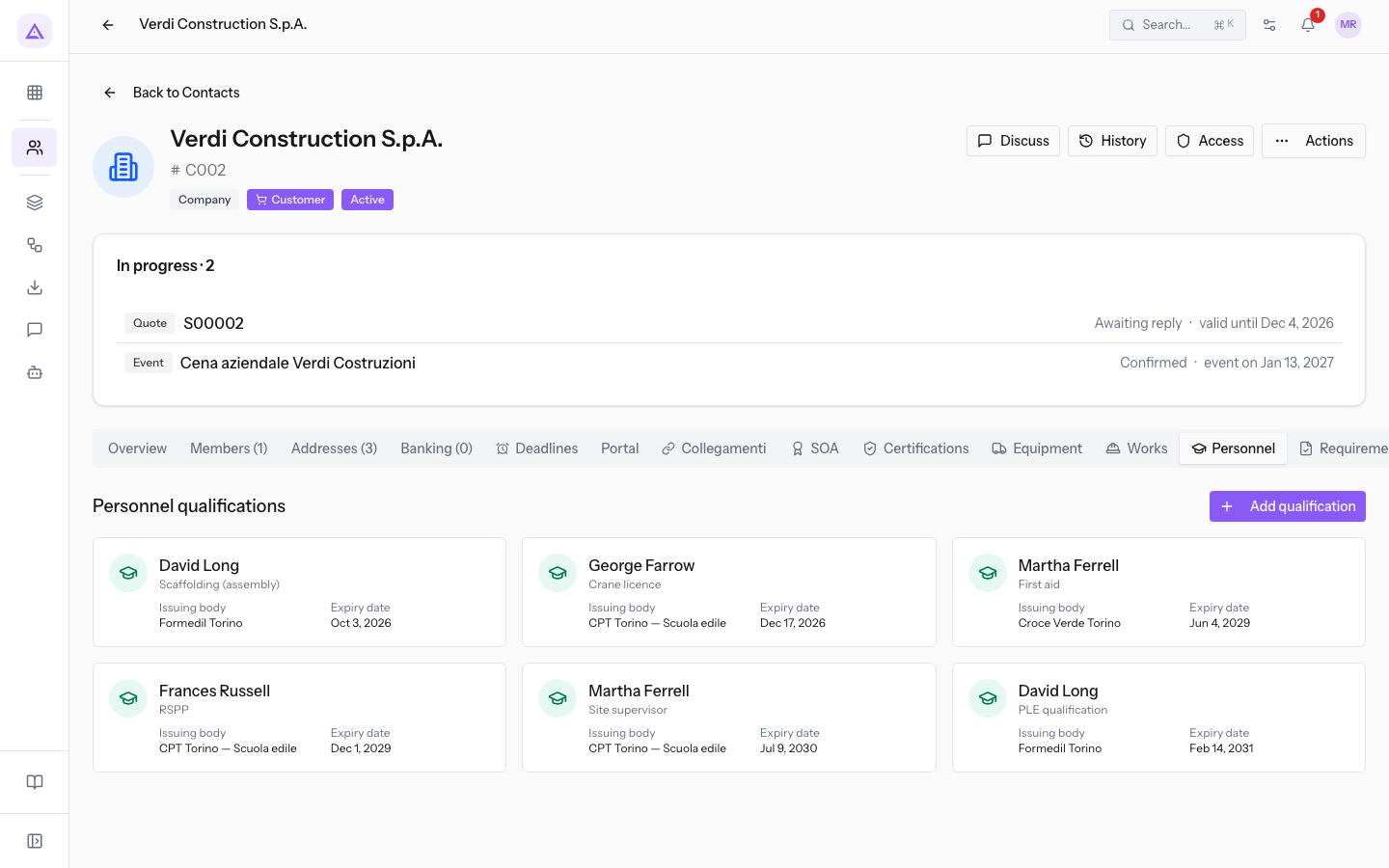
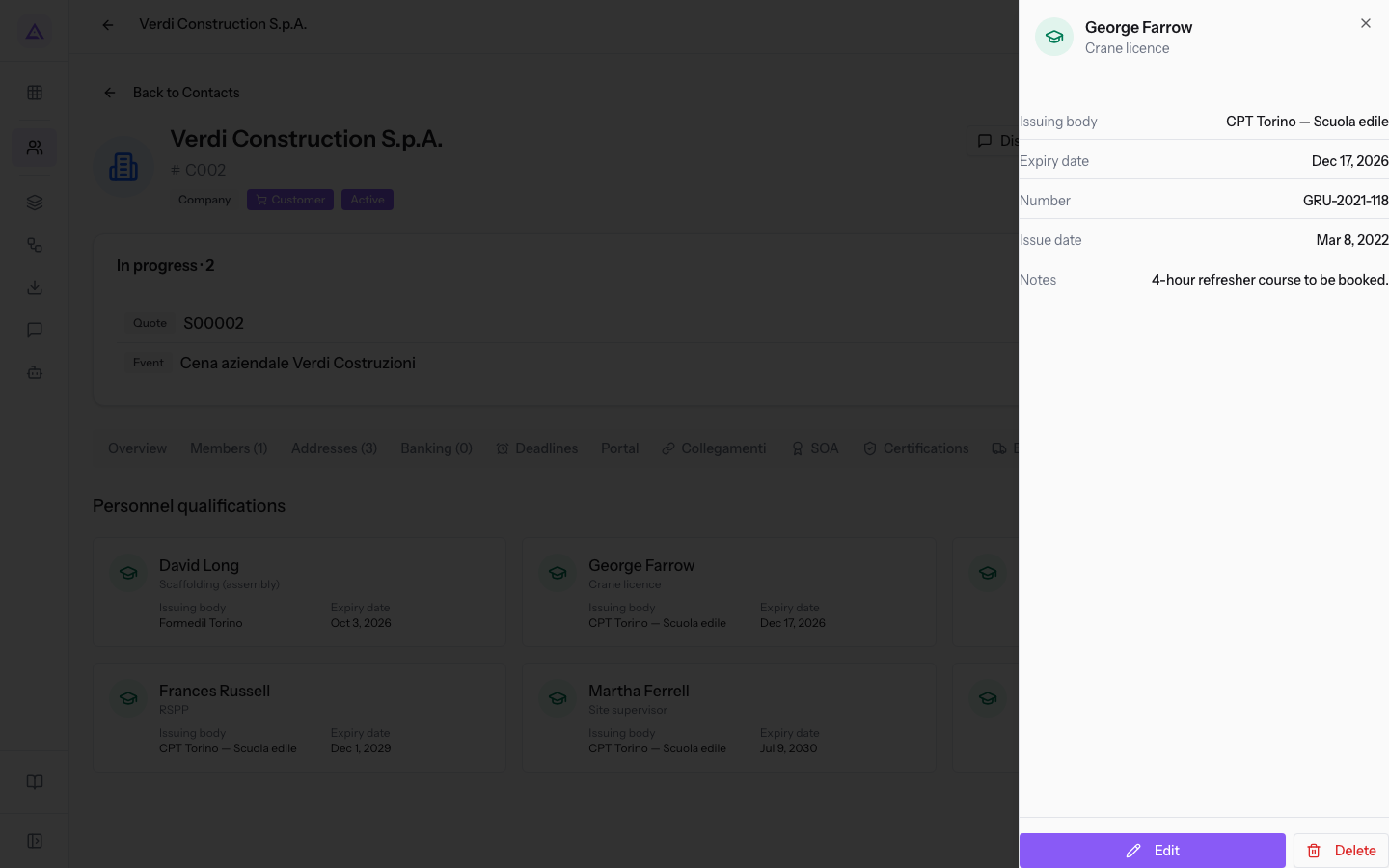
- Press a card to open the side panel. The panel repeats the card's details and adds Number, Issue date and, if filled in, Notes. It contains the Edit and Delete buttons.
Each card shows:
- Holder: the person's name, as the card title.
- Qualification type: the type, under the name.
- Issuing body: the body that issued the qualification.
- Expiry date: the qualification's expiry date.
Checking expiry dates
The cards have no status label: an expired qualification looks the same as a valid one. To check whether a qualification is still valid, compare its Expiry date with today's date.
Use the Notes field to record what the date does not say. The Scaffolding (assembly) qualification of David Long, with Expiry date Oct 3, 2026, reads Expired: may not erect scaffolding until the course is retaken.
Recording a qualification
Each qualification is recorded as its own entry on the economic operator. Before you fill in the window, choose how to identify the person: Holder is free text, and Person (contact) links the entry to an existing contact.
- If the person has a contact, type Holder and also choose Person (contact): the RSPP qualification of Frances Russell has both fields filled in.
- If the person has no contact, Holder is enough: George Farrow does not appear in the Person (contact) list, so his name is written only here.
Important: always type Holder, even when you choose Person (contact). The card shows Holder as its title, and choosing a contact does not fill this field in the window.
Note: the link to Person (contact) appears neither on the card nor in the panel. You can see it only by opening Edit.
- In the Personnel tab, press Add qualification. The Add qualification window opens.
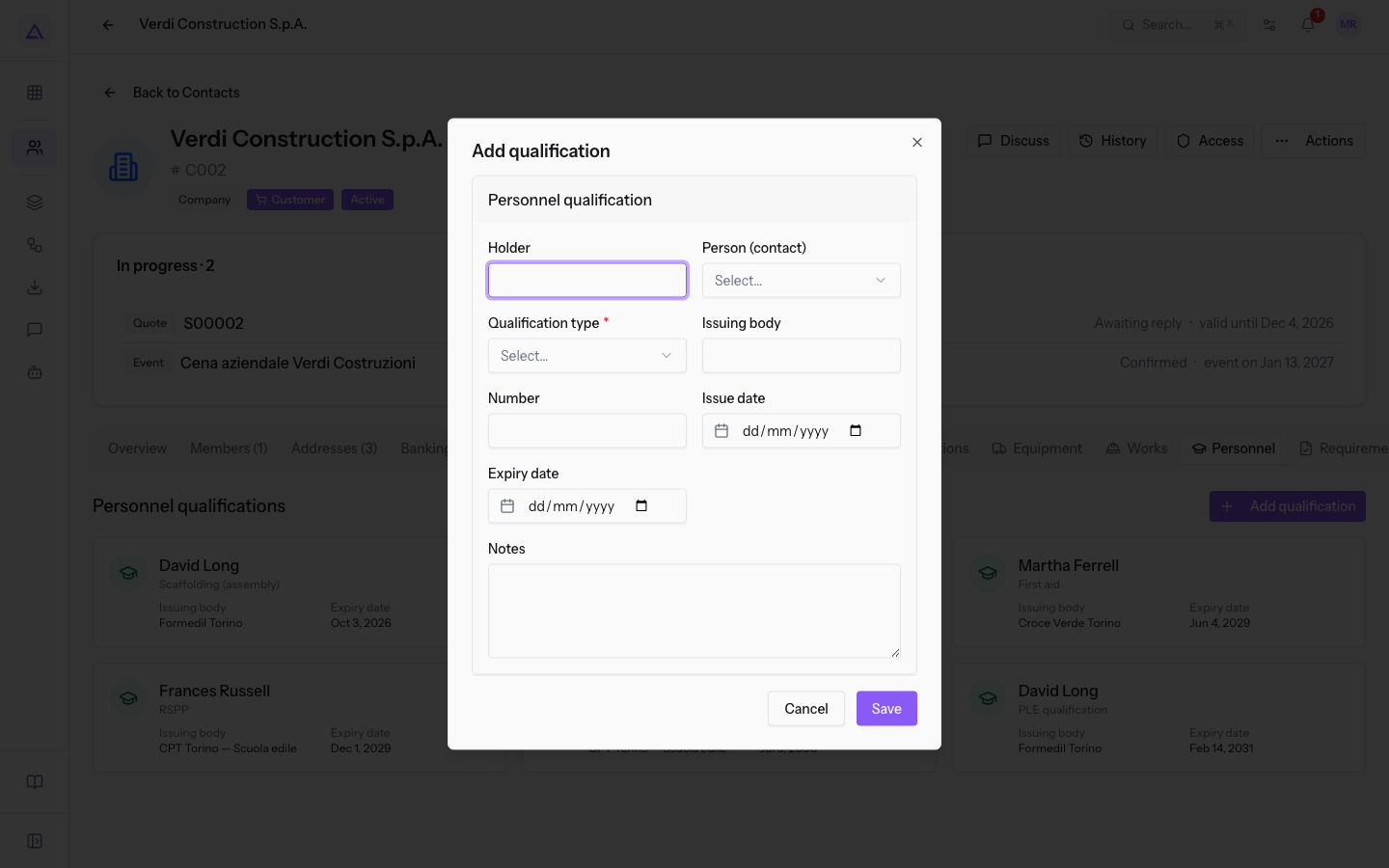
- Fill in the fields. Choosing Person (contact) and Qualification type does not change the fields in the window.
Window fields
- Holder: the person's name, as free text. It is the card title. The field is not required in the window.
- Person (contact): the contact to link the qualification to. The list also includes companies, so make sure you choose a person. The field is not required.
- Qualification type: the type of licence or qualification. The field is required: without a type, the window will not save. If the type is not in the list, choose Other.
- Crane licence
- PLE qualification
- Scaffolding (assembly)
- Forklift licence
- RSPP
- RLS
- Site supervisor
- First aid
- Fire safety
- Other
- Issuing body: the body that issued the qualification. It appears on the card.
- Number: the qualification number, such as
GRU-2021-118. It appears in the panel. - Issue date: the date the qualification was issued. It appears in the panel.
- Expiry date: the date the qualification expires. It appears on the card.
- Notes: free text. It appears in the panel only if filled in.
See it on your company, not on a slide deck.
In 30 minutes we map the software you use today.We show you how much work and how much margin Archimedes gives back.
Show me on my business →What industry are you in?
One tap — it lets us prepare the demo around your world.
What tools do you use today?
Pick the ones you recognise — or just type them. It helps us show you how they migrate.
Last step: your details.
We reply within one working day — and right after, if you like, you pick the demo slot yourself.
We couldn't send your request. Try again, or write to us at [email protected].
By sending, you agree to your data being processed so we can get back to you about the demo. Privacy notice.
Preview form — nothing is sent from this page.
Want to schedule the demo now?
Your call: book the slot you prefer yourself, or we'll call you to arrange it.
Live availability, 30 minutes, instant confirmation. The calendar opens in a new tab.
Lock in your slot ↗We'll get back to you within one working day — and we'll join the call already knowing your world.
The calendar is open in another tab: pick a slot and the demo is booked. Can't see it? Reopen it ↗
Preview page: nothing was sent.
Our calendar is live: take the slot that suits you and the demo is booked. 30 minutes, instant confirmation, no waiting.
Lock in your slot ↗