Construction - Qualification and Tenders
All modules
View and download generated documents
Construction - Qualification and Tenders · 13 of 13 · 3 min read
The Generated documents section of the Tender documents page lists the documents produced from the economic operators' files. From here you check the status of each document and download the PDFs of those that are ready.
View generated documents
The list brings together the documents of all economic operators in a single list.
Before you start: the Construction Tenders module must be active for the organization. The documents only concern contacts activated as economic operators: see Activate a company as an economic operator and fill in its details.
- Open Construction Tenders. The Tender documents page shows the list under the heading Generated documents.
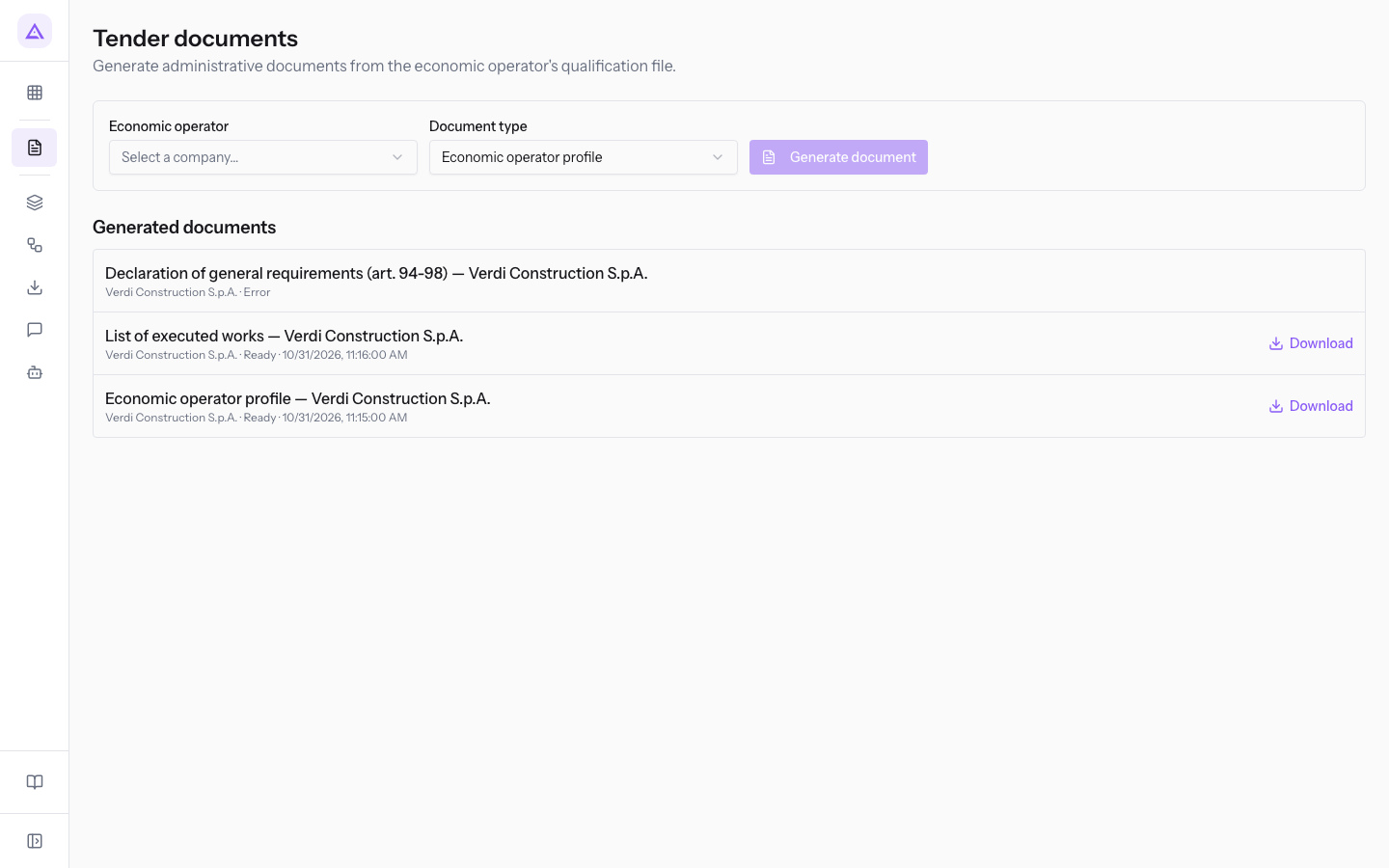
Each row of the list shows this data:
- Title: the document type followed by the company name, such as
Economic operator profile — Verdi Construction S.p.A.. - Company: the name of the economic operator the document belongs to.
- Status: the stage the document is in.
- Processing: the document is being prepared. While a document is in this status, the list updates by itself.
- Ready: the document is available and the row shows the Download link.
- Error: the generation failed and the row does not show the Download link.
- Generation date and time: they appear after the status, when the document has one.
Instead of the list, the section may show one of these messages:
- Loading…: the list is loading.
- No documents generated.: the organization does not have any documents yet.
Note: the list shows the most recent documents first and reports at most 20 of them. The page has no controls to see the earlier ones.
Important: documents cannot be deleted from this page, not even those in Error status. A generated document cannot be changed from the application.
Download a document
The Download link appears only on documents in Ready status.
- In Generated documents, find the document in Ready status, such as
List of executed works — Verdi Construction S.p.A.. - Press Download. The PDF is saved to your computer. The PDF and its file name are in Italian, because the documents are Italian legal texts.
Regenerate a document in error
A document in Error status cannot be downloaded and cannot be resumed from its row: it must be generated again with the same document type.
- In Economic operator choose the company of the document in error. Generate document stays disabled until you choose the company.
- In Document type choose the same type as the document in error. For
Declaration of general requirements (art. 94-98) — Verdi Construction S.p.A.the type isDeclaration of general requirements (art. 94-98). - Press Generate document. The message Generation started — the document will appear in the list in a few moments appears.
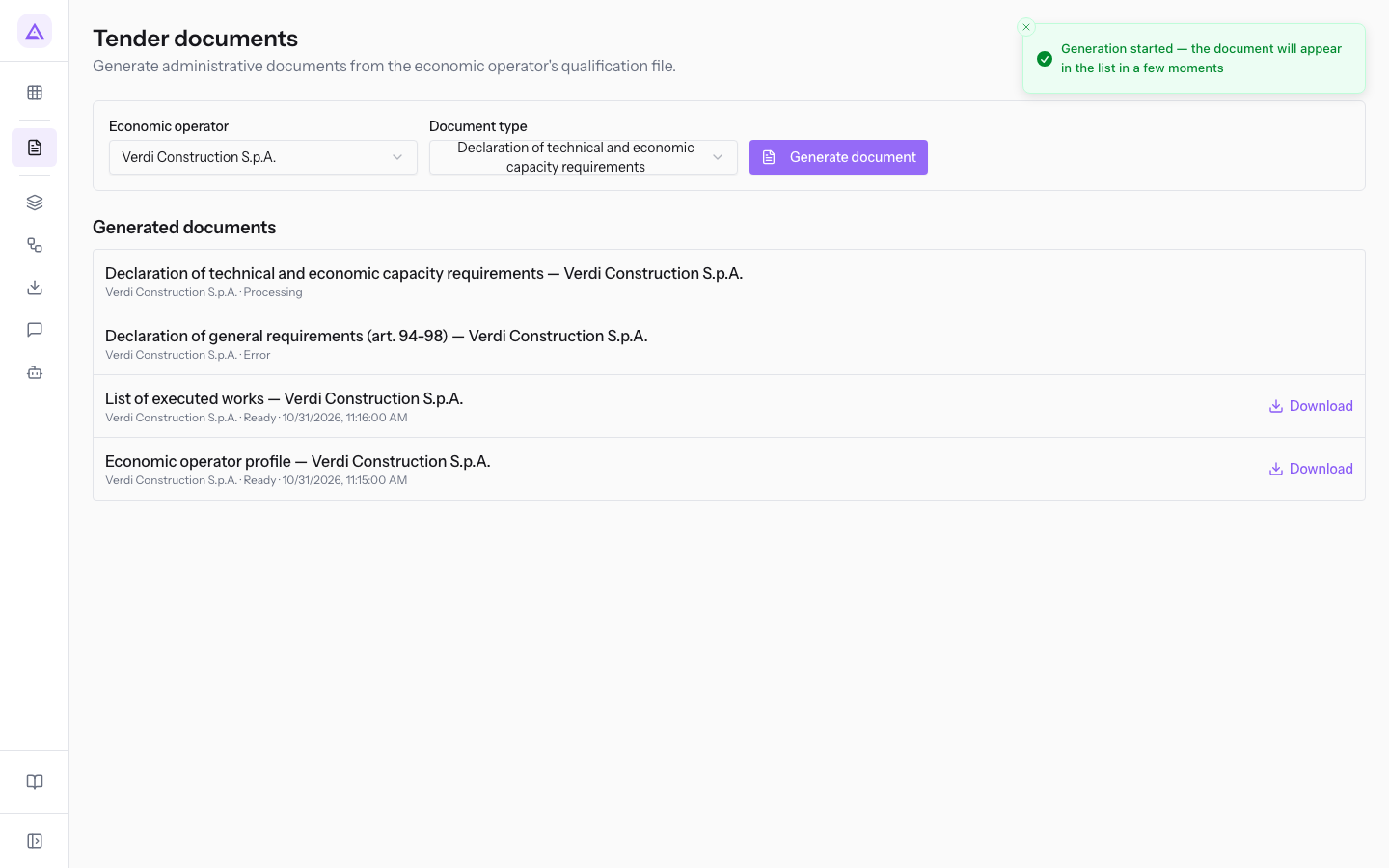
The document appears in Generated documents in Processing status; when it finishes, the list shows its final status, Ready or Error.
See it on your company, not on a slide deck.
In 30 minutes we map the software you use today.We show you how much work and how much margin Archimedes gives back.
Show me on my business →What industry are you in?
One tap — it lets us prepare the demo around your world.
What tools do you use today?
Pick the ones you recognise — or just type them. It helps us show you how they migrate.
Last step: your details.
We reply within one working day — and right after, if you like, you pick the demo slot yourself.
We couldn't send your request. Try again, or write to us at [email protected].
By sending, you agree to your data being processed so we can get back to you about the demo. Privacy notice.
Preview form — nothing is sent from this page.
Want to schedule the demo now?
Your call: book the slot you prefer yourself, or we'll call you to arrange it.
Live availability, 30 minutes, instant confirmation. The calendar opens in a new tab.
Lock in your slot ↗We'll get back to you within one working day — and we'll join the call already knowing your world.
The calendar is open in another tab: pick a slot and the demo is booked. Can't see it? Reopen it ↗
Preview page: nothing was sent.
Our calendar is live: take the slot that suits you and the demo is booked. 30 minutes, instant confirmation, no waiting.
Lock in your slot ↗