Construction - Qualification and Tenders
All modules
Recording completed works and execution certificates (CEL)
Construction - Qualification and Tenders · 8 of 13 · 6 min read
The Works tab collects the works executed by an economic operator, as part of its file. It lets you record for each work the contracting authority, amounts, the company's role and the execution certificate (CEL) data.
Viewing works executed
The Works tab shows the title Works executed, the Add work button and a card for each work. If the operator has no works, the message No works recorded appears.
Before you start: the Works tab appears only on contacts activated as an economic operator. To create and edit works you need the
Tender Usergroup; to delete them, theTender Managergroup.
- Open Contacts and press the row of Verdi Construction S.p.A.
- Open the Works tab.
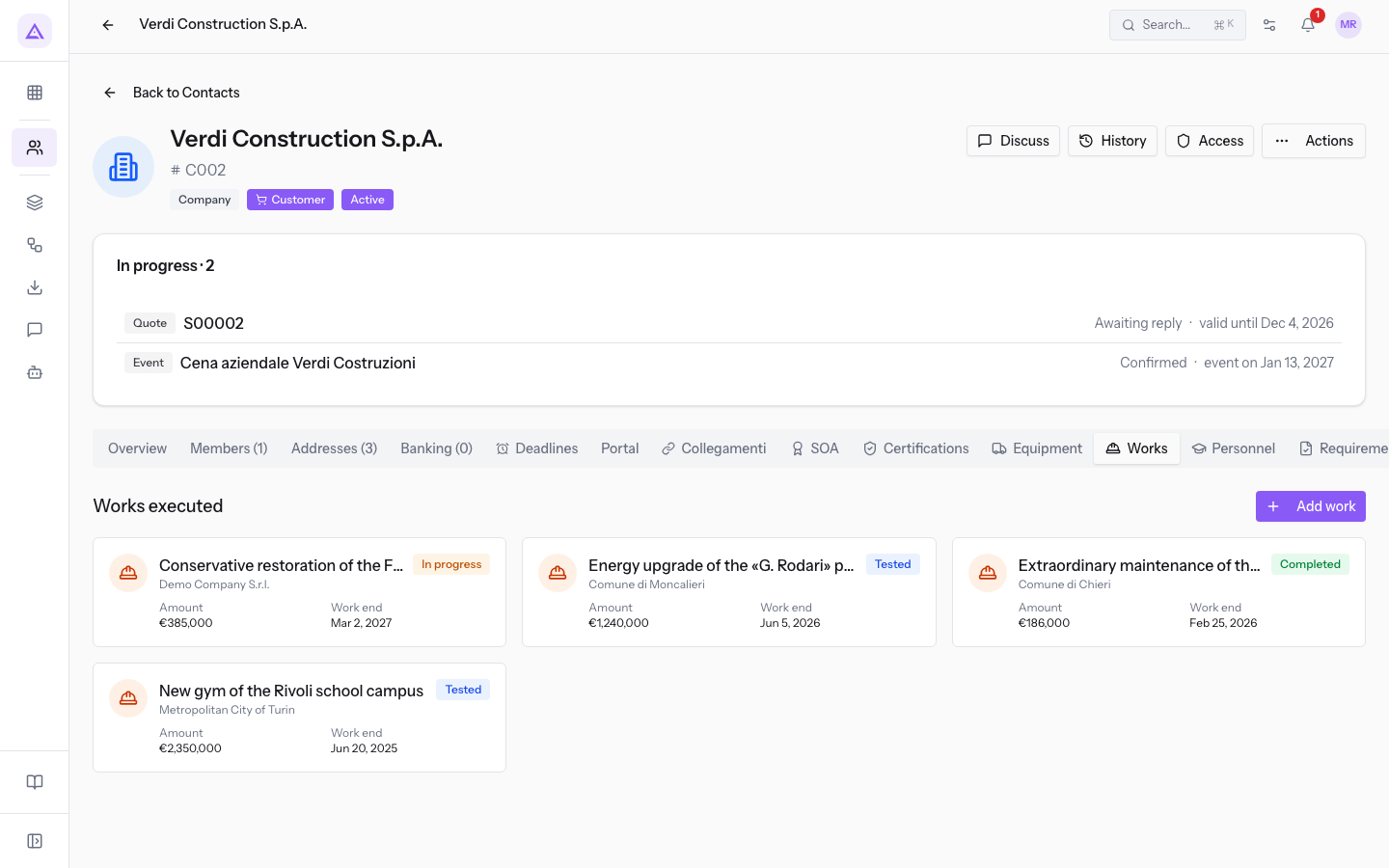
Each card shows this data:
- Subject of the work: the card title, such as
Conservative restoration of the Barn. - Contracting authority: the name under the title, such as
Demo Company S.r.l.. - Status: the label In progress, Completed or Tested.
- Amount: the amount of the work, such as
€385,000. - Work end: the end date of the work.
Opening a work's details
The side panel shows the card data and the other work data. From here you correct or delete the entry.
- Press the work card.
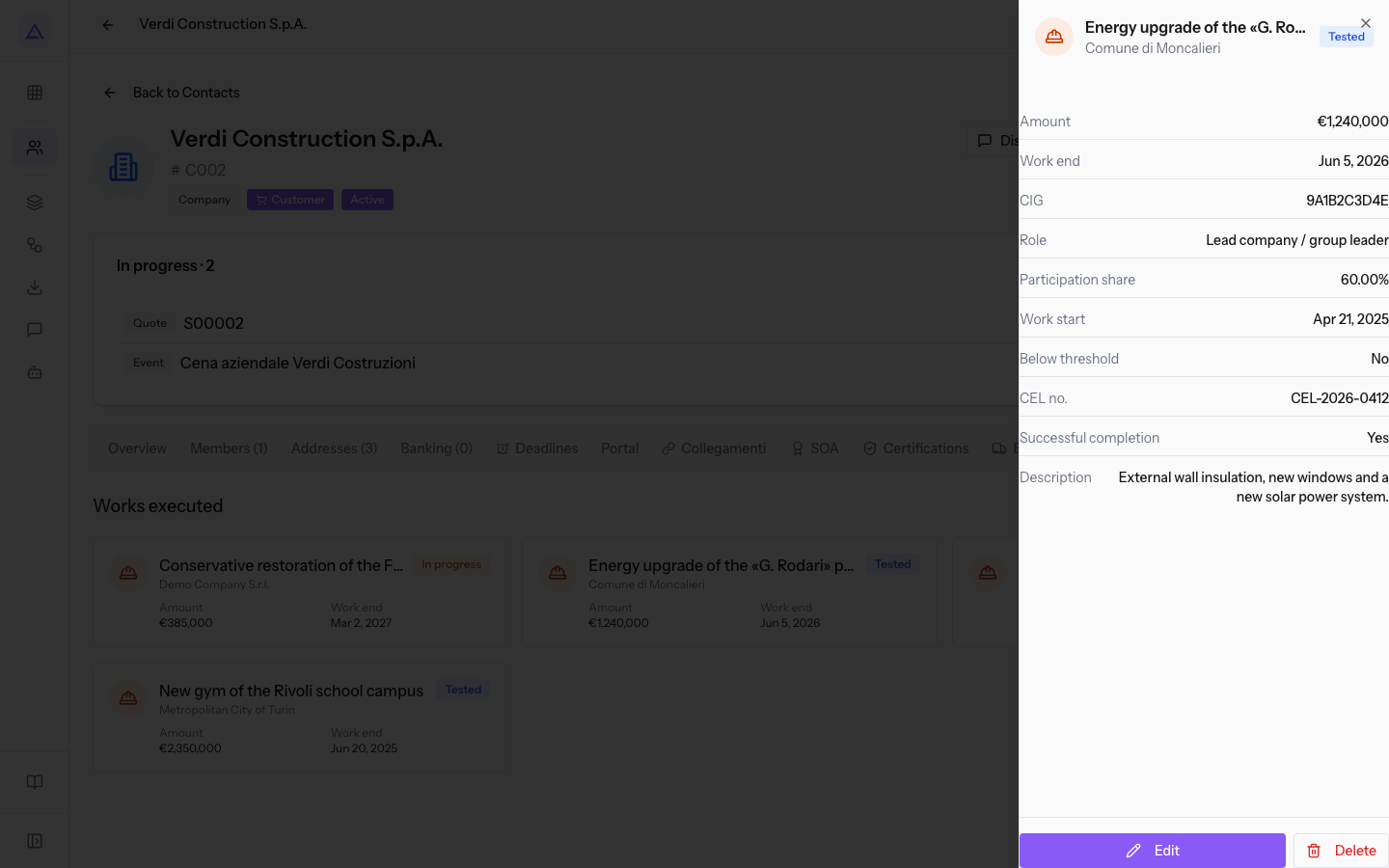
Besides the card data, the panel shows:
- CIG: the CIG of the work.
- Role: the company's role in the work.
- Participation share: the company's share as a percentage.
- Work start: the start date of the work.
- Below threshold: Yes or No.
- CEL no.: the number of the execution certificate.
- Successful completion: Yes or No.
- Description: the descriptive text of the work.
Fields with no value do not appear: the work Conservative restoration of the Barn does not show CIG, Participation share and CEL no..
Note: CUP, CEL date, Group partners and Notes do not appear in the panel. You find them in the window that opens with Edit, except CEL date, which there appears empty like the other dates.
The Edit button opens the Edit window, with the same fields as Add work and the saved data; dates must be entered again. The Delete button removes the entry and is reserved to the Tender Manager group.
Adding a work
Record a work when you want to add it to the operator's file, even if it is still in progress. The only required field is Subject of the work: you can fill in the others later.
Before filling in the window, choose how to indicate the contracting authority:
- If the contracting authority is already among the contacts, choose the contact in Contracting authority.
- If it is a public body that is not among the contacts, write the name in Contracting authority (text), such as
Comune di Moncalieri.
Note: choosing a contact does not fill in Contracting authority (text). If you fill in both fields, the card shows the text.
- In the Works tab press Add work. The Add work window opens.
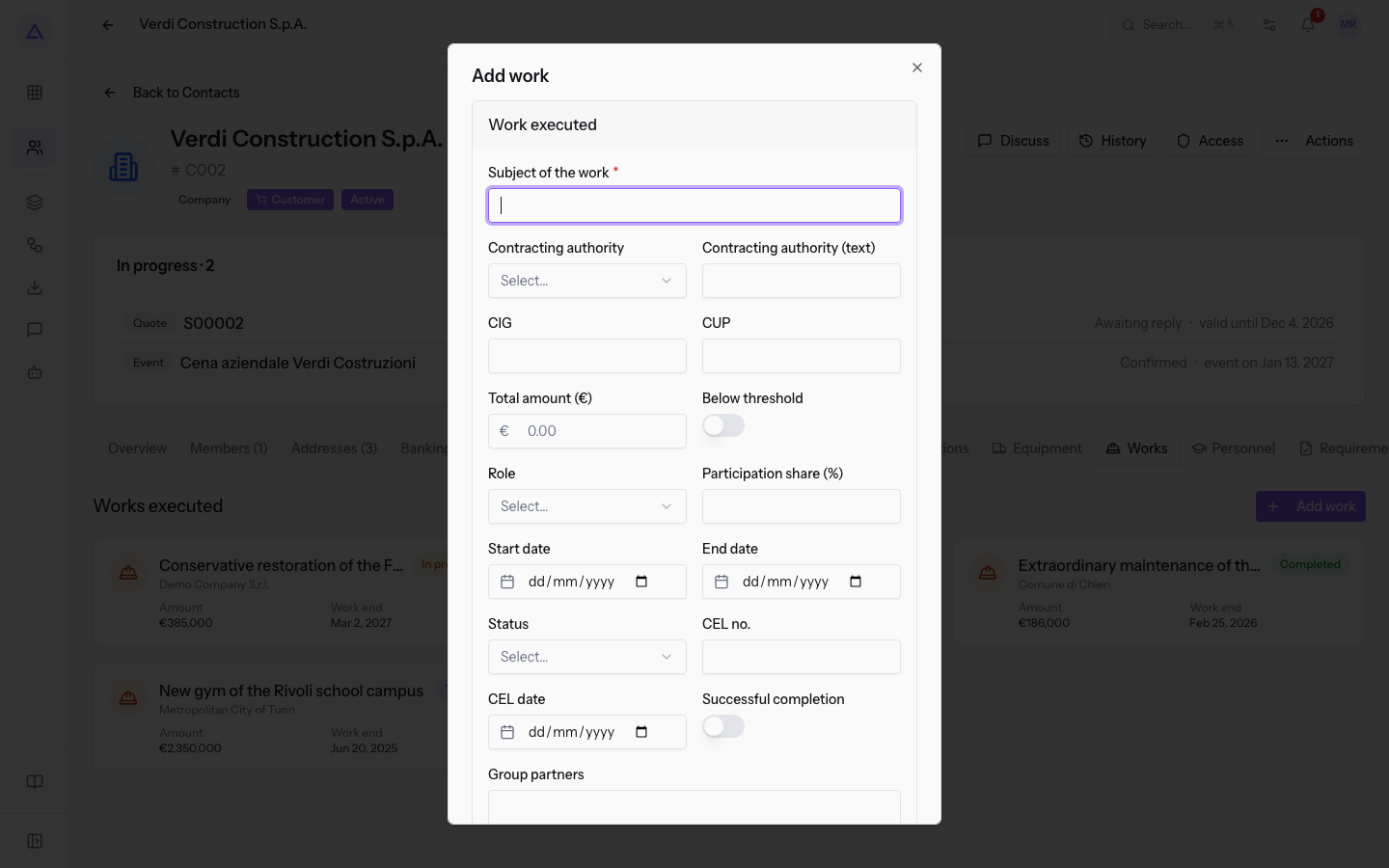
- Fill in the fields. The options of Role and Status do not add or remove fields from the window.
The window fields are:
- Subject of the work: the title of the work, shown on the card. The field is required.
- Contracting authority: the contact for which the work was performed. The list contains the organization's contacts.
- Contracting authority (text): the name of the contracting authority written by hand.
- CIG: the CIG of the work. It appears in the panel.
- CUP: the CUP of the work. It remains visible only in the window.
- Total amount (€): the amount of the work, shown as Amount on the card.
- Below threshold: switch to turn on for works below the threshold. It is off by default.
- Role: the company's role in the work.
- Sole contractor: the company performed the work alone.
- Lead company / group leader: the company led a group.
- Group member: the company took part in a group led by another lead company.
- Participation share (%): the company's share in the work. The field stays visible with every Role.
- Start date: the start date, shown as Work start in the panel.
- End date: the end date, shown as Work end on the card.
- Status: the status of the work, shown as a label on the card.
- In progress: the works are underway.
- Completed: the works are finished.
- Tested: the works have been tested.
- CEL no.: the number of the execution certificate.
- CEL date: the date of the execution certificate.
- Successful completion: switch showing the successful outcome of the work. Choosing the Status does not turn it on.
- Group partners: the other companies in the group, as free text.
- Description: the text shown in the panel.
- Notes: notes visible only in the window.
Note: the work has no field for the construction site. The company's sites are recorded separately: see Register the company's offices, depots and sites.
Recording the execution certificate (CEL)
The CEL is entered by hand: the app does not download it from the ANAC portal. Copy the data from the certificate into the work already recorded.
- Press the work card and, in the side panel, press Edit. The Edit window opens with the saved data; dates must be entered again.
- Write CEL no., such as
CEL-2026-0412forEnergy upgrade of the «G. Rodari» primary school. - Fill in CEL date.
- Turn on Successful completion if the certificate attests it.
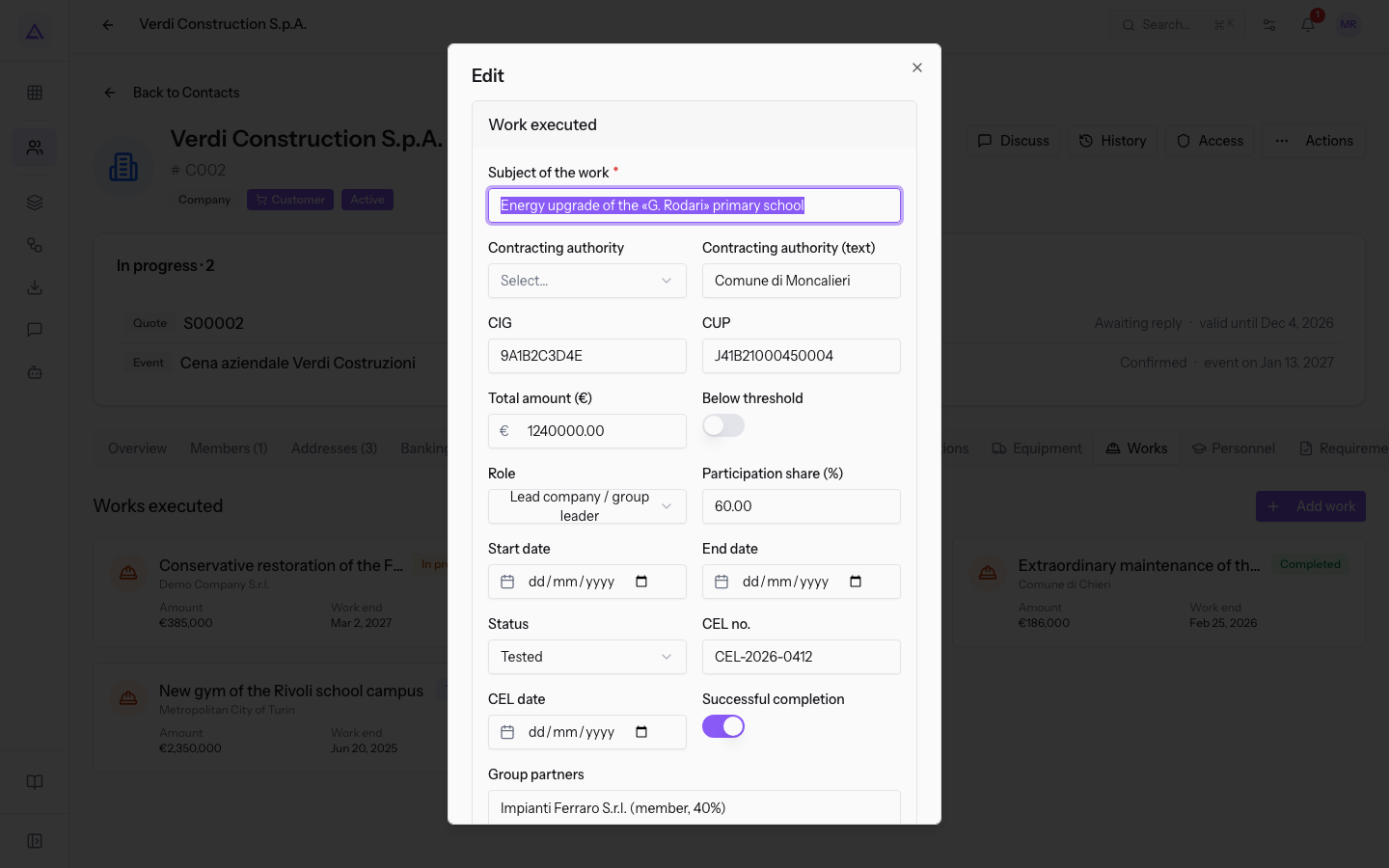
Note: the CEL fields are available with every Status. The app does not check that the work is Completed or Tested.
Recording a work in a group
When the company performed the work together with others, record its role, its share and the partner companies. The Group partners field is free text: the partner companies do not need to be contacts.
- In Role choose the company's role in the work.
- In Participation share (%) write the company's share.
- In Group partners write the name, role and share of each partner.
The two cases are filled in like this:
- If the company is the lead company, choose Lead company / group leader: for the «G. Rodari» primary school the share is
60.00and the partner isImpianti Ferraro S.r.l. (member, 40%). - If the company is a group member, choose Group member: for the Rivoli gym the share is
35.00and the partner isEdil Piemonte S.p.A. (lead, 65%).
See it on your company, not on a slide deck.
In 30 minutes we map the software you use today.We show you how much work and how much margin Archimedes gives back.
Show me on my business →What industry are you in?
One tap — it lets us prepare the demo around your world.
What tools do you use today?
Pick the ones you recognise — or just type them. It helps us show you how they migrate.
Last step: your details.
We reply within one working day — and right after, if you like, you pick the demo slot yourself.
We couldn't send your request. Try again, or write to us at [email protected].
By sending, you agree to your data being processed so we can get back to you about the demo. Privacy notice.
Preview form — nothing is sent from this page.
Want to schedule the demo now?
Your call: book the slot you prefer yourself, or we'll call you to arrange it.
Live availability, 30 minutes, instant confirmation. The calendar opens in a new tab.
Lock in your slot ↗We'll get back to you within one working day — and we'll join the call already knowing your world.
The calendar is open in another tab: pick a slot and the demo is booked. Can't see it? Reopen it ↗
Preview page: nothing was sent.
Our calendar is live: take the slot that suits you and the demo is booked. 30 minutes, instant confirmation, no waiting.
Lock in your slot ↗