Construction - Qualification and Tenders
All modules
Record SOA attestations and check their expiry dates
Construction - Qualification and Tenders · 5 of 13 · 4 min read
The SOA tab of the contact keeps the SOA attestations of an economic operator. From here you record each attestation, update its status and check its expiry dates.
Viewing SOA attestations
The SOA tab shows the title SOA attestations, the Add attestation button and one card for each attestation. If the operator has no attestations, the message No SOA attestations recorded appears.
Before you start: the SOA tab appears only on contacts enabled as economic operators. To create and edit attestations you need the
Tender Usergroup. To delete them you need theTender Managergroup.
- In Contacts, press the row of Verdi Construction S.p.A.
- Open the SOA tab. The cards are sorted by Expiry date: the farthest date is at the bottom.
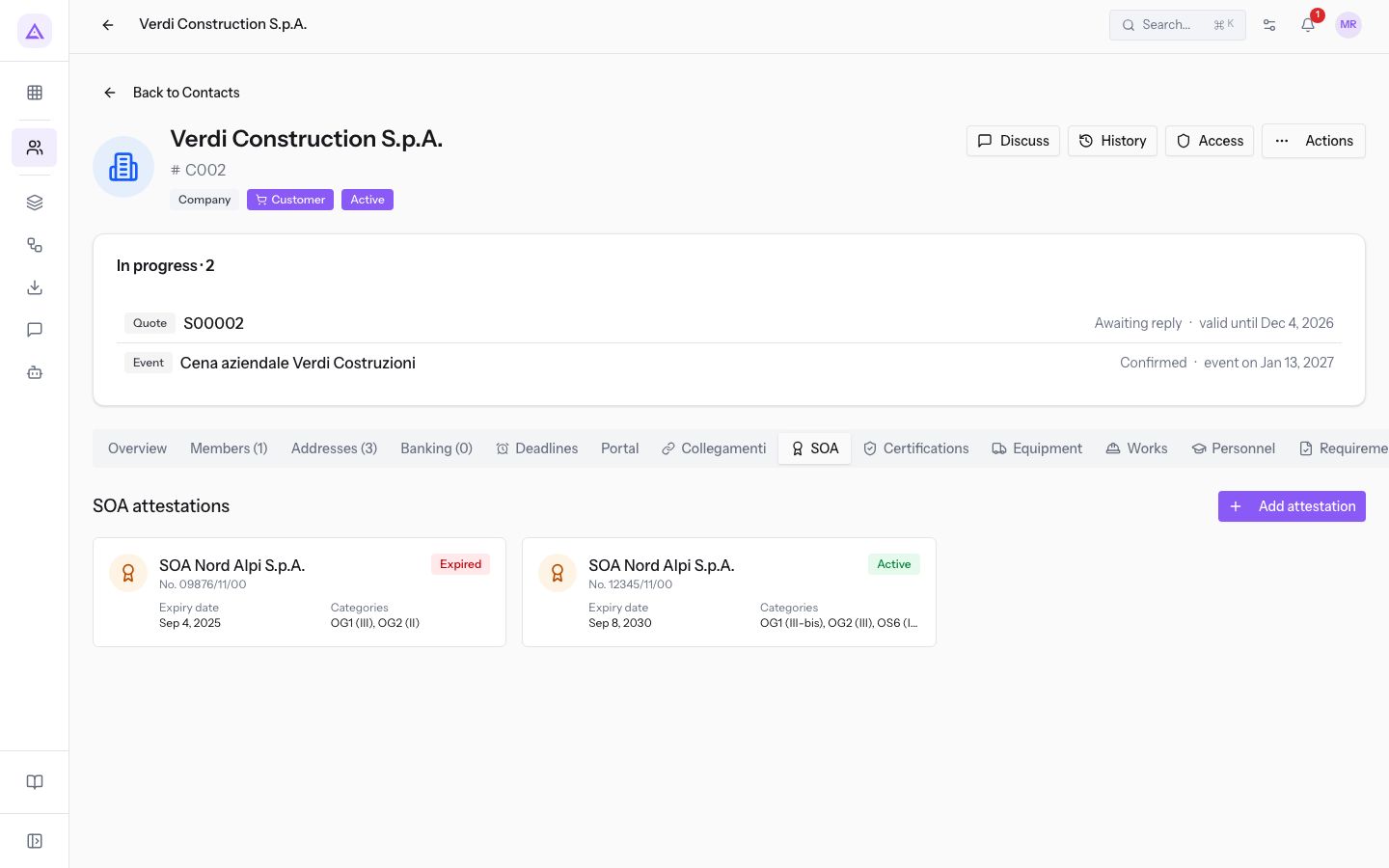
Each card shows this data:
- Issuing body: the name of the SOA body, such as
SOA Nord Alpi S.p.A. - Number: the attestation number, preceded by No., such as No.
12345/11/00. - Status: the label Active, Expired or Suspended.
- Expiry date: the date entered in Validity expiry.
- Categories: the code and the class of each category, such as OG1 (III-bis), OG2 (III), OS6 (II), OS30 (I).
Press a card to open the side panel. The panel repeats the card data and adds:
- Issue date: the date the attestation was issued.
- Three-year expiry: the expiry date of the three-year review.
- ISO 9001 held: Yes or No.
- Notes: the free text of the attestation.
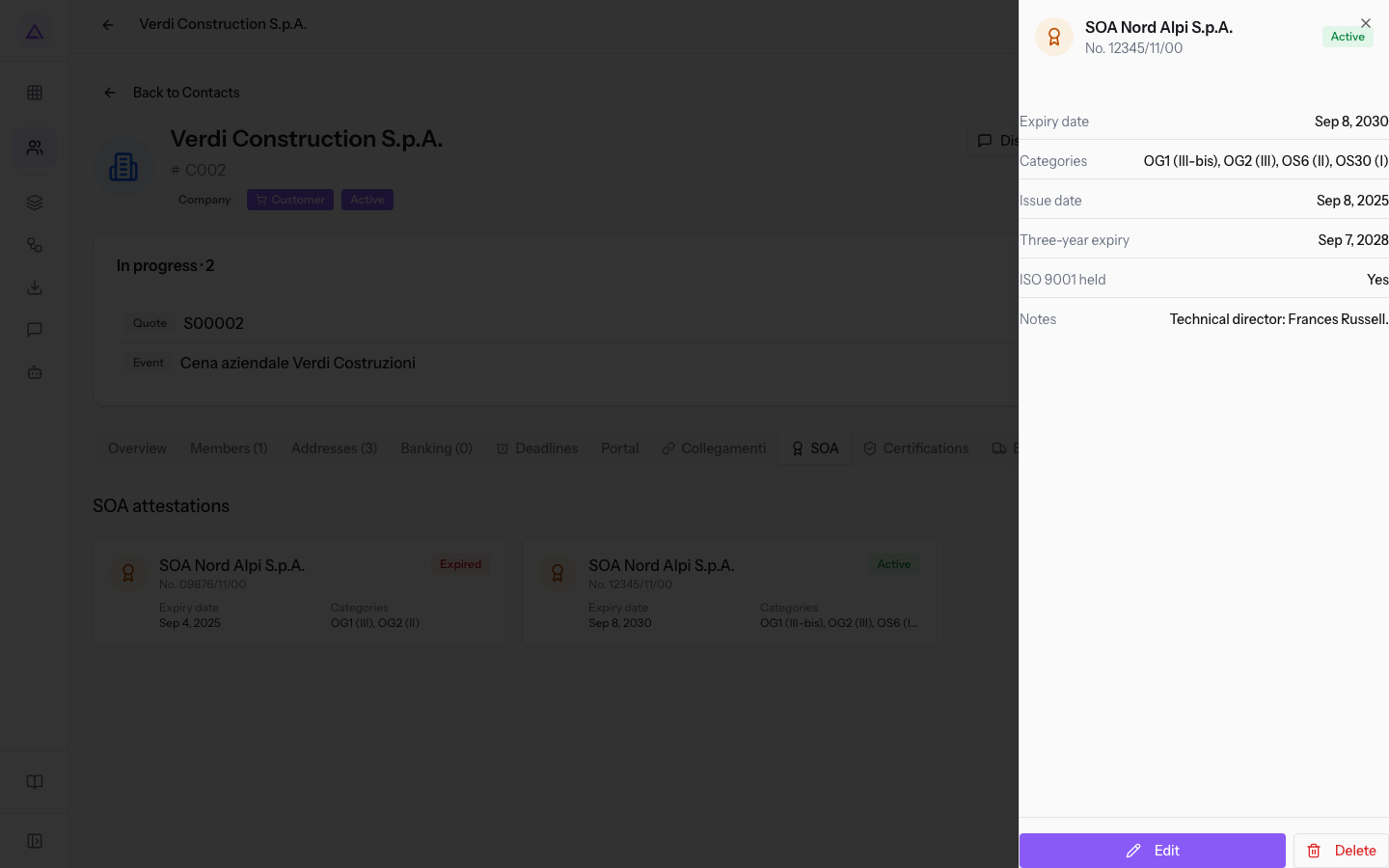
The Edit and Delete buttons in the panel are used to correct or delete the attestation.
Note: the categories and classes are read on the card, but the Add attestation window has no fields to enter them.
Validity and three-year review
An SOA attestation has a five-year validity and a three-year review. For this reason the attestation has two expiry dates to follow: Validity expiry for the five years and Three-year expiry for the review.
The attestation 12345/11/00 was issued on Sep 8, 2025, has Three-year expiry on Sep 7, 2028 and Expiry date on Sep 8, 2030.
Adding an attestation
Record an attestation for every document issued to the company, including every renewal.
- In the SOA tab, press Add attestation.
- Fill in the fields of the window. Only SOA body is required.
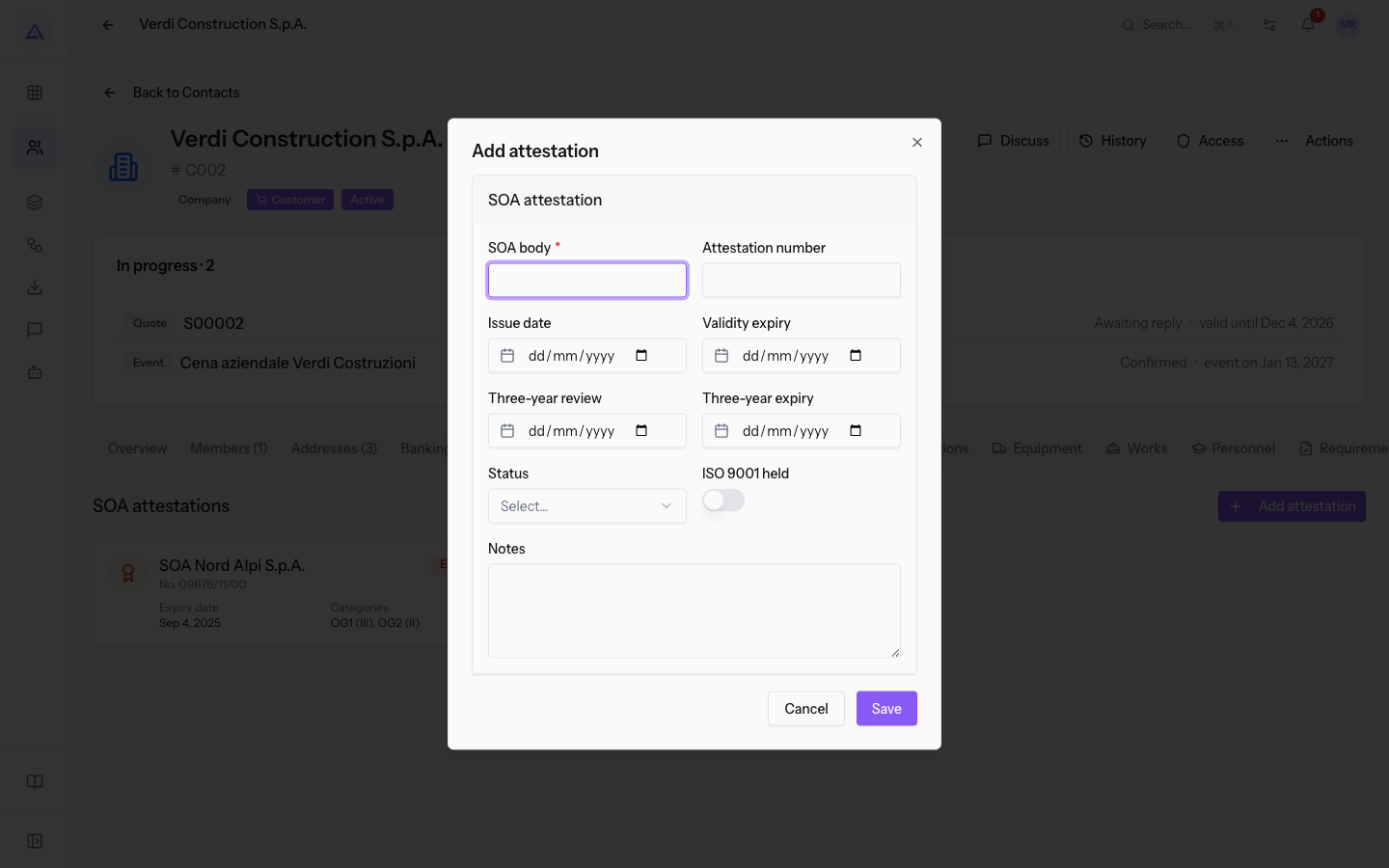
Window fields:
- SOA body: the name of the body that issued the attestation. The field is required and the window will not save without it. It appears as the card title.
- Attestation number: the number shown on the attestation.
- Issue date: the issue date. It appears in the side panel.
- Validity expiry: the end of the five years of validity. It appears on the card as Expiry date.
- Three-year review: the date of the three-year review. It does not appear on the card or in the side panel.
- Three-year expiry: the expiry date of the three-year review. It appears in the side panel.
- Status: the situation of the attestation, shown as a label on the card. The field is not required.
- Active: the attestation is currently valid.
- Expired: the attestation has passed its expiry or has been replaced.
- Suspended: the attestation is suspended.
- ISO 9001 held: turn the switch on if the company holds ISO 9001 certification. The value counts for qualification from class III upward.
- Notes: free text. The window has no field for the technical director: write it here, such as
Technical director: Frances Russell.
Updating an expired attestation
When an attestation expires, you update the Status field yourself: the app does not change it on its own. Until you update it, the card keeps showing the previous status, even when the Expiry date has passed.
Do not delete the expired attestation: by changing its Status, the file keeps the history.
- In the SOA tab, press the attestation card.
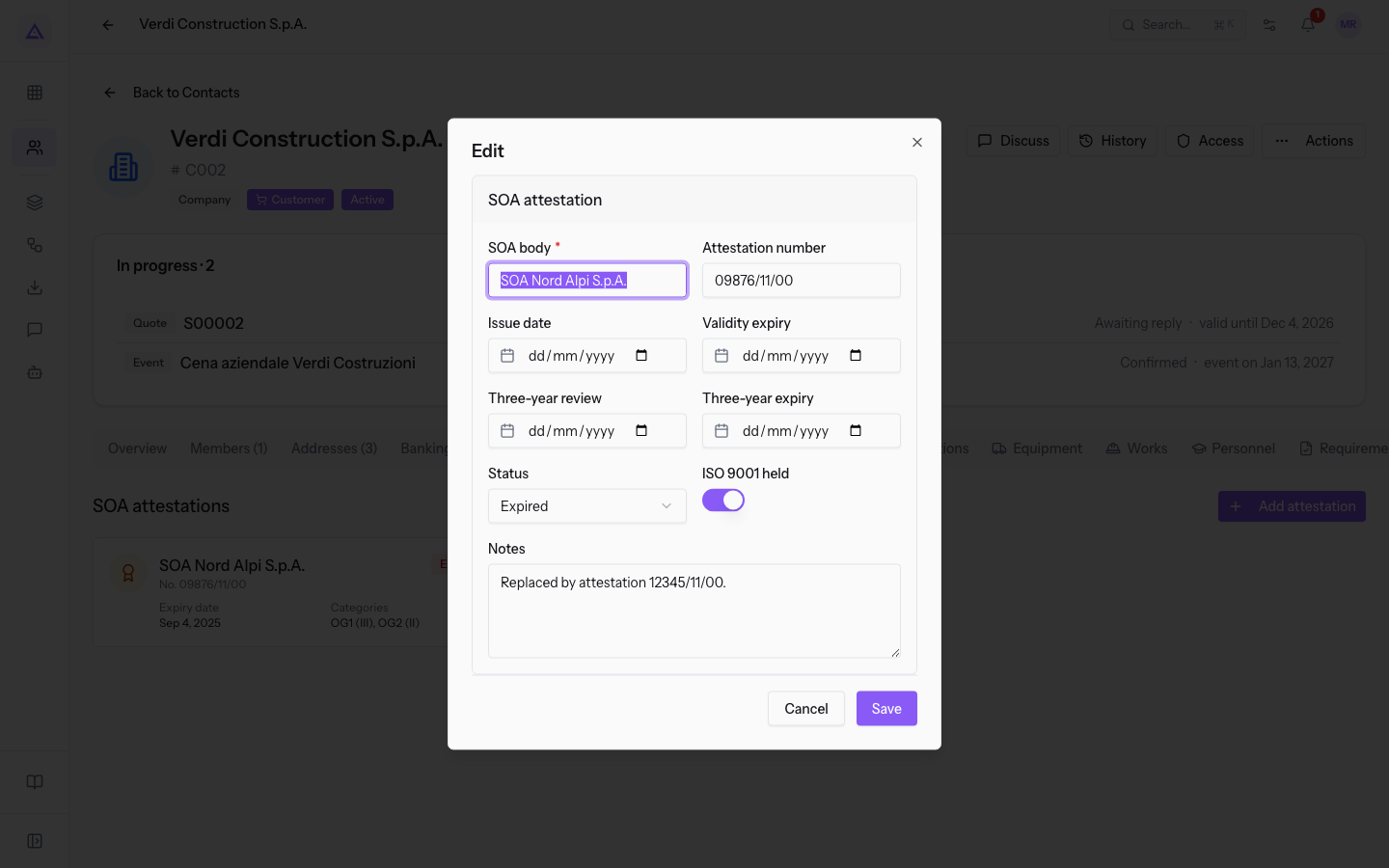
- In the side panel, press Edit. The Edit window opens with the saved data; the dates must be entered again.
- In Status, choose Expired.
- If the attestation has been renewed, write in Notes the one that replaces it, such as
Replaced by attestation 12345/11/00. - Record the new attestation with Add attestation and Status Active.
Checking expiry dates
Checking expiry dates is manual. The app does not create reminders for attestations, and their dates do not appear in the contact's Deadlines tab.
- In the SOA tab, read the Expiry date on each card.
- Press the card and read Three-year expiry in the side panel.
Important: the Active label does not mean the attestation is still valid, because Status is a value entered by hand. Always check the dates.
See it on your company, not on a slide deck.
In 30 minutes we map the software you use today.We show you how much work and how much margin Archimedes gives back.
Show me on my business →What industry are you in?
One tap — it lets us prepare the demo around your world.
What tools do you use today?
Pick the ones you recognise — or just type them. It helps us show you how they migrate.
Last step: your details.
We reply within one working day — and right after, if you like, you pick the demo slot yourself.
We couldn't send your request. Try again, or write to us at [email protected].
By sending, you agree to your data being processed so we can get back to you about the demo. Privacy notice.
Preview form — nothing is sent from this page.
Want to schedule the demo now?
Your call: book the slot you prefer yourself, or we'll call you to arrange it.
Live availability, 30 minutes, instant confirmation. The calendar opens in a new tab.
Lock in your slot ↗We'll get back to you within one working day — and we'll join the call already knowing your world.
The calendar is open in another tab: pick a slot and the demo is booked. Can't see it? Reopen it ↗
Preview page: nothing was sent.
Our calendar is live: take the slot that suits you and the demo is booked. 30 minutes, instant confirmation, no waiting.
Lock in your slot ↗