Construction - Qualification and Tenders
All modules
Generate a tender document from the file
Construction - Qualification and Tenders · 12 of 13 · 5 min read
The Tender documents page generates administrative documents for an economic operator from its file. Each document is a PDF filled with the data in the file at the moment it is generated. The PDFs are Italian legal texts, so they stay in Italian even when the app is in English.
The Tender documents page
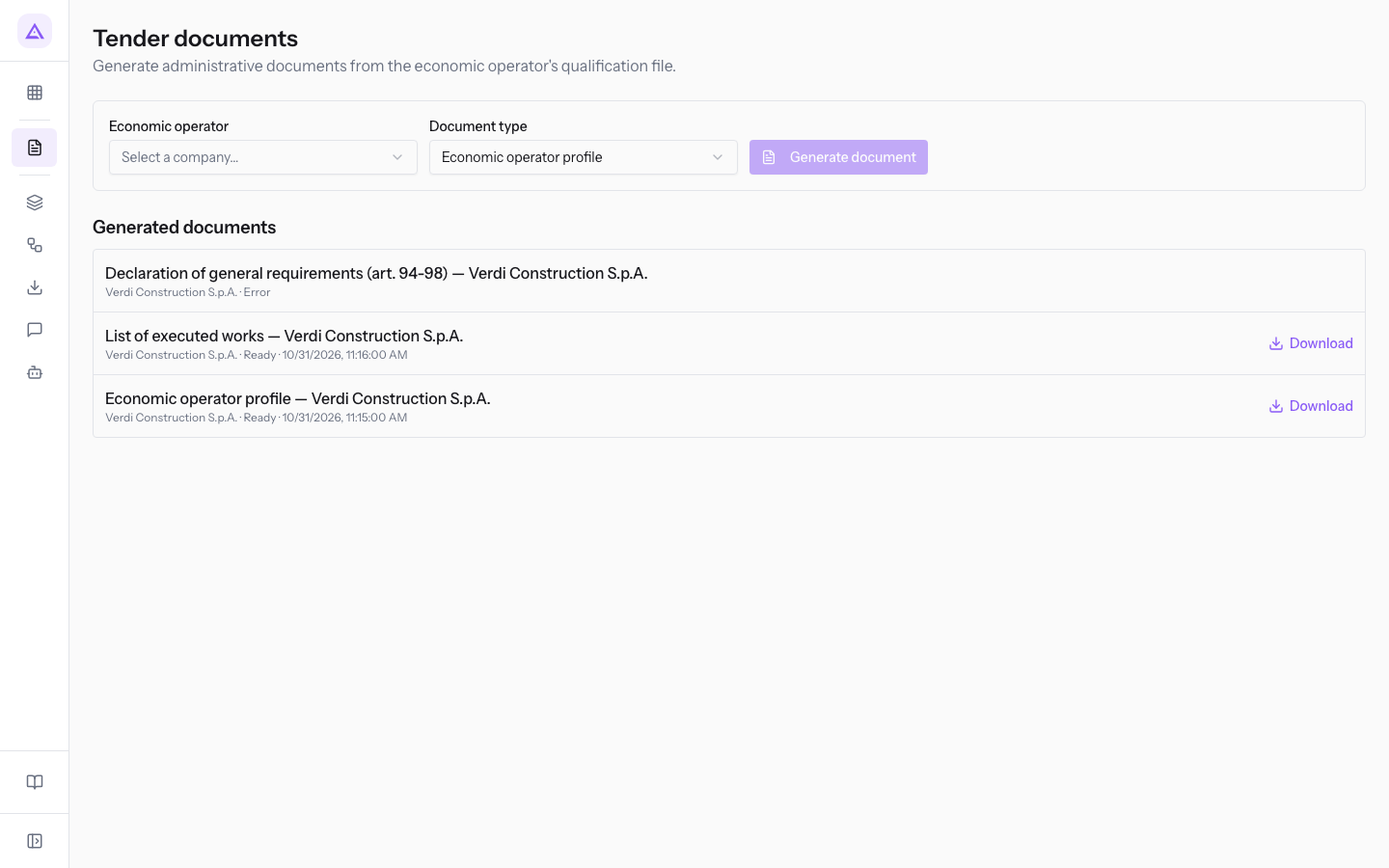
The page opens from the Construction Tenders menu entry. At the top is the generation panel, with the fields Economic operator and Document type and the Generate document button. Below, the Generated documents section lists the documents already created.
The file is completed on the contact page: this page uses the data, it does not change it. To find out where each piece of data is, read Understanding the economic operator's qualification file.
Choosing the document type
The four types use the same file data, but for different purposes.
- If you need a complete summary of the company, choose Economic operator profile.
- If you need to declare the absence of grounds for exclusion, choose Declaration of general requirements (art. 94-98).
- If you need to summarise qualification, works and equipment, choose Declaration of technical and economic capacity requirements.
- If you only need the works with amounts, periods and CEL, choose List of executed works.
Each type contains these parts:
- Economic operator profile: summarises the file in the sections Anagrafica impresa, Attestazioni SOA, Certificazioni, Lavori eseguiti, Parco mezzi, Abilitazioni del personale and Requisiti generali, the Italian headings of the PDF.
- Declaration of general requirements (art. 94-98): is a substitute declaration made by the legal representative, referring to arts. 94-98 of D.Lgs. 36/2023. From the file it takes the name, legal form, tax code, VAT number, REA, ATECO code, CCNL and Cassa Edile code, as well as the validity dates of anti-mafia, tax regularity and DURC. The declarant's details, registered office, place, date and signature must still be completed on the document. Data missing from the file also remains as empty rows.
- Declaration of technical and economic capacity requirements: reports the SOA categories and classifications with amount and expiry date, the management system certifications, similar works executed with the total of their amounts, and the Dotazione section. This section shows only how many items of equipment and qualifications there are, without listing them.
- List of executed works: lists the works from the most recent by end date, with role, contracting authority, CIG, category, amount, period and CEL number. The ✓ sign indicates a successful outcome. At the bottom is the total of the amounts.
Important: the text of the general requirements declaration is fixed. It declares regularity even if the Outcome field of the compliance item in the file is Irregular or Under review. Check the file and the dates shown before signing.
Important: the capacity declaration and the list of works do not filter by status. They also show Expired or Suspended entries and In progress works, without indicating their status. The equipment count also includes Retired items. Reread the document before using it.
Generating a document
The document is prepared in the background: you can keep working while it is created.
Before you start: the contact must be activated as an economic operator and the file must be up to date. For activation, read Activate a company as an economic operator and fill in its details.
- Open Construction Tenders.
- In Economic operator, choose the company.
- In Document type, choose the document to generate.
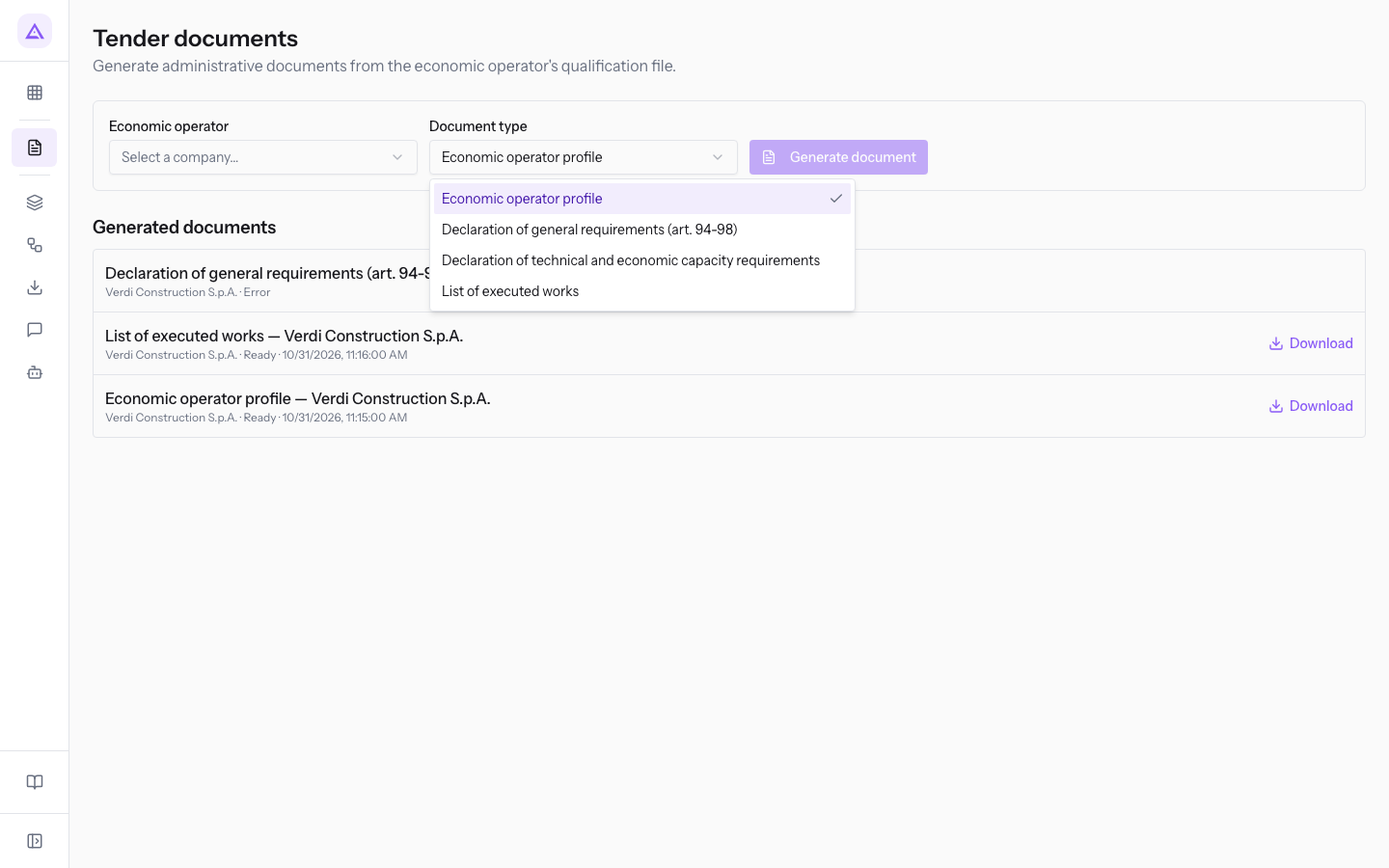
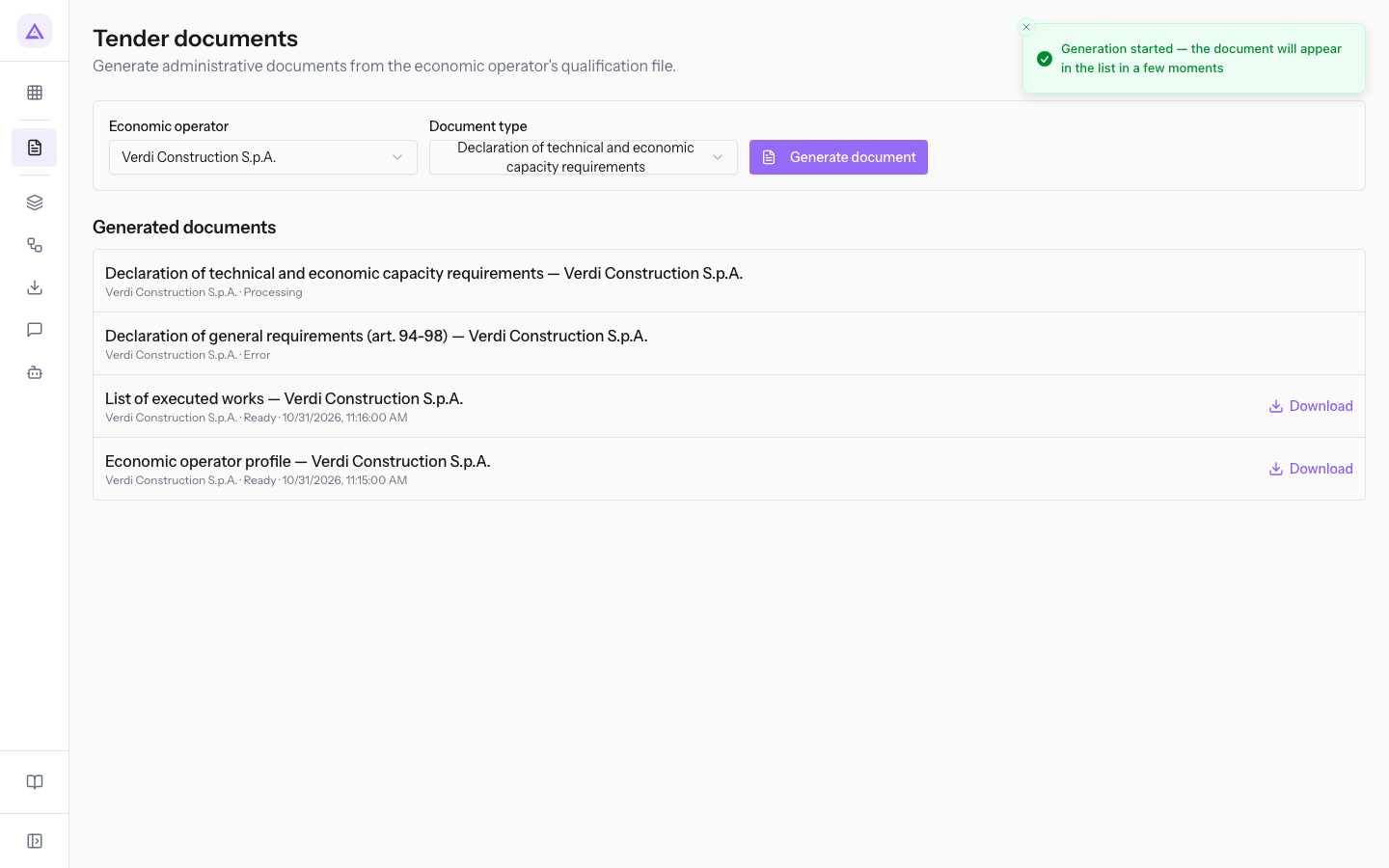
- Press Generate document, here with Verdi Construction S.p.A. and Declaration of technical and economic capacity requirements. The message Generation started — the document will appear in the list in a few moments appears.
The generation panel has these fields:
- Economic operator: the company the document belongs to. It shows the placeholder Select a company… and lists only contacts activated as economic operators. Until you choose a company, Generate document stays disabled.
- Document type: the document to generate. The initial value is Economic operator profile.
- Economic operator profile
- Declaration of general requirements (art. 94-98)
- Declaration of technical and economic capacity requirements
- List of executed works
Following the document status
After the request, the document appears in Generated documents with the title formed from type and company, such as Declaration of technical and economic capacity requirements — Verdi Construction S.p.A.. The title stored on the document and the PDF file name stay in Italian, such as Declaration of technical and economic capacity requirements — Verdi Construction S.p.A..
- Processing: the document is being prepared.
- Ready: the file has been created.
- Error: the preparation failed.
To download the file, use Download in the Generated documents section.
Regenerating after a file change
A generated document does not update itself: it contains the file data at the moment of generation. Regenerate it after every change to the file.
- If you corrected an entry in the file, as explained in Correct or delete a dossier entry, repeat the generation with the same document type.
- If you need several document types, generate them one at a time. Each document has its own generation.
Each generation creates a new document and does not replace the previous ones. Always use the one generated last.
Note: generated documents cannot be edited from the app. To change a piece of data, correct it in the file and generate the document again.
What stays outside the app
Generation stops at the PDF file. The rest happens outside the app.
- The app does not sign the document: the legal representative's signature must be applied outside the app.
- The app does not send the document via PEC.
- The app does not upload the document to tender portals.
See it on your company, not on a slide deck.
In 30 minutes we map the software you use today.We show you how much work and how much margin Archimedes gives back.
Show me on my business →What industry are you in?
One tap — it lets us prepare the demo around your world.
What tools do you use today?
Pick the ones you recognise — or just type them. It helps us show you how they migrate.
Last step: your details.
We reply within one working day — and right after, if you like, you pick the demo slot yourself.
We couldn't send your request. Try again, or write to us at [email protected].
By sending, you agree to your data being processed so we can get back to you about the demo. Privacy notice.
Preview form — nothing is sent from this page.
Want to schedule the demo now?
Your call: book the slot you prefer yourself, or we'll call you to arrange it.
Live availability, 30 minutes, instant confirmation. The calendar opens in a new tab.
Lock in your slot ↗We'll get back to you within one working day — and we'll join the call already knowing your world.
The calendar is open in another tab: pick a slot and the demo is booked. Can't see it? Reopen it ↗
Preview page: nothing was sent.
Our calendar is live: take the slot that suits you and the demo is booked. 30 minutes, instant confirmation, no waiting.
Lock in your slot ↗