Construction - Qualification and Tenders
All modules
Correct or delete a dossier entry
Construction - Qualification and Tenders · 11 of 13 · 3 min read
Each entry in a company's qualification file is corrected or deleted from its side panel. The procedure is the same in the SOA, Certifications, Equipment, Works, Personnel and Requirements tabs.
Open an entry
The side panel shows all the details of an entry and contains the buttons to correct or delete it.
- Open Contacts and press the row of Verdi Construction S.p.A.
- Open the tab that contains the entry, here Certifications.
- Press the entry's card, here ISO 14001 (Environment). The side panel opens.
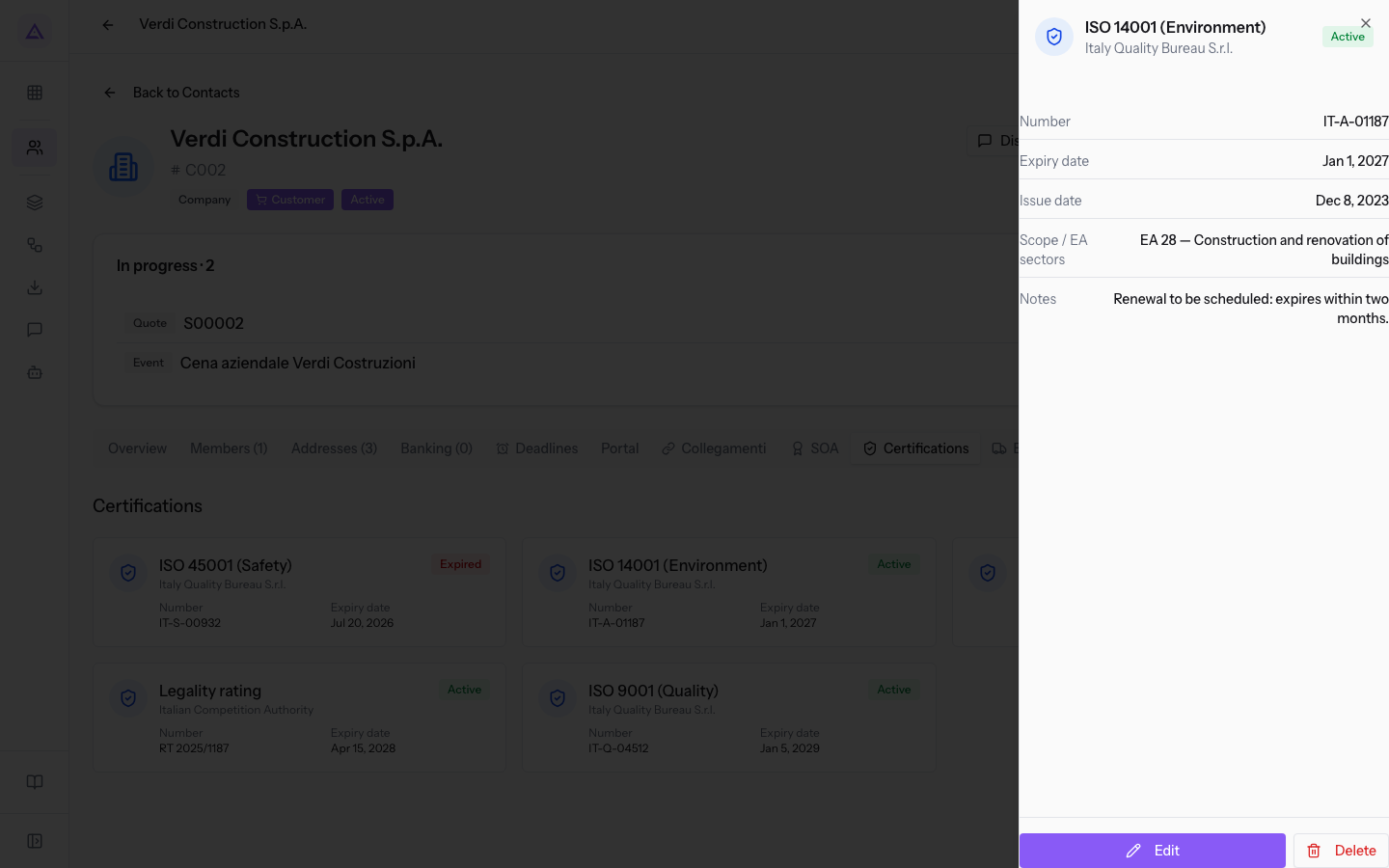
The card shows the first two filled-in details. The panel shows all of them and leaves out the empty fields. If the entry has no details to show, the panel says No further details.
Choose between correcting and deleting
An expired entry is still useful, because it records the company's history. Before acting, choose based on the reason.
- If a detail is wrong or has changed, use Edit.
- If an entry has expired, do not delete it: change its status to Expired, so the file keeps the history. Attestation No. 09876/11/00 of SOA Nord Alpi S.p.A. stays in the SOA tab with the status Expired.
- If an item of equipment is no longer in use, set the Status to Retired.
- If an entry was added by mistake, use Delete. Deletion cannot be undone.
Note: the cards in the Personnel tab have no status label. The expiry of a qualification is read from the date on the card.
Correct an entry
Edit opens the entry window, titled Edit. The fields are those of the tab you are in. The window opens with the saved data; the dates must be entered again.
- In the side panel, press Edit. The panel closes and the Edit window opens.
- Change the fields to correct. For the ISO 14001 (Environment) certification to be renewed, update Issue date, Expiry date and Notes.
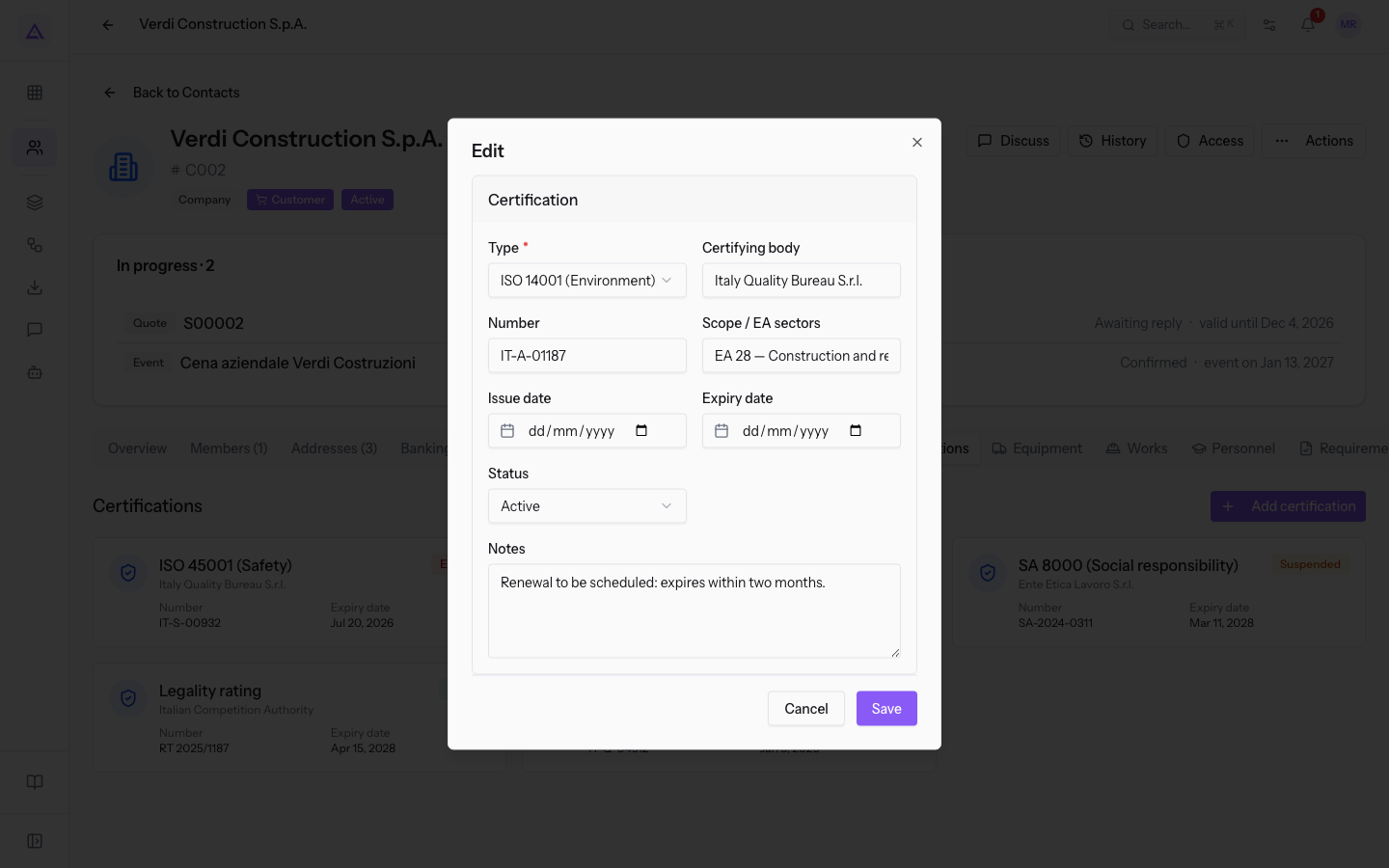
Note: after saving, the message Record updated appears.
The fields in the window change from one tab to another:
- Certifications: Type, Certifying body, Number, Scope / EA sectors, Issue date, Expiry date, Status and Notes. The Type field is required.
- Equipment: Category, Brand, Model, Plate / serial number, Year, Ownership title, Value (€), Load / capacity, Next inspection / test, Status and Notes. The Category field is required.
Delete an entry
Delete removes the entry from the file permanently, after a confirmation.
Before you start: deleting an entry requires the
Tender Managergroup. TheTender Usergroup creates and edits the file data, but does not delete it.
- Open the side panel of the entry, here the concrete mixer Imer Syntesi 350 in the Equipment tab.
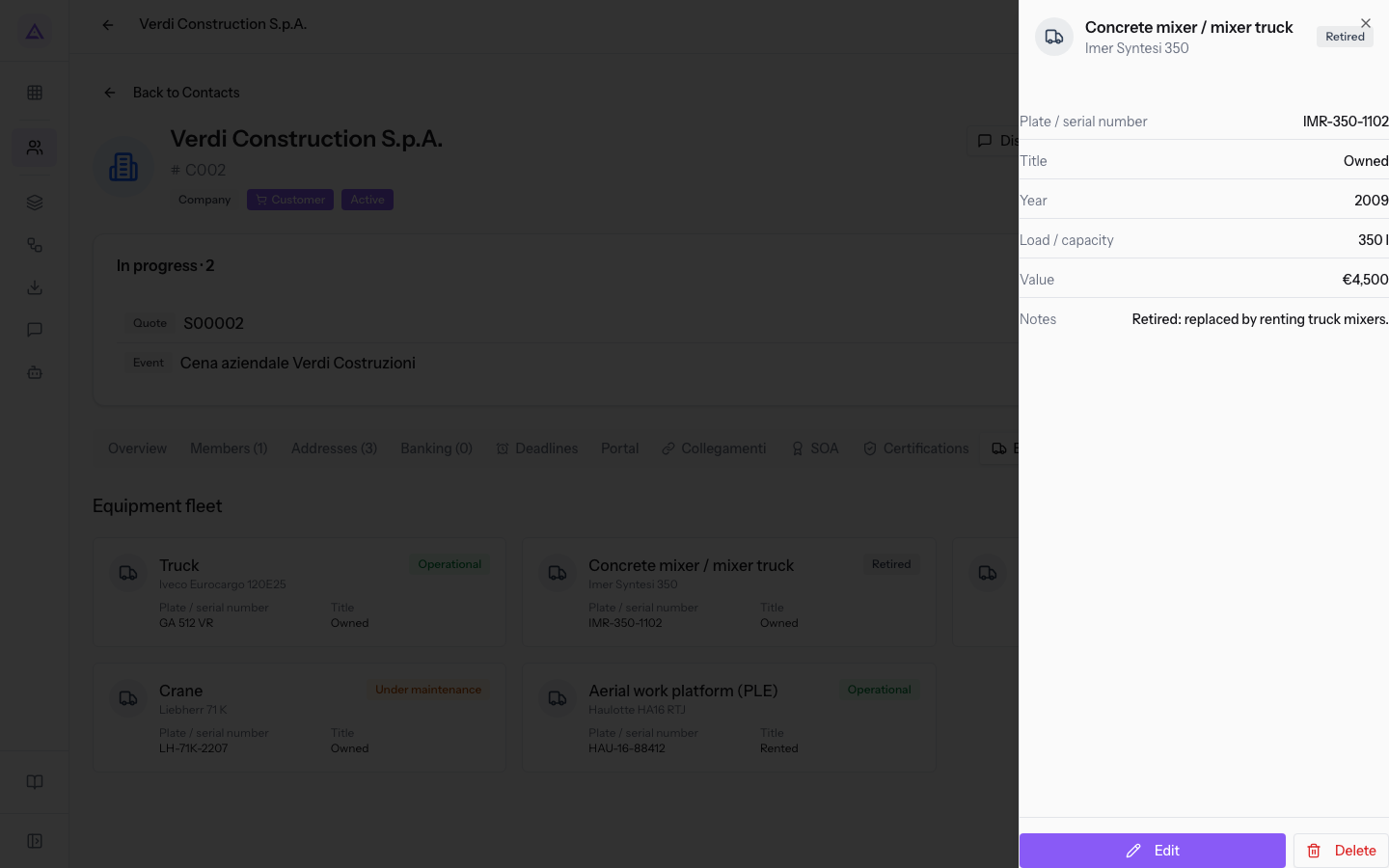
- Press Delete. The panel closes and the Delete Record window opens, with the text Are you sure you want to delete this record? This action cannot be undone.
- Press Delete to delete the entry. The message Record deleted appears. With Cancel you close the window and the entry stays in the file.
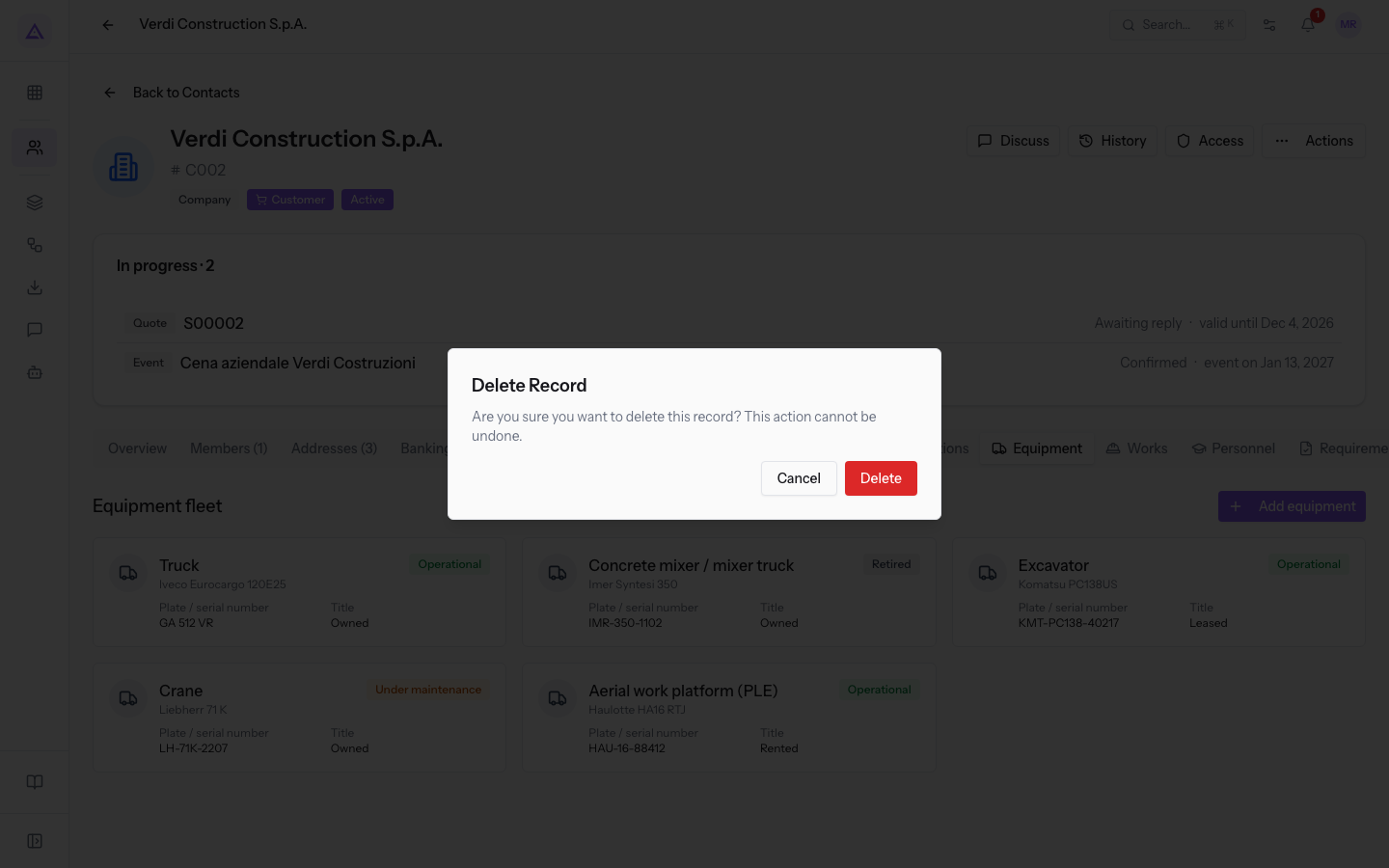
Important: after Delete the entry cannot be recovered. If you only want to flag that it is no longer valid, change its status.
See it on your company, not on a slide deck.
In 30 minutes we map the software you use today.We show you how much work and how much margin Archimedes gives back.
Show me on my business →What industry are you in?
One tap — it lets us prepare the demo around your world.
What tools do you use today?
Pick the ones you recognise — or just type them. It helps us show you how they migrate.
Last step: your details.
We reply within one working day — and right after, if you like, you pick the demo slot yourself.
We couldn't send your request. Try again, or write to us at [email protected].
By sending, you agree to your data being processed so we can get back to you about the demo. Privacy notice.
Preview form — nothing is sent from this page.
Want to schedule the demo now?
Your call: book the slot you prefer yourself, or we'll call you to arrange it.
Live availability, 30 minutes, instant confirmation. The calendar opens in a new tab.
Lock in your slot ↗We'll get back to you within one working day — and we'll join the call already knowing your world.
The calendar is open in another tab: pick a slot and the demo is booked. Can't see it? Reopen it ↗
Preview page: nothing was sent.
Our calendar is live: take the slot that suits you and the demo is booked. 30 minutes, instant confirmation, no waiting.
Lock in your slot ↗