Construction - Qualification and Tenders
All modules
Registering the fleet and equipment
Construction - Qualification and Tenders · 7 of 13 · 5 min read
The Equipment tab collects the equipment of an economic operator. It lets you register each item, state its ownership title and status, and note the next inspection.
What the fleet is for
Equipment is one of the capacity requirements that the economic operator declares to take part in public tenders. The Declaration of technical and economic capacity requirements reports how many items of equipment the company has. The general requirements, such as DURC and anti-mafia, are instead recorded in the Requirements tab: see Keep an eye on DURC, anti-mafia and the other general requirements.
The Economic operator profile, a PDF in Italian, reports the equipment in a table with category, brand and model, plate or serial number, and ownership title. The other data stays in the file: year, load, value, inspection and notes do not appear in this table.
Reading the Equipment tab
The Equipment tab shows the heading Equipment fleet, the Add equipment button and one card for each item. If the operator has no equipment, the message No equipment recorded appears.
Before you start: the Equipment tab appears only on contacts activated as economic operators. Rossi Furnishings S.r.l. is not activated and does not have this tab. The
Tender Usergroup creates and edits equipment. Only theTender Managergroup deletes it.
- Open Contacts and press the row of the economic operator, such as Verdi Construction S.p.A.
- Open the Equipment tab.
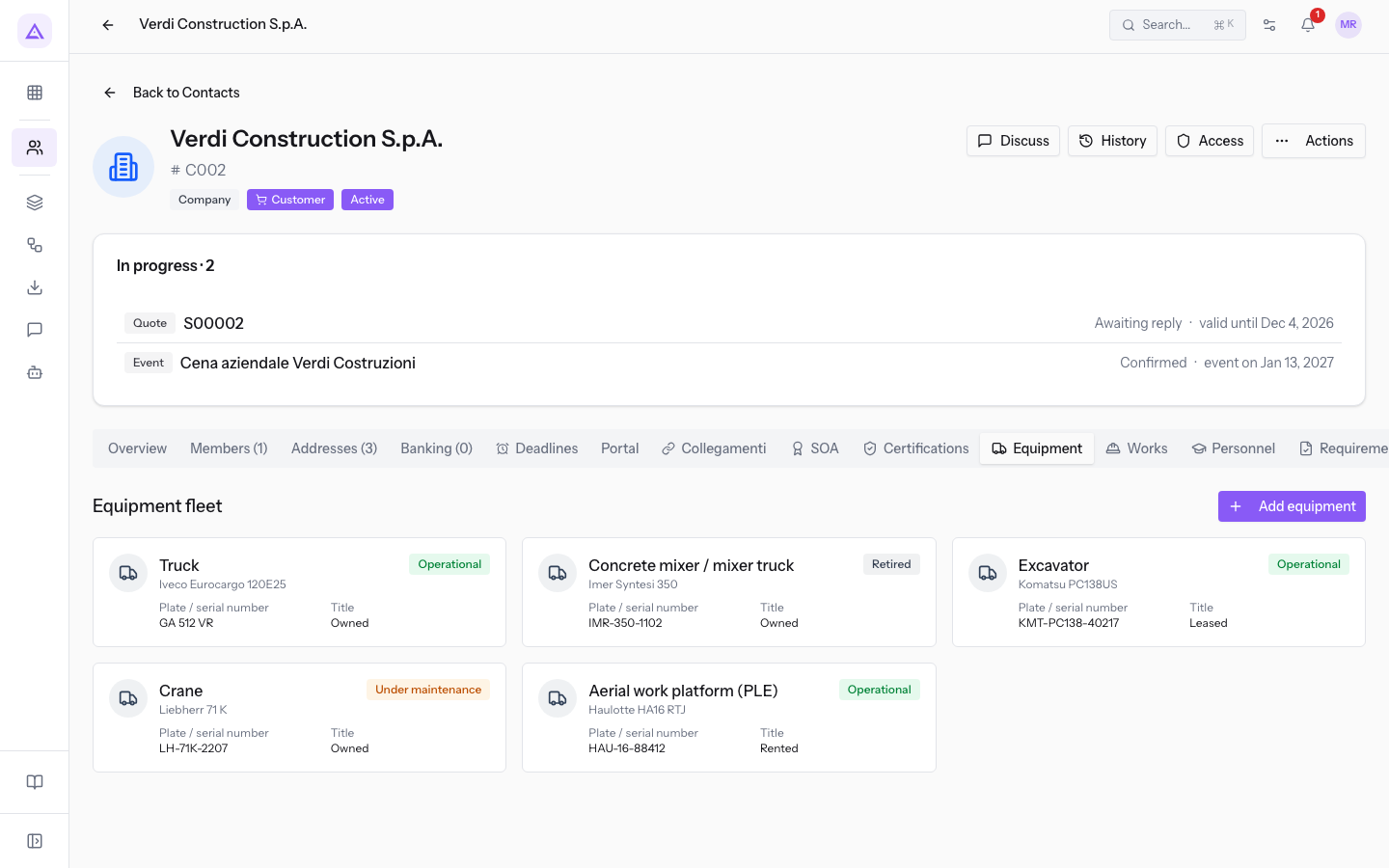
Each card shows:
- The category, as the card title.
- Brand and model.
- The status: Operational, Under maintenance or Retired.
- Plate / serial number.
- Title: the ownership title.
Opening the details of an item
The side panel shows all the data of the item and the buttons to edit or delete it.
- Press the item's card.
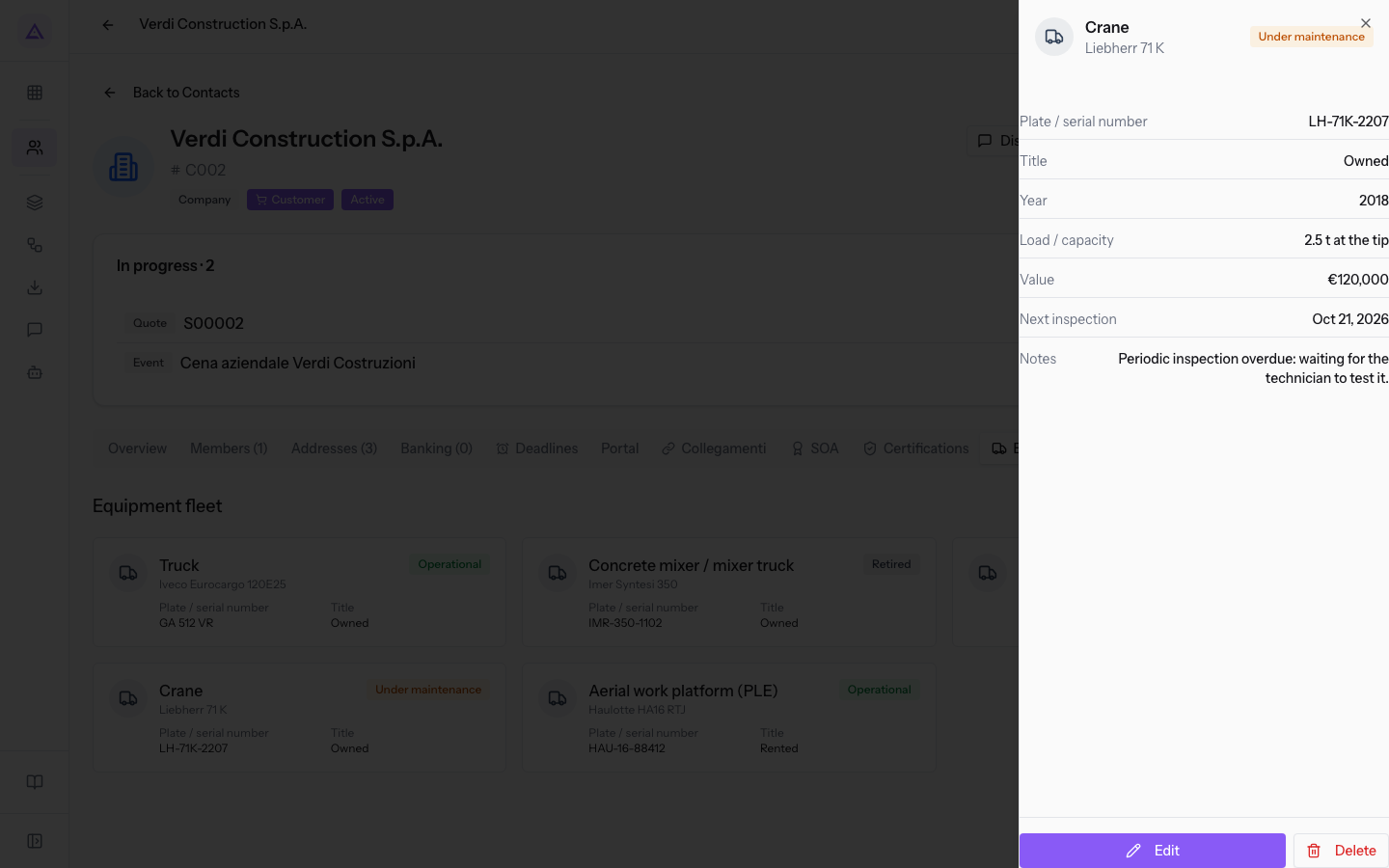
In addition to the card data, the panel shows:
- Year: the year of the item.
- Load / capacity: the load or capacity of the item.
- Value: the value in euros.
- Next inspection: the date of the next inspection or test.
- Notes: the notes on the item.
The panel shows only the data that has been filled in. The Imer Syntesi 350 concrete mixer has no inspection date, so the Next inspection entry does not appear.
Adding equipment
Record each item of equipment as its own entry. Only the Category is required, but brand, model, plate or serial number and ownership title are the data reported in the Economic operator profile.
- In the Equipment tab, press Add equipment. The Add equipment window opens.
- Fill in the fields.
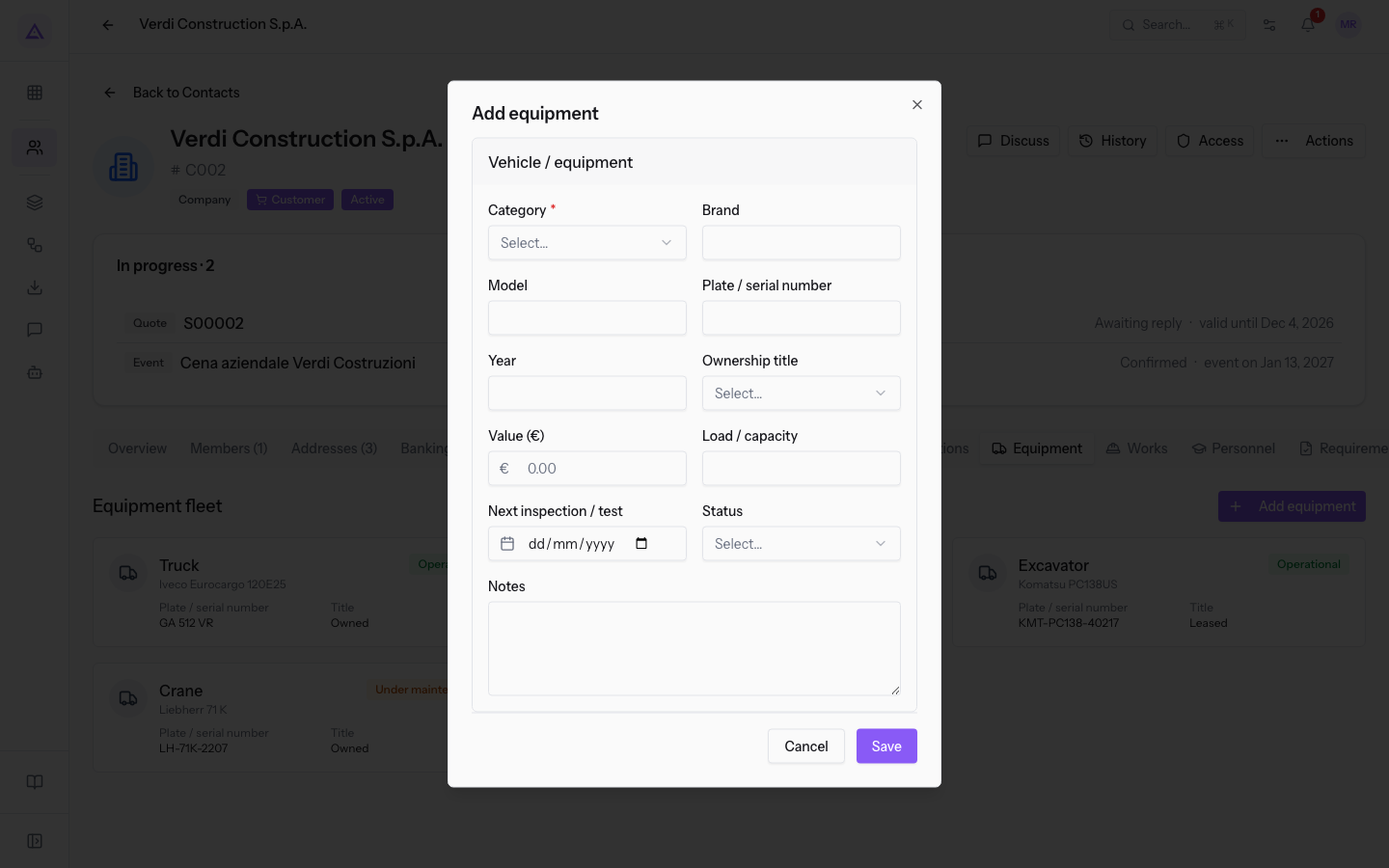
The fields in the window are:
- Category: the type of equipment. The field is required. The options are Truck, Excavator, Wheel loader, Crane, Aerial work platform (PLE), Concrete mixer / mixer truck, Road roller, Generator set and Other.
- Brand: the manufacturer, such as Iveco.
- Model: the model, such as Eurocargo 120E25.
- Plate / serial number: the plate or serial number, such as GA 512 VR.
- Year: the year of the item, such as 2021.
- Ownership title: under which title the company has the item. The options are described in Choosing the ownership title.
- Value (€): the value of the item in euros.
- Load / capacity: free text, such as 12 t for a truck or 16 m working height for a platform.
- Next inspection / test: the date of the item's next deadline.
- Status: the current condition of the item. The options are described in Choosing the status.
- Notes: free text, such as Leased until 2027.
Choosing the ownership title
The Ownership title shows under which title the company has the item. It matters because it appears next to each item in the Economic operator profile.
- Owned: choose this option if the item belongs to the company, such as the Iveco Eurocargo 120E25 truck.
- Leased: choose this option if the item is leased, such as the Komatsu PC138US excavator.
- Rented: choose this option if the item is rented, such as the Haulotte HA16 RTJ platform.
Choosing the status
The Status appears as a label on the card and shows whether the item is available.
- Operational: the item is in use.
- Under maintenance: the item is out of service for maintenance, such as the Liebherr 71 K crane.
- Retired: the item is no longer in the fleet, such as the Imer Syntesi 350 concrete mixer.
Tip: if an item leaves the fleet, set the Status to Retired instead of pressing Delete. The entry stays in the file, and you can note the reason in the Notes.
To update an item, open the panel and press Edit. The Edit window opens, with the same fields and the saved data; the dates must be entered again.
Checking inspections
The inspection date is data that you enter and check yourself. It is not visible on the card: it is read in the side panel, under Next inspection.
Important: the app does not warn about inspections that are coming due. The Liebherr 71 K crane's inspection is already overdue and the card does not flag it. Check the date in the panel of every item.
See it on your company, not on a slide deck.
In 30 minutes we map the software you use today.We show you how much work and how much margin Archimedes gives back.
Show me on my business →What industry are you in?
One tap — it lets us prepare the demo around your world.
What tools do you use today?
Pick the ones you recognise — or just type them. It helps us show you how they migrate.
Last step: your details.
We reply within one working day — and right after, if you like, you pick the demo slot yourself.
We couldn't send your request. Try again, or write to us at [email protected].
By sending, you agree to your data being processed so we can get back to you about the demo. Privacy notice.
Preview form — nothing is sent from this page.
Want to schedule the demo now?
Your call: book the slot you prefer yourself, or we'll call you to arrange it.
Live availability, 30 minutes, instant confirmation. The calendar opens in a new tab.
Lock in your slot ↗We'll get back to you within one working day — and we'll join the call already knowing your world.
The calendar is open in another tab: pick a slot and the demo is booked. Can't see it? Reopen it ↗
Preview page: nothing was sent.
Our calendar is live: take the slot that suits you and the demo is booked. 30 minutes, instant confirmation, no waiting.
Lock in your slot ↗