Construction - Qualification and Tenders
All modules
Activate a company as an economic operator and fill in its details
Construction - Qualification and Tenders · 3 of 13 · 3 min read
An economic operator is a contact activated for the qualification file. You activate it in the Edit Contact window: here you record the company's details and add the qualification file tabs to the contact page.
Choosing which contacts to activate
Activation is explicit and applies to one contact at a time. The contact type is not enough on its own: the qualification file tabs appear only on activated contacts.
- If the company must prove its requirements for public tenders, turn the switch on and fill in the details.
- If the contact is only a customer or a vendor, leave the switch off: the contact keeps no tender data. Rossi Furnishings S.r.l. is not activated and does not have the qualification file tabs.
The Economic operator (Construction) panel appears when the Type field is Company, Non-Profit, Government, Association or Foundation. It does not appear with Person.
To understand how the qualification file is organized, read Understanding the economic operator's qualification file.
Activating the economic operator
The switch in the Economic operator (Construction) panel opens the company detail fields. While it is off, the panel shows only the title, the help text and the switch.
Before you start: the panel appears only if the Construction Tenders module is active for the organization.
- In Contacts, press the contact's row.
- Press Actions and choose Edit Contact.
- In the Basic Info tab, go to the Economic operator (Construction) panel. The help text is Activate the qualification file (SOA, sites, equipment, works, …) for this company.
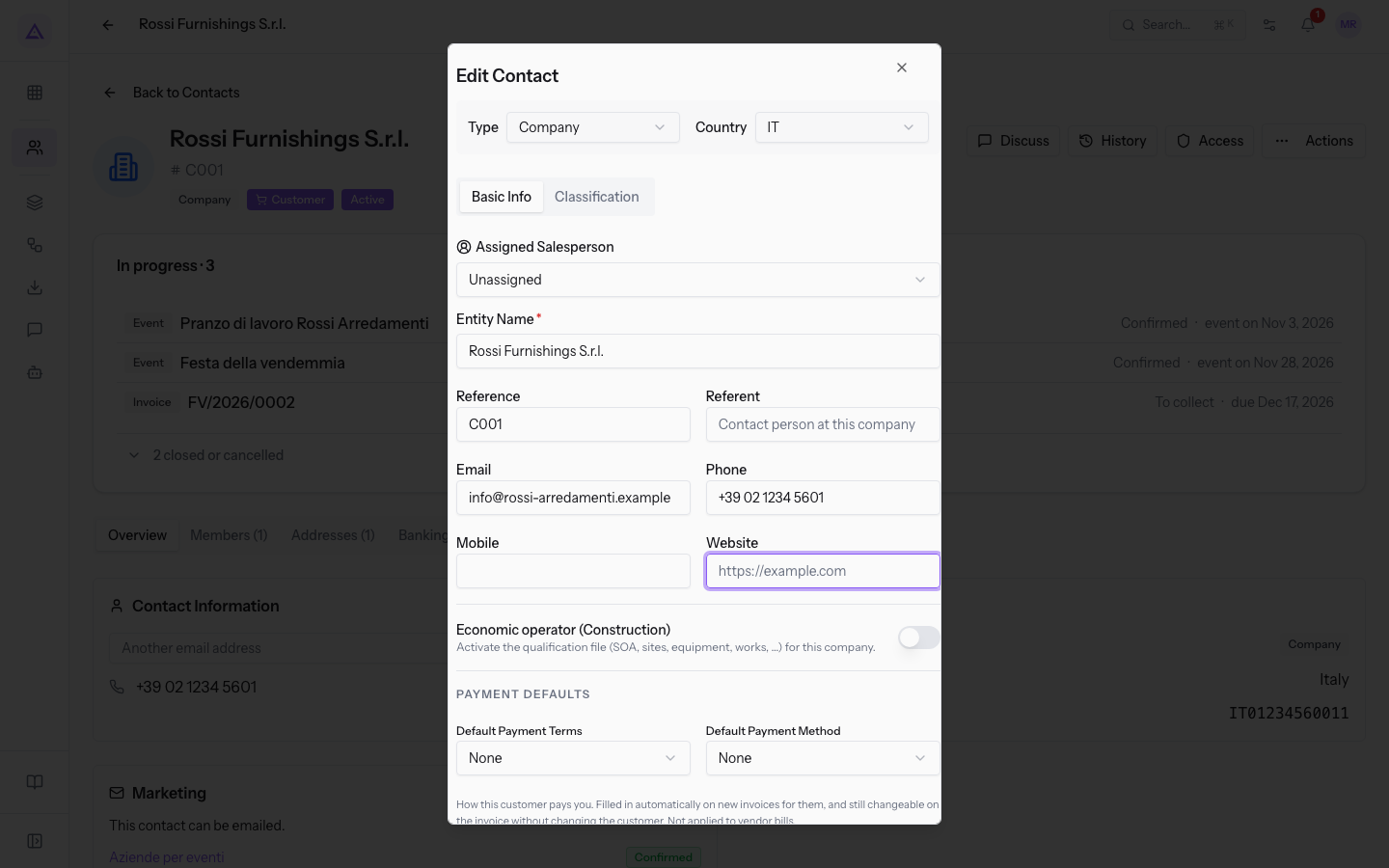
- Turn the switch on. The fields described in Filling in the company's details appear below it.
- Fill in the fields and press Save Changes. The qualification file tabs appear only on contacts saved with the switch on.
Note: you can also activate a new contact. In the New Contact window the Type field starts at Person: choose Company to find the panel, then press Create Contact.
Filling in the company's details
The fields appear in the panel when the switch is on. The panel does not mark any field as required.
- Tax code (Codice Fiscale): the company's tax code.
- Legal form: the company's legal form, written as text.
- REA: the company's REA registration number.
- PEC: the company's PEC address.
- ATECO code: the code for the company's activity.
- Incorporation date: the date the company was incorporated.
- Share capital (€): the share capital in euros. The field accepts numbers only.
- Company size: the company's size class.
- Micro company
- Small company
- Medium company
- Large company
- Cassa Edile code: the registration code with the Cassa Edile.
- Applied CCNL: the collective agreement the company applies, written as text.
- Legality rating: the company's legality rating, written as text.
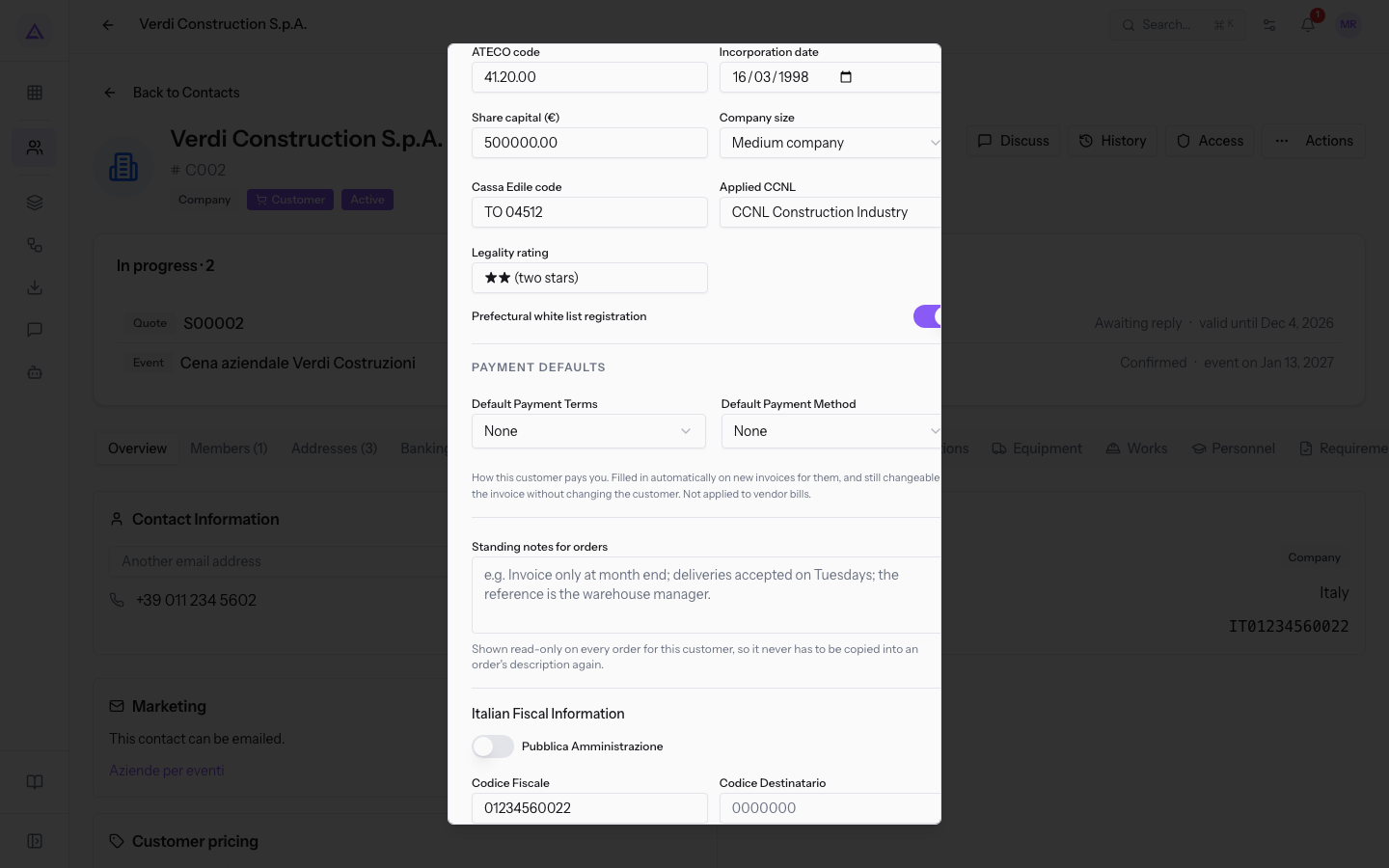
- Prefectural white list registration: switch to turn on if the company is registered on the white list.
Verdi Construction S.p.A. has these values: Joint-stock company, REA TO-1123456, ATECO 41.20.00, incorporated on 16/03/1998, share capital 500000.00, Medium company, Cassa Edile TO 04512, CCNL Construction Industry, Legality rating ★★ (two stars), registered on the white list.
Important: the PEC field is only a qualification file detail. The app does not send PEC messages.
Finding the qualification file on the contact page
After saving, the contact page shows six more tabs: SOA, Certifications, Equipment, Works, Personnel and Requirements. This is where you enter and update the qualification file details. To change an entry already recorded, read Correct or delete a dossier entry.
See it on your company, not on a slide deck.
In 30 minutes we map the software you use today.We show you how much work and how much margin Archimedes gives back.
Show me on my business →What industry are you in?
One tap — it lets us prepare the demo around your world.
What tools do you use today?
Pick the ones you recognise — or just type them. It helps us show you how they migrate.
Last step: your details.
We reply within one working day — and right after, if you like, you pick the demo slot yourself.
We couldn't send your request. Try again, or write to us at [email protected].
By sending, you agree to your data being processed so we can get back to you about the demo. Privacy notice.
Preview form — nothing is sent from this page.
Want to schedule the demo now?
Your call: book the slot you prefer yourself, or we'll call you to arrange it.
Live availability, 30 minutes, instant confirmation. The calendar opens in a new tab.
Lock in your slot ↗We'll get back to you within one working day — and we'll join the call already knowing your world.
The calendar is open in another tab: pick a slot and the demo is booked. Can't see it? Reopen it ↗
Preview page: nothing was sent.
Our calendar is live: take the slot that suits you and the demo is booked. 30 minutes, instant confirmation, no waiting.
Lock in your slot ↗