Compliance
All modules
Export your organisation's data and understand what happens if you leave Archimedes
Compliance · 13 of 14 · 4 min read
The Your data, and leaving page lets you download a complete copy of your organisation's data at any time. It also shows what happens to your data if the organisation leaves Archimedes.
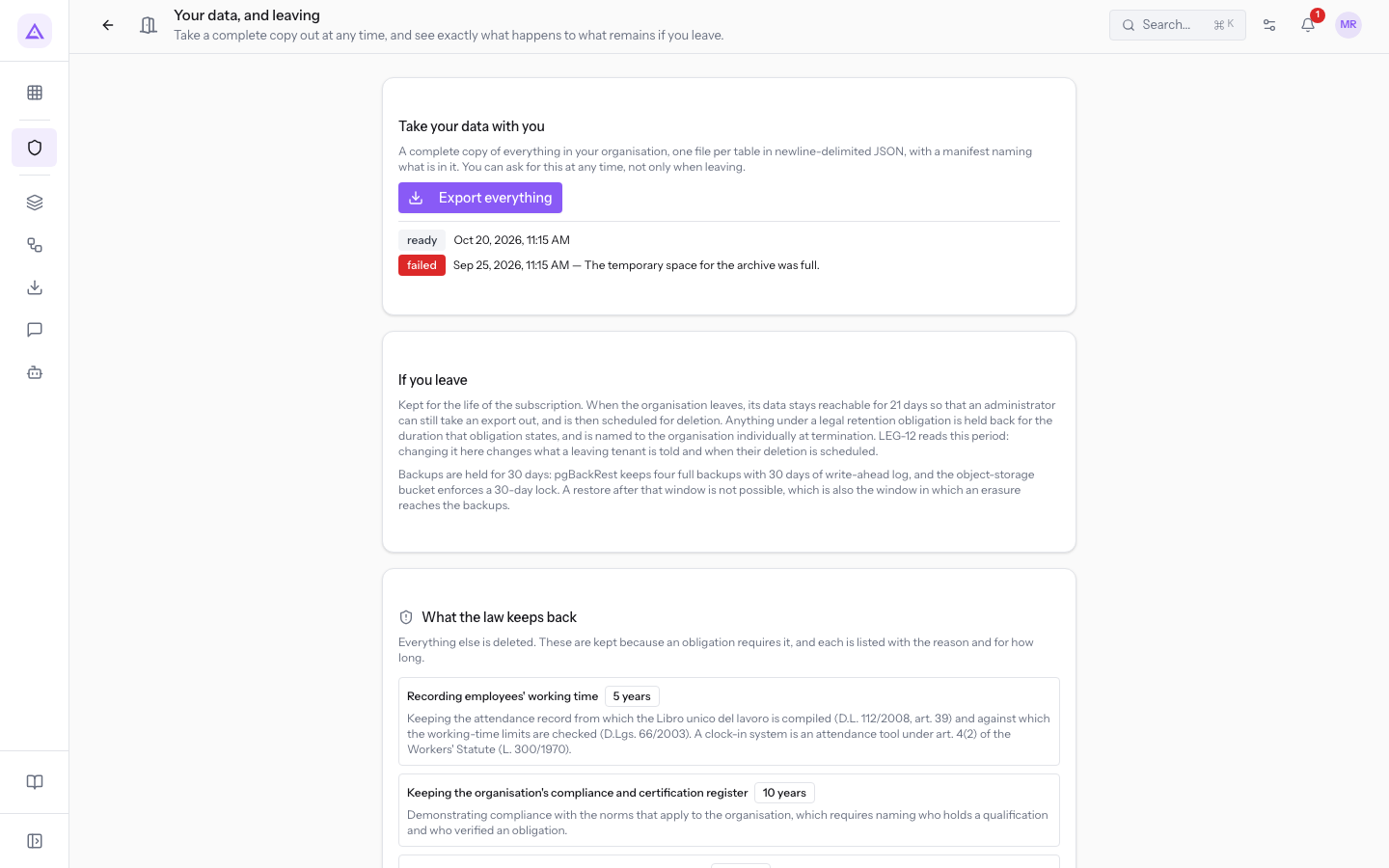
To open it, from the Compliance page press Your data. The page has three panels: Take your data with you, If you leave, and What the law keeps back.
Export all data
The Take your data with you panel produces a complete copy of everything in the organisation. You do not need to have submitted a cancellation request to ask for it.
The export contains:
- one file per table, in newline-delimited JSON format;
- a manifest listing the contents.
To request an export:
- In the Take your data with you panel press Export everything. While the copy is being produced, the button shows Producing… and cannot be pressed again.
- When complete, the message Export produced. appears. If production fails, Could not produce the export. appears.
Note: the page does not provide a link to download a ready export.
Read the list of exports
Below the Export everything button is the list of exports already requested. The list only appears if at least one exists. For each export the row shows:
- the status;
- the date and time of the request;
- the number of exported rows and the file size, when the export has a manifest;
- the error reason after a dash, when the export failed.
Export statuses:
- requested: the export has been requested and is not yet being processed.
- producing: the copy is being prepared.
- ready: the copy has been produced.
- failed: production stopped. The status has a different colour from the others, and the row shows the reason.
In the demo organisation the list has one ready export and one failed export.
Understand what happens if you leave
The If you leave panel explains what happens to data after cancellation. You can read it even if you have not submitted a cancellation request. The panel shows:
- how long data remains accessible after cancellation: this is the grace period;
- how long backups are kept, which expire after the end of the grace period.
The number of grace period days and backup days are fixed on the day of cancellation. If the platform later changes them, the dates already communicated to the organisation do not shift. Backups expire at the end of the grace period plus the backup retention days.
After cancellation, the Your exit panel appears in place of If you leave, with the organisation's dates:
- the date the cancellation was registered, the date until which data remains accessible, and how many days remain. After that the data is deleted.
- how many days backups are kept and the date they expire.
- after deletion, the reference of the deletion certificate, the date it was issued, and the email address it was sent to or still needs to be sent to.
After deletion the What was deleted panel also appears. The panel shows the date of deletion and any data that deletion did not reach, each with its own reason.
Important: deletion is permanent. Export your data before the grace period ends.
Check the data the law keeps back
The What the law keeps back panel lists the data that remains after leaving because a legal obligation requires it. Everything else is deleted.
The list depends on the modules the organisation uses. A piece of data is retained only if it meets two requirements:
- it is kept due to a legal obligation;
- the module that keeps it specifies an exact duration.
For each retained piece of data the panel shows:
- the name of the data;
- the retention duration, expressed in years, months, or days;
- the reason for retention.
If no module used by the organisation imposes a retention obligation, the panel shows Nothing you run carries a retention obligation: everything would be deleted.
Note: the list of retained data is fixed on the day of cancellation, with the modules active at that time.
See it on your company, not on a slide deck.
In 30 minutes we map the software you use today.We show you how much work and how much margin Archimedes gives back.
Show me on my business →What industry are you in?
One tap — it lets us prepare the demo around your world.
What tools do you use today?
Pick the ones you recognise — or just type them. It helps us show you how they migrate.
Last step: your details.
We reply within one working day — and right after, if you like, you pick the demo slot yourself.
We couldn't send your request. Try again, or write to us at [email protected].
By sending, you agree to your data being processed so we can get back to you about the demo. Privacy notice.
Preview form — nothing is sent from this page.
Want to schedule the demo now?
Your call: book the slot you prefer yourself, or we'll call you to arrange it.
Live availability, 30 minutes, instant confirmation. The calendar opens in a new tab.
Lock in your slot ↗We'll get back to you within one working day — and we'll join the call already knowing your world.
The calendar is open in another tab: pick a slot and the demo is booked. Can't see it? Reopen it ↗
Preview page: nothing was sent.
Our calendar is live: take the slot that suits you and the demo is booked. 30 minutes, instant confirmation, no waiting.
Lock in your slot ↗