Compliance
All modules
Log a Data Incident and Decide on Notification to the Authority
Compliance · 11 of 14 · 5 min read
The Incidents page collects incidents involving personal data: those you log yourself and those reported by the platform. For each incident it tracks the 72 hours within which you must decide whether to notify the authority, and stores the decision made.
The Incidents Page
To open the page, press Incidents in the module overview. Below the title is the text «Gli incidenti che hanno coinvolto i tuoi dati e quelli che registri tu, entrambi sullo stesso orologio di 72 ore.»
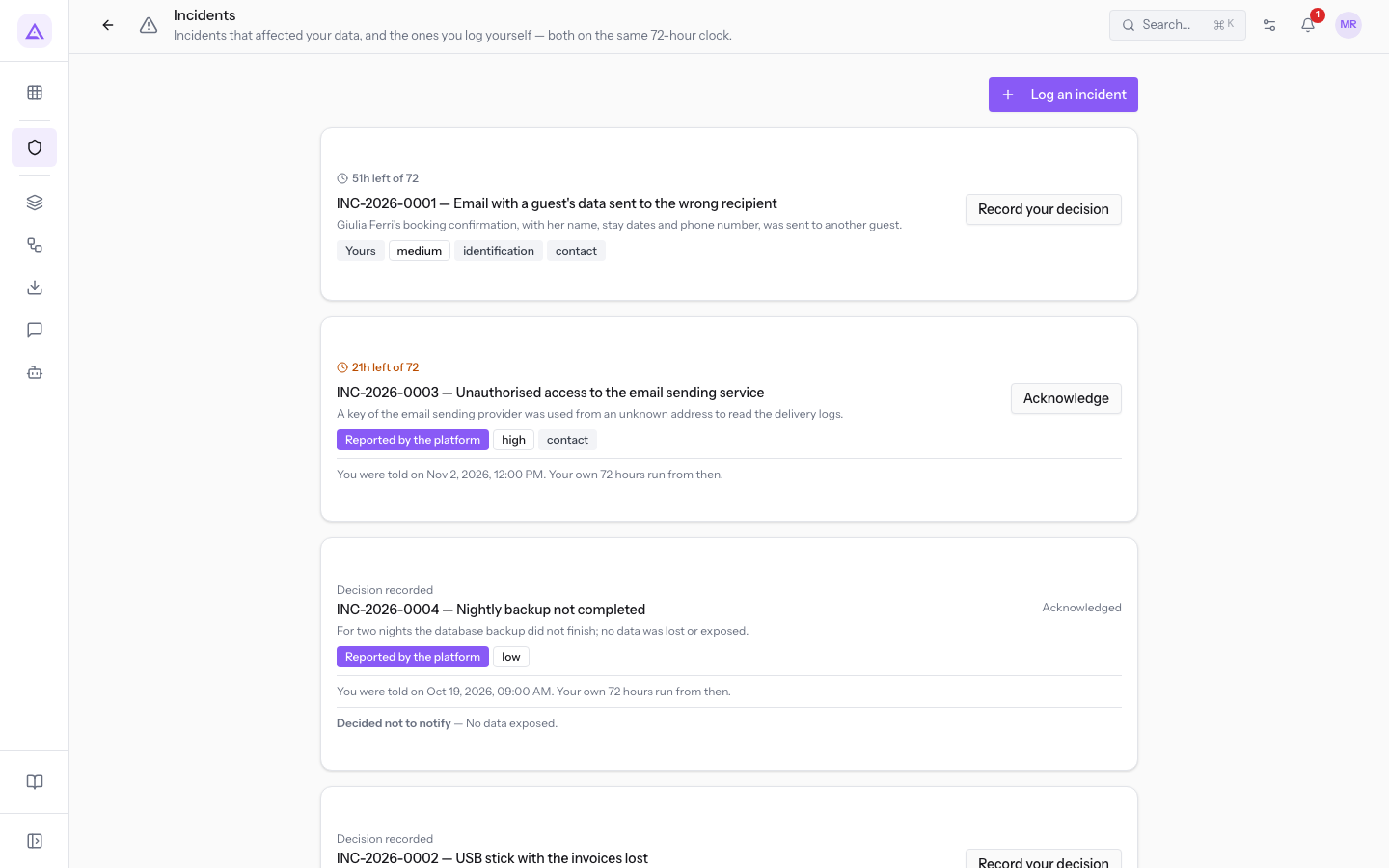
Each incident in the list shows the following information:
- Clock: how much of the 72 hours remains. It can show three things:
- «Restano N ore su 72»: the decision has not yet been recorded and the deadline has not passed. In the demo INC-2026-0001 shows «Restano 51 ore su 72».
- «N ore oltre il termine di 72 ore»: the 72 hours have passed without a recorded decision.
- Decision recorded: the count has stopped.
- Reference and title: the incident reference in the form INC-2026-0001, followed by what happened.
- Origin: the Yours badge indicates an incident logged by your company. The Reported by the platform badge indicates an incident reported to you by the platform.
- Severity: low, medium, high or critical.
- Data categories: the types of data involved in the incident.
- Decision outcome: Authority notified or Decided not to notify, after you have recorded the decision.
The buttons in each row depend on the origin of the incident. For your own incident without a decision there is Record your decision. For an incident reported by the platform there is Acknowledge.
In the demo there are three cases:
- «Email with a guest's data sent to the wrong recipient» is yours and the decision is still to be made.
- «USB stick with the invoices lost» is yours and the recorded decision is not to notify.
- «Unauthorised access to the email sending service» is reported by the platform and awaits acknowledgement.
Important: the 72 hours under Art. 33 GDPR run from the moment you became aware of the incident, not from when you log it in Archimedes. Log the incident as soon as you discover it.
Log an Incident
Log here every personal data incident you discover in your company, even when you think you do not need to notify it. In the window you note the facts and the moment from which the 72 hours run.
- Press Log an incident. The Log an incident window opens.
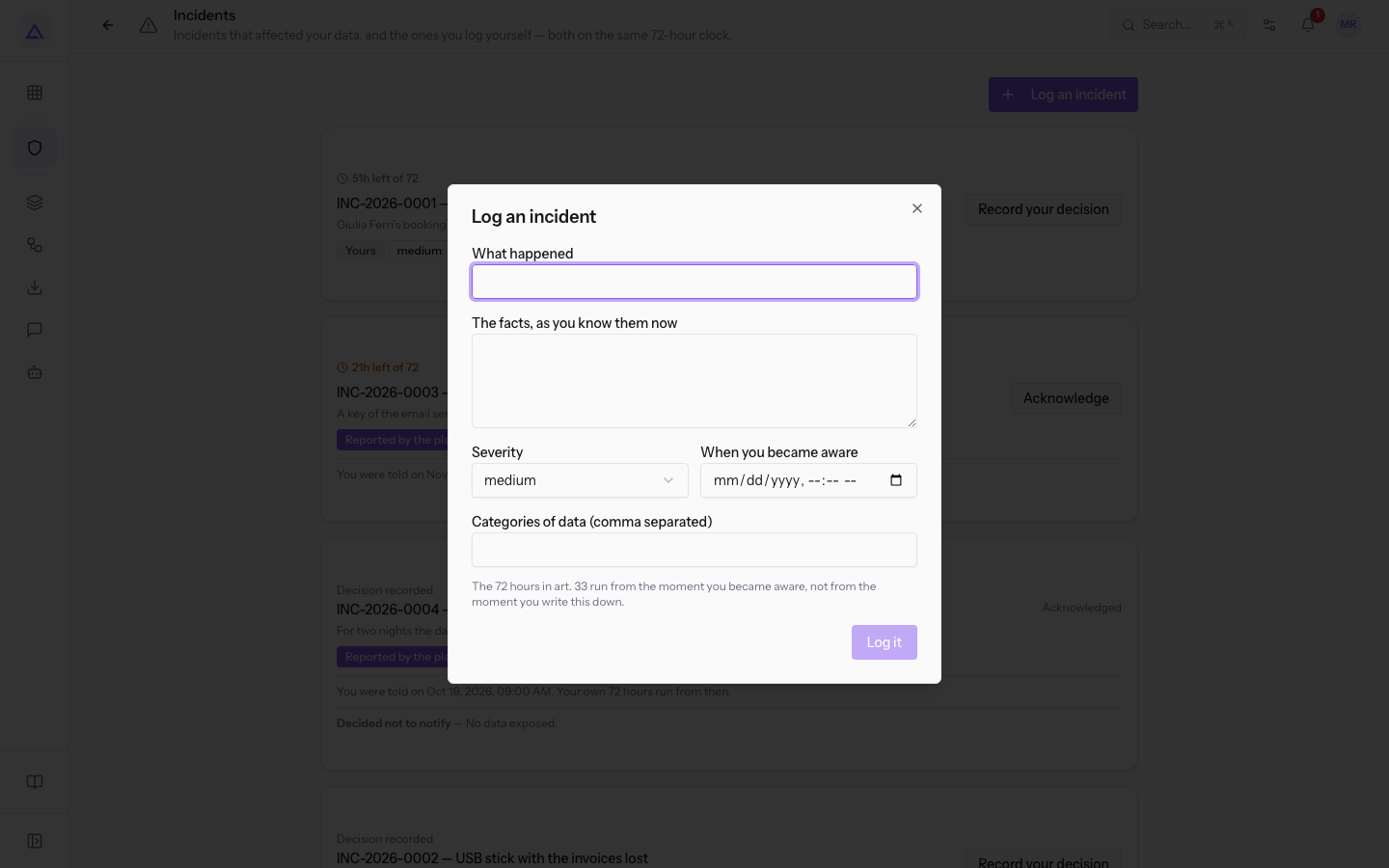
- Fill in the fields. In When you became aware enter the moment when the company became aware of the incident, not when you are logging it.
- Press Log it. The message «Incidente registrato. Le tue 72 ore decorrono dal momento in cui ne sei venuto a conoscenza.» appears. The incident enters the list with the Yours badge and the clock started.
The window's fields:
- What happened: the incident title, which appears in the list. For example: «Email with a guest's data sent to the wrong recipient».
- The facts, as you know them now: a description of what you know at the time of logging.
- Severity: how severe the incident is. The default value is medium.
- low
- medium
- high
- critical
- When you became aware: the moment from which the 72 hours run. Below the field the window reminds you: «Le 72 ore dell'art. 33 decorrono dal momento in cui ne sei venuto a conoscenza, non da quando lo annoti.»
- Categories of data (comma separated): the types of data involved. Separate them with a comma.
Record the Decision on Notification to the Authority
For each of your incidents decide whether to notify the authority and record the decision with the reason. This recording stops the 72-hour count.
Choose the option that corresponds to what you did:
- If you have already sent the notification to the authority, choose We notified the authority.
- If you have assessed that the incident does not need to be notified, choose We decided not to notify and write the assessment that led you to this conclusion. In the demo this is the case of «USB stick with the invoices lost».
- On the incident row press Record your decision. The Your decision about the authority window opens.
- Choose the decision and write the reason.
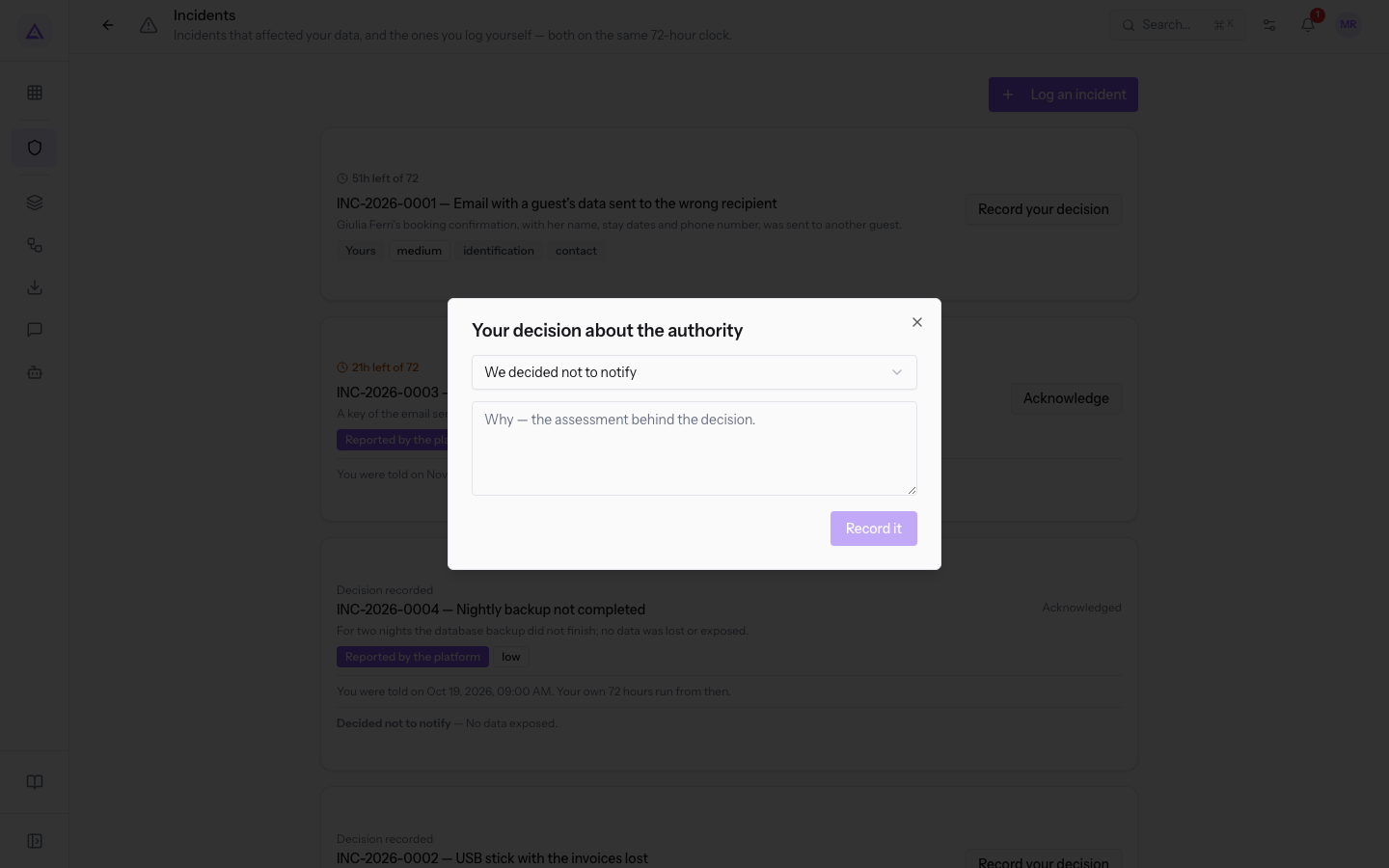
- Press Record it. The message «Decisione registrata. Il conteggio si è fermato.» appears. In the list the clock gives way to Decision recorded.
The window's fields:
- Decision: the choice on notification. The default value is We notified the authority.
- We notified the authority: you sent the notification. In the list the incident shows as Authority notified.
- We decided not to notify: you decided not to notify. In the list the incident shows as Decided not to notify.
- Why — the assessment behind the decision.: the reason for the decision.
Note: recorded decisions enter the compliance file together with the incidents.
Acknowledge an Incident Reported by the Platform
An incident with the Reported by the platform badge has involved your data, but you did not log it yourself. In the demo this is «Unauthorised access to the email sending service». For this incident you record that you have acknowledged it.
- On the incident row press Acknowledge. The message «Presa visione registrata.» appears.
After acknowledging, the incident shows «Sei stato informato il …. Le tue 72 ore decorrono da quel momento.» The count therefore starts from the day on which the platform informed you.
See it on your company, not on a slide deck.
In 30 minutes we map the software you use today.We show you how much work and how much margin Archimedes gives back.
Show me on my business →What industry are you in?
One tap — it lets us prepare the demo around your world.
What tools do you use today?
Pick the ones you recognise — or just type them. It helps us show you how they migrate.
Last step: your details.
We reply within one working day — and right after, if you like, you pick the demo slot yourself.
We couldn't send your request. Try again, or write to us at [email protected].
By sending, you agree to your data being processed so we can get back to you about the demo. Privacy notice.
Preview form — nothing is sent from this page.
Want to schedule the demo now?
Your call: book the slot you prefer yourself, or we'll call you to arrange it.
Live availability, 30 minutes, instant confirmation. The calendar opens in a new tab.
Lock in your slot ↗We'll get back to you within one working day — and we'll join the call already knowing your world.
The calendar is open in another tab: pick a slot and the demo is booked. Can't see it? Reopen it ↗
Preview page: nothing was sent.
Our calendar is live: take the slot that suits you and the demo is booked. 30 minutes, instant confirmation, no waiting.
Lock in your slot ↗