Compliance
All modules
Understanding where the company stands with the Compliance overview
Compliance · 2 of 14 · 5 min read
The Compliance overview summarises which obligations apply to the company and how far along the work to meet them is. From here you open all other pages of the module.
The Compliance page
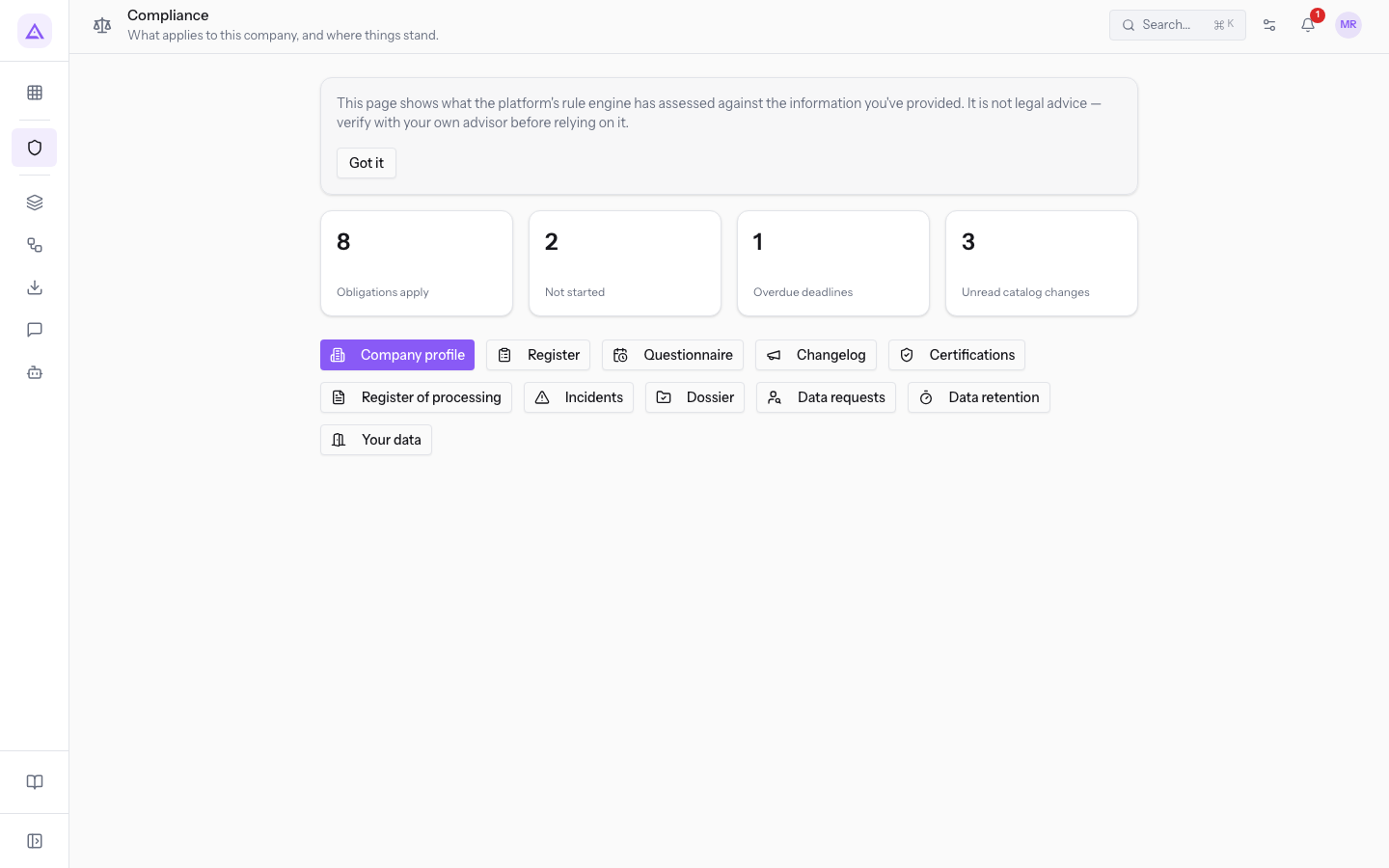
Open the overview from the Compliance menu. The subtitle is «What applies to this company and where we stand.». The page shows, from top to bottom: the initial notice, the optional notice about an incomplete profile, the four boxes with numbers, and the row of buttons to the other pages of the module.
The initial notice
At the top of the page a notice explains where the information comes from: «This page shows what has been assessed by the platform's rules engine based on the information provided. This does not constitute legal advice — verify with your advisor before relying on this information.»
- Press Got it to hide the notice. The notice stays at the top of the page until you confirm it.
Note: the results of the overview depend on the data you enter in the profile and in the questionnaire. Verify them with your advisor before relying on them.
The four boxes
The boxes give the status of the compliance register in numbers. The Obligations apply and Unread catalog changes boxes can be pressed and open the corresponding page.
- Obligations apply: the number of obligations that apply to the company in the compliance register. Pressing the box opens the Compliance register. In the demo it is 8, which is the number of obligations with a status selector in the register.
- Not started: the number of applicable obligations with the status Not started in the register. In the demo it is 2.
- Overdue deadlines: the number of obligation deadlines that have already passed. In the demo it is 1.
- Unread catalog changes: the number of new items in the regulations catalogue that you have not yet read. Pressing the box opens the Compliance changelog page; when there is nothing more to read it shows «No new changes since the last check.».
Note: the register is calculated from the profile, the questionnaire answers, and the latest catalogue release. If you change the main ATECO code or an answer, the box numbers change accordingly.
The incomplete profile notice
When a piece of data is missing from the profile, the page shows the Your company profile is incomplete notice with the list of missing data and the Complete the profile button, which opens the Compliance profile. When the profile is complete the notice does not appear.
Where to start the first time
Without a main ATECO code and without the questionnaire the register remains empty. The first time, use the module in this order.
- Press Company profile and enter the main ATECO code, any secondary codes, and the annual data. In the demo the main code is 55.20.51. The button comes first in the row because it is the first step. See Filling in the compliance profile.
- Press Questionnaire and answer the questions about what the company does. Subsequent questions open based on your answers. See Answering the compliance questionnaire.
- Press Register and work through the applicable obligations: update the status and attach evidence. See Reading the compliance register.
The buttons to the other pages
Below the boxes a row of buttons opens the other pages of the module.
- Company profile: opens the Compliance profile, with the activity codes, annual data, and the calculated EU size class. See Filling in the compliance profile.
- Register: opens the Compliance register, with the regulations that apply to the company, the reason, and the status of each obligation. See Reading the compliance register.
- Questionnaire: opens the Compliance questionnaire, with the questions about what the company does that are used to determine which regulations apply. See Answering the compliance questionnaire.
- Changelog: opens Compliance changelog, with what has changed in the regulations concerning the company, and when. See Following updates to the regulations catalogue.
- Certifications: opens Certifications & renewals, with the company's certifications, their expiry, and when to renew them. See Recording certifications and managing their renewals.
- Register of processing: opens the Register of processing activities, the register under art. 30 built from the modules and vendors in use. See Keeping the register of processing activities.
- Incidents: opens Incidents, with the incidents that have involved the company's data and the 72-hour clock for deciding on notification. See Recording a data incident.
- Dossier: opens the Compliance dossier, the single document that collects everything an inspection requires. See Producing the compliance dossier.
- Data requests: opens Data requests, with the people requesting to view, correct, delete or export their own data, and a month to respond. See Recording a data subject request.
- Data retention: opens Data retention, with the rules that apply the retention periods promised in the privacy notice. See Setting data retention.
- Your data: opens Your data, and leaving, to export a complete copy of the data and find out what happens to the data if the company leaves the platform. See Exporting the organisation's data.
See it on your company, not on a slide deck.
In 30 minutes we map the software you use today.We show you how much work and how much margin Archimedes gives back.
Show me on my business →What industry are you in?
One tap — it lets us prepare the demo around your world.
What tools do you use today?
Pick the ones you recognise — or just type them. It helps us show you how they migrate.
Last step: your details.
We reply within one working day — and right after, if you like, you pick the demo slot yourself.
We couldn't send your request. Try again, or write to us at [email protected].
By sending, you agree to your data being processed so we can get back to you about the demo. Privacy notice.
Preview form — nothing is sent from this page.
Want to schedule the demo now?
Your call: book the slot you prefer yourself, or we'll call you to arrange it.
Live availability, 30 minutes, instant confirmation. The calendar opens in a new tab.
Lock in your slot ↗We'll get back to you within one working day — and we'll join the call already knowing your world.
The calendar is open in another tab: pick a slot and the demo is booked. Can't see it? Reopen it ↗
Preview page: nothing was sent.
Our calendar is live: take the slot that suits you and the demo is booked. 30 minutes, instant confirmation, no waiting.
Lock in your slot ↗