Compliance
All modules
Answering the compliance questionnaire
Compliance · 4 of 14 · 3 min read
The compliance questionnaire collects information about what the company does. The platform uses it to determine which regulations apply, without you having to read them one by one. The answers, together with the company profile and the regulations catalog, determine the content of the compliance register.
How the page is structured
The Compliance questionnaire page shows at the top the counter of confirmed answers, in the form «6 di 7 confermate». Below, the questions are grouped by topic:
- Sales channels
- Trade
- Packaging
- Food safety
- Data protection
Below each question there is a line explaining why it is asked. Next to the question there are three buttons: Yes, No and Not sure. The button of the confirmed answer remains highlighted.
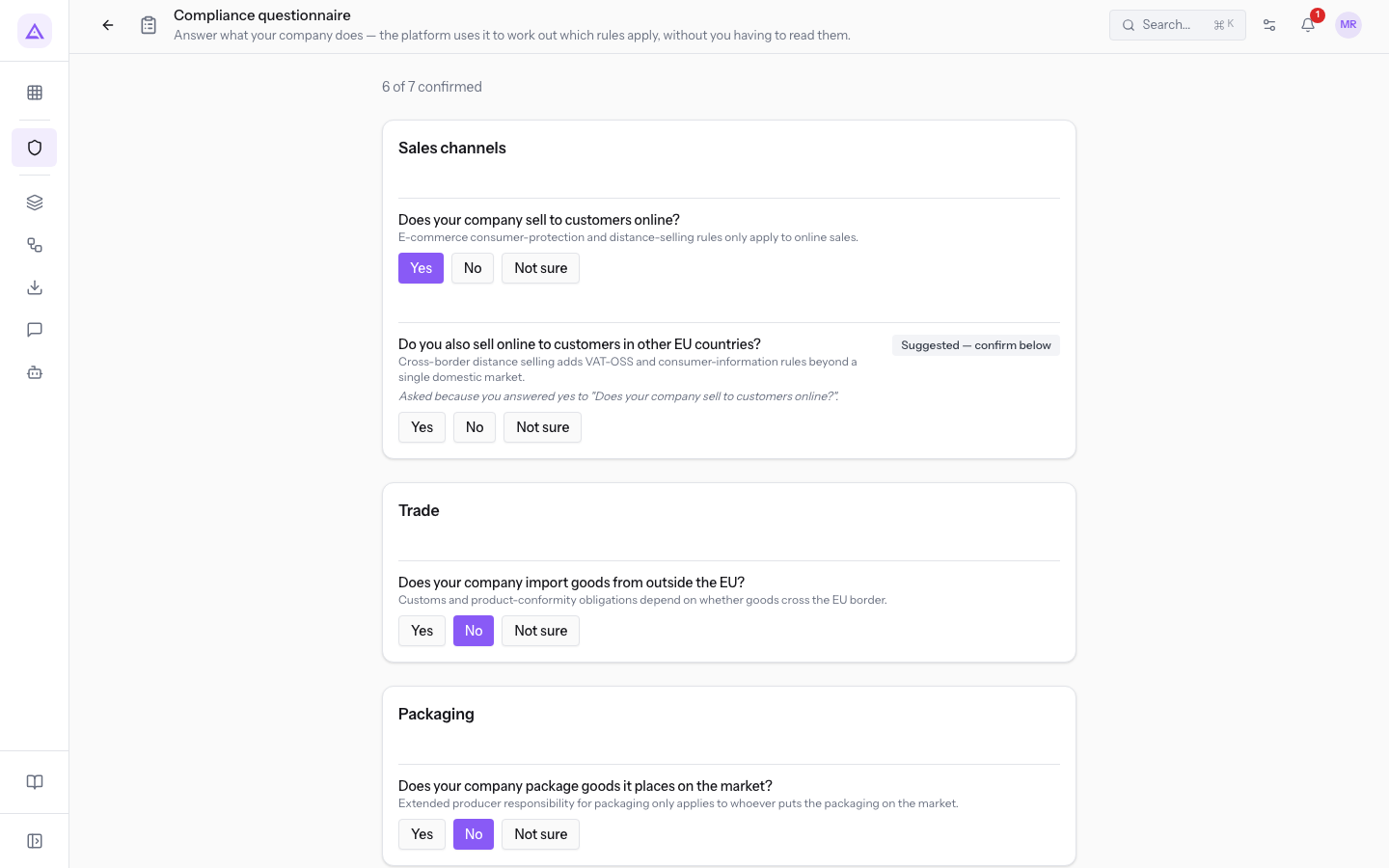
The counter counts only confirmed answers. An answer suggested by the platform is not counted until you confirm it.
Before you start: questions appear only when the basic information is complete. If the main ATECO code is missing or the annual data is missing, the page shows a box with the list of what is missing, and each item leads to the compliance profile.
Choosing the answer
Every answer you give changes the regulations that apply to the company: the register is recalculated immediately.
- If the statement certainly describes the company's activity, choose Yes.
- If the statement certainly does not concern the company, choose No.
- If you do not have the information to answer, choose Not sure and come back to the question when you do.
To answer:
- Read the question and the line below, which explains why it is asked.
- Press Yes, No or Not sure. The answer is saved as soon as you press the button and the counter updates.
Tip: you can change an answer at any time by pressing another button. The register is recalculated with the new answer.
Questions that appear after an answer
Some questions appear only when a previous answer makes them relevant. The question about sales in other EU countries appears if the company sells online. Below these questions a line in italics explains why they appeared.
If other questions can still open, the page indicates this with the message «Con le tue risposte potrebbero sbloccarsi ancora N domande.».
Confirming a suggested answer
When the platform can deduce an answer from what it knows about the company, it proposes it and shows next to the question the badge Suggested — confirm below. A suggested answer is not yet confirmed: no button is highlighted and the counter does not count it.
- Check that the suggested answer is correct for the company.
- Press the button for the right answer. The badge disappears and the answer enters the count of confirmed ones.
The Based on your profile box
When the profile is complete and you have answered all the questions that appear, at the bottom of the page the Based on your profile box appears. The box lists the regulations that apply to the company. For each one it shows:
- the title of the regulation;
- the description of the obligation;
- the line «Evidenza attesa: …», with the document or proof that demonstrates compliance with the obligation, when the regulation indicates it.
Press View the full register to open the compliance register, where you can also find the regulations that do not apply and update the status of each obligation.
Note: as long as there is a question without a confirmed answer, the box does not appear. Answer the remaining questions to see it.
See it on your company, not on a slide deck.
In 30 minutes we map the software you use today.We show you how much work and how much margin Archimedes gives back.
Show me on my business →What industry are you in?
One tap — it lets us prepare the demo around your world.
What tools do you use today?
Pick the ones you recognise — or just type them. It helps us show you how they migrate.
Last step: your details.
We reply within one working day — and right after, if you like, you pick the demo slot yourself.
We couldn't send your request. Try again, or write to us at [email protected].
By sending, you agree to your data being processed so we can get back to you about the demo. Privacy notice.
Preview form — nothing is sent from this page.
Want to schedule the demo now?
Your call: book the slot you prefer yourself, or we'll call you to arrange it.
Live availability, 30 minutes, instant confirmation. The calendar opens in a new tab.
Lock in your slot ↗We'll get back to you within one working day — and we'll join the call already knowing your world.
The calendar is open in another tab: pick a slot and the demo is booked. Can't see it? Reopen it ↗
Preview page: nothing was sent.
Our calendar is live: take the slot that suits you and the demo is booked. 30 minutes, instant confirmation, no waiting.
Lock in your slot ↗