Compliance
All modules
Keeping the register of processing activities
Compliance · 8 of 14 · 6 min read
The register of processing activities is the register required by Art. 30 of the GDPR. Archimedes builds it from the modules and vendors the company uses. From this page you generate it, download it as a PDF, and add the activities the product cannot know about.
The Register of Processing Activities page
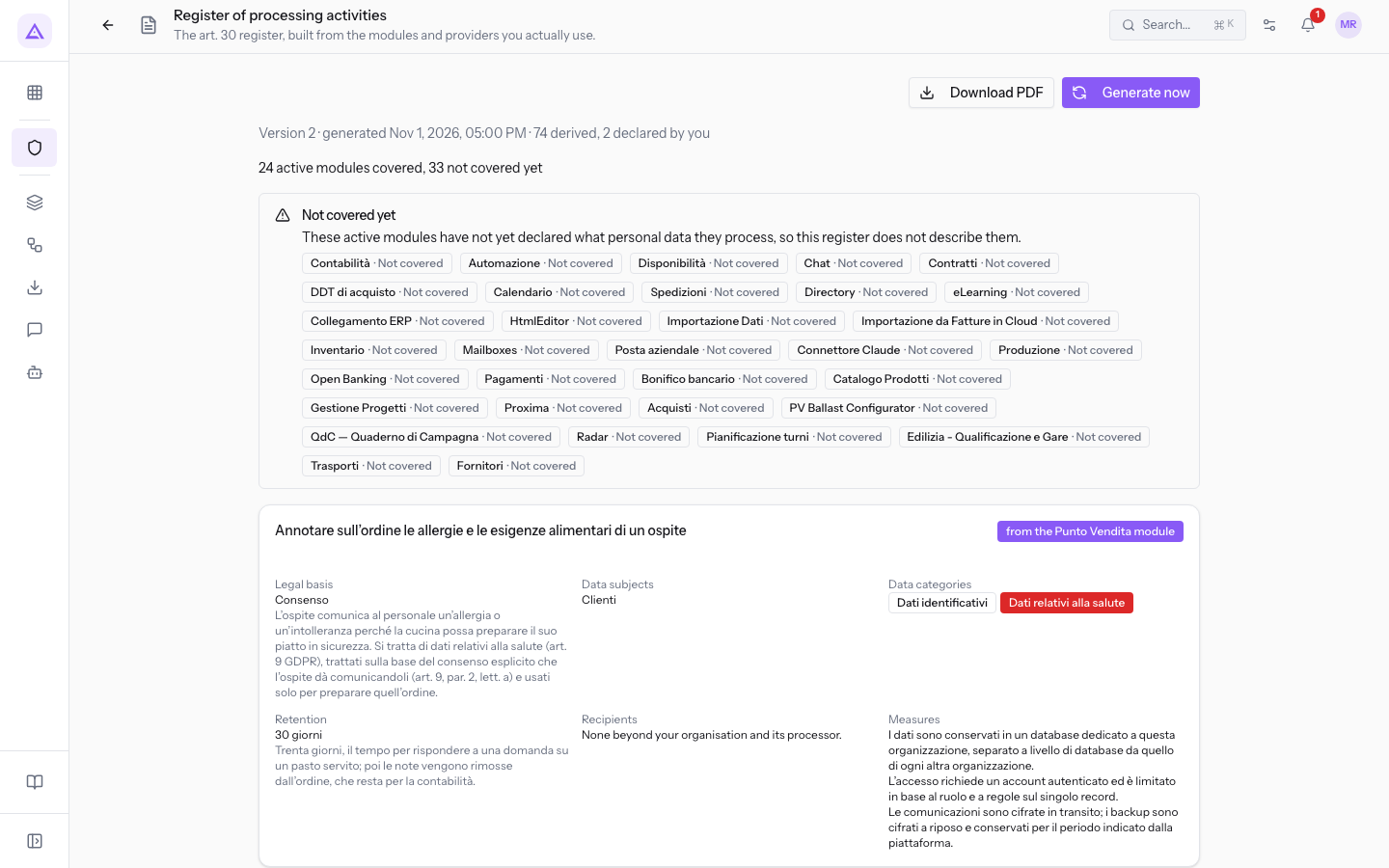
To open the page, press Register of processing in the Compliance overview. The subtitle is «Il registro ex art. 30, costruito dai moduli e dai fornitori che usi davvero.»
The page shows, from top to bottom:
- the Download PDF and Generate now buttons;
- the version row, with the number, the date and time of generation, and how many activities are derived from modules and how many are declared by you. In the demo the row starts with «Versione 2 · generata il 1 nov 2026, 17:00»;
- the coverage row, with how many active modules are covered and how many are not yet covered;
- the Not covered yet notice, if there are uncovered modules;
- the register activities, one card per activity;
- the Activities you declared yourself box;
- the list of generated versions, when there is more than one.
If you have never generated the register, the page shows «Nessun registro è ancora stato generato.»
Module coverage
The register describes only the modules that declare what personal data they process. Every active module that does not declare this appears in the Not covered yet notice: «Questi moduli attivi non hanno ancora dichiarato quali dati personali trattano, quindi questo registro non li descrive.» In the demo the notice lists, among others, «Contabilità · Non coperto» and «Automazione · Non coperto».
Important: the processing activities of uncovered modules do not enter the register on their own. If needed, declare them yourself from the Activities you declared yourself box, described further on.
Generating and downloading the register
Each generation creates a new version of the register, with the data of the modules and vendors active at that moment plus the activities you have declared. Regenerate the register when something that concerns it changes. For example when you activate or deactivate a module, change a vendor, add or remove a declared activity.
If something changes after the last generation, the page shows the notice «Qualcosa è cambiato dopo la generazione di questa versione: genera di nuovo per aggiornare il registro.»
- Press Generate now. The product creates a new version and updates the version row.
- Press Download PDF to download the PDF of the version shown on the page. The button appears only after you have generated the register at least once.
Note: the processing register is also part of the Producing the compliance dossier for an inspection.
Reading a register activity
Each register activity has its own card. At the top are the activity name and, if present, a brief description. Next to it is a label that says where the activity comes from:
- from the module: the activity is declared by an active module and the label shows the module name, for example «dal modulo Contatti».
- from the vendor: the activity comes from an external vendor used by the company and the label shows the vendor.
- «dichiarata da te»: the activity was entered by you from the Activities you declared yourself box.
- «dai dati della tua azienda»: the activity comes from the organisation's data.
Below, the card shows these fields:
- Legal basis: the reason that makes the processing lawful, for example consent or a legal obligation. Sometimes there is a note below that clarifies it.
- Data subjects: the people whose data is processed.
- Data categories: the types of data processed, each in a label. Special categories of data, such as health data, have a highlighted label.
- Retention: how long the data is kept and, if present, the reason for that duration. If data categories have different durations, the card lists the duration of each. Without a duration the field shows a dash.
- Recipients: who receives the data beyond the company. If there are no recipients, the field says so.
- Measures: the security measures applied to the processing.
For a recipient located outside the EU, the row indicates the safeguard used for the transfer. If no safeguard is registered, Safeguard missing appears with the text «Questo destinatario è fuori dall'UE e per il trasferimento non è registrata alcuna garanzia.»
Important: with Safeguard missing the transfer outside the EU has no registered basis. Check with your consultant before presenting the register.
Declaring an activity manually
The Activities you declared yourself box collects the processing activities the product cannot know on its own: «Ciò che il prodotto non può sapere: videosorveglianza, un archivio cartaceo, un contratto tenuto fuori dal sistema.»
Decide whether to declare an activity manually:
- If a processing activity takes place outside Archimedes, declare it. In the demo the activity Guest registration forms is declared.
- If a module processes data it does not declare, manually declare that data. In the demo the activity Guests' allergies and intolerances is declared, which concerns health data.
- If the processing activity already appears with a module or vendor label, do not declare it again: it would appear twice in the register.
- On the page, press Add an activity. The Add an activity window opens.
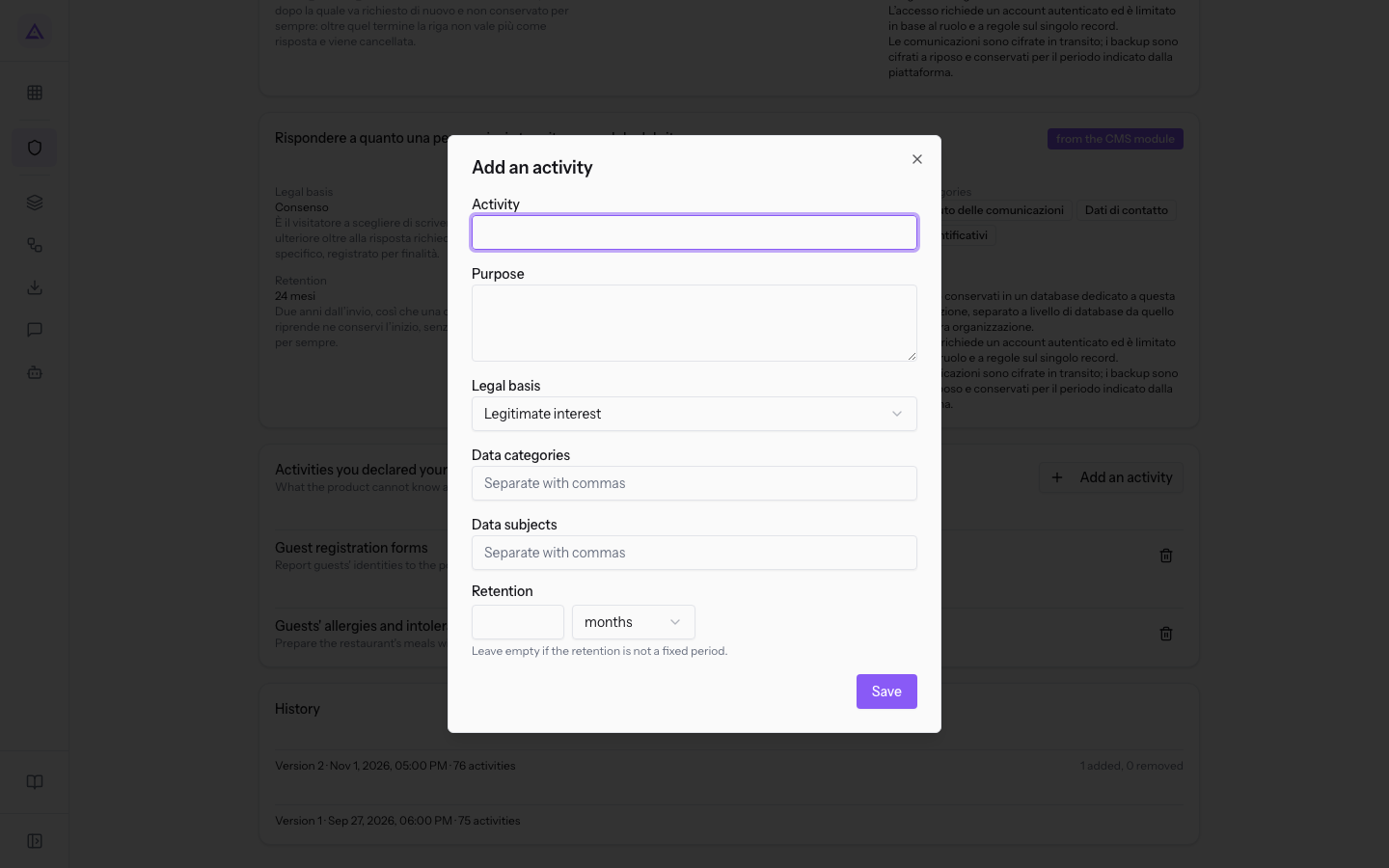
- Fill in the fields and press Save. The activity appears in the Activities you declared yourself box with the name and purpose.
The window fields:
- Activity: the name of the processing activity, for example Guest registration forms.
- Purpose: the purpose for which you process the data.
- Legal basis: the reason that makes the processing lawful. The default value is Legitimate interest. The options are:
- Performance of a contract: the data is needed to perform a contract with the person.
- Legal obligation: a rule requires the processing.
- Legitimate interest: the company has its own interest that justifies the processing.
- Consent: the person has given their consent.
- Vital interests: the processing protects the life or health of a person.
- Task in the public interest: the processing serves to perform a task in the public interest.
- Data categories: the types of data processed, separated by a comma. Each entry becomes a label in the card.
- Data subjects: the people whose data you process, separated by a comma.
- Retention: the duration, in two fields.
- How long: a whole number.
- Unit: days, months or years. The default value is months.
- Leave How long empty if retention has no fixed duration: in the register the field will show a dash.
Important: in the Activities you declared yourself box the bin icon next to an activity deletes it immediately, without asking for confirmation.
Version history
When the register has more than one version, at the bottom of the page a box lists them all. Each row shows the version number, the date and time of generation, and the number of activities. Next to it, for each version, there is how many activities were added and how many were removed compared to the previous version.
Use the version history to show how the register has changed over time. For example, after you have activated a module or declared an activity manually.
See it on your company, not on a slide deck.
In 30 minutes we map the software you use today.We show you how much work and how much margin Archimedes gives back.
Show me on my business →What industry are you in?
One tap — it lets us prepare the demo around your world.
What tools do you use today?
Pick the ones you recognise — or just type them. It helps us show you how they migrate.
Last step: your details.
We reply within one working day — and right after, if you like, you pick the demo slot yourself.
We couldn't send your request. Try again, or write to us at [email protected].
By sending, you agree to your data being processed so we can get back to you about the demo. Privacy notice.
Preview form — nothing is sent from this page.
Want to schedule the demo now?
Your call: book the slot you prefer yourself, or we'll call you to arrange it.
Live availability, 30 minutes, instant confirmation. The calendar opens in a new tab.
Lock in your slot ↗We'll get back to you within one working day — and we'll join the call already knowing your world.
The calendar is open in another tab: pick a slot and the demo is booked. Can't see it? Reopen it ↗
Preview page: nothing was sent.
Our calendar is live: take the slot that suits you and the demo is booked. 30 minutes, instant confirmation, no waiting.
Lock in your slot ↗